Hello Gamecrafters! The Blueprints update launches tomorrow, this includes a powerful new tool that will let you build games 50x more quickly, build bigger and better games, and collaborate as a community to make great games together. Tomorrow we’ll post a shorter announcement as soon as the update goes live which will include a summary of key features. But if you’re itching to know what is coming, read on!
Blueprints
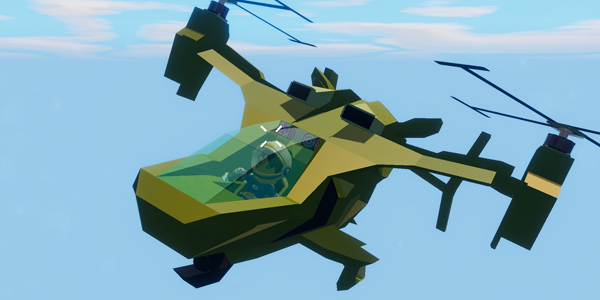
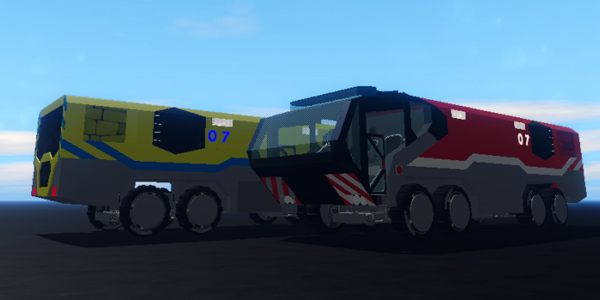
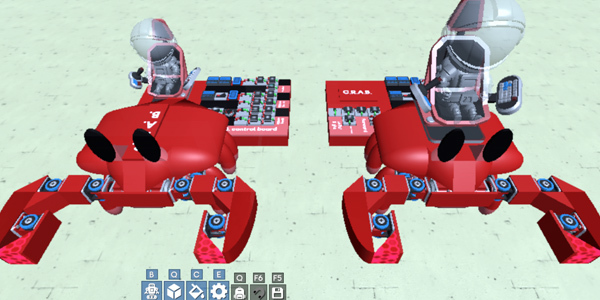
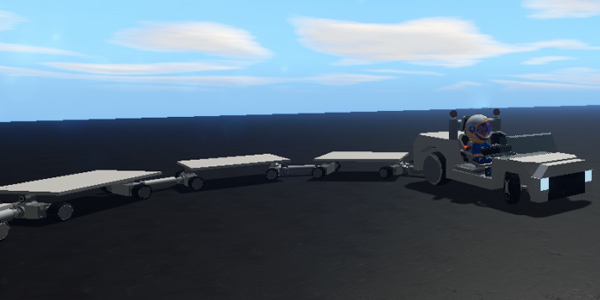
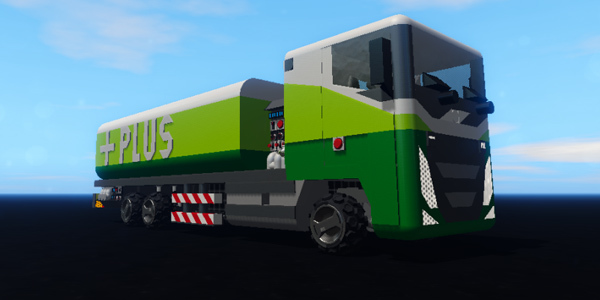
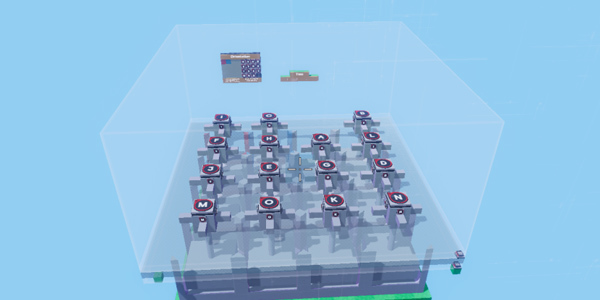
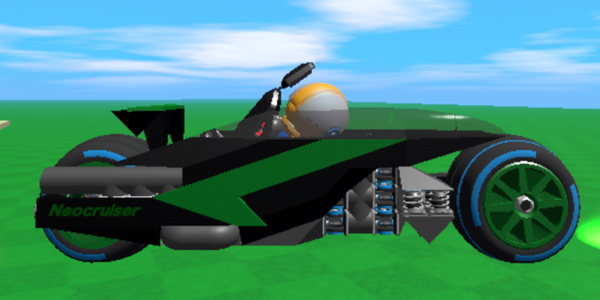
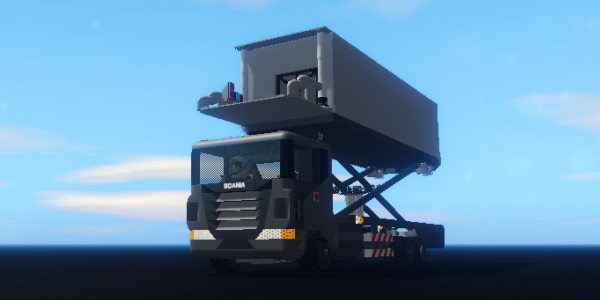
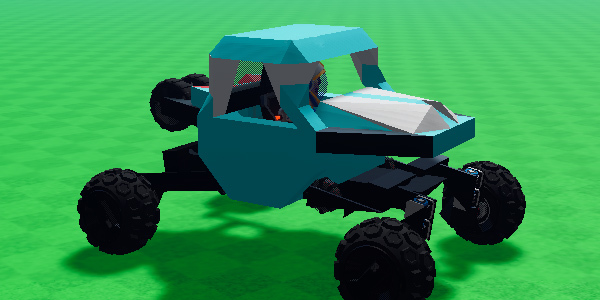
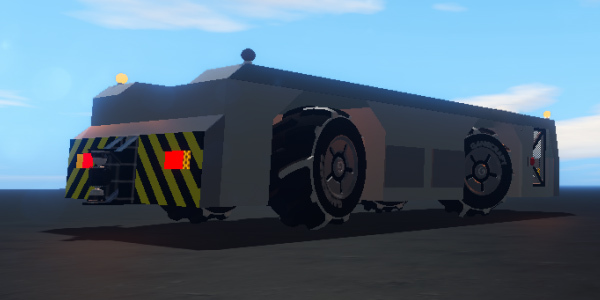
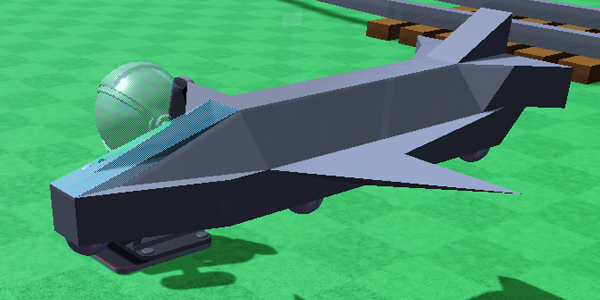
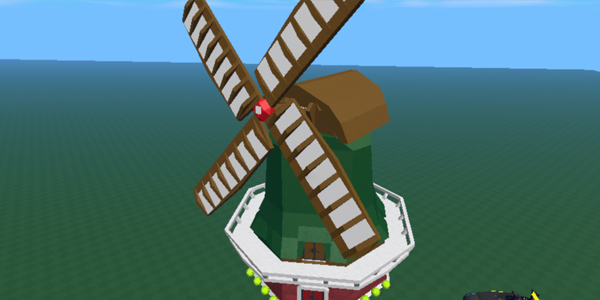
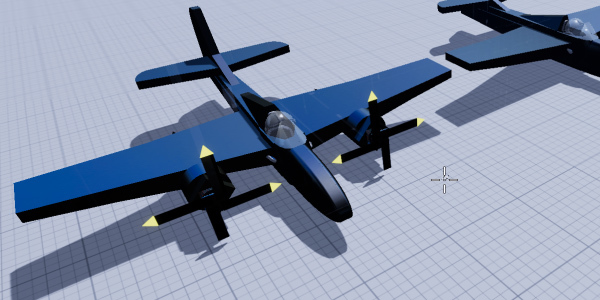
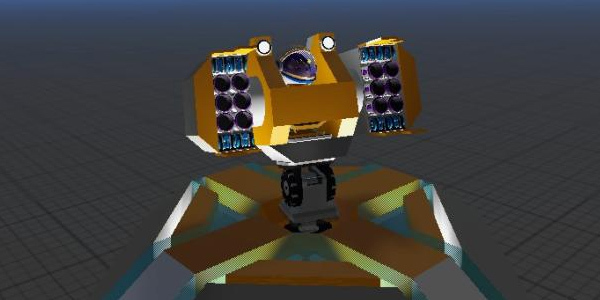
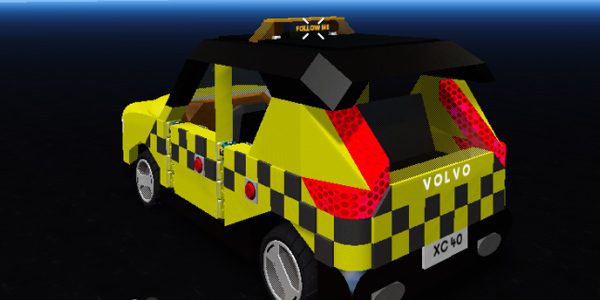
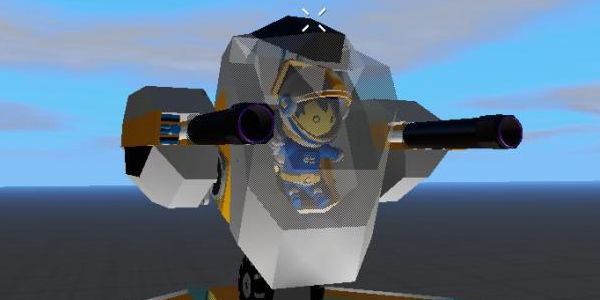
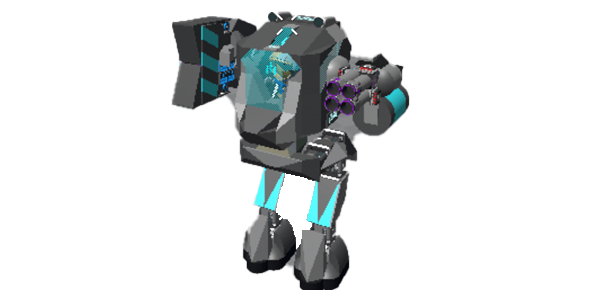
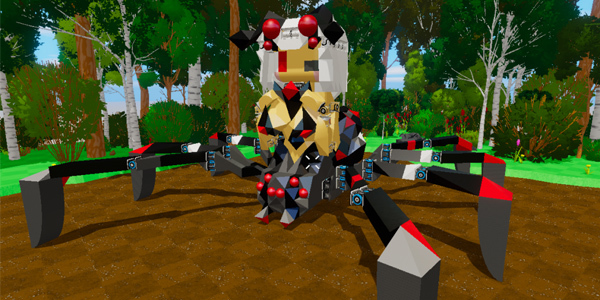
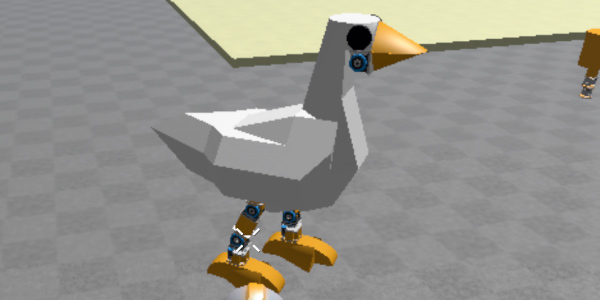
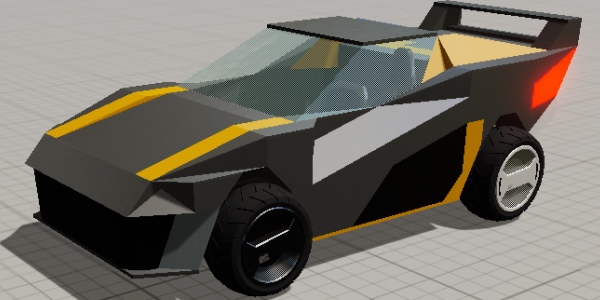
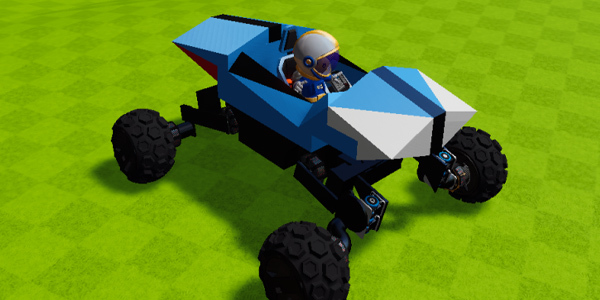
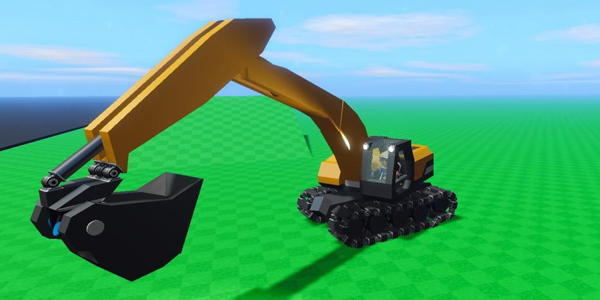
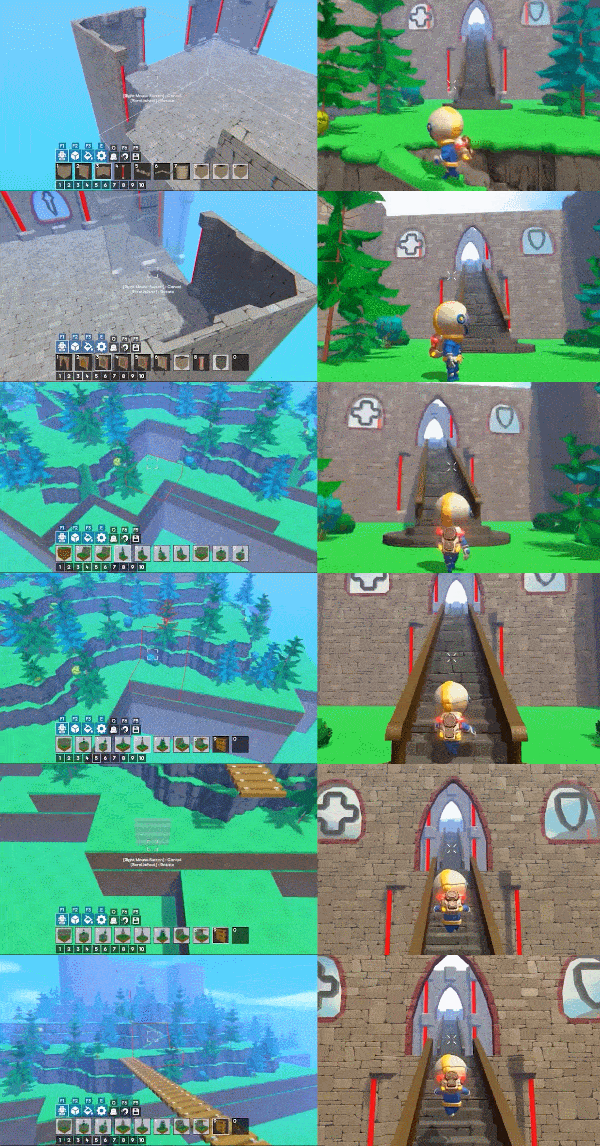
Blueprints are a selection of blocks that can be grouped together and saved. Instead of needing to create a vehicle or a house from scratch, a blueprint will remember all the blocks and the logic systems attached to it. This will speed up your creativity when creating game modes. This will also allow those new to building to use high quality assets created by the community to build their first games much more easily too.
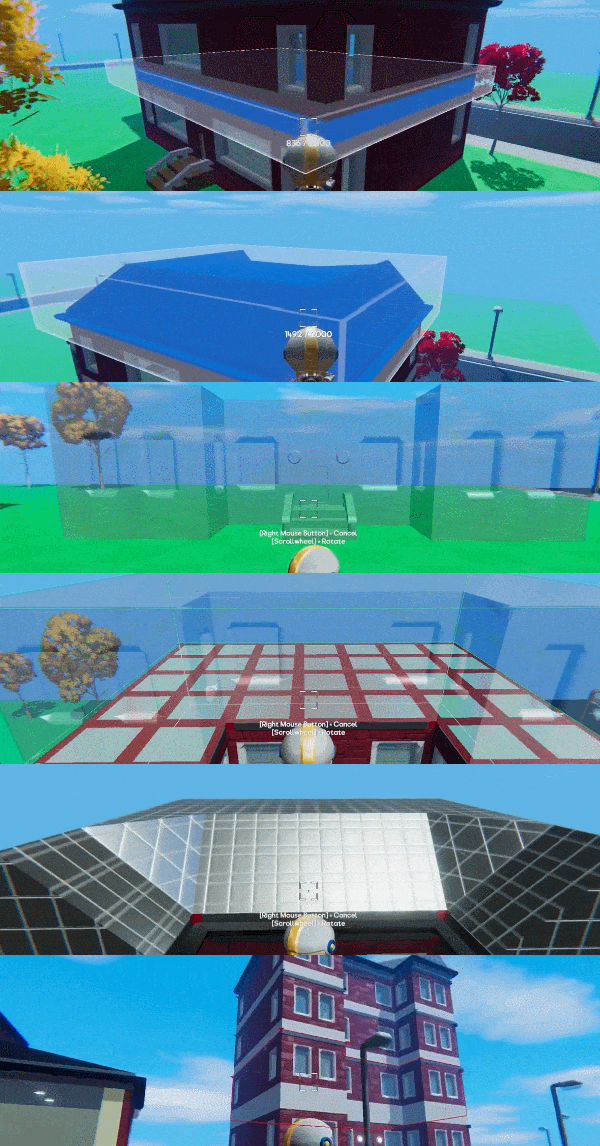
When you copy a selection of blocks, they will be stored on your clipboard as a new blueprint. The game will remember your last ten blueprints and you can add these to your hotbar to access them with ease. The game will also remember your last ten blueprints even if you quit the game and load it back up!
Sets
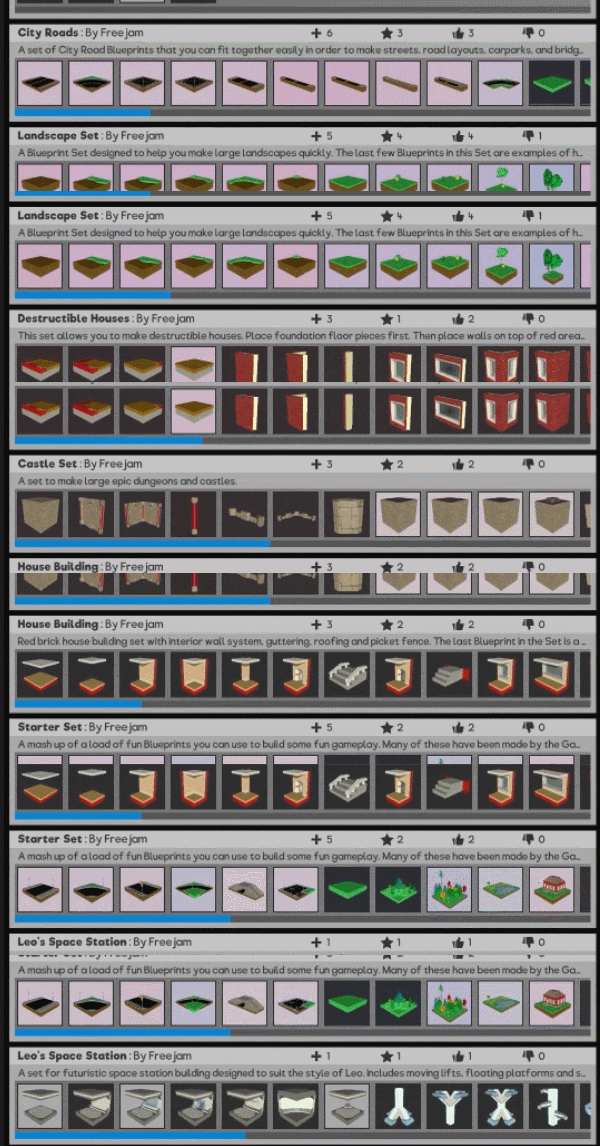
If you’ve made a blueprint that you want to keep hold of, you’re able to add it to a set. This will keep your blueprint safe and will free up your clipboard to copy other creations. Each set can contain up to 64 blueprints, but you can load and unload sets whenever you want! Perhaps one set contains a space station or even a castle. The sets can drastically change in their purpose and even theme.
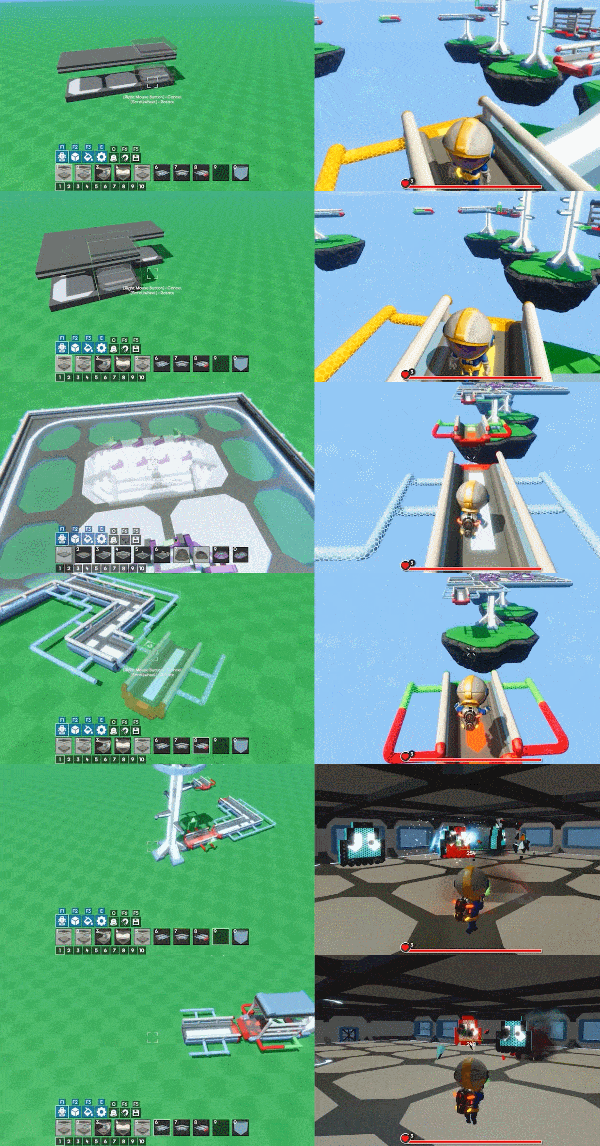
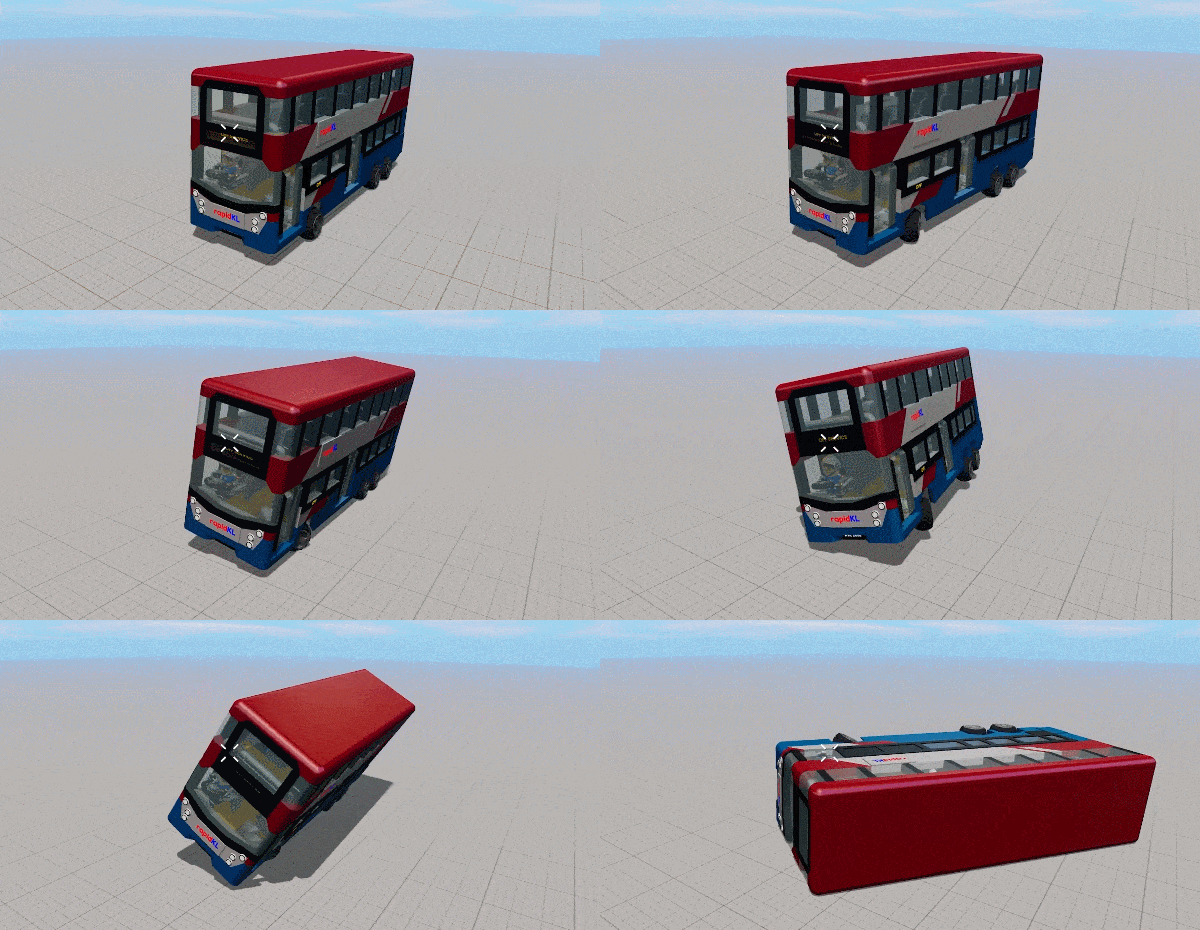
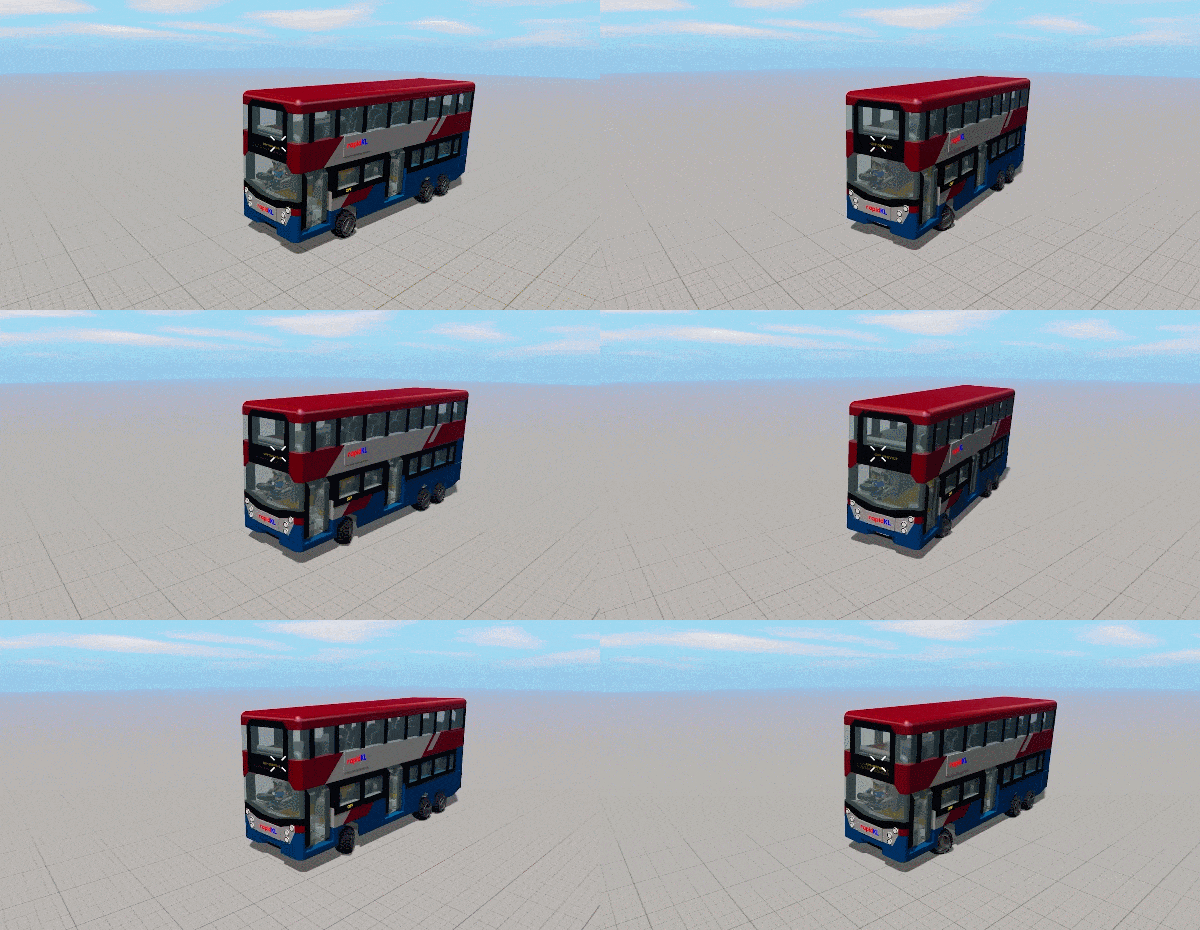
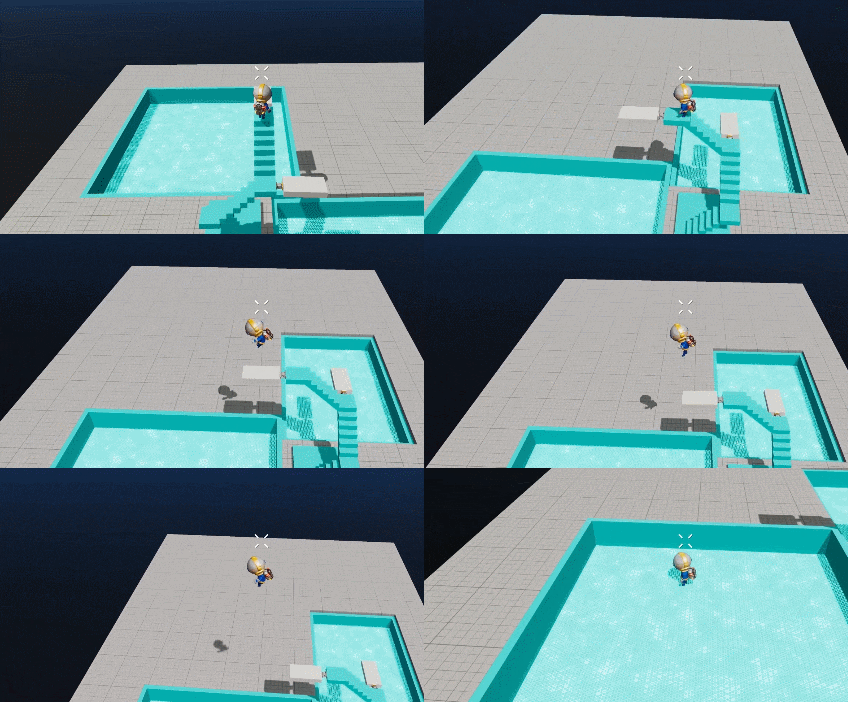
NB: Each blueprint will have an image generated, based on the position of the player at the moment it was created. This will be one of 4 fixed angles so make sure you position yourself to snap a great, clear image of your blueprint.
Collaboration and sharing
Blueprints opens up Gamecraft to become a more powerful creation tool for new players, hardcore engineers and game makers.
Experienced creators can upload their blueprint sets for anyone to download, these can be liked, subscribed to and anyone can leave a comment to the creator to let them know what they think of their blueprint. These are uploaded via Steam's workshop system and we anticipate that there will be thousands of incredible blueprint sets available for any Gamecrafter to download.
We want to see epic collaborations between gamecrafters! Artists can share their beautiful environments, engineers can share their inventive contraptions and game makers can pull from the resources of all creators to create incredible experiences for others to play. We are very excited about what this will mean for all of you and can not wait to see what you all build together.
Additionally, if you create an amazing Blueprint Set and we feature it, you’ll win a free T-Shirt, so get crafting, get sharing, get downloading!
Mode Changes
General Changes
We’ve made a couple of big changes to how placing, deleting and selecting work with this update. One core change is that clicking the Right-Mouse button will first ‘deselect’ any part or blueprint you are holding. In this state, right clicking again will delete objects as normal.
While in Blueprint mode, if you try to delete a blueprint object, it will delete the entire object. But if you want to delete only a few blocks individually, entering block mode will allow this.
Clicking LMB with nothing selected will now bring back the last thing you were holding, whether that’s a regular cube, a wheel or even a giant spaceship blueprint. Left clicking again places as you would expect.
Box Selection as a tool
To create blueprints you will still use ‘Box Selection’. By holding LMB you can create a box around the parts you want to group together as a blueprint. The only difference here is that you need to make sure you have nothing from your hotbar selected. Clicking the Right-Mouse button to deselect your current part or blueprint will give you access to this tool.
With these parts highlighted, pressing CTRL+C will keep the origins parts, creating a copy as the blueprint. CTRL+X will cut these parts and make them into a blueprint and DEL will simply delete everything inside the selection.
This can be accessed in both Blueprint and Block mode.
Outliner
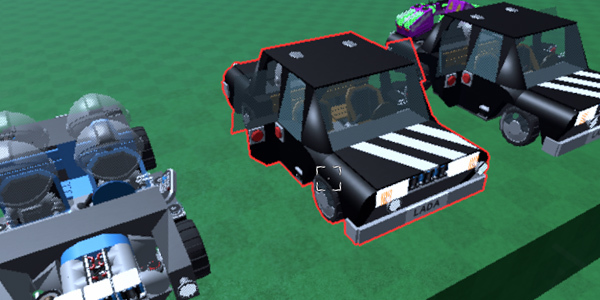
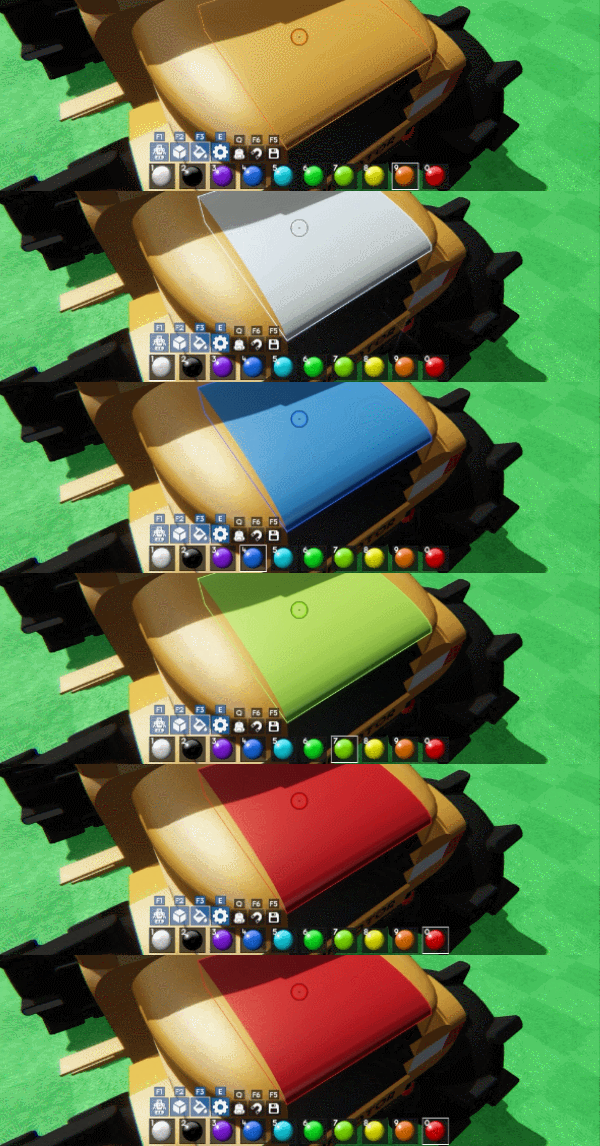
While you have nothing selected, looking at a part or blueprint will show a red outline around it. The behaviour of this changes a little depending on which mode you are in. In blueprint mode, entire blueprints will be grouped together and outlined as one. While in Block mode, individual cubes and parts will be highlighted instead. So the wheel of a car can be highlighted as could a single spring, giving you more information on how things are built.
In Color Mode the outliner will also reflect the color that you currently have selected.
Blueprint Mode
In this mode you can place and delete blueprints. We posted about this earlier in the announcement but we’re really looking forward to seeing what blueprint sets you make!
From the Inventory you can create new sets out of your current Blueprints, publish your sets and download others made by the community.
Block Mode
No major changes to the functionality here but we’ve removed the extra hotbar here to make things consistent across all modes.
Color Mode
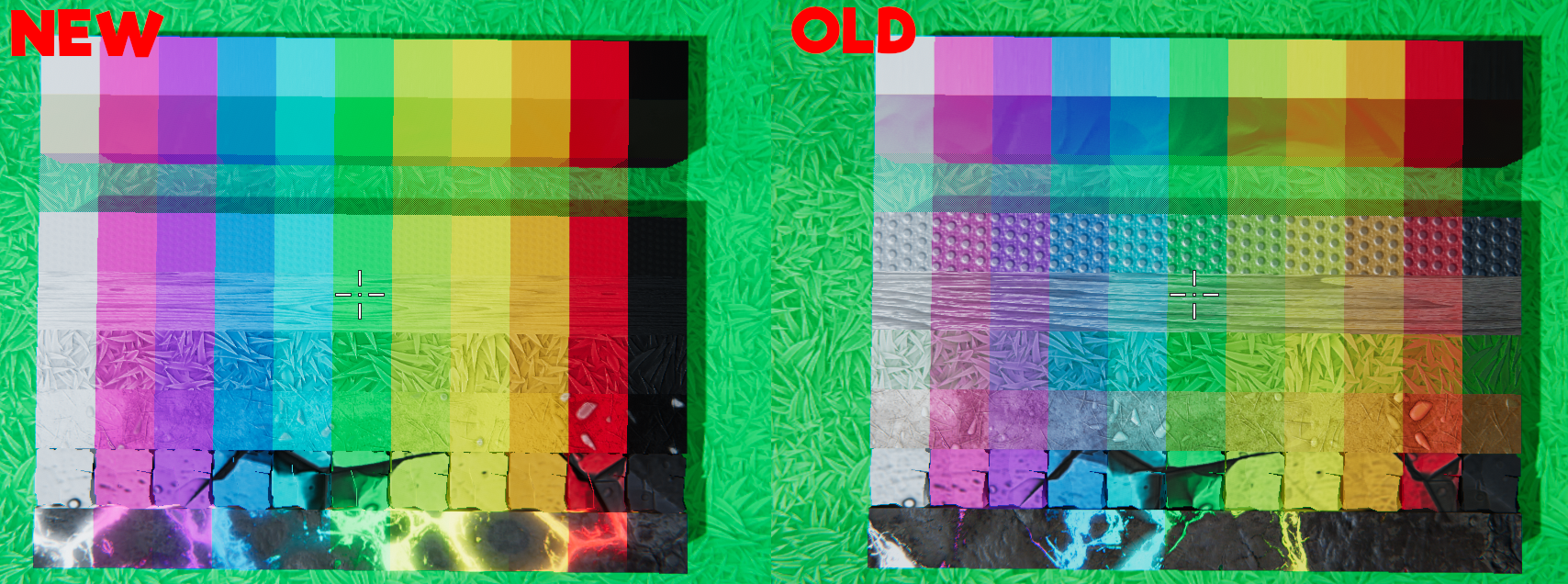
In the inventory you can now create your own color hotbars. Previously we provided 10 fixed pages of color swatches. You can now drag and drop colors from the Inventory to the hotbar to create any color sets you want.
Config Mode
The core functionality is the same here.
The hotbar in this mode now reflects the one you came from, as a little bit of polish. Pressing E again will swap you back to that mode.
Smart Snap
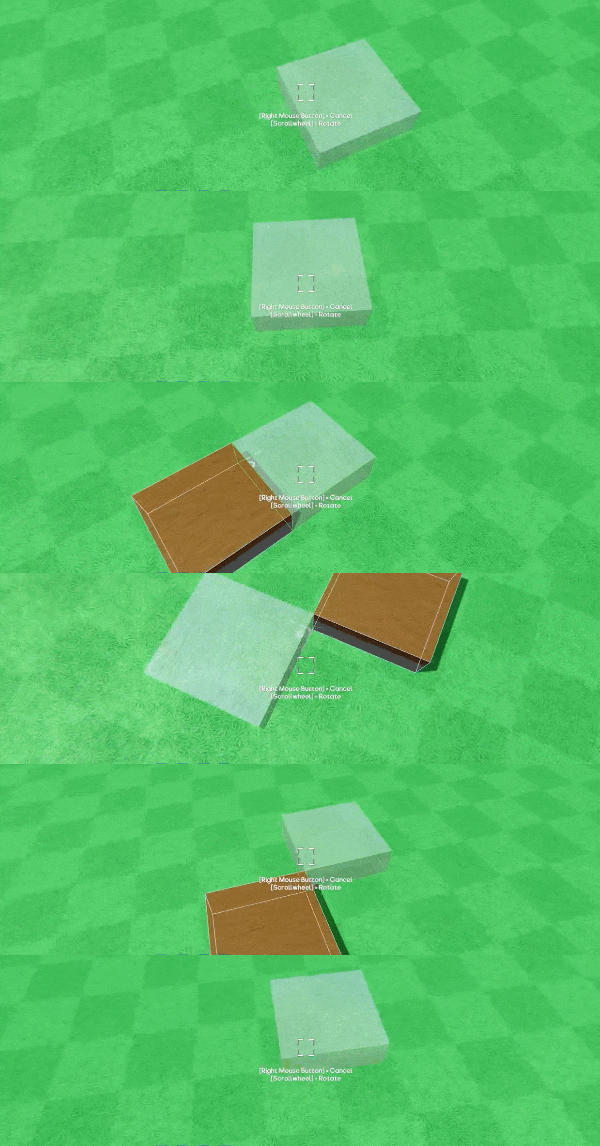
New smart-snap tool works perfectly with Blueprints to make it super easy to place things together. When enabled, if you place a blueprint near another one, it will snap to one of the corners. Works with all sorts of sizes and blueprints.
In block mode this will only apply to objects larger than 1x1x1 but functions the same way. This can be toggled off with F6 if you need finer control sometimes.
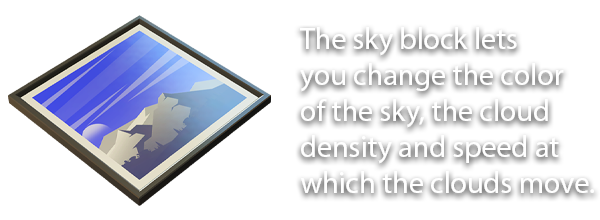
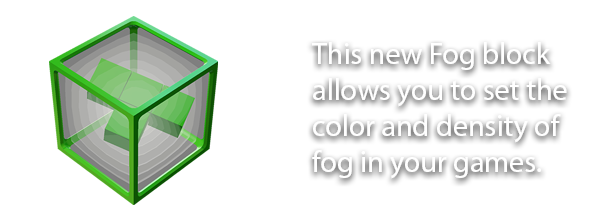
Fog & Sky Blocks
Ongoing Optimizations
As part of our ongoing work to deliver smooth and powerful gameplay to everyone we're pushing another round of optimizations with this update. This time the focus is mainly on static cubes i.e. cubes that simply do not move, whether those are Grass cubes or other cubes that are attached to Grass. Larger levels that have a lot of static scenery and objects should have some very noticeable performance increases.
On top of that we're also targeting our minimum spec machines with some more optimizations. The Fastest quality setting now has resolution downsampling, which should bump up the framerate considerably. Lastly, we've got some further optimizations to Havok, again mainly targeted at machines on the lower end. There's plenty more coming in future updates too!
Other Changes
Character flight changes
We’ve made a couple of changes to the way Leo moves in creative mode. The first is a new setting in the new “Game Options” screen. This new setting allows you to toggle whether touching the ground while flying will automatically switch you into walk-mode. This will be disabled by default.
The second change is the addition of tweakable flight speed. Two new sliders allow you to set how fast Leo moves while flying around, as well as how much faster you move while holding run in this state.
LODs and Culling
We’ve added a first pass of LOD’s for all parts to slightly improve performance. This also includes some changes to stop rendering parts that are quite far away, although this does need more fine tuning.
Ghost Cube Coloring
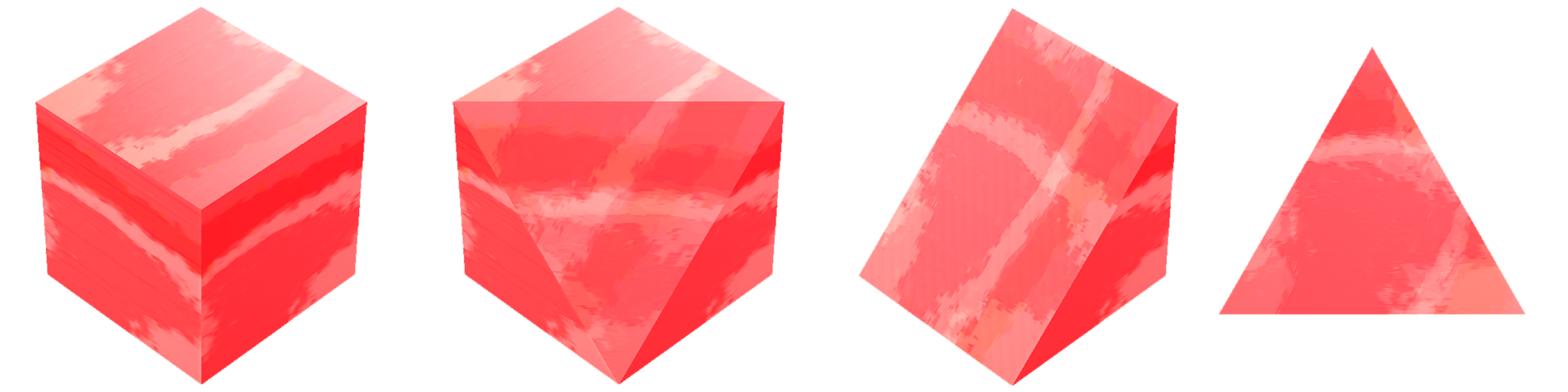
With blueprints it was quite hard to tell what they actually were, especially if you had a square tile that was just dirt and grass. As an improvement to this we’ve changed the ghost cube to include the material and color of it’s contents in both block and blueprint mode.
Updated Hotkeys
We’ve updated some of the default keybinds for everyone with this update:
- Blueprint Mode is F1
- Block Mode is F2
- Color Mode is F3
- Debug Info is F8
A few other notable changes are:
- New creative saves will have destruction disabled by default. Add a Destruction/Modifier to your games to enable destruction
- New default creative map with larger Grass and Dirt tiles
- Prefab Workshop renamed to Random Creations
- Invisible lights have been moved next to their standard verison in the Inventory
- Reduced the frequency of tiny collision audio
- Improvements to non-uniform scaling
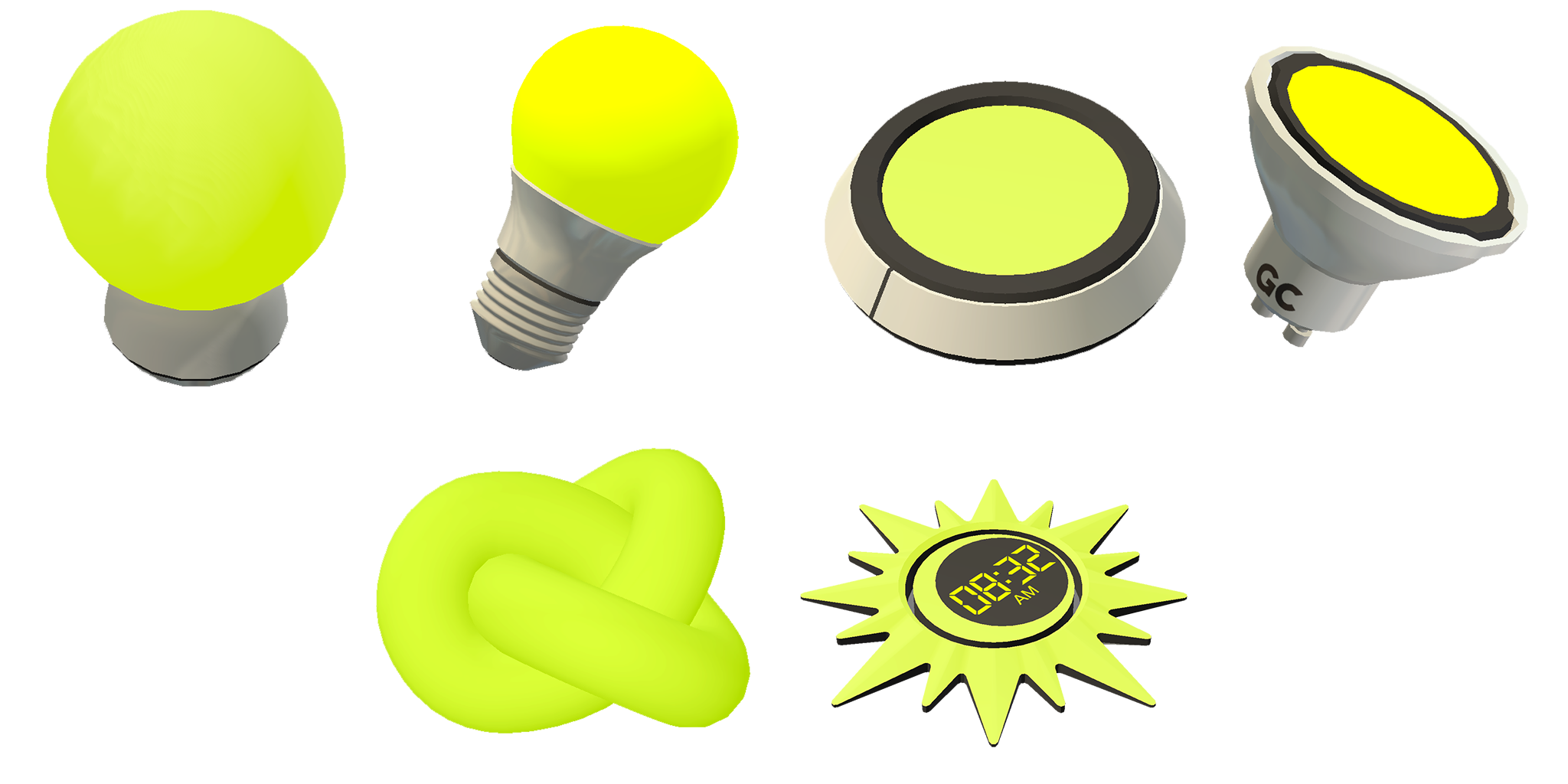
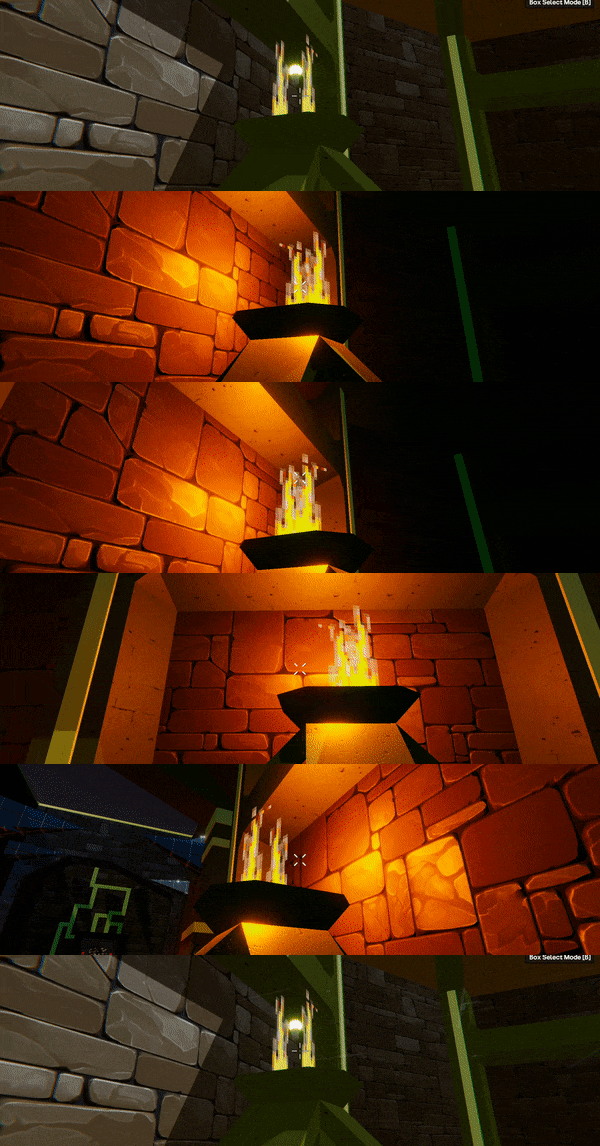
- Increased the maximum Intensity and Range of Spot and Point lights
- Increased the maximum intensity of the Sunlight block
Bug Fixes
- Fixed an audio bug where objects of different sizes colliding could play the wrong sound
- Fixed a bug with Music block tracks not being on the Music channel
- Fixed a bug that prevented multiple Music blocks from being active at the same time
- Fixed a bug with some Sound block clips not being on the Effects channel
- Fixed some inconsistent interaction ranges with placing, selecting and deleting blocks
- Clipboards (now Blueprints) that contain seats and certain other parts can now be placed inside building spawn points
- Invisible lights no longer affect the overall health of chunks they are attached to
- Fixed incorrect destruction fragments on foliage parts
- Fixed some visual issues with icons and search fields in the Community Games/Random Creation screens
- Fixed low resolution checkmarks in filters on lower quality settings
- Fixed a bug that gave the player infinite ammo if when picking up ammo while seated
- Pause menu has been recentered
- Fixed Incorrect coloring on Magma effects when viewed at an angle
The Gamecraft Team