Improve ChatGPT compatibility API to support more free API services

Improve ChatGPT compatibility API to support more free API services

Add support for local AI LLM: Support for Ollama API to implement support for local AI LLM, support download LLM from Ollama library. Tutorial: Repair and improve support for ChatGPT compatible API: support custom ChatGPT API URL and compatible with various compatible APIs, add A
Improve and optimize support for some chat service
Fix the issue where certain VITS-API sites are unable to generate audio
Fix small issues and improve software stability
Fix small issues to improve software stability

Add VITS-API Support, Support Network TTS Add Support Bubble Offset Option


Fix the issue where sometimes the close button of the chat bubble dialog cannot be clicked.
Improve UI,Fix small issues,Improve software stability
Fix small issues to improve software stability
Fixed the issue of the model moving off-screen during dance Fixed the occasional problem of unsubscribing failed Fixed the occasional problem of model loading failure Improve the logic for reading the content within quotation marks
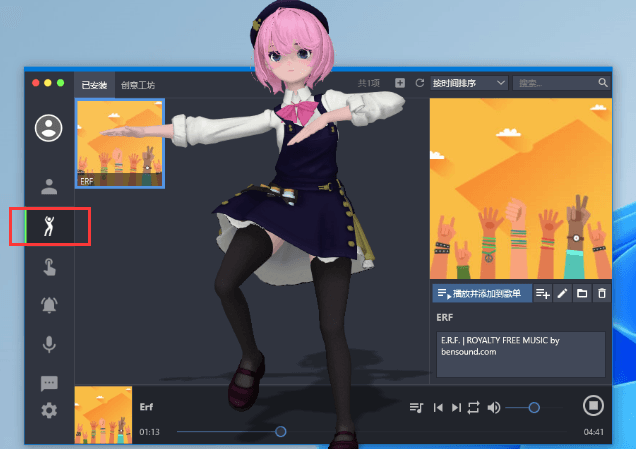
Add dance functionality, clicking the dance icon in the icon list on the left side of the software main window will switch you to the dance page. Support voice command to control the character to start dancing: Click the microphone icon on the left side of the software main windo
Add dance functionality, clicking the dance icon in the icon list on the left side of the software main window will switch you to the dance page.

Support voice command to control the character to start dancing: Click the microphone icon on the left side of the software main window, switch to the "Voice Command" page in the upper right corner, click the add button on the right side, select the command type as "dance" from the dropdown in the new voice command, and save. Now you can simply say the voice command "dance" to make the character start dancing.


In the software's Settings > Hotkeys section, you can configure shortcuts for starting/stopping dancing, skipping to the next track, going back to the previous track, adjusting the volume, and more.

At the bottom of the dance page, click the playlist button to create and switch to specific playlists.

Click the Add button at the top of the dance page to create a new dance. For detailed instructions on how to convert and import MMD's VMD dance after transformation, please refer to this comprehensive tutorial with images and videos : https://www.bilibili.com/read/cv6004818


Add option "Only Read Text Between Quotation": You can Enable this option at Voice>TTS Add More Chat Services Support


In the chat record list interface, right-click on any chat record with the mouse. Click on "Font..." in the pop-up menu to modify the font name, size, and color of the chat record. Chat records for users and chat records for characters can be separately customized. After selectin
In the chat record list interface, right-click on any chat record with the mouse. Click on "Font..." in the pop-up menu to modify the font name, size, and color of the chat record. Chat records for users and chat records for characters can be separately customized.

After selecting a chat record, you can also use the keyboard shortcut Ctrl + plus/minus key to quickly adjust the font size of all chat record text.
Fixed the issue of automatically jumping to the chat interface after loading a character.

In the DigitalMate settings, switch to the "Jailbreak" page, check the "Enable Jailbreak Mode" option, then input or download the jailbreak main prompt and Jailbreak Prevent Topic Drift Prompt below. This will help you to bypass restrictions and enable unrestricted chatting.

Optimize voice wake-up with nickname Fix the issue where chat bubbles are not automatically hidden after ending a conversation in web mode Correct the problem of reading out unicode emoticons during speech

Add option to disable the microphone: Click the microphone icon on the left side of the main window to open the voice management page. In the upper right corner, you can enable or disable the microphone. After disabling the microphone, voice wake-up and voice command functions wi
Add option to disable the microphone: Click the microphone icon on the left side of the main window to open the voice management page. In the upper right corner, you can enable or disable the microphone. After disabling the microphone, voice wake-up and voice command functions will not be available.

Tray icon right-click menu also includes a menu item for enabling/disabling the microphone for convenient and quick access

New shortcuts have been added to quickly mute and unmute the microphone: In the software's Settings > Shortcuts page, you can configure shortcuts to quickly mute/unmute the microphone. The default shortcut is Shift+Alt+Q,


Add the voice command for "Next Song": In the voice command settings, add a new command of type "Next Song" and save. You can then use the voice command "Next Song" to control the currently active music player in the system to switch to the next song. This feature is compatible w
Add the voice command for "Next Song": In the voice command settings, add a new command of type "Next Song" and save. You can then use the voice command "Next Song" to control the currently active music player in the system to switch to the next song. This feature is compatible with the majority of music player software and does not require specific settings.
Fix the issue of missing lip sync for certain models during speech: Address the problem of some PMX models, especially those converted from VRM or XPS, not moving their mouths or lacking proper lip sync when speaking.
Improve several other minor issues: fixed the problem where unicode emoticons were not being read correctly during narration.


Add an option to disable the idle action of sitting on the ground: After disabling this option in the software's "Settings > Models" menu, the character model will no longer perform the idle action of sitting on the ground. Add an option to include current time in reminder tex


Add custom voice wake-up keyword settings for each character. Setup setp: Click the 'Edit' button on the character list interface or click right-click-popup-menu to edit, then in the opened character editing window, select the 'Custom Wake-up' page. At the bottom, you can use the
