
We sat down and read your reviews and the discussions on the store page, and this build is what came out of it. Most of it answers something one of you asked for or ran into. It is a big update, it is on the develop branch only, and we need your help testing it before it goes to everyone.
Getting started
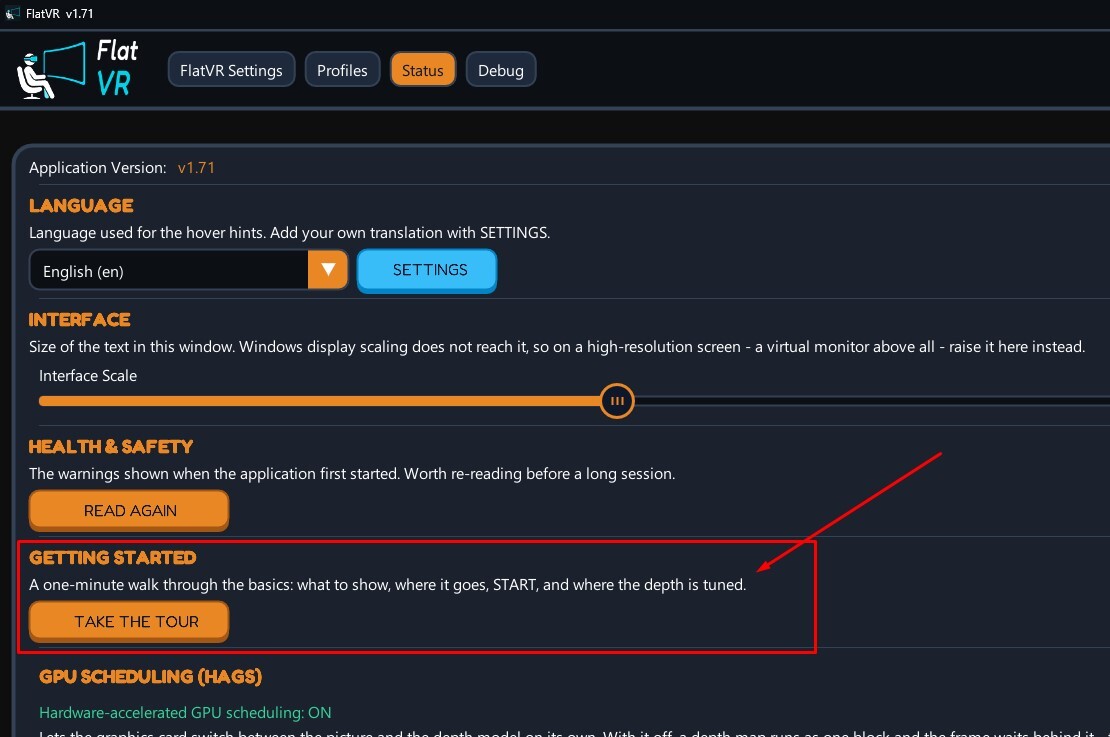
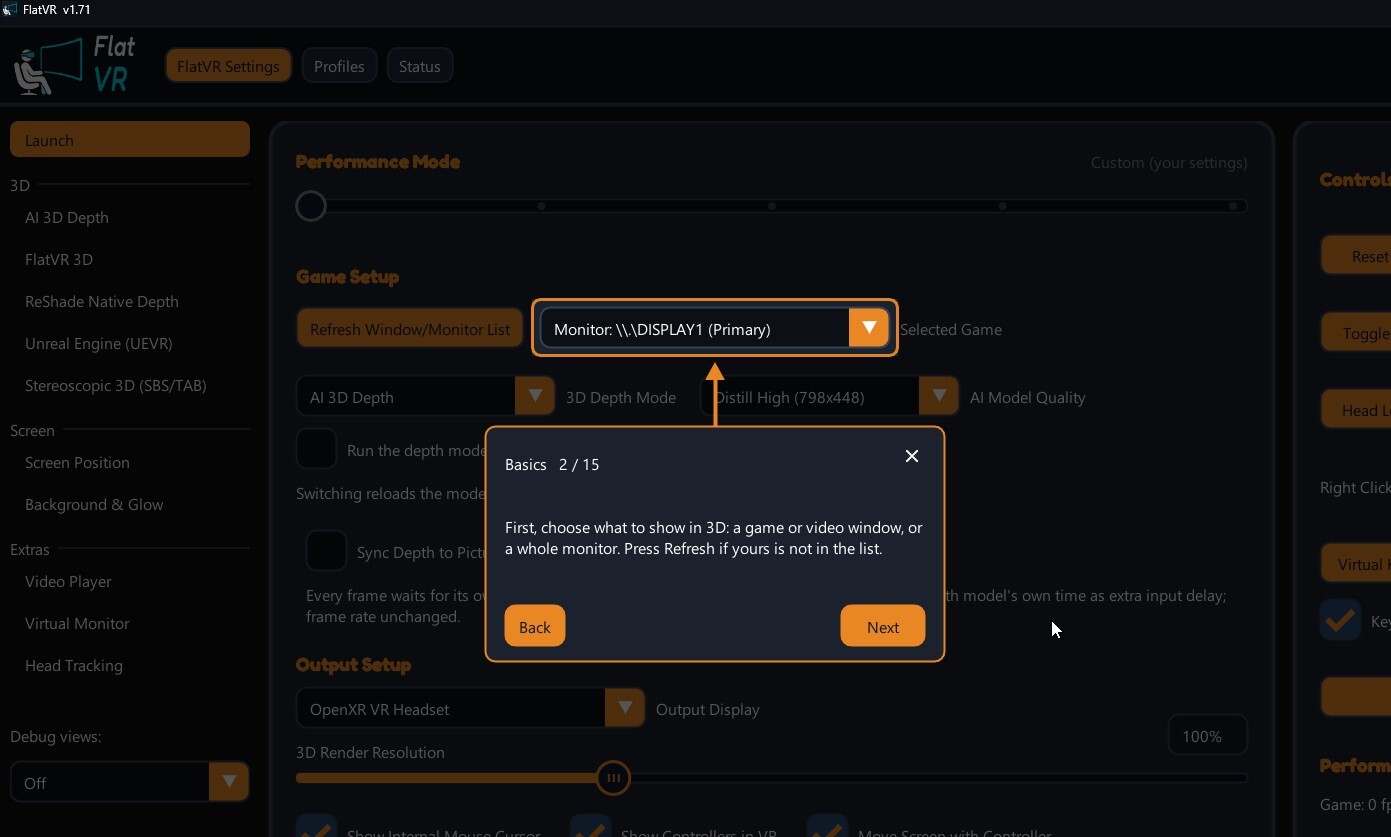
A guided tour. Several of you said FlatVR is not plug-and-play and it is not obvious what to do in what order. On a new install FlatVR now walks you through it: the screen dims, the control in question lights up with an arrow and a short caption. Five tours - Basics, AI 3D Depth, ReShade, Screen and Video Player - and TAKE THE TOUR on the Status tab brings them back any time. In all 16 languages.
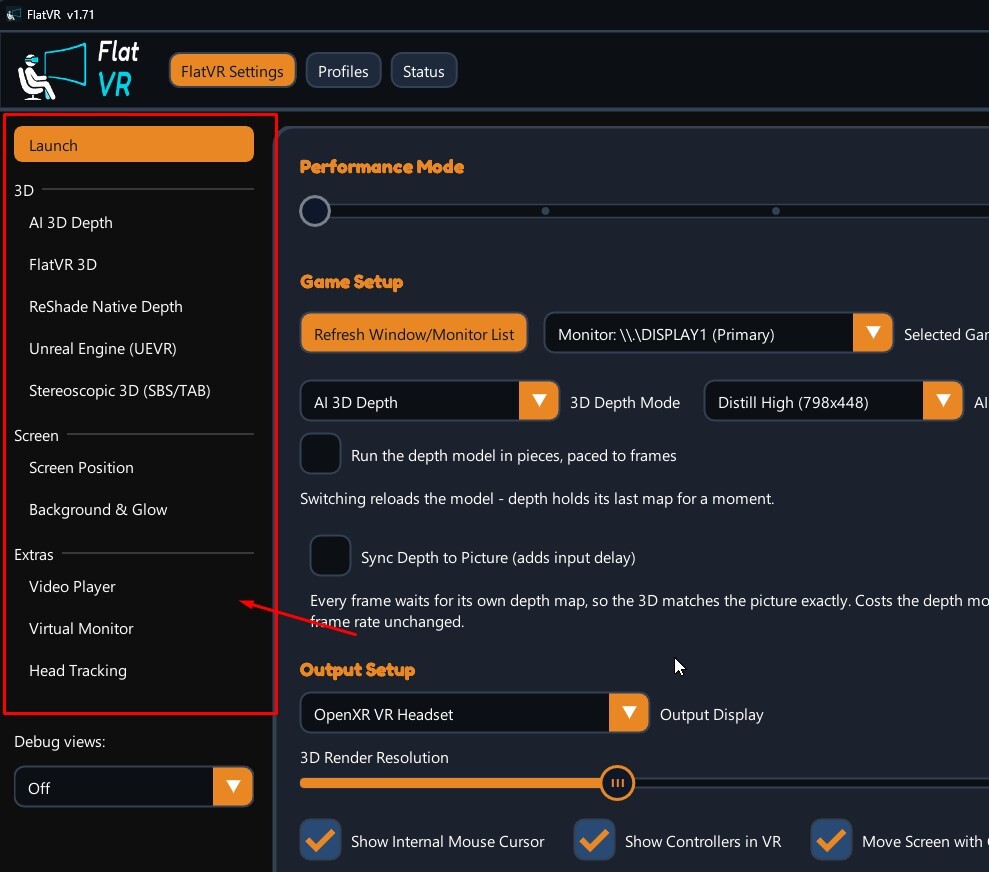
The menu is in sections. Launch on top, then 3D (AI depth, FlatVR 3D, ReShade, Unreal Engine, Stereoscopic 3D), Screen, and Extras. The Blur page is now called Background & Glow, which is what is on it.
ReShade is set up on its own page, with one button.Install into Game... puts FlatVR's depth addon next to the game you pick, downloads ReShade with add-on support from reshade.me and opens its installer on that game. Check for Update fetches a newer ReShade when there is one.
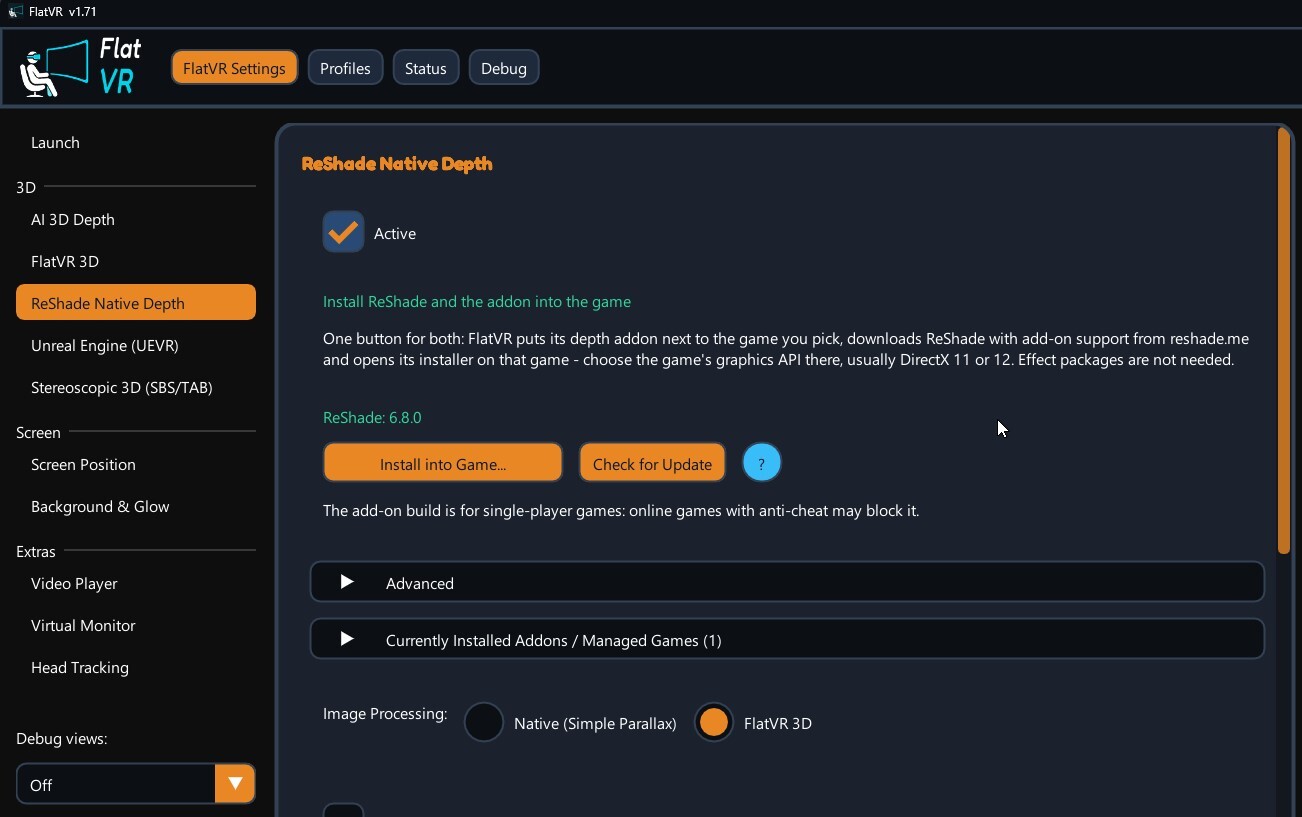
An "Active" box on the AI, ReShade and UEVR pages switches that depth source on (and the others off) right where you are, instead of going back to the main page.
The whole interface is translated into all 16 languages, the video player, UEVR and headset pages included. Japanese, Chinese, Korean and Hindi switch over at once, with no restart.
Video player
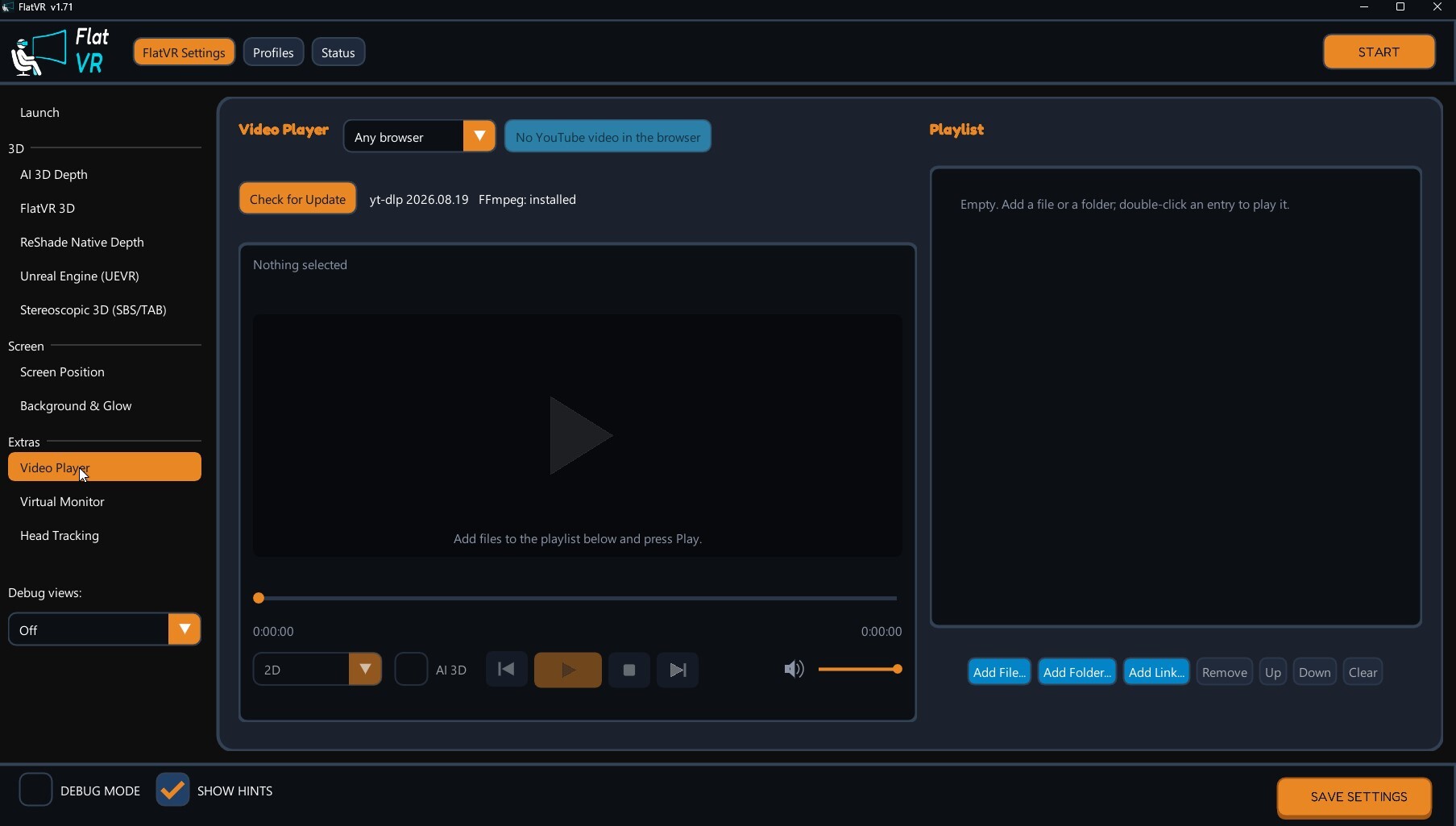
360° and 180° video, mono and stereo, from your own files - detected from the file itself, or pick it in the layout list.
YouTube.Add Link... takes a YouTube address, or open any video in your browser and press Play from the browser: it loads into the player and starts in the headset. Pick the quality and, where the video has dubs, the sound track, as on YouTube itself. The same button is on the headset panel.
360° AI 3D and 180° AI 3D: a flat 360 video gets real depth from the AI. Depth only where I look (on by default) spends all of the model's detail on the part in front of you and follows your head. This is the newest part of the build - we especially want to hear how it looks.
One button installs yt-dlp and FFmpeg (about 100 MB, from their official pages) for YouTube links and HEVC/AV1 files, and Check for Update keeps yt-dlp current - YouTube changes often, and an old yt-dlp stops opening links.
AV1 decodes on the graphics card where the card supports it, and seeking in a YouTube video takes about a second.
In the headset
A keyboard in the headset, flat like Virtual Desktop's: type with the controller beam, move it with the grip, key sounds on a switch. It uses your Windows keyboard languages, Chinese, Japanese and Korean through the Windows IME. Bind it under Controls (Virtual Keyboard).
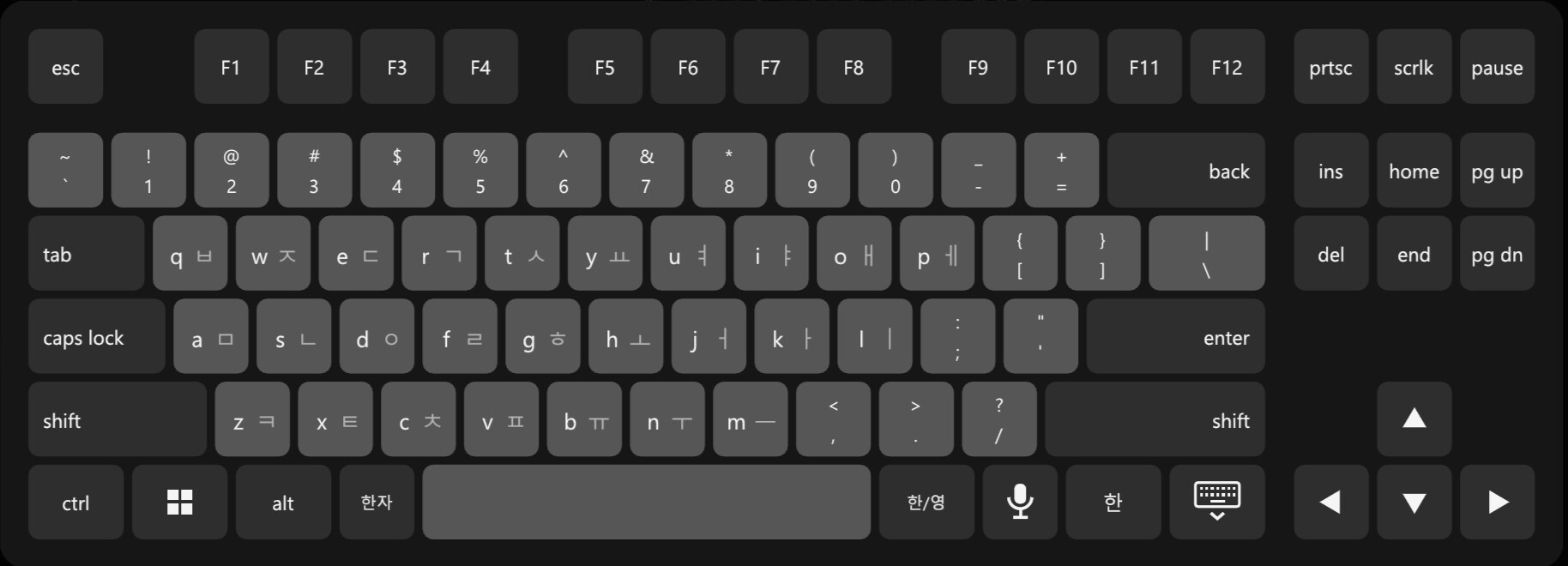
Right Click from the controller - a new binding under Controls, not bound by default, for context menus.
Mouse and laser no longer fight. The cursor belongs to whichever moved last, the real mouse or the controller beam.
Recenter and Toggle Overlay work on every key the binding window offers, Insert and Delete included (thanks for the Pimax report). Touch inputs are no longer offered as bindings, since they could not trigger anything.
Picture
Brightness, Contrast and Gamma sliders for the headset and the side-by-side window - for dark scenes that crush to black, HDR that looks washed out, or a PSVR2 that looks dull.
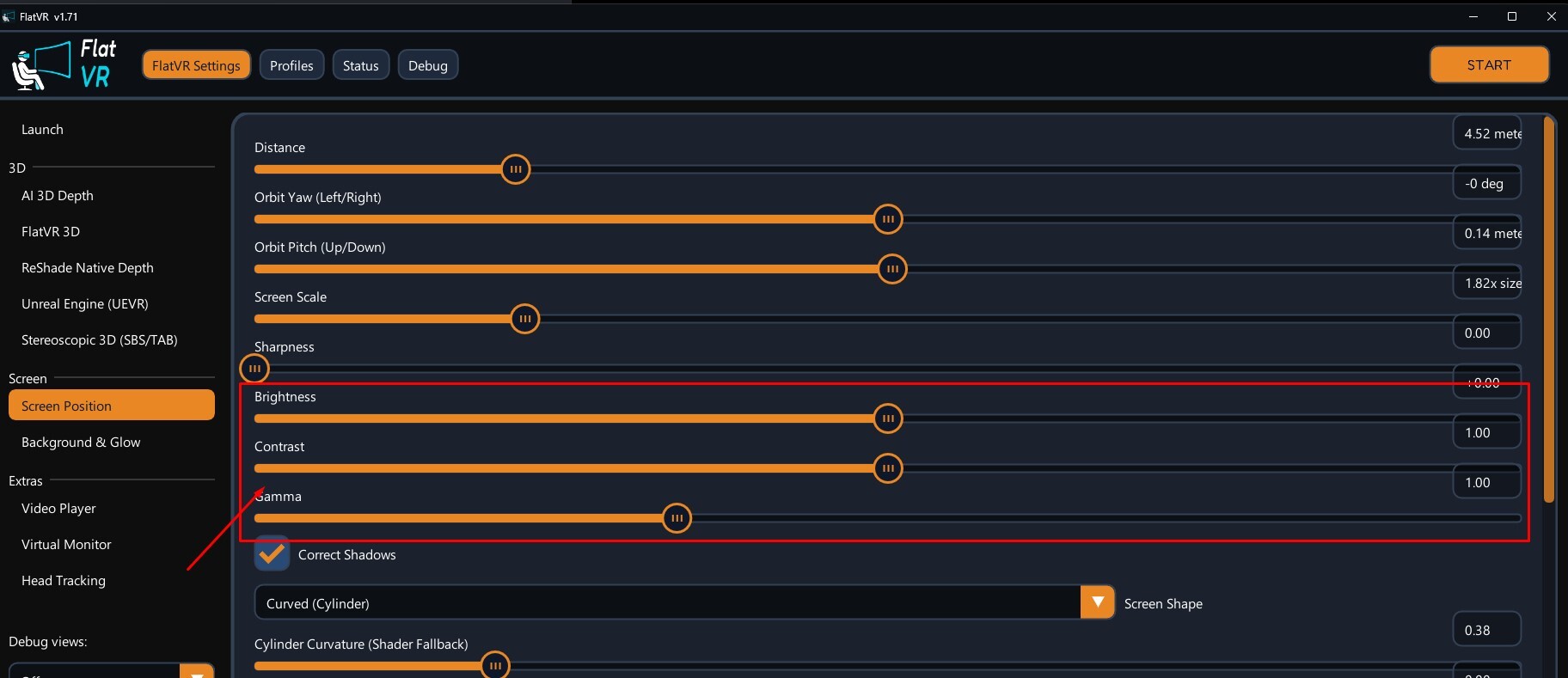
Correct Shadows decodes the picture with the exact sRGB curve instead of the 2.2 approximation, so the darkest levels stay apart instead of turning black. It is on by default - if dark scenes look worse to you, untick it and tell us.
Custom Size for the side-by-side window: set its width and height yourself.
Netflix, Prime Video and other protected video: when the picture comes out black, FlatVR now says why and what to do (turn off hardware acceleration in the browser).
What to test
Everything above is new, so anything you use is worth a report. The ones we can least check ourselves: the tour on a fresh install, ReShade's Install into Game... on your games, YouTube and 360° video in the player (especially 360° AI 3D), the headset keyboard in your language, and Correct Shadows on your headset. If something breaks, a crash report or a message here is all it takes - and if something works well, we would like to hear that too.
How to switch: right-click FlatVR in your Steam library → Properties → Betas → develop. To go back, pick default. Your settings are kept either way.