
About Virtual Avatar
Virtual Avatar is for users to use Live2D model as avatar in Live Stream. You can use microphone to syncronize the model mouth, and set hotkeys for model motions and expressions to trigger them manually.
How To Use (with OBS Studio)
- Connect microphone device to your PC
- Start Live2DViewerEX in Desktop Mode and load a Live2D Model
- In Widget page, enable 'Virtual Avatar', you will see a microphone icon on desktop
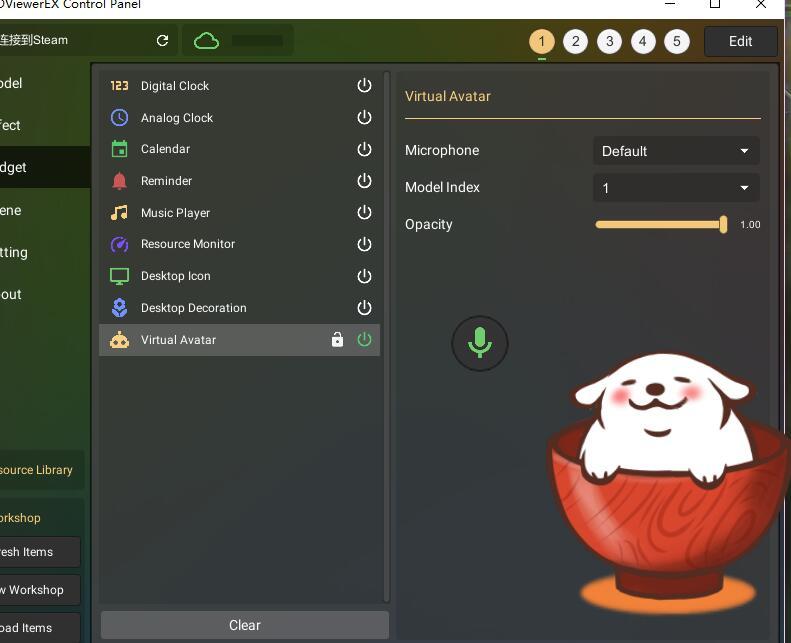
- Click the microphone icon to enable microphone, say something to test if it works properly
- In Tray setting, confirm the option 'Compatible with OBS Studio' is checked
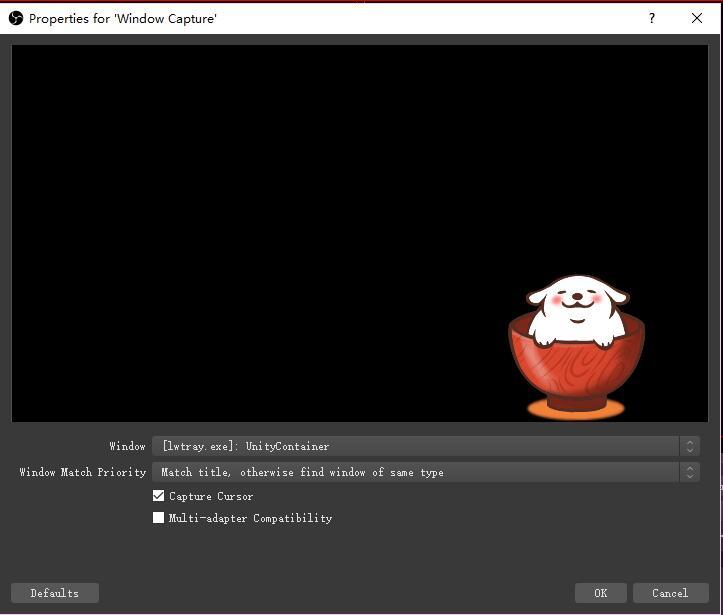
- Start OBS Studio, add a Window Capture source, select Live2DViewerEX (lwservice.exe or lw.exe) window
- Add a Color Key filter, change Key Color to Black (#00000000)
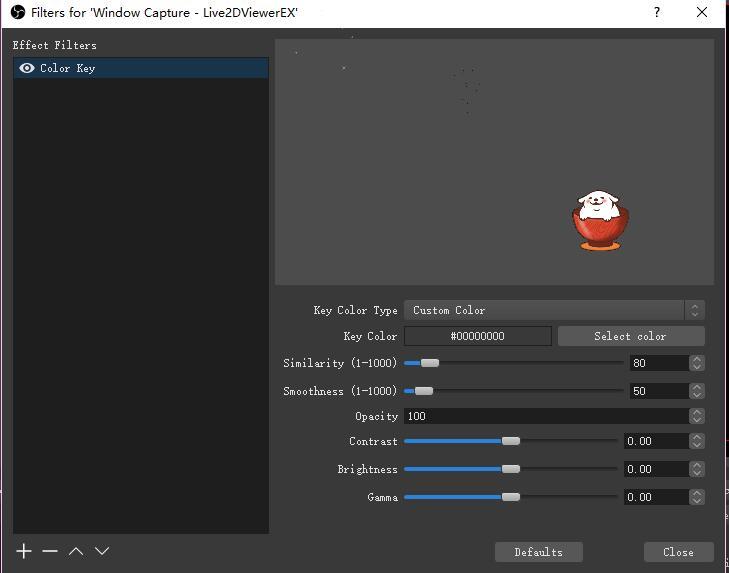
- Now you can see the model is in front of all sources

- You can also set hotkeys for motions and expressions to trigger them manually when you need
