
A whole new interface
This update replaces almost every menu in Task Force. We rebuilt the server browser, rankings, stats and settings, along with the way you create a lobby and find community maps. Everything follows one design: tactical blue panels, clear tabs, a trail along the top showing where you are, and a BACK button that returns you to where you came from. It scales cleanly at every resolution, from 720p to 4K, and on 16:9, 4:3 and super-ultrawide screens.
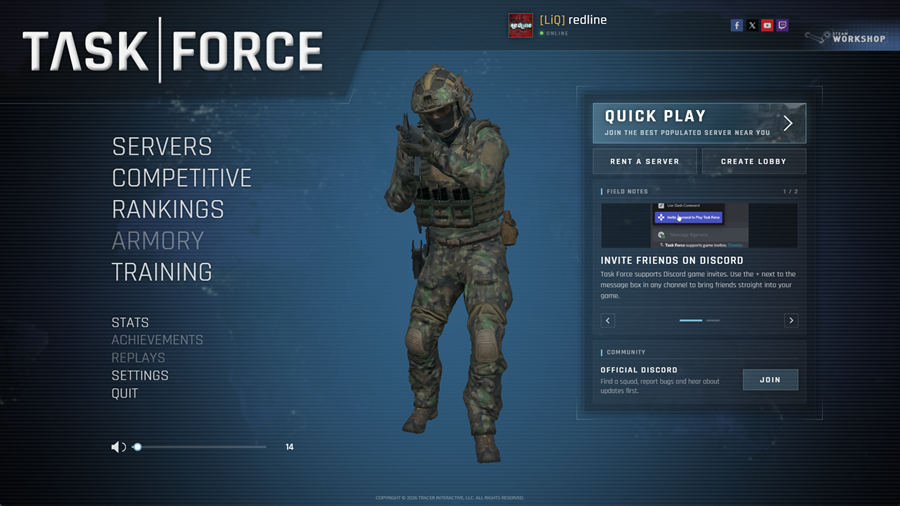
Here's a tour.
Server Browser
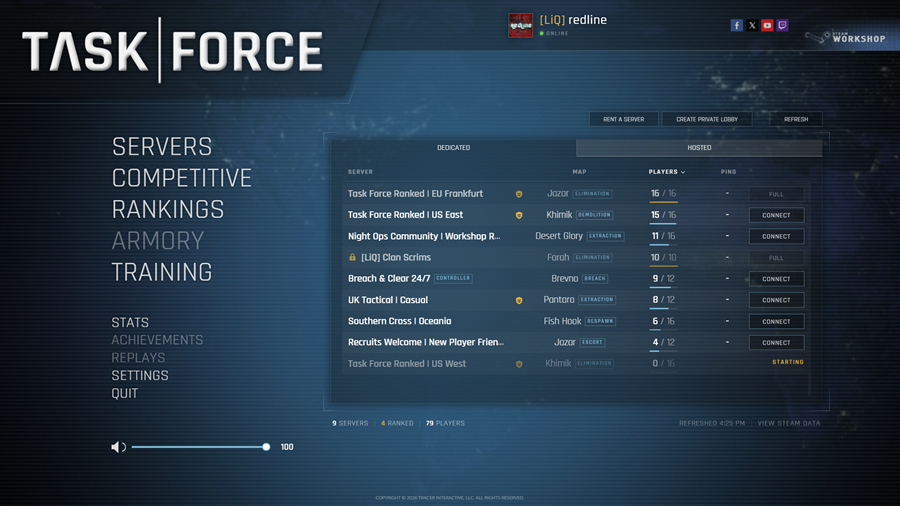
The server browser now pulls its list straight from the Task Force network, so it opens on live data rather than waiting for a Steam search to fill in. Each row shows the server name, the map and game mode, and how full it is, with a fill bar under the player count that turns gold when the server is full. Password-protected servers have a gold lock beside their name, and controller-only servers carry a CONTROLLER tag.
Ranked servers stand out with a gold insignia. On those servers your stats and rank count, and the status line along the bottom shows how many are online. Every server also reports what it's doing (ONLINE, STARTING, DOWNLOADING MAPS, UPDATING or RESTARTING), so you can tell at a glance whether it's ready to play.
If you're on a different version from a server, its CONNECT button says so: UPDATE GAME when you need the update, or OUT OF DATE when the server does. You won't connect just to be kicked. RENT A SERVER and CREATE PRIVATE LOBBY are right at the top, and if the network can't be reached, the browser falls back to Steam's list automatically.
Server Details
Click any server to open its own page.
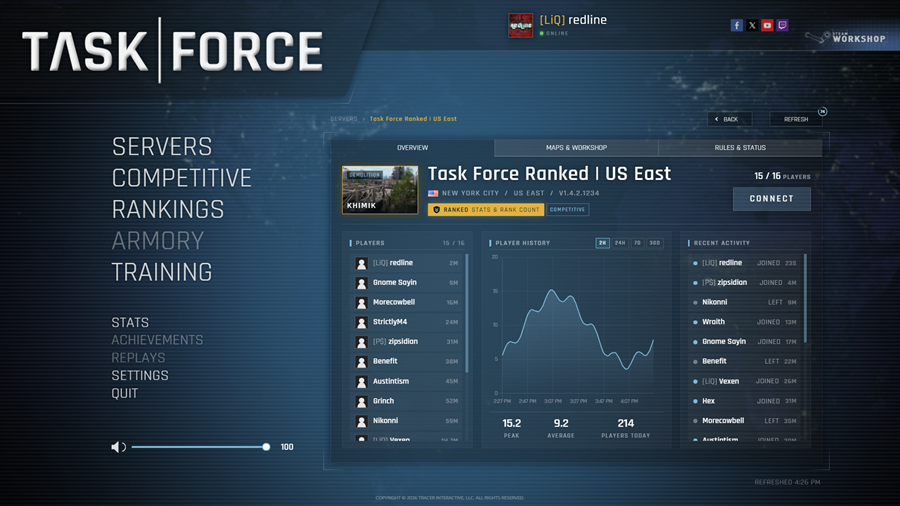
OVERVIEW shows who's playing right now (clan tags included) and how long they've been on. Beside that is a player history chart you can switch between the last 2 hours, 24 hours, 7 days and 30 days, with the peak, the average and how many different players visited today. A RECENT ACTIVITY feed lists who joined and who left. Click any name to open that player's stats. The page refreshes itself every 90 seconds, and a countdown ring on REFRESH shows when the next update is due.
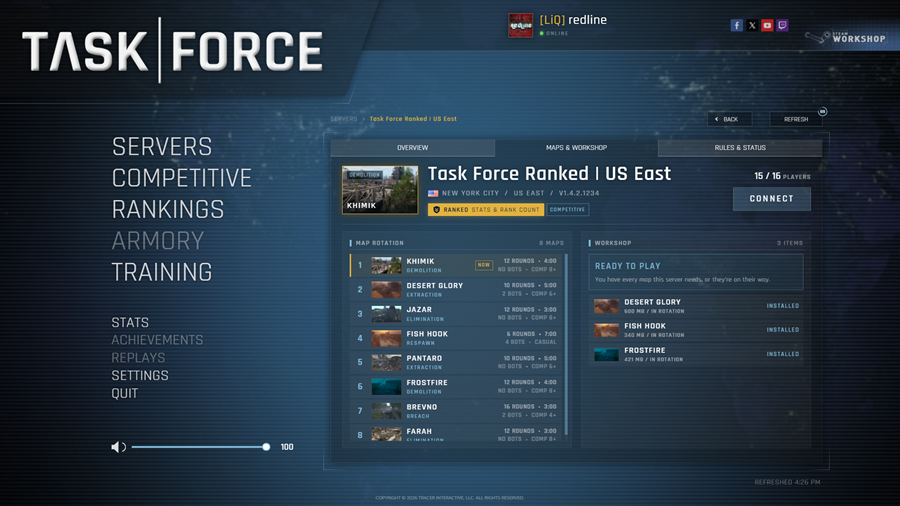
MAPS & WORKSHOP lists the server's full map rotation in play order, with the current map marked NOW and each map's mode, rounds, round time and bots. Next to it are the Workshop maps the server uses and whether you already have them. If you're missing any, one click subscribes you to all of them, so they're downloaded before you join. If the server is still downloading its own maps, you'll see its progress here too.
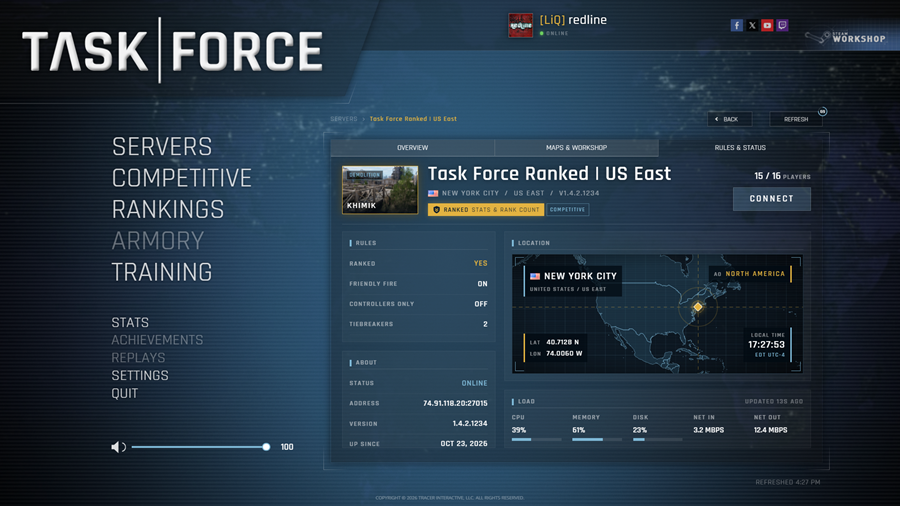
RULES & STATUS covers the details: whether the server is ranked, friendly fire, controllers only and tiebreakers. A tactical world map pins the server's location and shows its local time. You'll also find its address, its version, how long it's been up and how busy its hardware is.
Rankings
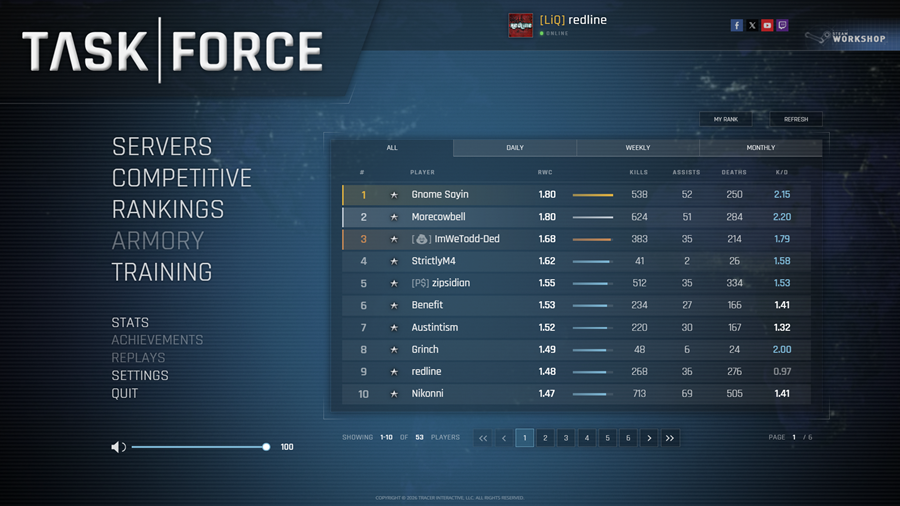
The new leaderboard ranks every player by rating (RWC), with kills, assists, deaths and K/D beside it. Switch between ALL time, DAILY, WEEKLY and MONTHLY. The top three get gold, silver and bronze. MY RANK jumps straight to the page you're on, and clicking any player opens their full stats.
Player Stats
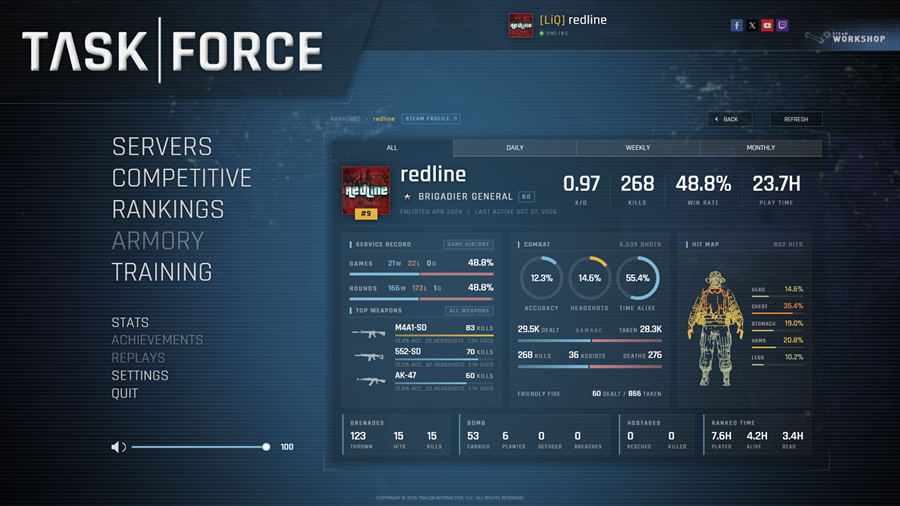
The stats page is your service record. At the top are your avatar, your leaderboard position, your rank and insignia, when you enlisted and when you were last active, along with the four headline numbers: K/D, kills, win rate and play time.
Below that:
- Service record: games and rounds won, lost and drawn, with your top three weapons
- Combat: accuracy, headshot rate and time alive, damage dealt against damage taken, kills, assists, deaths and friendly fire
- Hit map: a body diagram showing where your shots land, from head to legs
- Grenades, bomb, hostages and ranked time, all in one row
The ALL, DAILY, WEEKLY and MONTHLY tabs work here too, and STEAM PROFILE opens the player's Steam page.
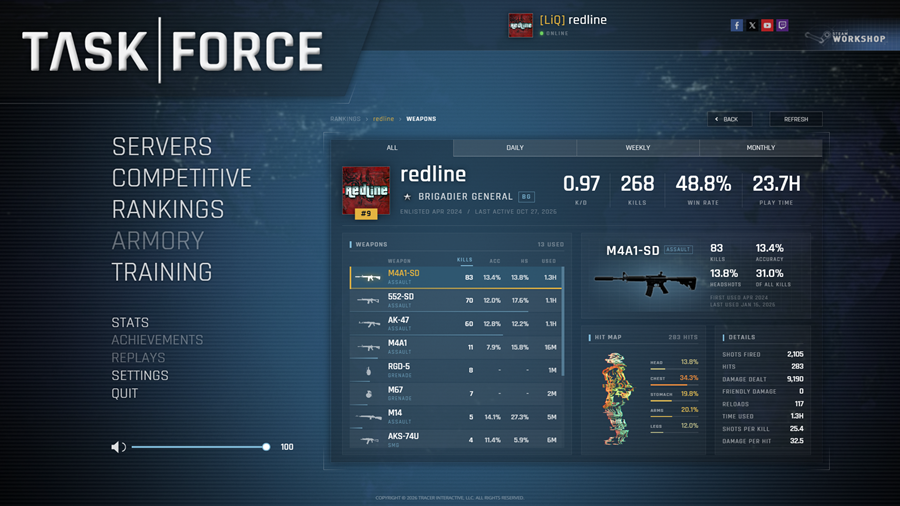
ALL WEAPONS breaks down every weapon you've used, with its picture, kills, accuracy, headshot rate and time used. Pick one to see its own hit map and detailed numbers: shots fired, hits, damage, reloads, shots per kill and damage per hit. GAME HISTORY lists your recent matches by map, mode and score, and you can open any of them to go through it round by round.
Create Lobby
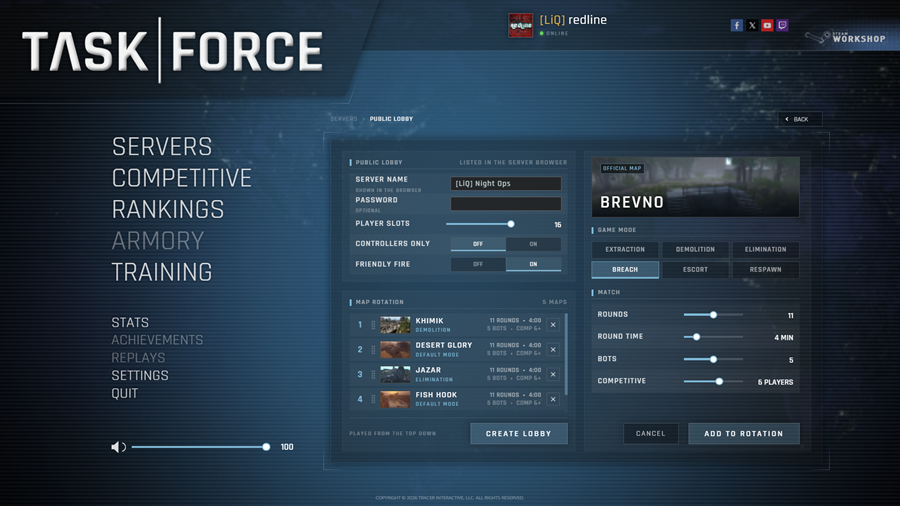
Hosting a game is now one screen. On the left, set up the lobby: its name, an optional password, player slots, controllers only and friendly fire. Then build your map rotation from the official maps and any Workshop maps you have, all with pictures and a search box. For each map you can choose the game mode, number of rounds, round time and how many bots fill in.
Drag maps up and down to reorder the rotation, or remove them with the X. The rotation plays from the top down. If you unsubscribe from a Workshop map, it's taken out of the rotation for you, so a lobby never starts with a map you don't have.
Workshop Browser
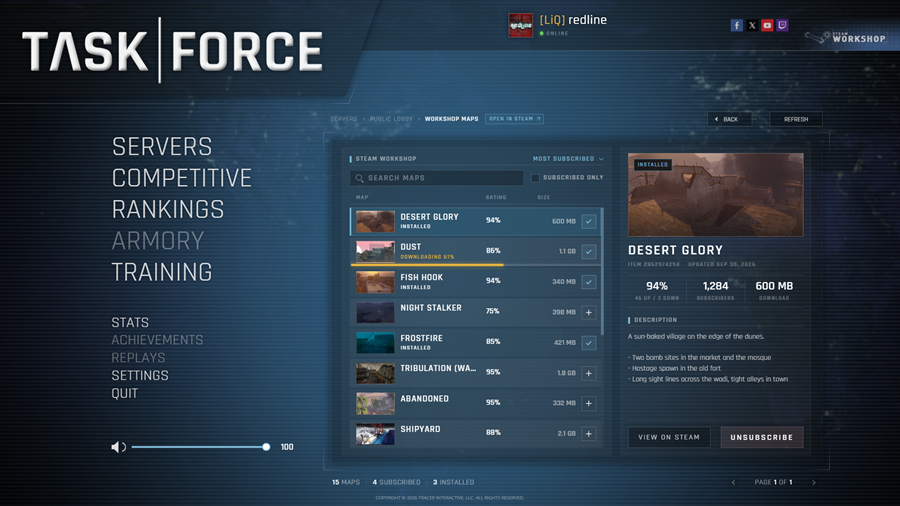
You can now browse the entire Steam Workshop without leaving the game. Open it from the browse tile in Create Lobby.
Sort by most popular (from today back to a full year), most subscribed, top rated, most recent or last updated, or search by name. Tick SUBSCRIBED ONLY to see just your own maps. Click + to subscribe and watch the download progress right in the list. Each map is marked INSTALLED, DOWNLOADING, QUEUED, or OUTDATED if it was made for an older version of the game.
Pick a map to see its details: its picture, its rating (with up and down votes), subscriber count, download size and the creator's description. Its screenshots and video open full size. VIEW ON STEAM takes you to its Workshop page.
Settings
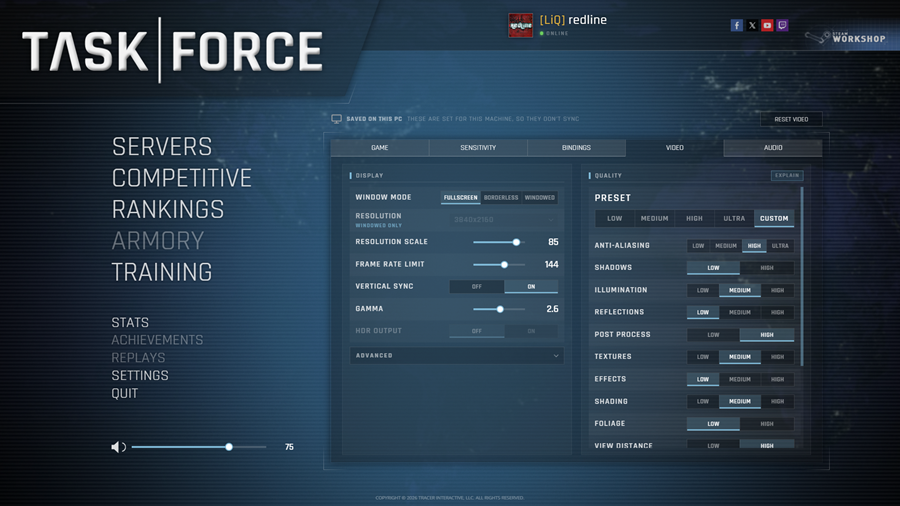
Settings has been rebuilt into five tabs: GAME, SENSITIVITY, BINDINGS, VIDEO and AUDIO. Changes apply immediately, with no save button, and each tab has its own reset button.
Your game, sensitivity and binding settings are synced with Steam Cloud, so they follow you to any PC you play on. Video and audio settings are saved on each PC, since they depend on that machine's hardware.
VIDEO covers window mode, resolution, resolution scale, frame rate limit, vertical sync, gamma and HDR. Quality has presets from LOW to ULTRA, or you can set each option yourself: anti-aliasing, shadows, illumination, reflections, post processing, textures, effects, shading, foliage and view distance. Press EXPLAIN for a description of what each one does.
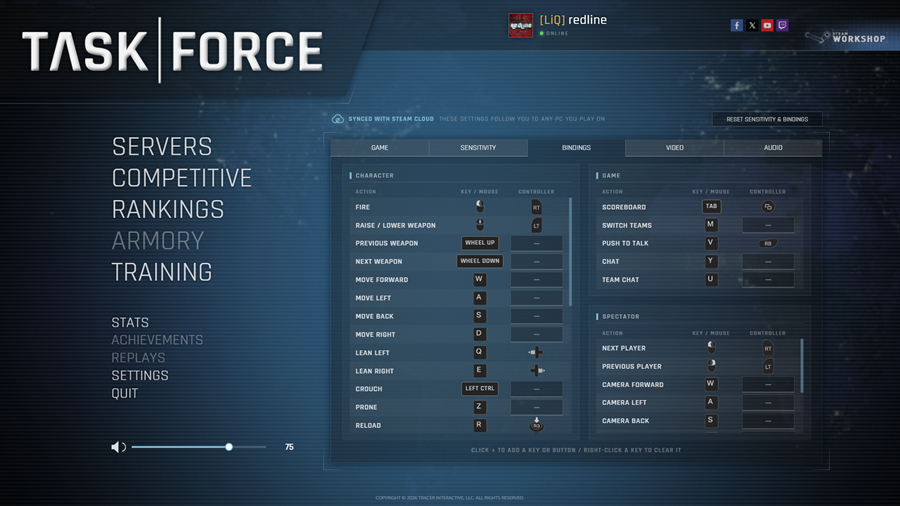
BINDINGS lists every action, grouped into CHARACTER, GAME and SPECTATOR, with a keyboard and mouse column and a controller column. Click + on an action, then press any key, mouse button or controller button to bind it. Right-click a key to clear it. Controller buttons are drawn to match the controller you're using, PlayStation or Xbox. And if you're about to move your left or right mouse button away from another action, the game asks you to confirm first.
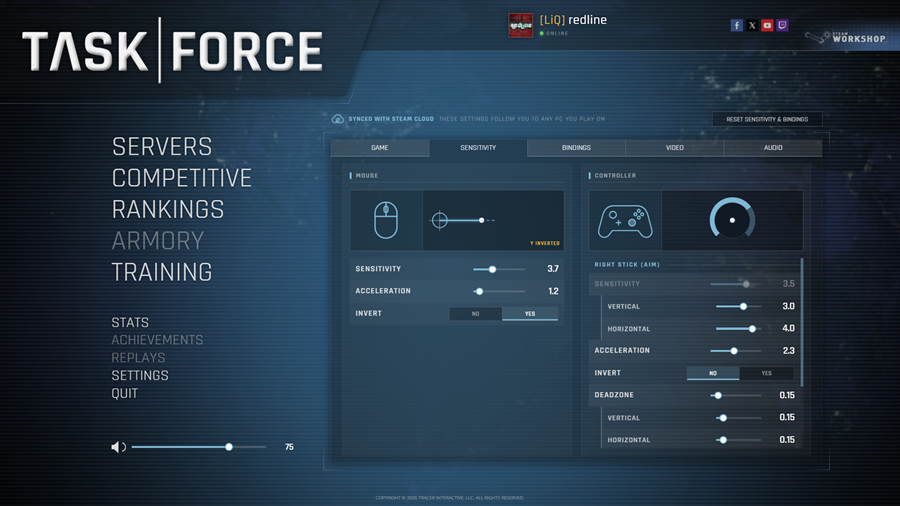
SENSITIVITY has a live preview, with separate settings for mouse and controller. The controller's right stick (aim) and left stick (move) each get their own section, and you can set vertical and horizontal separately for sensitivity and dead zone.
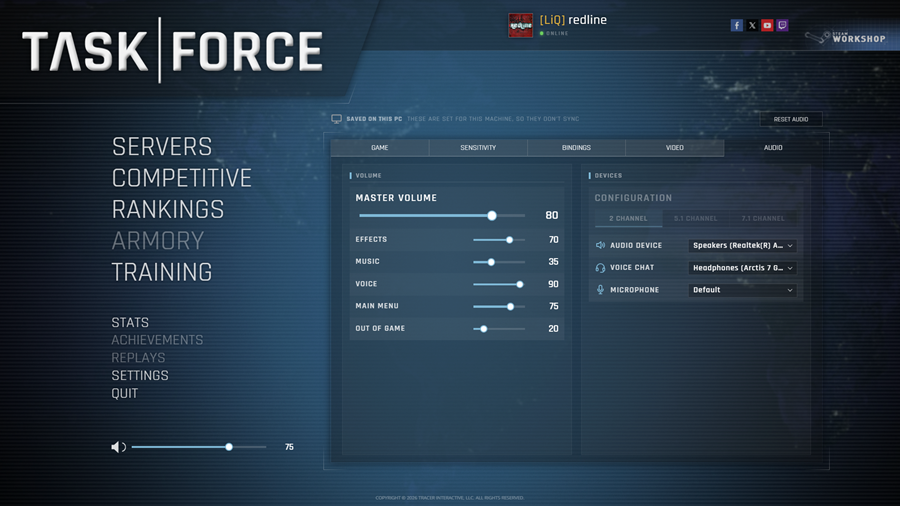
AUDIO gives you separate volume sliders for master, effects, music, voice, the main menu and out of game. You can also choose your speaker configuration, audio device, voice chat device and microphone.
Ultrawide Side Panels
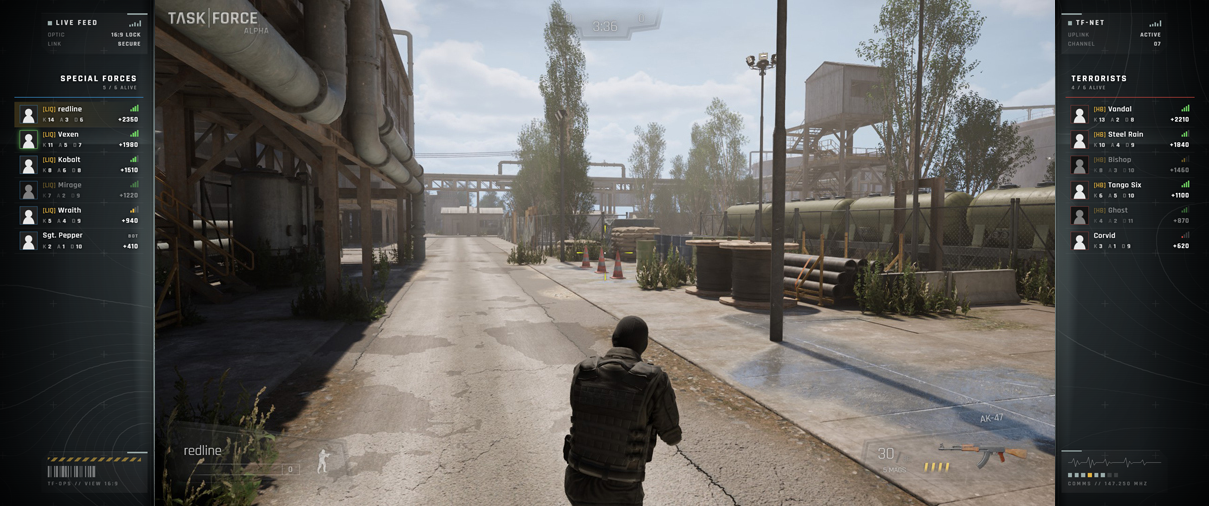
If you play on an ultrawide monitor, Task Force now fills the extra space on either side of the 16:9 view with tactical side panels.
With LIVE STATS on, each panel shows one team's players as the match plays out: avatar, clan tag, kills, assists, deaths, points and connection strength. Players are sorted best first. Players who are down are dimmed, and bots are labeled.
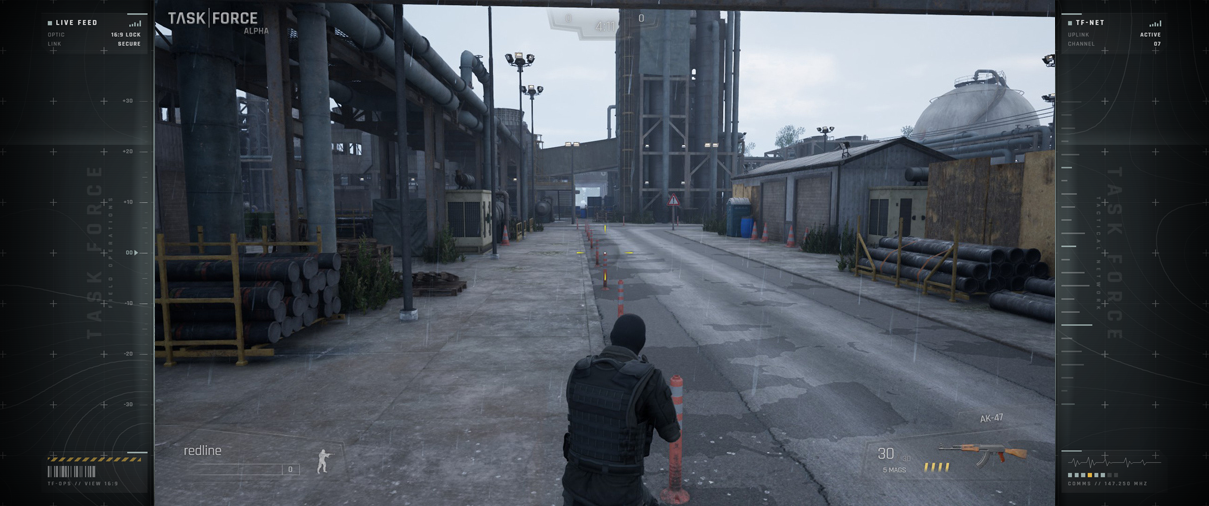
If you'd rather keep the edges of the screen quiet, switch the view to ART for a clean tactical frame with no live data. When you switch to first person or start spectating, the panels slide out of the way and the game uses your full screen width.
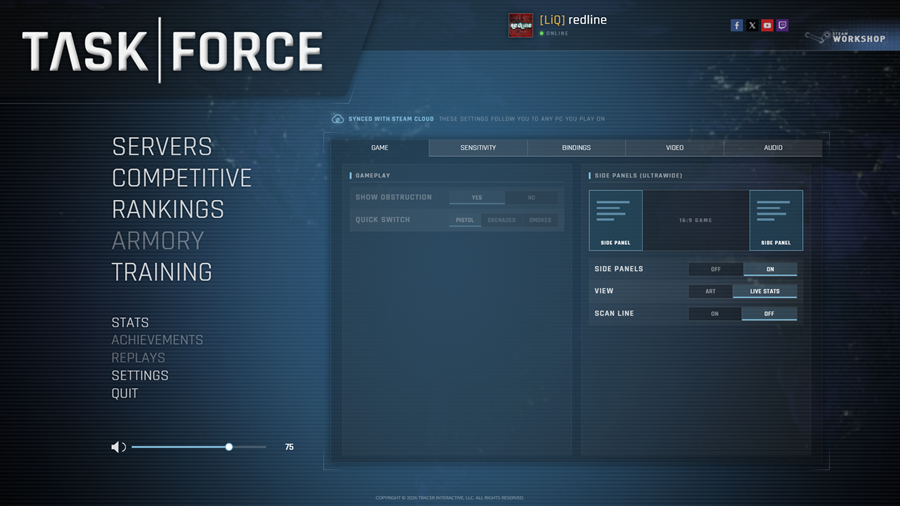
All of this is under Settings > GAME > SIDE PANELS (ULTRAWIDE), with a preview: turn the panels on or off, choose ART or LIVE STATS, and toggle the animated scan line.
----------------------------------------------------------------------
Thank you to everyone who has been playing, reporting bugs and sending feedback. Much of this update came straight from your suggestions. More is on the way, so keep it coming on our Discord, and we'll see you on the servers.