
The main changes: the overlay position you choose is kept per game and no longer drops to the bottom, Playto can tell which language each line is in, PCs without OneOCR get a bundled text reader, re-translating a line lets you pick speed or accuracy, and the review card on Home is now three small quests for today.
Auto: each line in its own language
What it does — Many games mix languages: an English menu with Japanese dialogue, a store page with reviews in several languages, a Korean game with English item names. With Auto on, Playto reads each line in the language it is written in and translates the lines that are not in your language. Lines already in your language are left alone instead of being translated into themselves.
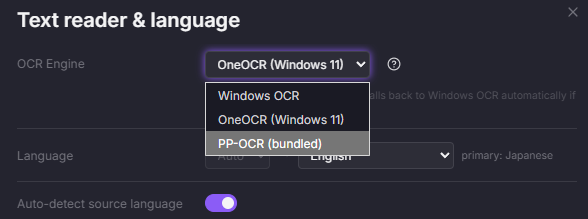
Where to turn it on — On Home, press the text reader name or the language pair next to it. The new Text reader & language window has the reader, the pair, and the Auto switch in one place. With Auto on, the pair reads Auto → your language. New game packs start with Auto on when the reader can do it; packs you already have keep their setting.
Limits — Auto needs OneOCR or the bundled PP-OCR; Windows OCR reads one language per pass, so the switch is off there. Lines written only in Kanji cannot be told apart between Japanese and Chinese; they are read as Japanese by default, and you can switch that to Chinese in Advanced settings. The learning side stays strict: Session Review and the automatic word book only take lines the script confirms are in the pack's own language. Anything else stays in the Log, where a manual save shows the pair it will be filed under and lets you change it.

Text reader: a bundled fallback before Windows OCR
PP-OCR (bundled) — On a PC where OneOCR is not available (Windows 10, or a Windows 11 without the Snipping Tool's OCR), Playto now runs a bundled PP-OCR reader on the CPU instead of going straight to Windows OCR. It reads Japanese, Chinese, English and other Latin-script languages; Korean, Russian and Greek use their own model; Vietnamese is not covered and stays on Windows OCR. Installs that were on Windows OCR are moved over once; you can go back in Settings.
Order — OneOCR first, then PP-OCR, then Windows OCR. Home shows which reader is running, and a notice tells you when Playto had to fall back.
Today's three review quests
On Home and in Learn — The review card is now three quests for the day: a first look at the words you saved today, the words that are due, and the game with the most overdue words. Start one from the card; the count and the check mark update as you go. On launch the card is highlighted instead of a review window opening on its own.
After a session — Session Review lists the session's most-seen words (twelve, with Show all), and the retention band shows today's moves between Learning and Retained.
Overlay position: kept per game, and it stays where you put it
Custom stays Custom — Choosing Custom and drawing a box could still leave translations at the bottom of the screen: a Bottom press on the bar in one game kept overriding the choice made in Settings. The position and the Custom box are now saved per game, and the bar, Settings and the start window all show the one actually in use.
A new game — A game with no position of its own starts from the last one you chose.
Image mode — Image mode cannot place translations next to the text. When you pick that, Playto now uses your Custom box if you have one instead of the bottom, and says so once.
Switching quickly — Pressing Bottom and Next to text in quick succession now ends on the last press. Before, a capture already in progress could put the previous position back.
The bar names the game — The resident bar's info line now starts with the game pack in use, so you can see which game's settings are applied.
Re-translate: speed, accuracy or Cloud
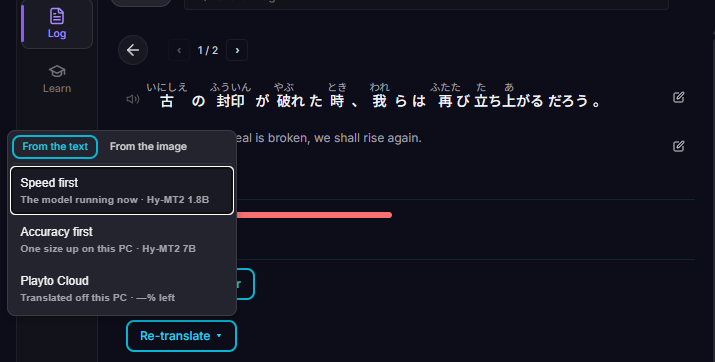
One menu — Re-translate from a Log row's detail, its ⋯ menu or the selection bar opens one menu: Speed first (the model running now), Accuracy first (one size up on this PC) or Playto Cloud.
Saved sentences — A sentence you saved can get a more accurate translation from that menu. It is shown first in the sentence detail and on the review card.
Why translations miss — The setup has a new "How Playto translates" step, and a Why? link explains why no translation is perfect and what to try. The guide gains an About Playto group with both.
Playto Cloud — The Cloud chip in the top strip now opens the trial, shows the balance, or says the trial has ended. The opt-in window says what Cloud does and where it is slower.
Home, Session Review and the close button
Review later — Session Review now has Review later next to Skip. The session's words wait on Home, at the bottom of the session card, until you open them. Tick Next time too, or change it in Settings, and the review stops opening at the end of a session. A (?) beside the title explains the screen.
A lighter Session Review — Each word row now shows only how often the word appeared, with the glossary and phrase actions as icons. Possible proper nouns sit as chips on one or two lines, and the tag for saved words is behind one icon next to Save.
Home — Resident mode is now a switch on the session card, and reviews you put off wait at the bottom of the same card as "awaiting recap". Home is two cards: Session and Review.
The × button — The first time you press ×, Playto asks whether to keep running in the tray or quit, with an option not to ask again. Settings › Launch lets you change it: Ask every time, Keep in tray or Quit.
Also in this update
Two windows of the same app — When the game or app you picked has two windows (two Chrome windows, for example), the start window lets you choose which one, and the session stays on that window instead of following whichever is in front.
Resident bar — The floating bar could sit behind the game even though it was marked always-on-top. It is now raised above the game every time it shows or moves.
Full screens on the Gemma or Qwen model — A menu with dozens of lines used to time out and show nothing. It is now sent in chunks of twelve lines, a few at a time, within a larger context.
Overlay — Returning to a screen paints the lines Playto already knows right away, before the new ones arrive. A wrapped paragraph next to a menu thumbnail (as on a store page) stays one paragraph instead of splitting into list items. A box that grows below a held paragraph no longer pushes the overlay off its text.
Wide letter spacing — Dialogue in fonts with wide letter spacing (common in visual novels) was cut into one-word pieces in Latin-script languages. It now stays one line. In Chinese and Japanese very wide spacing still splits lines at the text-reading stage; Image mode is not affected.
Lines that flicker in — A line that flickered while appearing was sometimes held and never translated if the screen then stayed still. It is now read again and translated.
Switching packs on a narrow window — On a pack's page, the game name opens a pack switcher, so packs can be changed when the window is too narrow for the sidebar.
Fewer upgrade prompts in Playto Lite — Based on your feedback, we cut back how often Lite points to the paid version. Locked features now show a lock icon up front, the explanation opens only the first time you press one, and the session summary no longer has a purchase button.
If something still feels off, tell us through Contact us in the app, Discord, or this Steam thread.
If Playto is part of your gaming, a short review helps other language learners find it — and we read every one.