
New Features and Improvements
Added a Gaussian blur filter
Added a feature that applies Gaussian blur to the image inside the selection.
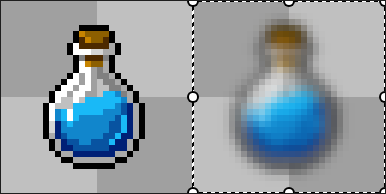
The result is similar to CSS filter: blur().
Run it from “Image menu > Filters > Blur”.
Added a blur tool
Added a “Blur tool” that lets you blur parts of an image.
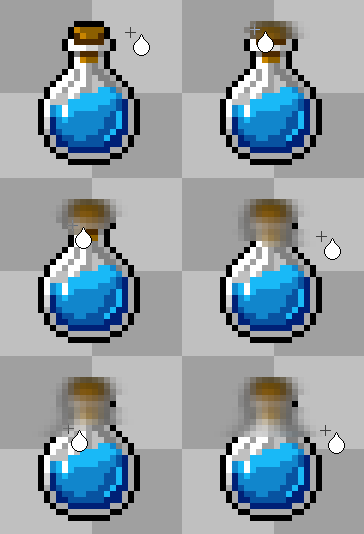
It also produces a result similar to CSS filter: blur().
Since this tool is expected to be used less often for pixel art, and the number of tools has grown, it is not included in the editing toolbar by default.
To use it, add it from toolbar customization.
Added blend mode and opacity settings for each sprite part
You can now set the blend mode and opacity for each sprite part.
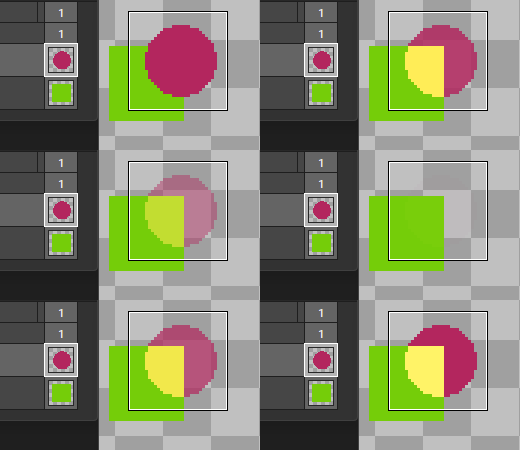
Blend modes such as Addition and Subtract make it possible to create animations with combined effects.
You can change these settings in the following places:
The sprite part properties dialog
“Sprite part right-click menu > Blend Mode”
The toolbar opened with “Sprite Frame Panel menu > View > Compositing Toolbar”
You can also add blend mode and opacity controls through toolbar customization.
Improved editing of sprite part crop ranges
You can now adjust the crop range while viewing the image in the sprite part properties dialog.
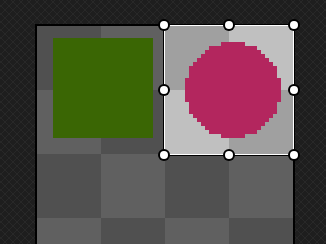
Click the “...” button next to the crop range to open the editor.
Added copy and paste for sprite parts
You can now copy and paste sprite parts.
Use the part’s right-click menu or another available command. This works only between parts in the same image.
Added cel marks
Added “Cel Mark”, which lets you mark cels for identification.
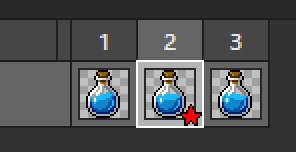
Use marks to make specific cels stand out among many others.
Set them from “Cel right-click menu > Cel Mark”.
Added a way to find where the main or sub color is used
You can now find the areas where the main color or sub color is used.
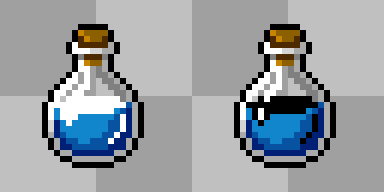
Run this from the main or sub color’s right-click menu.
Added a way to check the sketch
Added a feature that makes it easier to check the sketch when “Show Active Layer Directly” and “Show Composite Image Faintly in Background” are used together.
When run, it temporarily turns off “Show Active Layer Directly” and the active layer’s visibility so you can check the image in the background. Run it again to turn both back on.
Run it from “View menu > Layer Identification > Check Sketch”.
Important Behavior Changes
Empty parts can now overwrite sprite parts
Along with the addition of copy and paste for sprite parts, we changed how overwriting parts works.
Previously, an empty part could not overwrite an existing part. Empty parts can now overwrite existing parts.
This applies to both dragging parts and copying and pasting them.
Please note that these operations may now produce different results than before.
Separated adding and duplicating color palettes
We changed how the “+” button in the color palette works.
Previously, its behavior was similar to duplicating the current palette. Adding a new palette and duplicating a palette are now separate commands.
The “+” button now adds a new palette.
Restricted cel editing on locked layers
When a layer is locked, operations that edit cels, such as dragging cels or changing cel properties, are now blocked.
Other Improvements
You can now choose whether to use “Opaque Black” or “Sub Color” as the erase color for commands such as clearing a color in the palette. Previously, Opaque Black was always used. Set this from “Color Palette Panel menu > Erase Color”.
When loading a registered palette, you can now choose to replace the existing palette or add the imported palette. Previously, replacement was the only option.
Added “Subtract” as a layer blend mode.
Added a “Duplicate” command for motions, sprite frames, and sprite clips. You can now duplicate them from a menu as well as by Ctrl-dragging.
Optimized GIF animation export when a scale is specified, reducing memory usage.
In selection tools, when a modifier key changes the selection mode to Add, Subtract, or Intersect, selection now takes priority over operations such as resizing handles. The previous priority is retained when changing the selection mode from the toolbar.
When dragging a selection resize handle with Ctrl+Shift, “Resize Area Only” now takes priority over interruption tools.
When “Show Active Layer Directly” is enabled, the “Do not draw on areas hidden by upper layers” option is disabled.
The “Edit menu > Erase Color” setting now also applies to the Eraser tool.
Sliders now support operation with the mouse wheel and tilt wheel.
You can now set top and bottom padding for the color controls (slider area) in the color palette. Adjust this when the controls are too close together and difficult to distinguish. Set it from “Color Palette Panel menu > View > Color Control Padding Settings”.
Bug Fixes
Fixed an issue where the initially selected motion or dropdown contents could be incorrect in the sprite part properties dialog.
Fixed an issue where changing only some position or crop range values in the sprite part properties dialog with multiple parts selected could also change values that were not edited.
Fixed an issue where scrolling with Space+drag in dialog image previews and similar areas could repeatedly activate the focused button. Buttons now activate on key release, matching standard Windows controls, and do not activate during Space+drag.
Fixed an issue that could cause an “Access violation - no RTTI data!” error while entering text.
Fixed an issue where the resize cursor at a selection corner could point in the wrong direction if the width or height became negative during transform or resize.