
New Features and Improvements
Expanded toolbar customization
Added icons to various menu commands and expanded the commands that can be placed from toolbar customization.

You can now run many commands directly from the toolbar, including duplicating, deleting, and editing the properties of layers and assets, as well as operating on frames and cels.
You can also add label items to the toolbar, such as “File:”, “Edit:”, “Layer:”, and “Cel:”, to create dividers or headings between groups of commands.
Improved sprite part registration
Added a “Fixed” option for the destination layer when registering sprite parts.
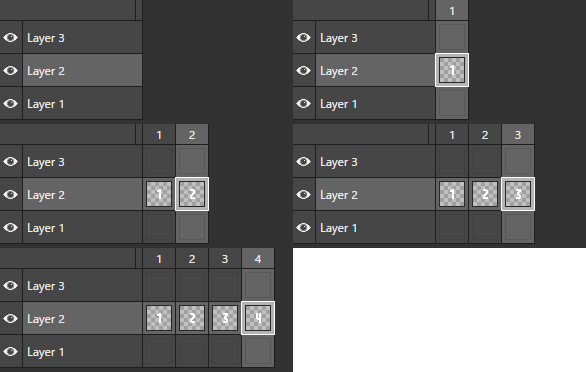
Use this option when you want to keep the destination layer fixed and import parts only in the frame direction.
Added trimming
Added a “Trim” command that removes transparent margins shared by all cels in an image asset.
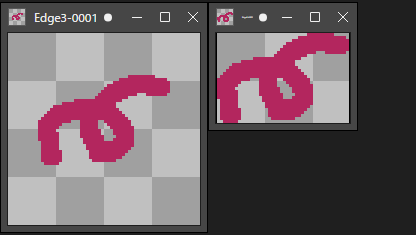
Run it from “Image menu > Trim”.
Added sequential import of sprite parts
Added a feature that uses an existing sprite part as a reference to import a sequence of parts with only the reference frame changed.
Run it from “Sprite Panel menu > Parts > Sequentially Import Subsequent Frames of Selected Part”.
This is useful when importing a frame animation as a sprite animation.
Improved sprite sheet export
Added the following options to sprite sheet export:
Choose to export “All Frames”, “All Tags”, or “Specified Tags”. You can select multiple tags.
Export each tag to a separate file.
Trim images before exporting them in grid format.
Added active layer highlighting when switching layers
Added a feature that briefly highlights the active layer when you switch layers, making it easier to identify.
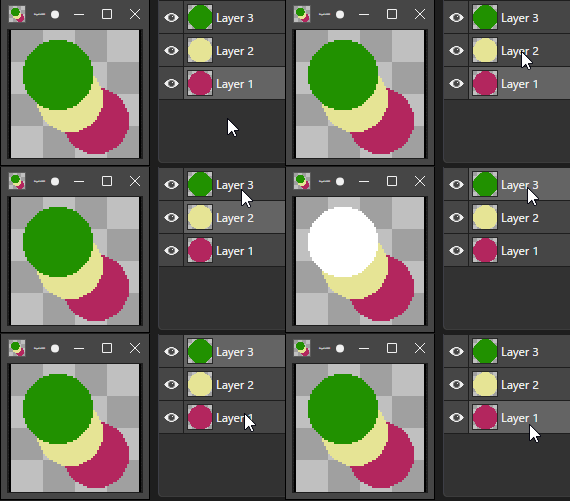
Enable or disable it from “View menu > Layer Identification > Highlight Active Layer on Switch”. This setting applies throughout the app.
Added commands to switch the main color in any of the four directions
You can now switch the main color to a neighboring color in any of the four directions within the active color palette.
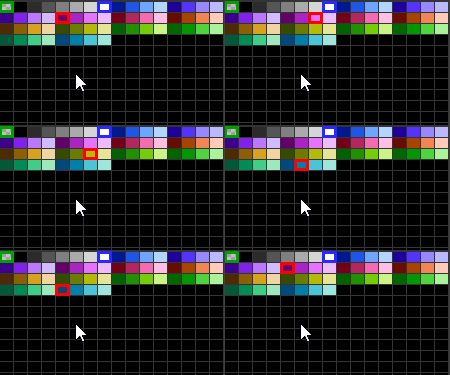
Assign shortcut keys to the commands for each direction to switch the main color from the keyboard. Search for “main color” in the keyboard shortcut settings to find them quickly.
Use them from “Color Palette Panel menu > Main Color / Sub Color > Switch Main Color”.
Other Improvements
Export-related settings are saved with .edg3 files. To help prevent accidental loss of changes when closing without saving, changing these settings now marks the project as modified.
When changing the source asset in the sprite part properties, motions and frame counts are now preserved whenever possible. This is useful when changing the reference to an asset with a similar structure.
Fixed an issue where a selection could shift slightly when releasing the mouse button after manipulating it.
Added support for importing interlaced PNG files.
PNG saves and exports now use a bit depth appropriate for the color mode. For example, 16-color images are saved at 4-bit depth.
When saving a PNG, the editing transparency information (the edGE chunk) is omitted if it matches the value inferred when loading the image.
Tab controls can now be scrolled using configured interruption actions, such as Space + drag.
Adjusted ping-pong playback for GIF exports. When looping, the duplicated first frame at the end is omitted; when not looping, playback returns to the first frame. Playback order rules are now consistent for motions, sprite clips, and frame tags.
Added the “Play Once from Beginning” command to play an animation once from the start. This is useful for reviewing the whole animation without looping.
Bug Fixes
Fixed an issue where incorrect values could appear when switching the layer being edited while the sprite part properties dialog was open.
Fixed an issue where the enabled or disabled state of paste-related toolbar commands, such as “Paste Asset”, was not updated correctly.
Fixed an issue where bookmarks in the file dialog could not be reordered by dragging.
Fixed an issue where dragging while holding Space did not scroll in the Sprite Part Registration tool.
Fixed an issue where the color palette could incorrectly mark colors not used in the image as in use.