
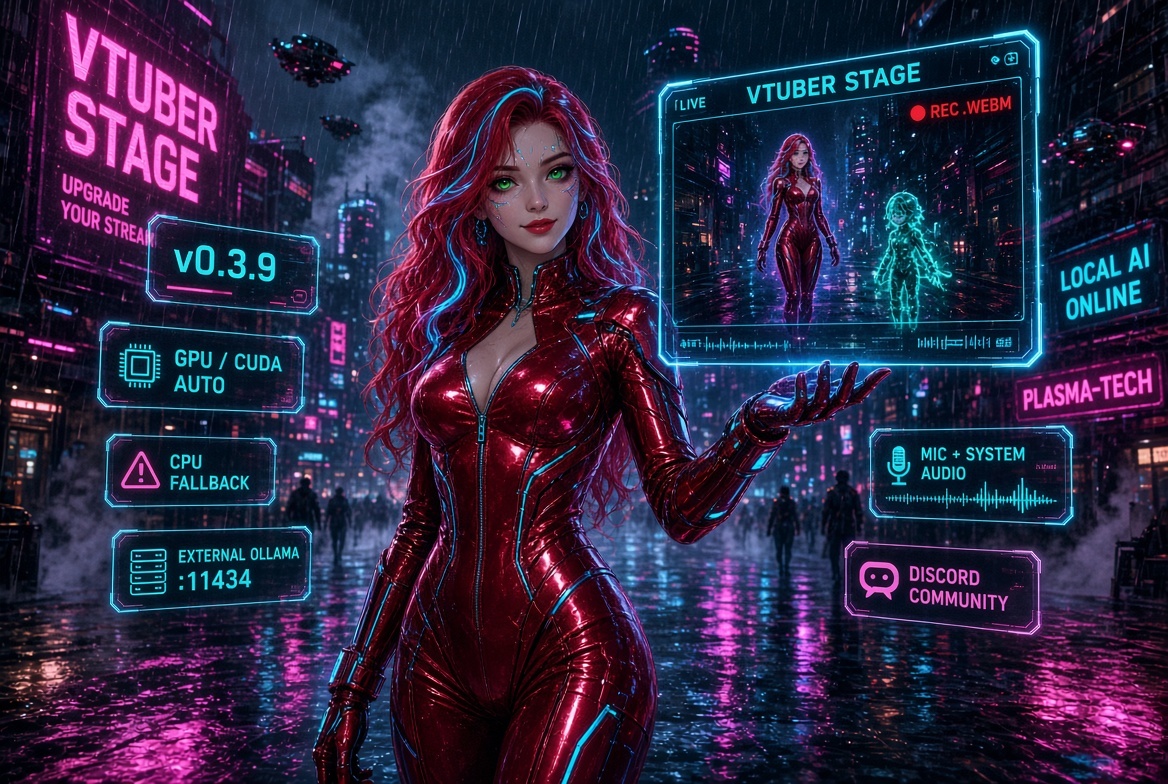
VTuber Stage
New pop-out window for people who want the models on their game (or a video, or a webcam) without building an OBS scene from scratch.
-Opens a window titled VTuber Stage
-Pick a screen, window, or webcam as the background
-Both VTuber models sit on top — same animations, same chat reactions as the main app
-Drag to pan, scroll to zoom, reset if you lose the shot
-Record inside the app → saves a .webm wherever you want. No OBS required for a quick clip
Audio while recording: mic · system audio · mic + system · none
If you stream: OBS or Streamlabs still go live. Add one Window Capture → VTuber Stage. No chroma key, no stacking the overlay on the game.
The desktop overlay is unchanged. Overlay and Stage are different tools.
Bundled AI — GPU / CPU
Settings → AI Configuration:
-Auto — bundled Ollama picks the GPU if it can (default)
-Force GPU (CUDA / ROCm)
-CPU only — driver trouble, or you want the VRAM back for the game
* Takes effect after restart.
Default AI model
The default local model is now a slightly heavier one. It holds the personality you set, so replies should land better on stream. If it's slow on your machine, use the new GPU toggle — or CPU only if the GPU is busy.
Discord Community Button
The side menu now has a Discord button. Click it to join the community server directly from inside the app — no copy-pasting a link. The old Character Status screen has moved out to make room.
Community link: discord.gg/dyfaErm5Kg
External Ollama Port
Running your own Ollama on a different port? Settings → AI Configuration → External Ollama Support. Enter the port number (default is 11434) and hit Apply. The app connects live — no restart needed. Clear it to go back to the bundled AI.