
Hello, this is Joyful Jo.
Following the recent update that changed the save system, we have received reports from some players that their save files cannot be loaded or that they are unable to save their game. Unfortunately, we have not yet been able to identify the exact cause of these issues.
We sincerely apologize for the inconvenience.
Below are some possible steps you can take with the current version.
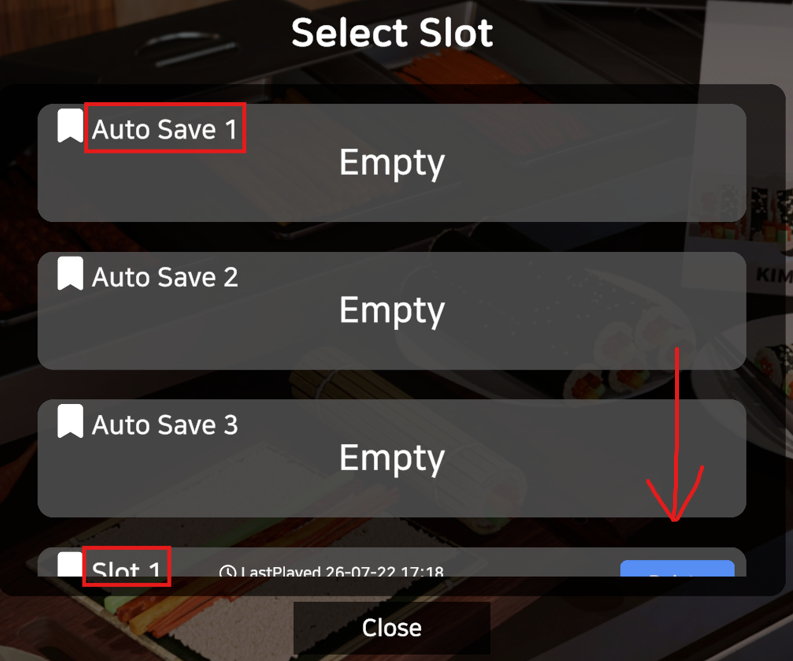
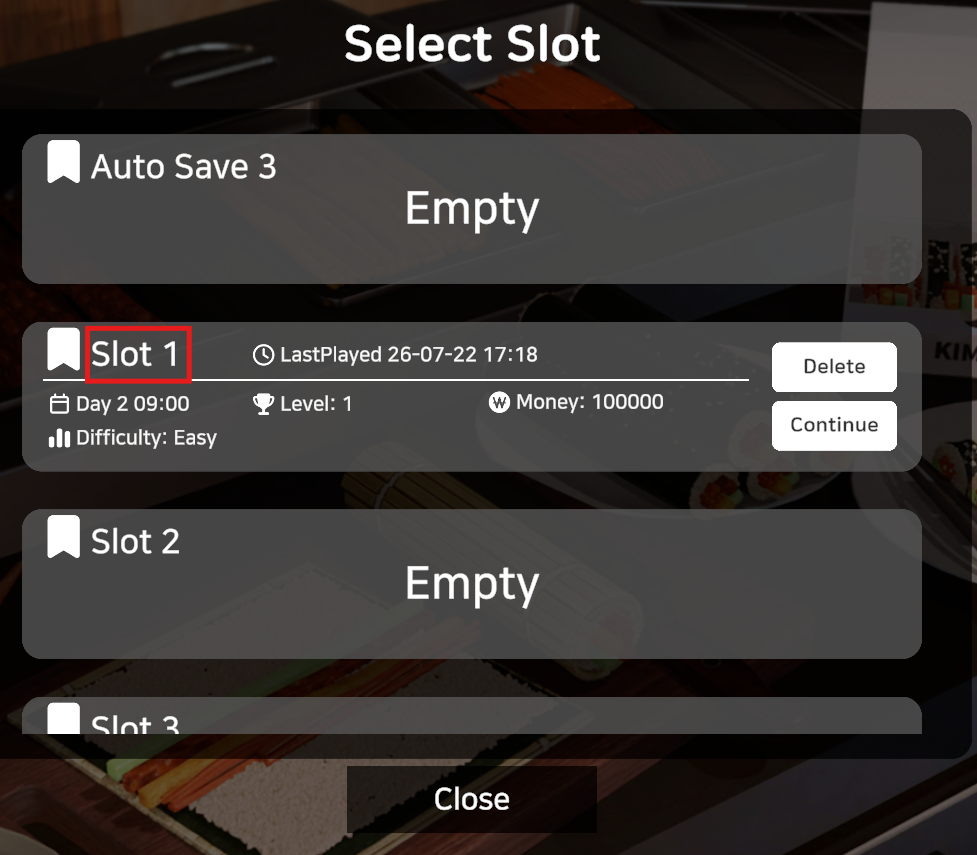
If this is your first time launching the game after the update, it is normal for an empty “Autosave” section to appear at the top when selecting Continue or Load.
Please scroll down using the mouse wheel. You should then see the “Manual Save” slots below. Your save data from before the update should have been transferred to these slots.
If you still cannot find your previous save files after trying the method above, please download all files stored in your Steam Cloud using the link below and send them to us by email. These files may help us identify the issue and possibly recover your save data.
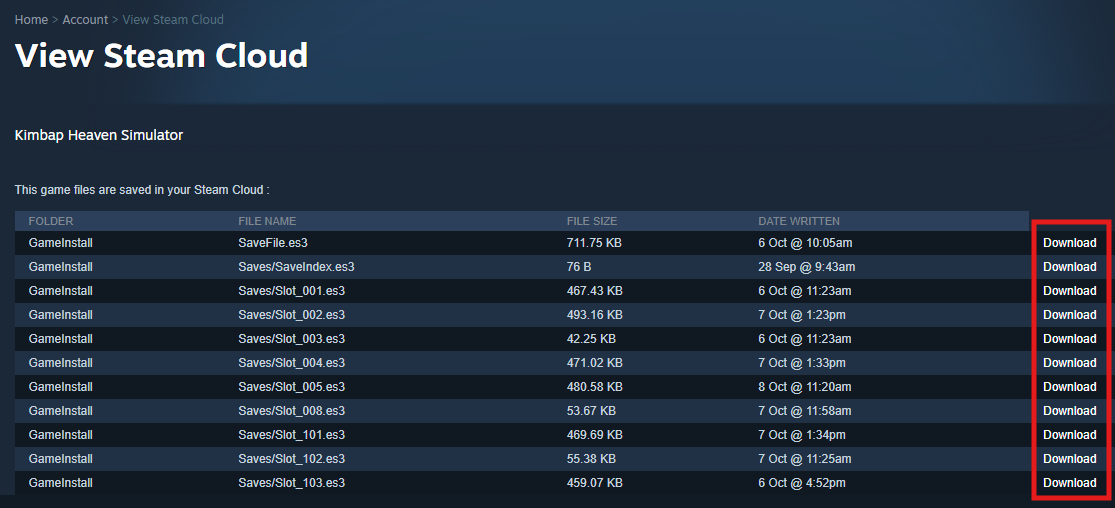
Steam Cloud save file download page: https://store.steampowered.com/account/remotestorageapp/?appid=4206910
Please send the files to: [email protected]
If anyone has already managed to resolve the issue, we would greatly appreciate it if you could let us know in the comments or by email at what point or after which action the issue was resolved. This information could be very helpful in identifying the cause.
We will do our best to resolve this issue as quickly as possible.
Thank you.
Detailed Information About the Save Slot Changes and Troubleshooting
The following section provides more detailed information about the recent save slot changes and possible troubleshooting steps.
For most players, following the instructions above should be sufficient. However, if you need to investigate the issue in more detail, please read the information below.
The way save data is handled has changed.
Previously, save data was stored in Slots 1–3. This has now been changed to:
3 Autosave slots
20 Manual Save slots
Because the game now supports a much larger number of save slots, we have also changed how the save files themselves are stored.
Previously, all save data was managed within a single file:
%USERPROFILE%\\AppData\\LocalLow\\JoyfulJo\\Kimbap Heaven\\SaveFile.es3
Save data is now stored as separate files for each slot under the following folder:
%USERPROFILE%\\AppData\\LocalLow\\JoyfulJo\\Kimbap Heaven\\Saves
For example:
Slot_001.es3
Slot_002.es3
Slot_003.es3
...
When the game is launched for the first time after the update, it uses the existing save data to convert and create the new individual slot files.
The original SaveFile.es3 file is not deleted and will remain in place.
Inside the Saves folder, a file named SaveIndex.es3 records whether the previous save data has already been migrated to the new format.
Steam Cloud currently stores both:
the original SaveFile.es3
all files located inside the Saves folder
Things to Check If You Are Experiencing Save Issues
There are additional save slots below the three Autosave slots. When manually saving your game, please use one of the Manual Save slots shown further down the list.
Try deleting SaveIndex.es3 from the Saves folder, then launch the game again.
Check whether files such as Slot_001.es3, Slot_002.es3, and so on exist inside the Saves folder.
If you continue to experience problems, please contact us. We will do our best to help recover your save data, identify what caused the issue, and improve the save system to prevent similar problems in the future.
Thank you.
Joyful Jo