
Hello community,
This message concerns those using Windows 10.
Quick clarification: the software works perfectly on Windows 10.
The only issue? Audio properties access rights are more restrictive than on Windows 11.
Summary for the impatient
✅ You're on Windows 11 → All good, the app does everything automatically.
⚠️ You're on Windows 10 → The app works, but you need to do a small manual step (we explain right after).
What to do on Windows 10
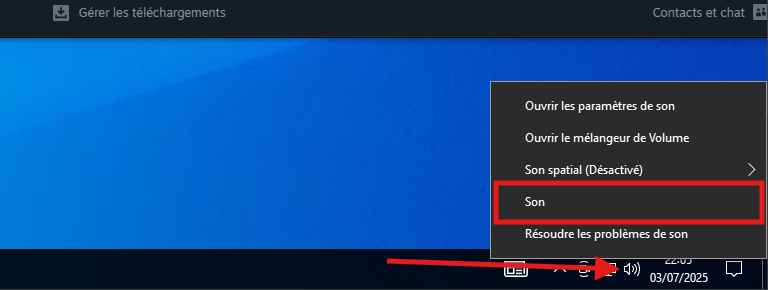
Right-click on the sound icon in the taskbar → Sounds
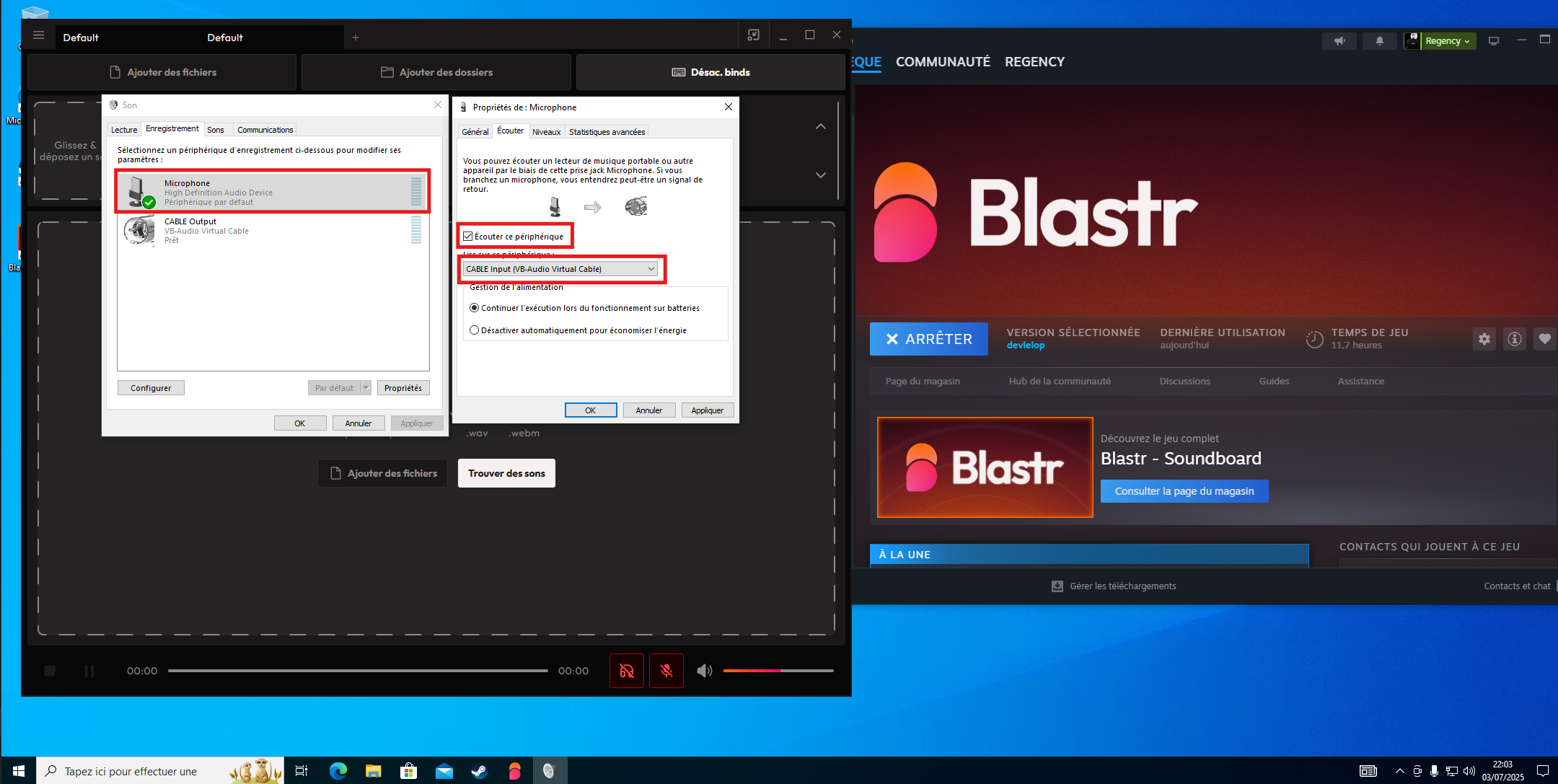
Recording tab
Select your microphone → Properties
Listen tab
Check the "Listen to this device" box
In the dropdown menu just below → Cable Output
Apply / Save
Why is this step necessary?
On Windows 11, the application has the necessary rights to modify these settings automatically.
On Windows 10, these rights are not accessible to third-party applications — hence the need to do this manually.
What about the future?
Even though the app works on Windows 10, we still recommend planning an upgrade to Windows 11 in the coming months, because:
Microsoft ends Windows 10 support in October 2025 (no more updates, no more security...)
Some future new features might not be compatible with Win10
👉 If you have questions, a bug to report, or just want to share your love (or hate) of Windows, join our Discord