

First of all, we would like to sincerely apologize to all players who were unable to play the game properly due to the white screen issue. When selecting our video decoding solution, we did not fully consider compatibility across different system environments. We are truly sorry for the inconvenience this has caused.
After receiving feedback from several affected players and conducting communication and debugging together, our development team has identified two main causes of the white screen problem.
Below are temporary manual fixes to help players resume normal gameplay as soon as possible.
We will also include an automatic system check and fix for these issues in the next update patch.
Cause 1: Missing VP9 Video Codec on Certain Windows Systems
Official retail versions of Windows 10 and Windows 11 come with the VP9 video decoder preinstalled.
However, some stripped-down, customized, or LTSC versions of Windows lack this component, which can result in the game freezing on a white screen after launch.
Depending on your system setup, please follow one of the two solutions below:
Case 1: Your System Has Microsoft Store Installed and Working Properly
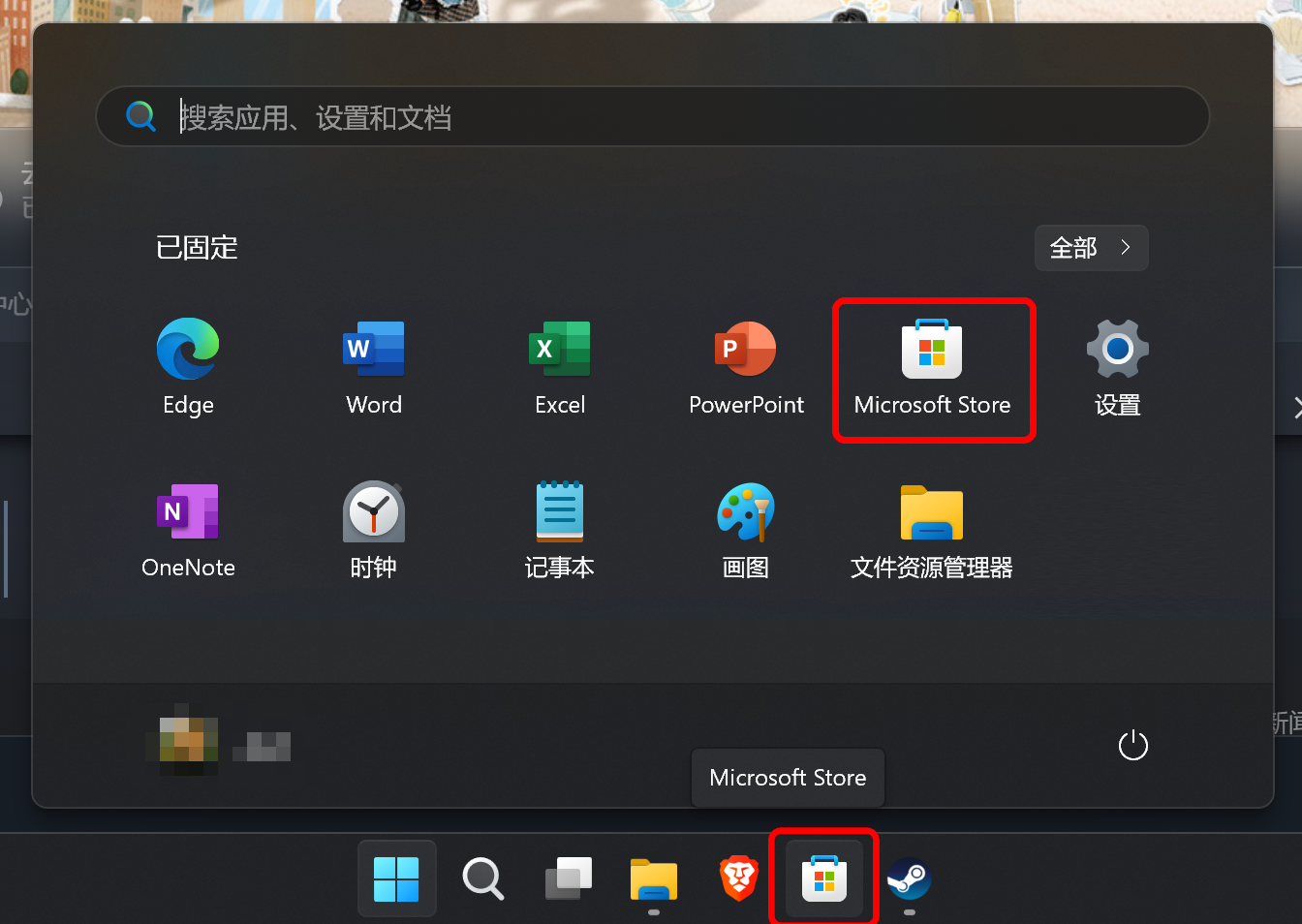
Step 1: Open the Microsoft Store from the Start Menu.
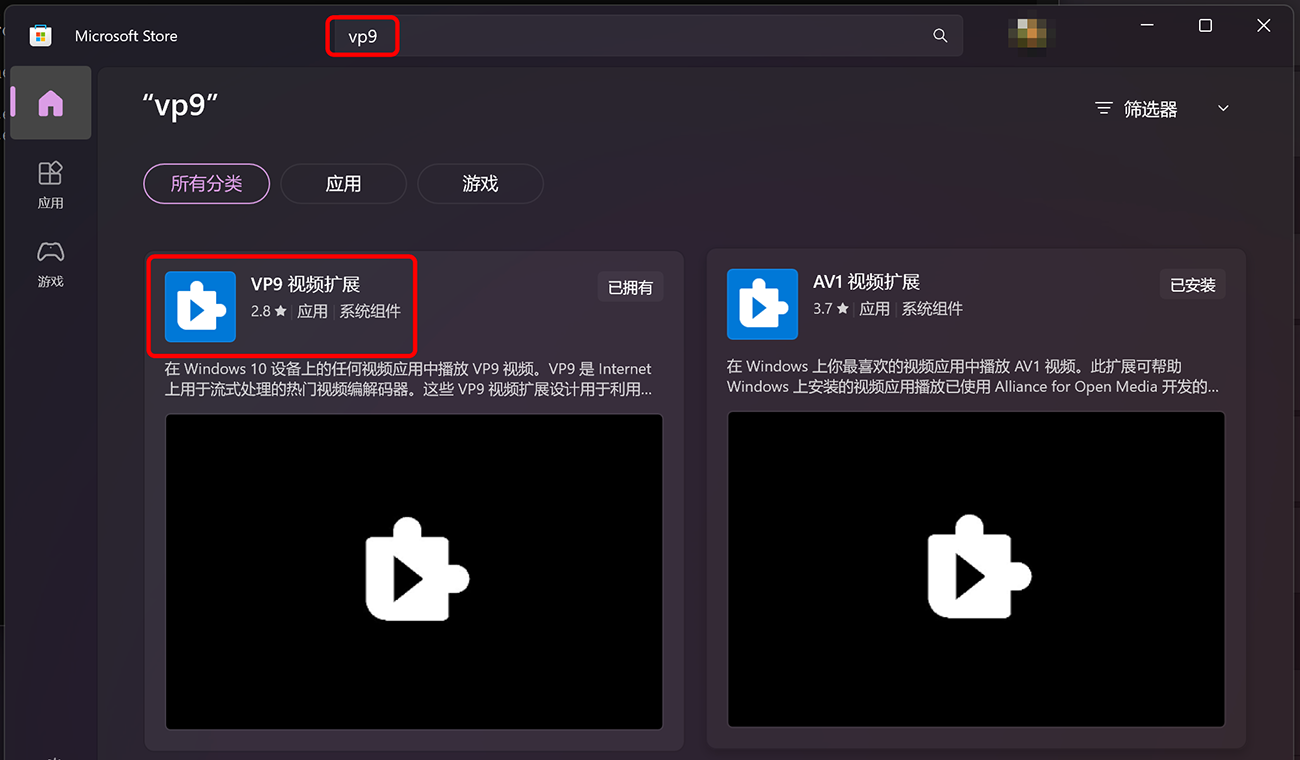
Step 2: Search for “VP9” — you should see “VP9 Video Extensions.”
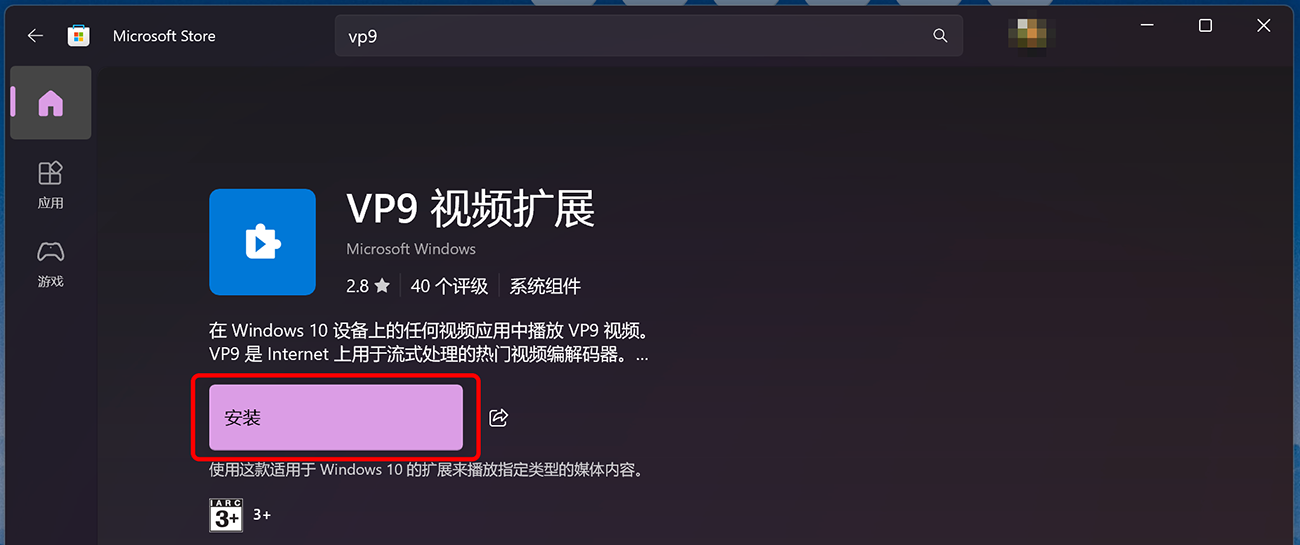
Step 3: Open the app page and click “Install” to download it for free.
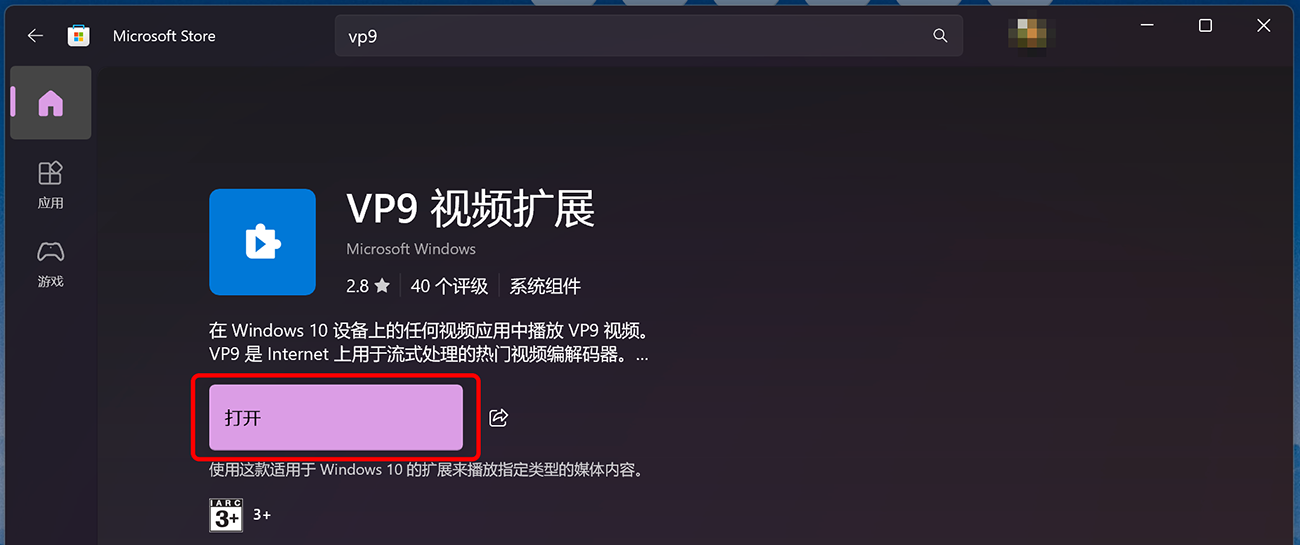
Step 4: Once installation completes and the button changes to “Open,” you can launch the game normally, and the white screen issue should be resolved.
Case 2: Your System (e.g., LTSC or Minimal Edition) Does Not Have Microsoft Store
Step 1: Manually download the VP9 Video Extensions installer file using your web browser.
Save it to an easily accessible location such as C:\[/b] (you may delete the file afterward).
Download link: https://such-one.com/downloads/Microsoft.VP9VideoExtensions_1.2.6.0.AppxBundle
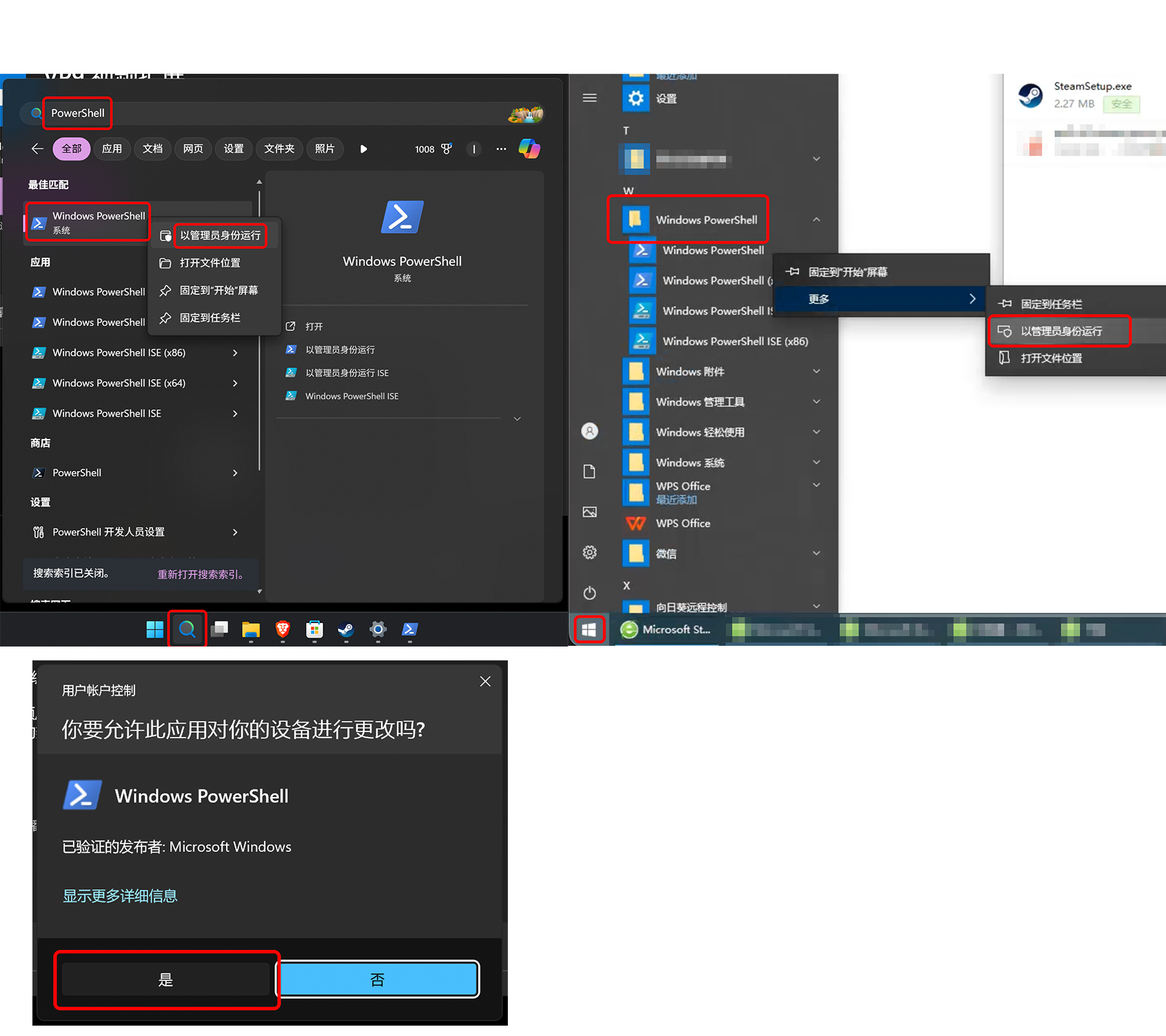
Step 2: Run Windows PowerShell as Administrator. If a security prompt appears, click “Yes.”
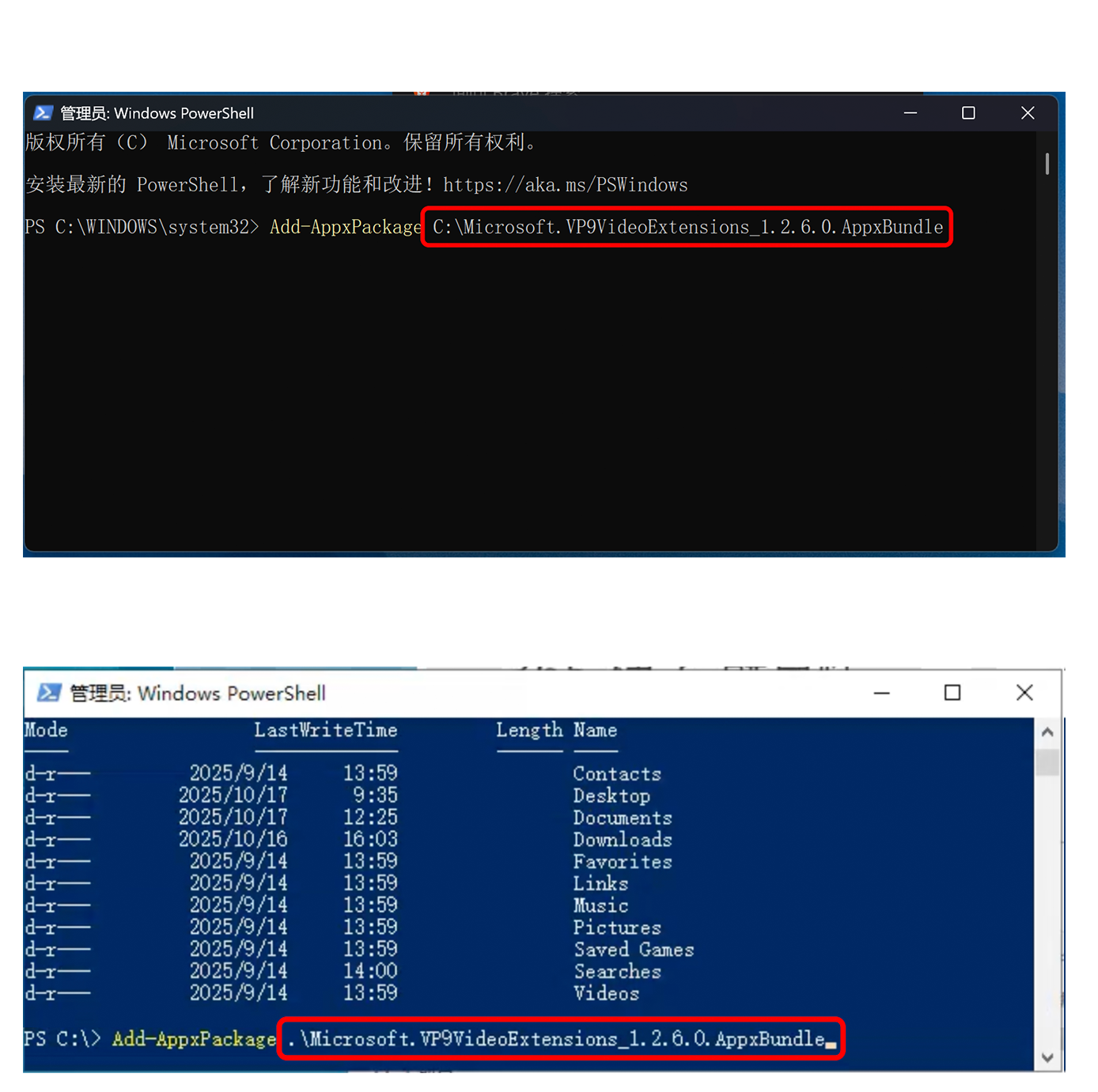
Step 3: In the PowerShell window, type the following command:
Add-AppxPackage C:\\Microsoft.VP9VideoExtensions_1.2.6.0.AppxBundle
(Replace the path with where you saved the file if different.)
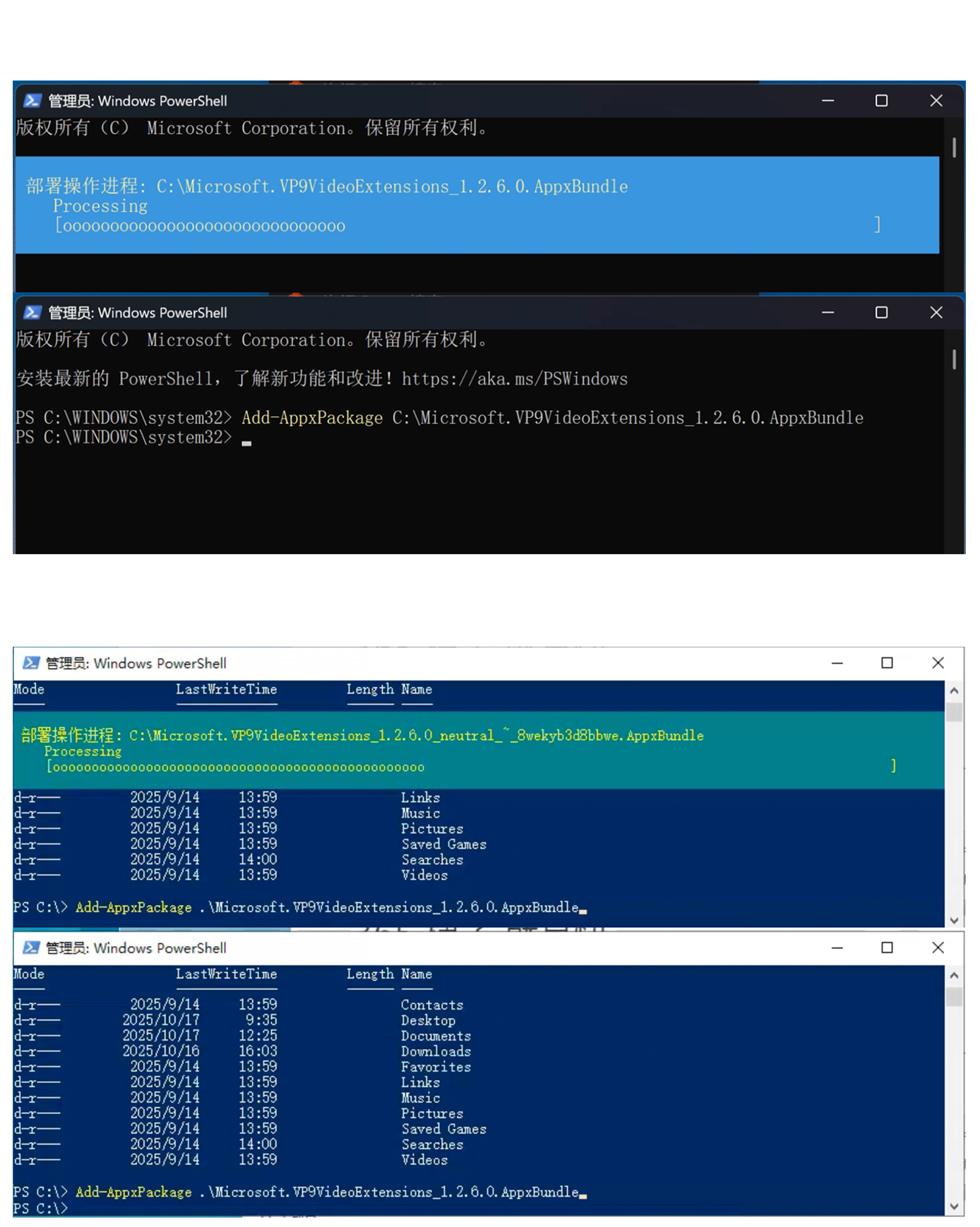
Step 4: Execute the command and wait for it to complete.
If no red error messages appear, installation was successful.
You can now launch the game normally, and the white screen problem should be resolved.
Cause 2: Firewall Blocking the Game’s Network Access (Usually from Chapter 2 Onward)
In rare cases, the white screen issue may occur if your firewall or antivirus software is blocking the game’s network access. To fix this, please add the game to your trusted list or whitelist in your security software.
Since there are many types of antivirus and firewall programs, please refer to your specific software’s help documentation.
For example, using the Windows Defender Firewall:
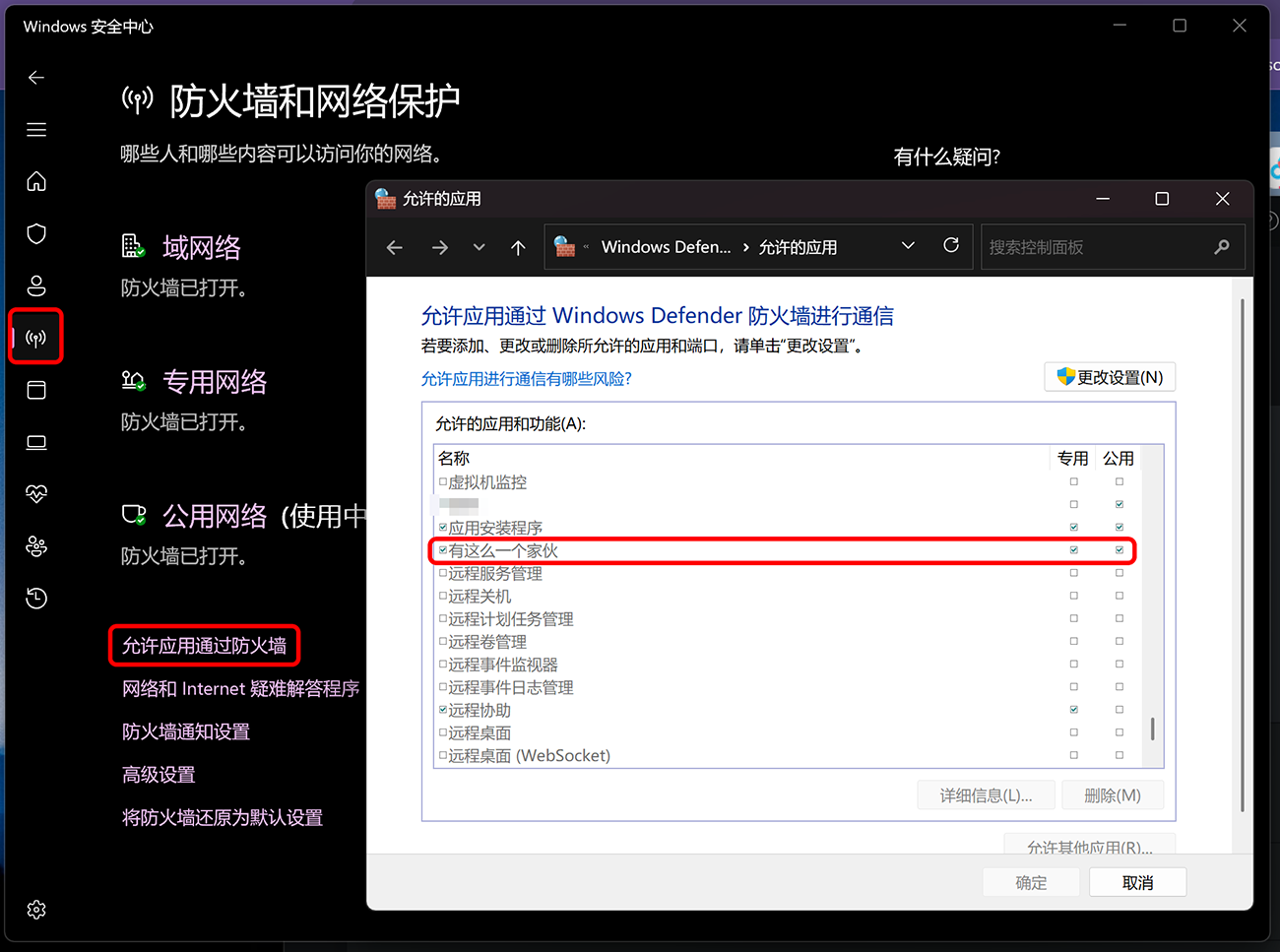
Open Windows Security → Firewall & Network Protection.
Click “Allow an app through firewall.”
Find “Such a Guy” in the list.
Check both Private and Public network boxes.
Click OK to save.
If the issue persists, it may also be caused by a temporary server problem on our side.
In that case, please contact us at [email protected] or reach out through the player community — we’ll address the issue as quickly as possible.
If neither of the above solutions resolves your white screen issue, please contact us at [email protected], and we will assist you individually. We sincerely apologize again for the inconvenience and thank you for your patience and understanding.