
Ⅰ. Hardware Requirements and Recommendations
Default 2K Version
Operating System: Windows 10 (version 1607 or later); recommended Windows 10 / 11 (64-bit)
Processor: Intel Core i3-6100 or AMD equivalent; recommended Intel Core i5-8400 / AMD Ryzen 5 2600 or higher
Memory: 6 GB RAM; recommended 8 GB or higher
Graphics: Intel UHD 630 / AMD Vega 8 (hardware decoding supported)
DirectX: Version 11
Storage: 50 GB available space
Note: Installing the game on a high-speed SSD is strongly recommended.
DLC 4K Version
Operating System: Windows 10 / 11 (64-bit)
Processor: Intel Core i5-9400 / AMD Ryzen 5 3600 or higher
Memory: 16 GB RAM
Graphics: NVIDIA GTX 1660 / AMD RX 580 or higher discrete GPU
DirectX: Version 11
Network: Broadband Internet connection
Storage: Base game + DLC require 150 GB available space
Note: Please install on a high-speed SSD for best performance.
Ⅱ. How to Enable the 4K Version
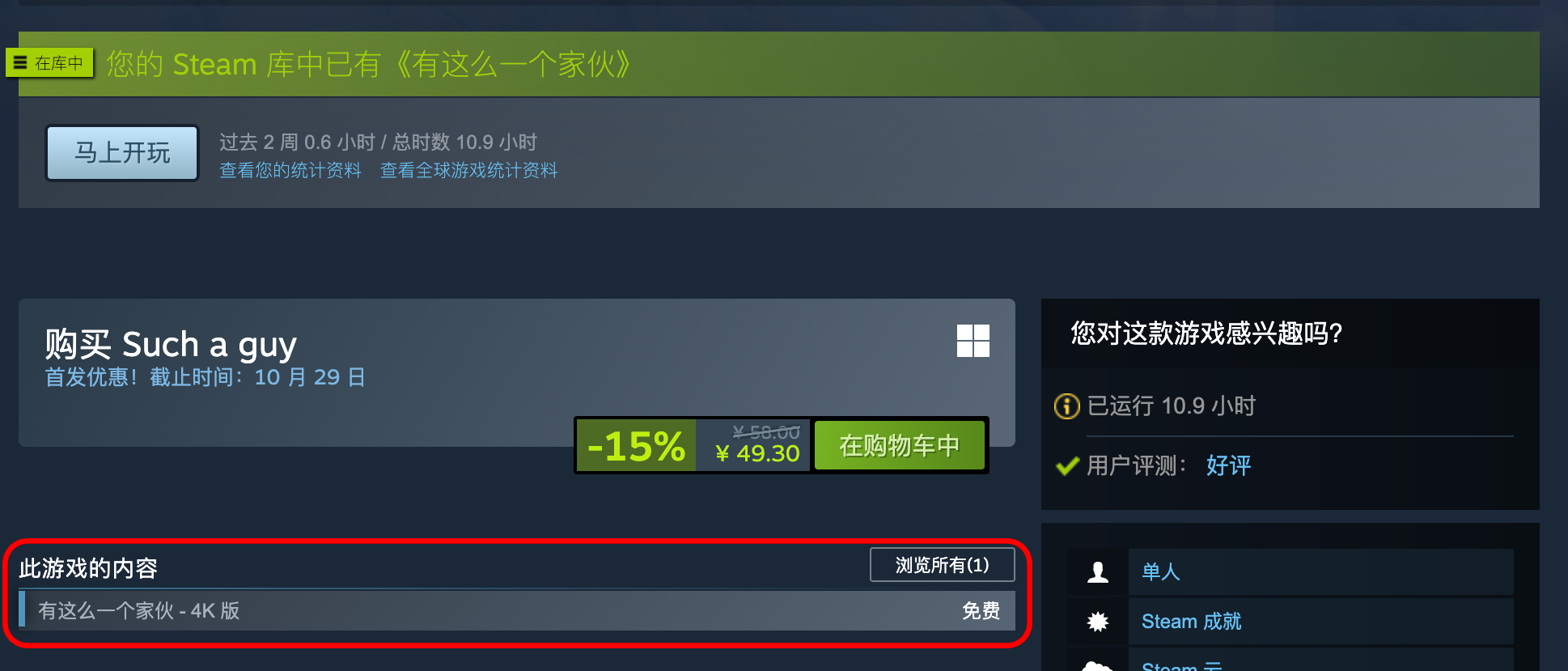
Players can find and claim the 4K DLC for free on the game’s Steam store page. Once installed, the game will automatically run in 4K resolution.
The DLC package size is approximately 104 GB, so please ensure you have sufficient disk space before downloading to avoid any issues.
If you claimed the DLC before your first installation, Steam will first download a 40 GB base package, then automatically download the DLC afterward — the total installation size will be approximately 144 GB.
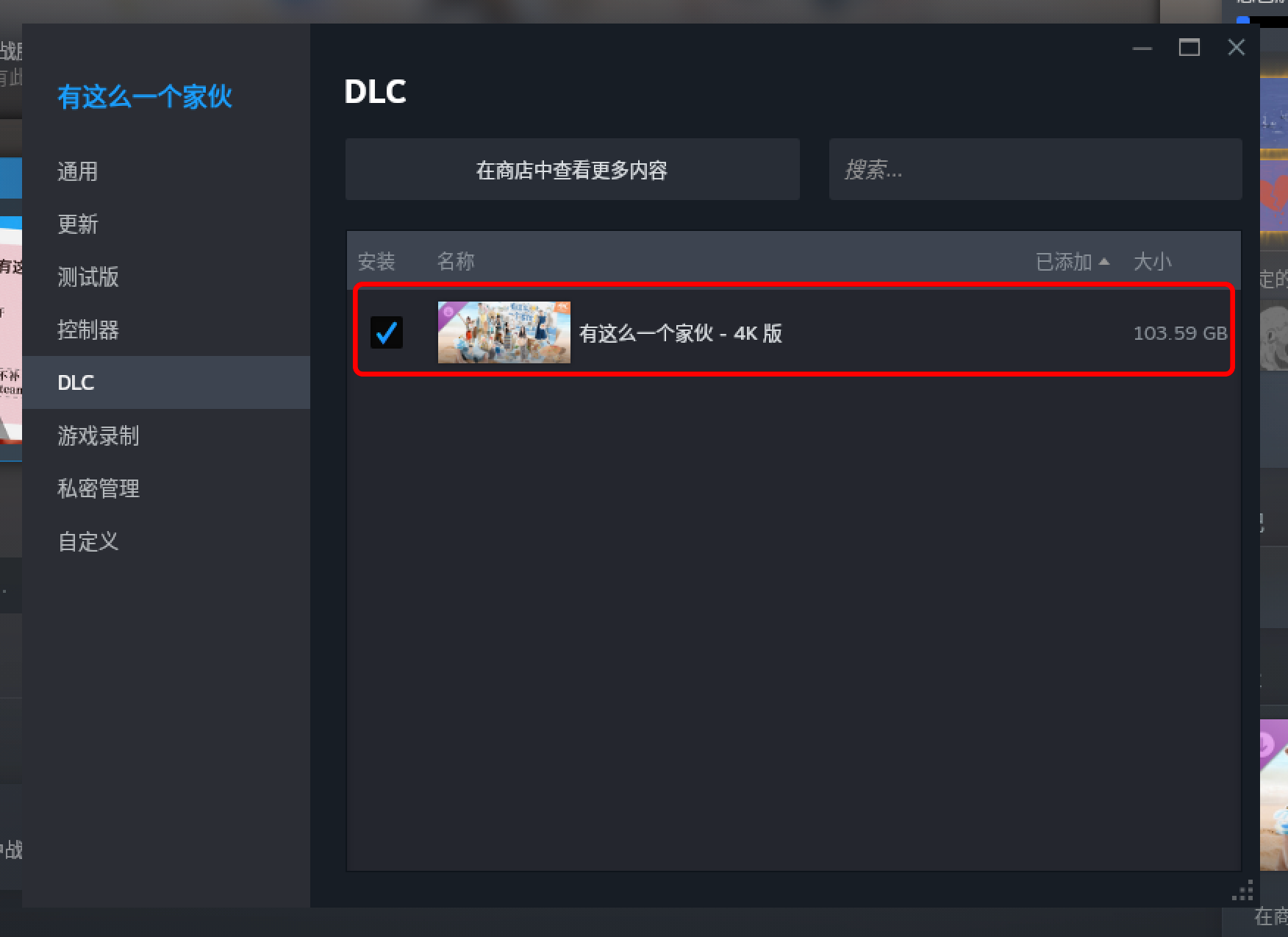
To confirm whether you’re playing the 4K version, right-click the game in your Steam Library → Properties → DLC tab → check if the DLC is ticked.
To play the non-DLC version, simply untick the DLC box.
Ⅲ. Online Connectivity
While playing, please ensure your PC remains connected to the Internet.
The client needs to communicate with Steam for account verification, achievements synchronization, and cloud save functions.
However, all game content and videos are fully stored locally — there is no streaming or remote video loading, so the game will not consume significant bandwidth or data traffic.
Ⅳ. Fixing Video Playback Lag
Install the game on an SSD to improve video loading speed.
If installed on a non-system drive (not C:), ensure your system drive has sufficient free space for caching.
The 4K DLC contains high-bitrate videos; please allow extra time for scene transitions and loading.
If the video freezes when using playback controls (fast-forward, rewind, pause, skip, etc.), try toggling Play/Pause, or wait a few moments — the video will resume. If you prefer not to wait, use the Back button in the top-left corner and re-enter the scene.
Ⅴ. Save Data Reset Instructions
To manually restart the game from scratch:
In your Steam Library, right-click Such a Guy → Properties.
Under the General tab, disable Steam Cloud Saves for this title.
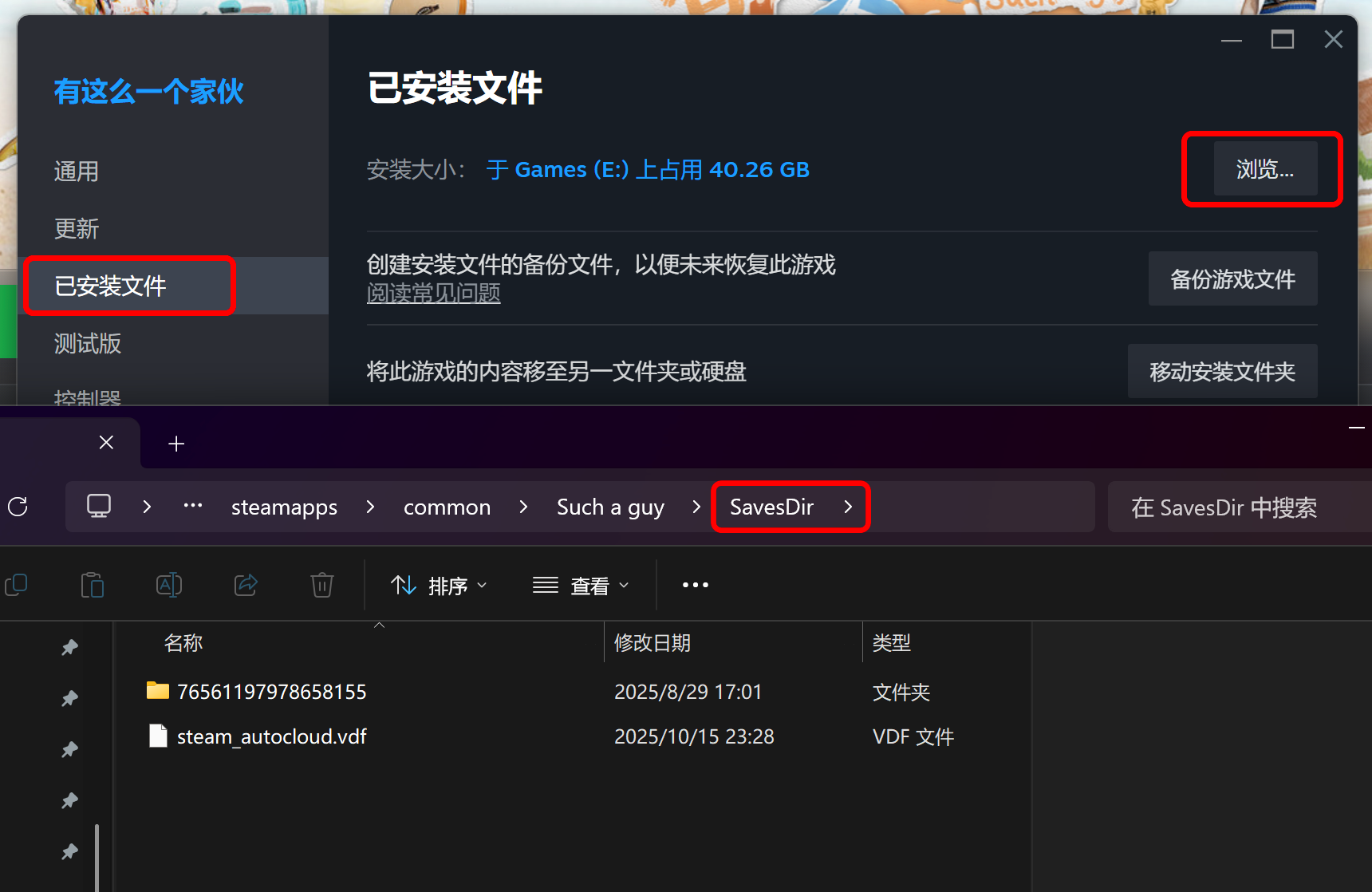
Switch to the Installed Files tab → click Browse Local Files to open the installation folder.
Delete all files inside the SavesDir folder.
Restart the game — it will create a new save.
Each save represents a unique journey; please back up old saves before deleting them.
Ⅵ. About the Special Icons and Related Achievements
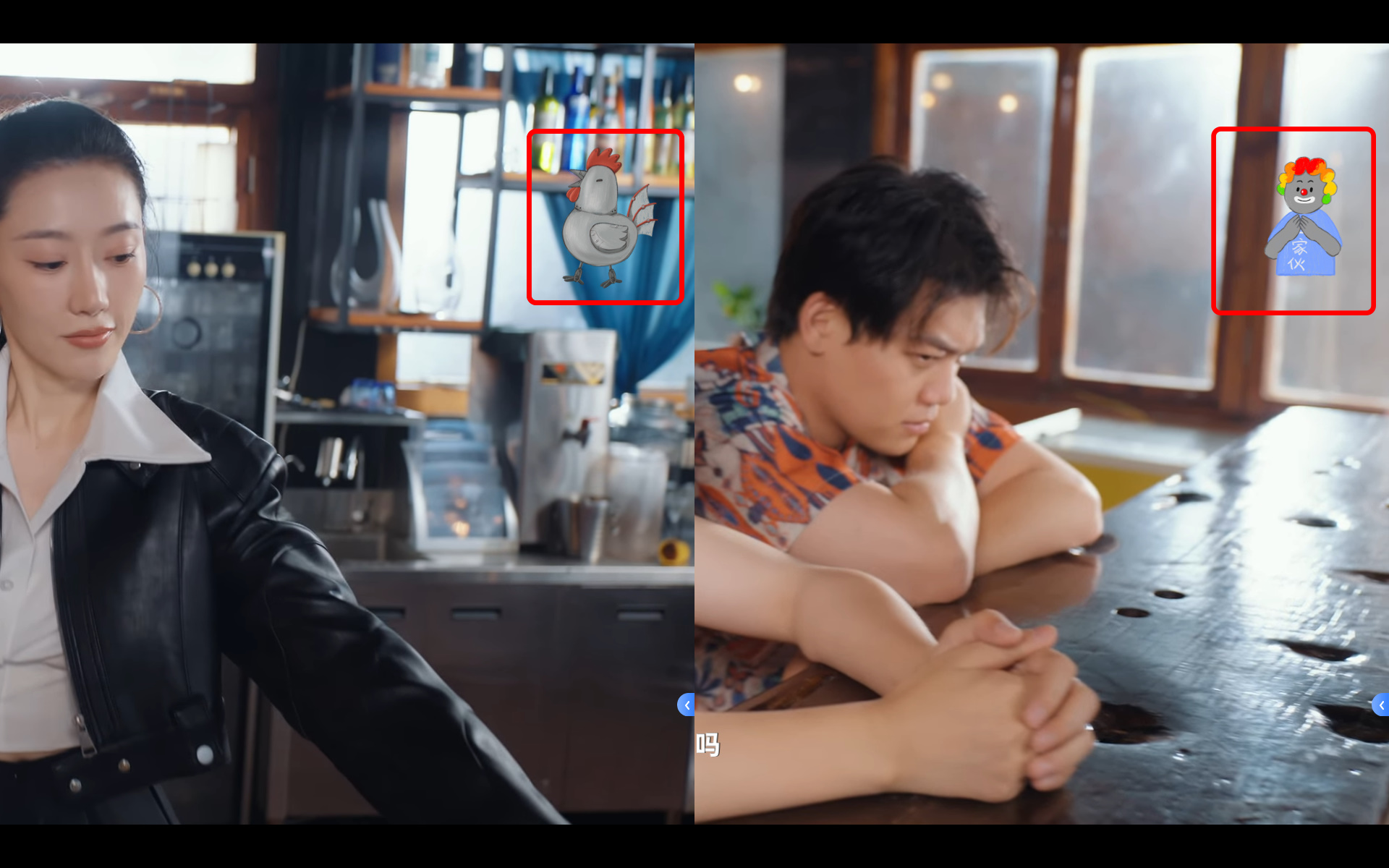
During gameplay, you may occasionally see special animations of the “Penny-Pincher” or “Fun-Seeker” appear in the top-right corner — this indicates you’ve progressed further toward a special ending.
There are many such hidden branches scattered across different story paths.
We suggest exploring most major branches before trying to unlock these two achievements — it becomes easier once you’ve experienced more of the story.
Note: To reach these special endings, the affection levels of the six female characters must not be too high; otherwise, you’ll trigger their normal endings instead.
Ⅶ. Some Scenes Cannot Return to the Flowchart
Under normal conditions, most scenes allow you to return to the flowchart via the top-left icon.
However, a few scenes temporarily disable this icon — this is intentional and not a bug.
When players jump freely between scenes using the flowchart, the system automatically records the play path to ensure affection, achievements, and flags are correctly tracked.
To prevent data corruption or logic errors, a few special scenes temporarily restrict returning to the flowchart.
Such a Guy’s data architecture was built completely from scratch. We acknowledge some imperfections and deeply appreciate your understanding and support.
Thank you to everyone who purchased the game and provided feedback!
Ⅷ. White Screen Issue When Entering the Game
We’ve received reports from some players encountering a white screen after the game starts. We sincerely apologize for this issue. Our development team is actively investigating and working on a fix. The root cause has not yet been fully identified.
Please try the following troubleshooting steps. You can also reach us at
or through your community admin with details and results.
1. Check Your Windows Version
Press Win + R → type winver → Check your Version and Build Number.
Minimum requirement: Windows 10 version 1607 (Build ≥ 14393).
If your system is older, please update it via Settings → Update & Security → Windows Update → Check for updates.
2. Install Video Decoders
The game relies on dedicated video decoders. Missing or conflicting codecs are the most common cause of the white screen issue.
Try reinstalling or repairing the following components:
Install Media Feature Pack for Windows (for N editions): Microsoft Support Page
Install VP9 Video Extensions (from Microsoft Store): Microsoft Store Link (Recommended)
Install or Update LAV Filters Decoder :
① Download the latest stable version (e.g., LAVFilters-0.80-Installer.exe) from lav-filters.en.lo4d.com/windows
② During installation, ensure “LAV Video”, “LAV Audio”, and “LAV Splitter” are checked (they are by default), then restart your PC after installation.
3. Check System Drive Space
Ensure your system drive (usually C:) has at least 10 GB of free space.
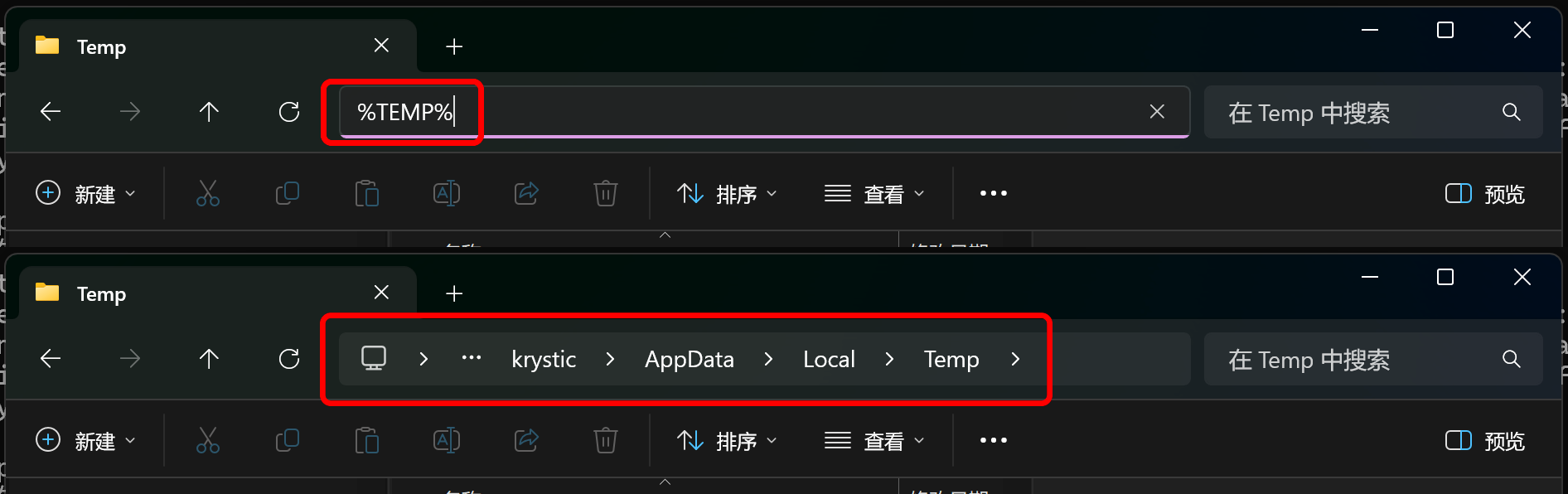
4. Check Temporary Folder Path
Please make sure that the temporary folder path contains only English letters, numbers, or standard ASCII symbols.
Avoid using Chinese, Japanese, Korean, or other non-English characters in the folder path, as they may cause video decoding issues.
5. If the Issue Persists, Please Contact Support and Provide the Following:
① The full path of the temporary folder (copied from the address bar opened in Step 1).
② The file size of any playable video on your desktop (Right-click → Properties → Size).
③ The game log file (Player.log), located in Steam → Right-click game → Properties → Local Files → Browse → “Logs” folder.
📧 Support Email: [email protected]
Ⅸ. Achievement Localization
We have received feedback from overseas players that the achievement text localization is missing.
Our localization team is already working on it, and the translated achievement strings will be added within this week.
We apologize for the delay and thank you for your patience and understanding!