
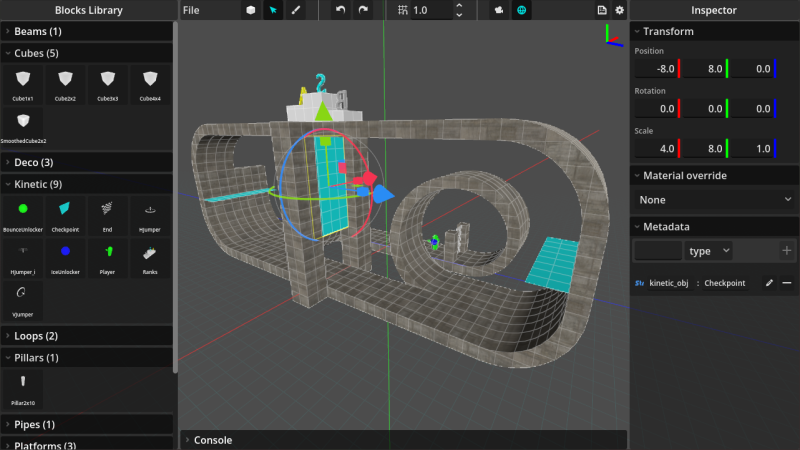
The level editor is a standalone app that you can launch from the new "Community levels" section (Main menu).
How to play community levels?
Browse Kinetic workshop from Steam or directly in the game in the "Community levels" section then subscribe to the level you want to play.
How to create a level?
Run the level editor from the "Community levels" section and build your level using the available blocks.
The editor has 3 mode:
- Block mode: Quick placement on a grid
- Select mode: Gizmo and inspector for more precise placement, custom textures and metadata
- Paint mode: Quick placement on already placed blocks (usefull for ferns)
Blocks are stored in a folder as glb files.
If you want to, you can add your own blocks (glb files) in the BlocksLibrary folder and textures in the TexturesLibrary folder.
("GameFolder"/LevelEditor/BlocksLibrary and "GameFolder"/LevelEditor/TexturesLibrary)
It is recommanded to backup you custom blocks outside the game folder to prevent issues when updatating the game from Steam.
You can also copy/paste the level editor folder elsewhere as it does not require steam to work.
Export and play locally
From the editor: Export your level to your Documents folder in Kinetic/MyMaps.
In the game: Browse your local levels from the Community levels section. You should see your level name!
Click your level to play it.
You can reload the level you are currently testing from the pause menu without comming back in the level selection.
Publish or update a level
From the Community levels section, you can publish or update a level.
Fill the publish form and your level will be available from the workshop with a its own leaderboard.