Hey survivor!
To enjoy MIMESIS, you’ll need a microphone connected to your PC.
For the best experience, we recommend using a mic directly plugged into your computer. Please avoid using sound-effect software or audio interfaces that modify your voice.
First, prepare your mic and connect it to your PC. (Connection methods may vary depending on your mic model or setup, so check your device manufacturer’s instructions.)
If you’re using a Bluetooth mic, connect it through your PC’s Bluetooth settings following the manufacturer’s guide.
Check your in-game settings
1. Go to the Settings menu after launching the game.
2. Make sure the correct mic is selected as your input device. (If you have multiple mics, test by switching between them!)
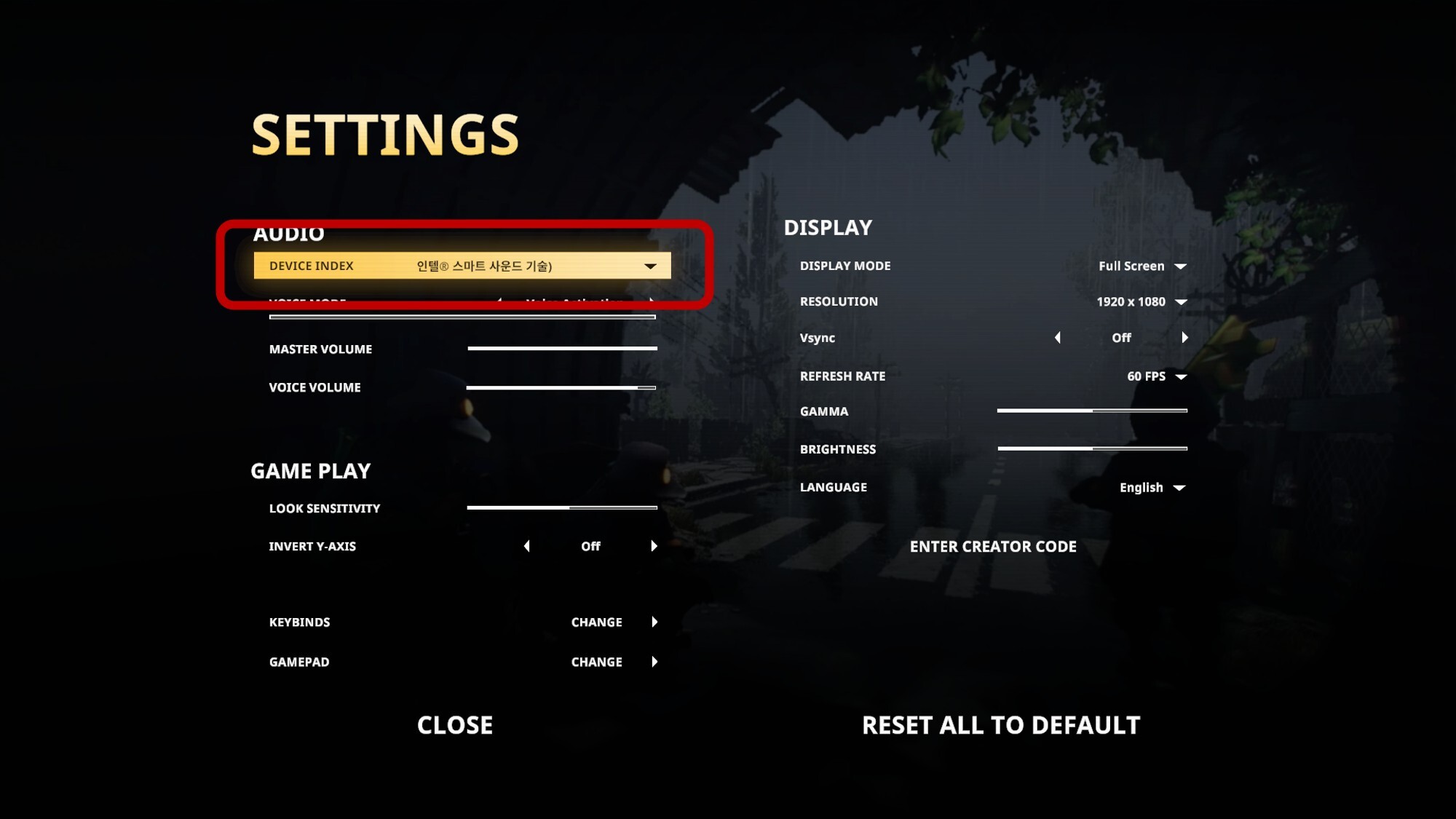
3. When you speak, check if the input bar moves. (If you’re using push-to-talk, hold the button while testing.)
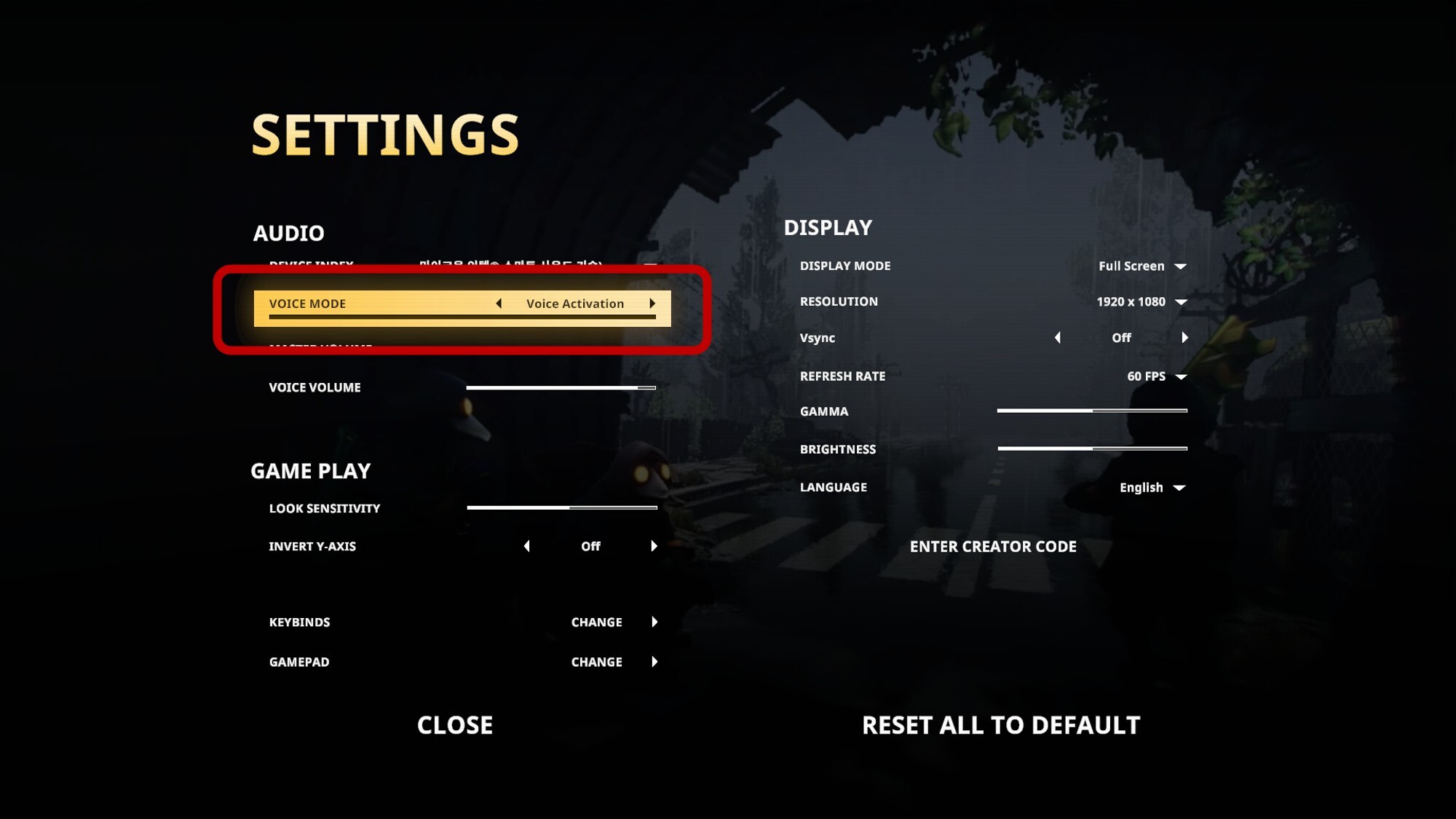
If the mic bar doesn’t react, try checking the following
Quick checklist
- Make sure your mic is properly connected.
- Make sure microphone permissions are enabled.
Windows 10: Settings > Privacy > Microphone → Turn on “Allow apps to access your microphone.”
Windows 11: Settings > Privacy & Security > Microphone → Turn on “Microphone access” and allow your game to use it.
- Please run the “Windows Voice Recorder” app among the Windows apps, and then try playing the game.
Mic setup
Control Panel → 'Change system sounds' → Recording tab → Double-click the microphone being used → Go to the 'Advanced' tab
"Change the default format quality to '16 bit, 48000 Hz (DVD Quality)'"
Uncheck the exclusive mode option: 'Allow applications to take exclusive control of this device'
Click Apply, then OK.
Windows 11 Settings:
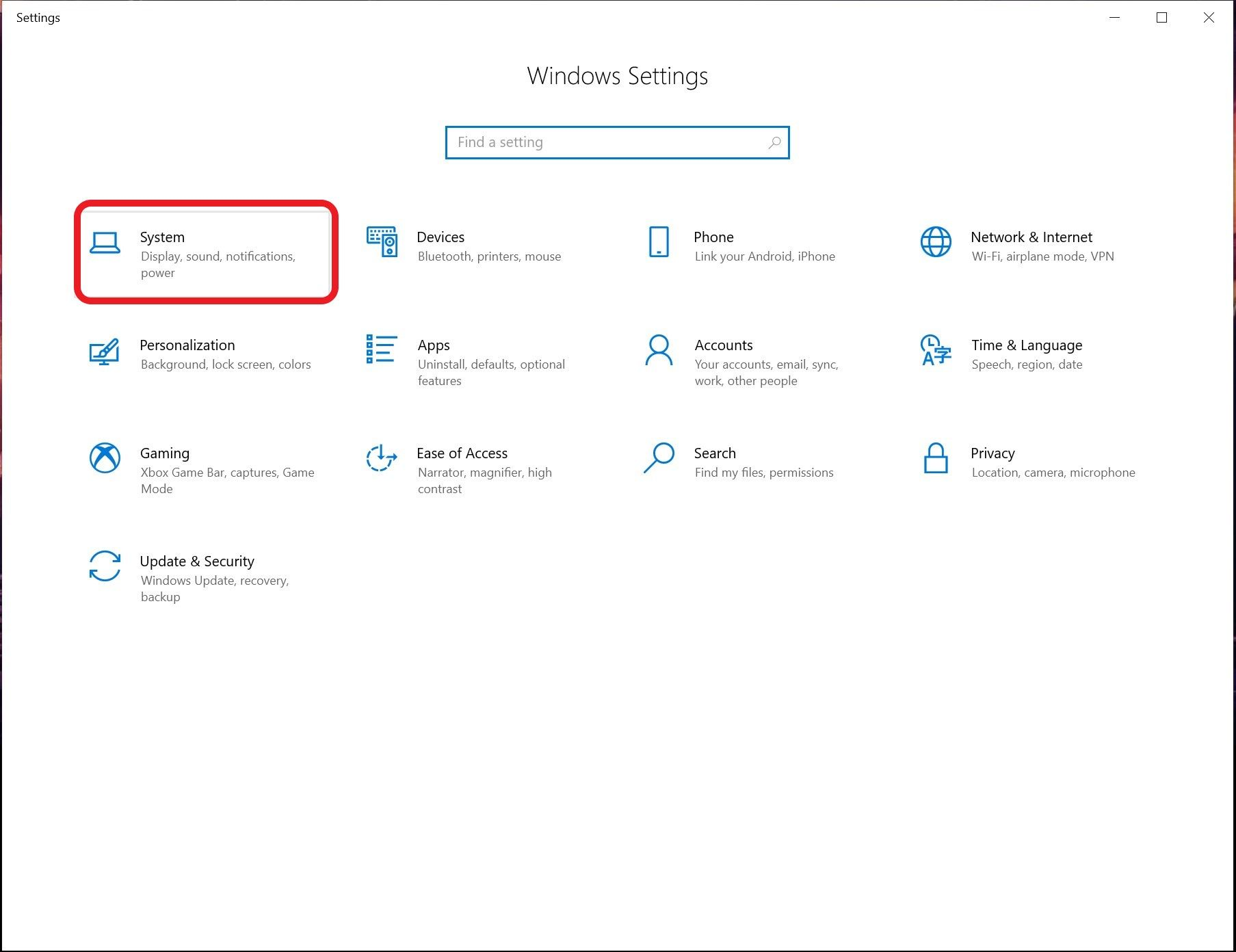
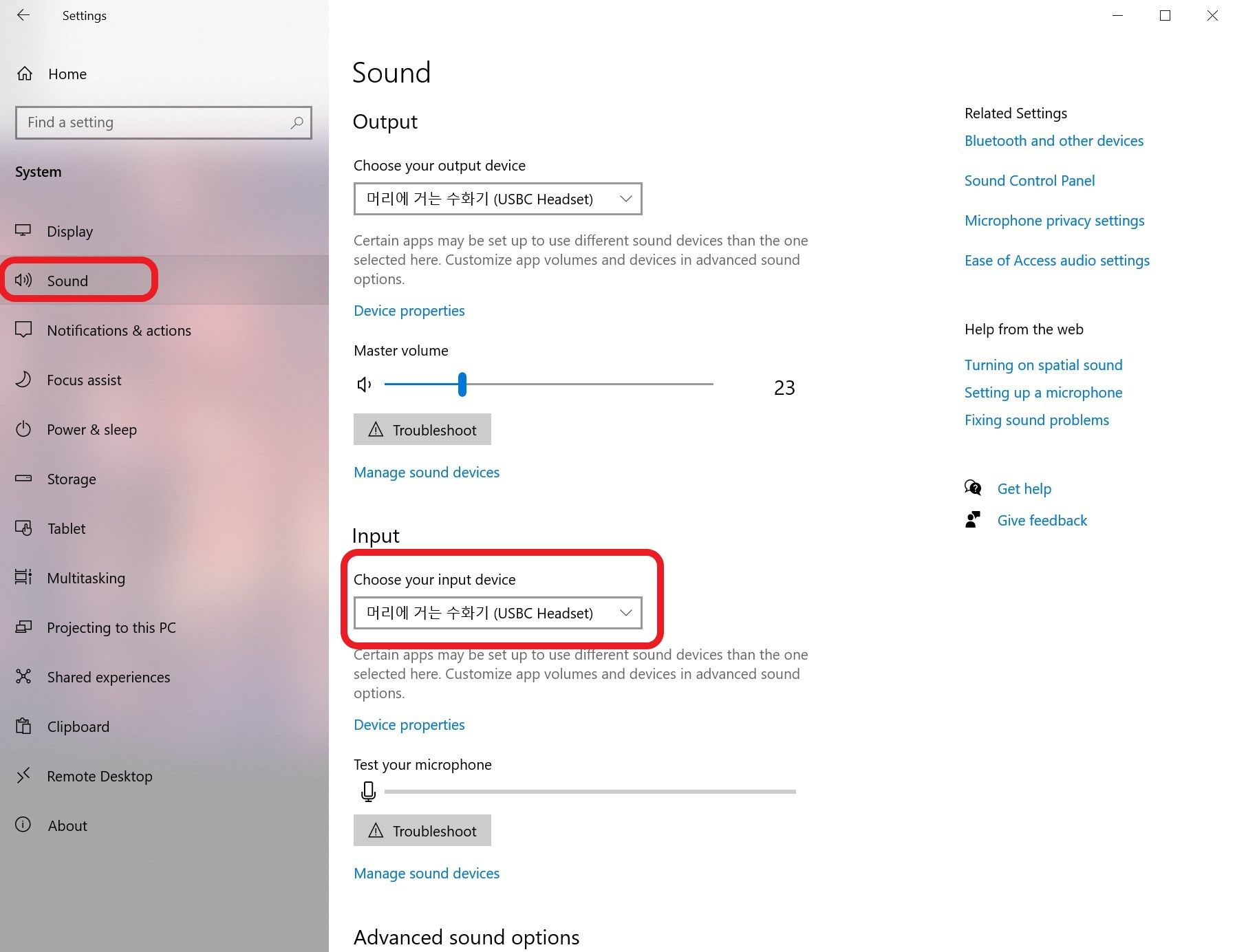
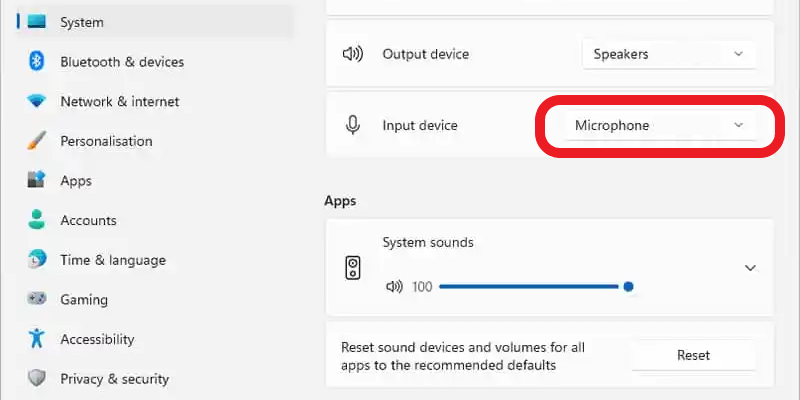
Start > Settings > System > Sound → Scroll to Input
Check that the correct mic is selected.
If you have multiple devices (like a webcam mic), make sure the right one is active.
Use the Test Mic button to confirm it’s working.
Windows 10 Settings:
Right-click the speaker icon on the taskbar → “Open Sound Settings” → Go to the “Recording” tab.
Check if your mic has a check mark. If not, right-click it and choose “Set as Default Device.”
Speak into the mic and see if the bar moves.