
Greetings, Aces -
So, in our last update, we fumbled the ball on custom key bindings, which messed things up for folks who play with keyboard-only. Yikes! That wasn’t part of the plan—you know it, we know it. We understand the frustration for any of you dealing with it, and we want to apologize!
Here’s an explanation, and a stop-gap solution:
What’s different?
The keyboard-only, play without a “.ini” file tweak is no longer possible …
Basically, before the most recent update, you could play Towerborne with keyboard and mouse / keyboard-only without having to do anything special. However, right now, you can't play keyboard-only, without taking a particular action.
Here’s the context:
- We’re preparing to deploy an in-client key rebinding solution. When we do, the current method of editing your “.ini” files will go away.
- We unintentionally shipped the updated bindings that removed keyboard-only controls. Our bad!
- This is totally on us – we’re sorry, and please know that we’ll push an update when we can to bring back the original keybinds.
To be clear, you can still push through keyboard-only controls manually … see below to get the right file and check out our older post for instructions.
-----
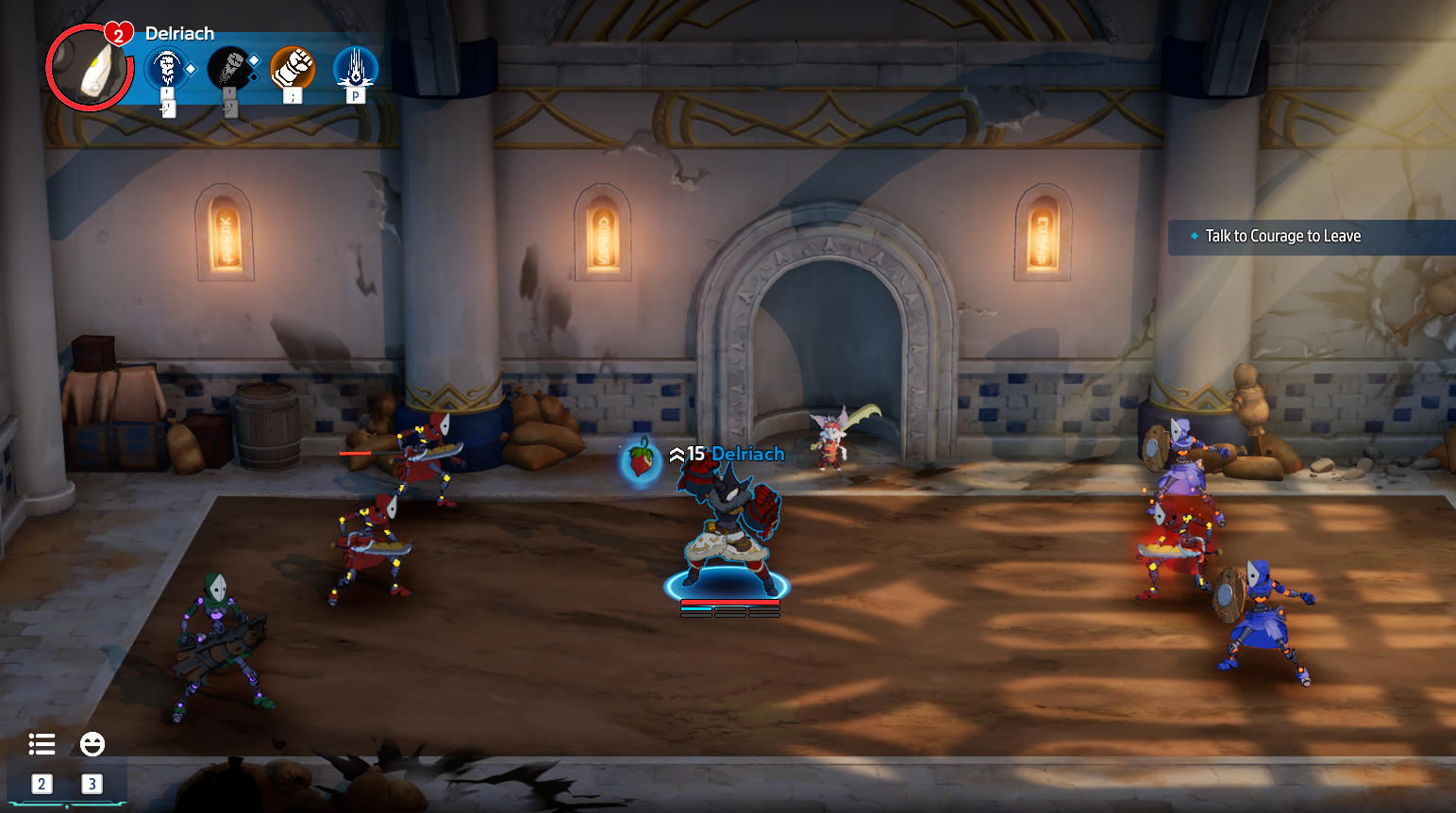
Caption: The buttons you change do actually appear in the HUD now. Except for Light Focus Skill and Heavy Focus Skill, which end up looking super weird for some reason.
-----
In a future release, we will be updating the game so you can edit *in-game* (and this file will be changed).
Here’s what’s different from before the last update:
- F is now Interact. This used to be E.
- Q is now Focus Skill 1. This used to be X.
- E is now Focus Skill 2. This used to be C.
How do I manually remap my controls?
Right now, we’re unable to revert the change immediately ourselves – but you can update things manually as a stopgap.
The original **instructions for manually remapping keys** can be found here in their thorough glory (our original post)... we highly recommend checking that out for a step-by-step guide. Also, here’s a handy YouTube walkthrough, too.
Remapping Controls - An Overview / Refresher
(1) - Find the Game Files – In Steam, right-click Towerborne, go to Manage > Browse Local Files, then open the Belfry folder.
(2) - Create a Config File – Inside Belfry, create a Config folder.
(3) - Drag and drop your “UserInput.ini” file into the Config folder (you need “Show File Extensions” enabled - check out step by step instructions for more).
Here are the ".ini" files you’ll need, depending on the control scheme you’re interested in – download, unzip, and drag-and-drop your “UserInput.ini” file into the Config folder (you need “Show File Extensions” enabled - check out step by step instructions for more).
Edit the Controls (if you want!) – Open UserInput.ini, change keys as needed, save, and launch the game.
Thanks for sticking with us, and as always, keep the feedback coming—we're listening!