
Hi All,
The latest updates adds a new feature that let's you add Dialog / Speech Bubbles to characters. Here's the process to try it out:
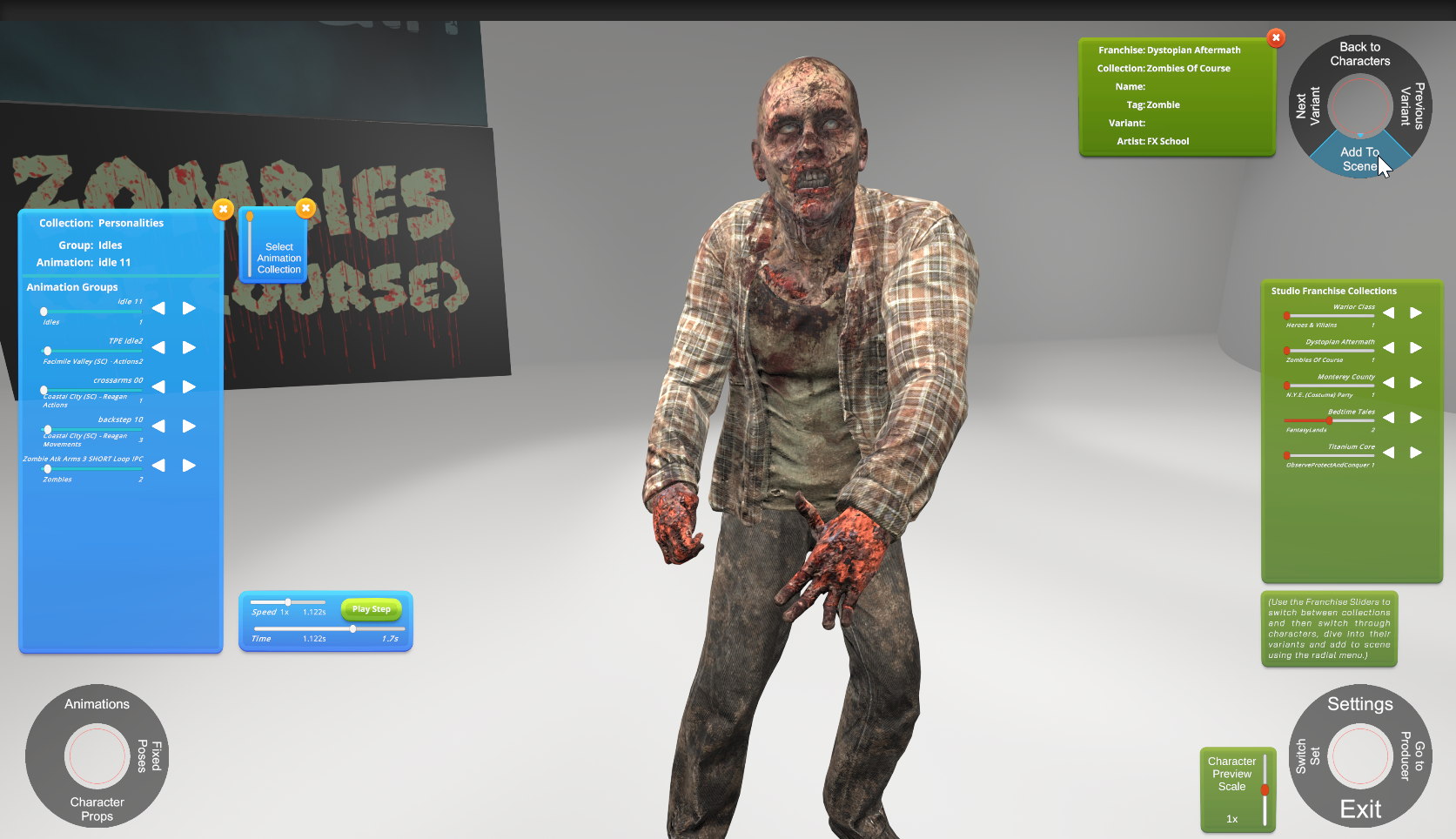
Select a character and then click the Add Character button on the top right radial menu.
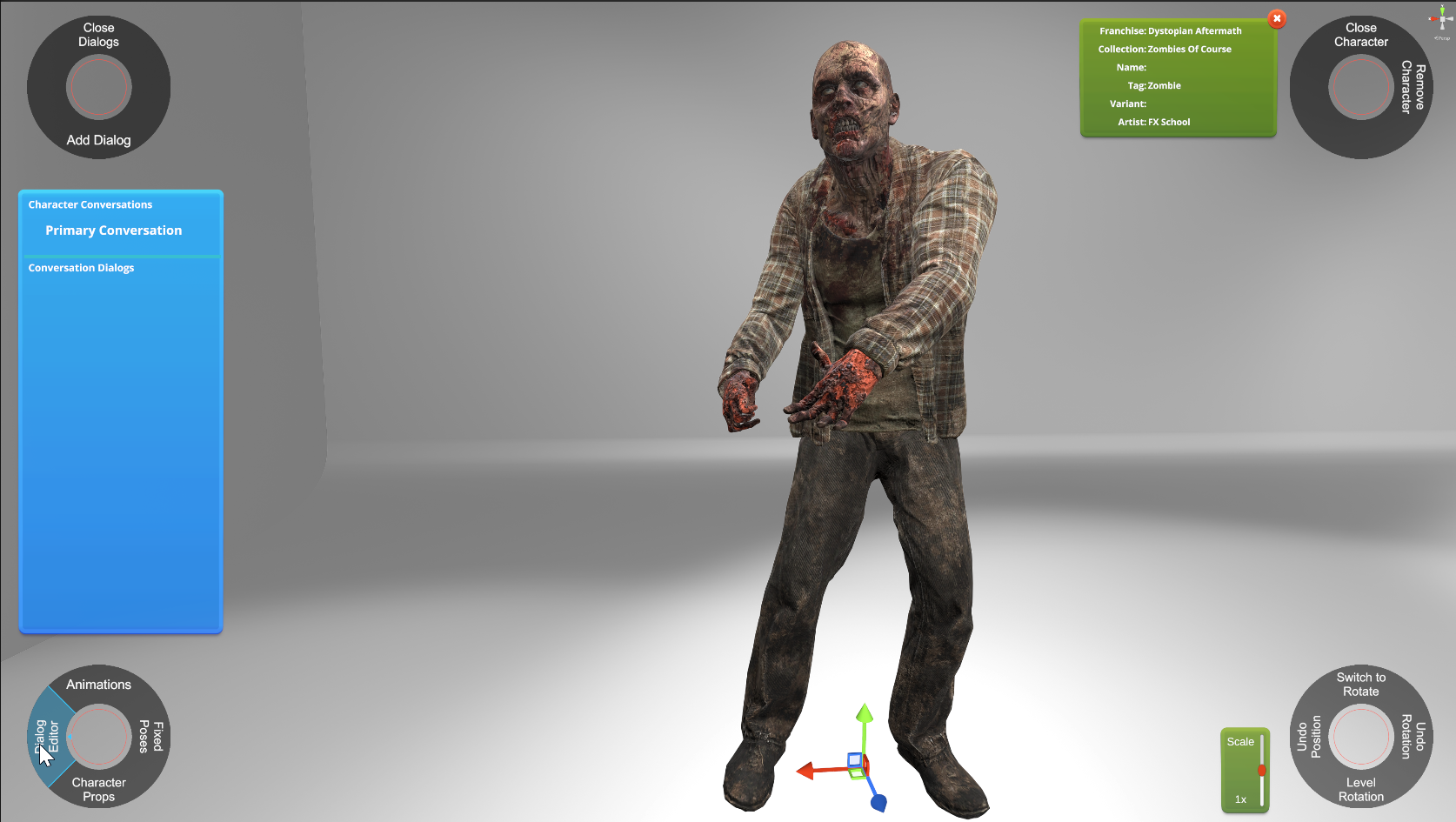
With the character selected, click the Dialog Editor button on the bottom left radial menu.
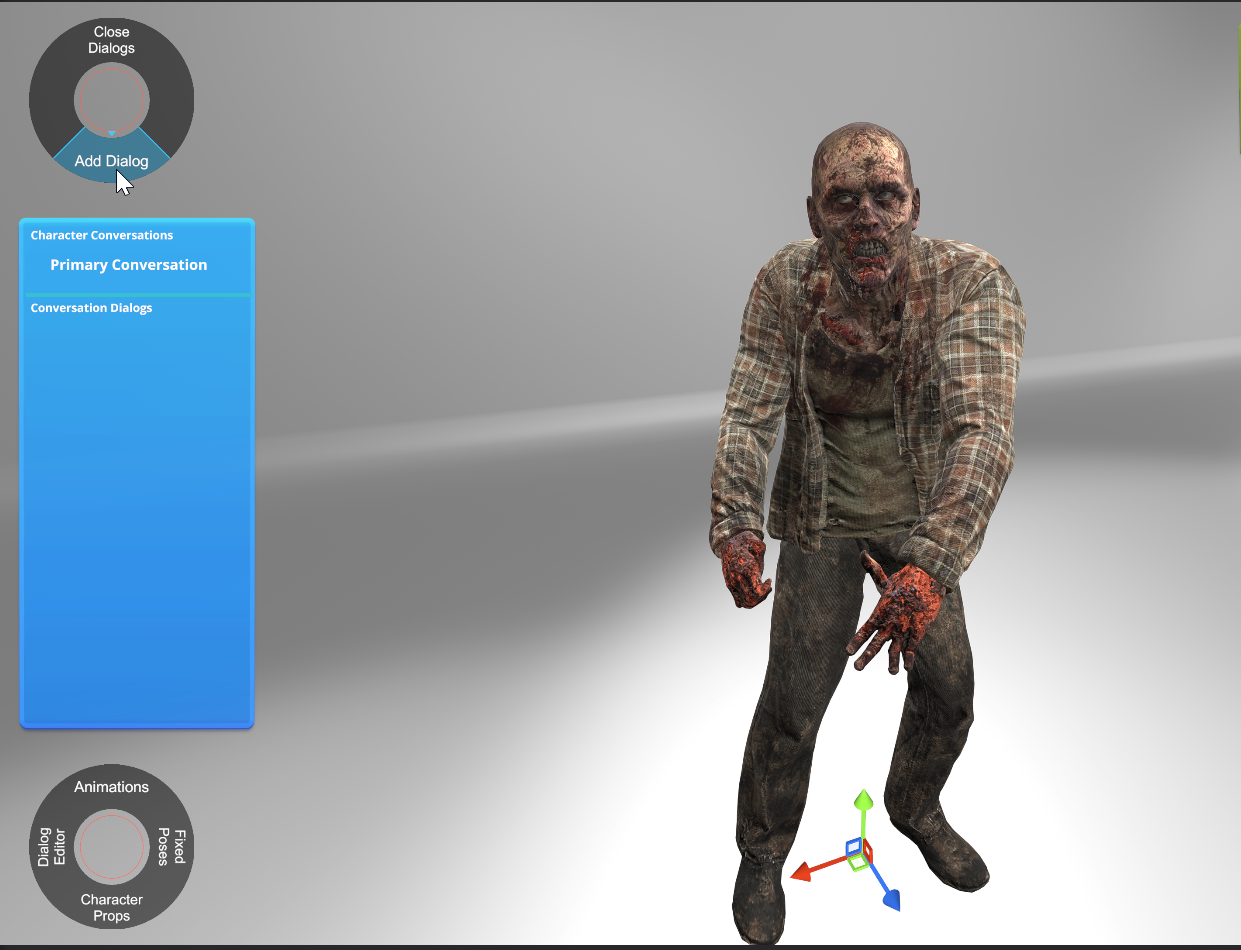
Click the Add Dialog button on the top left radial menu.
Note: You cannot move around the scene when editing a dialog. If you want to, just save the dialog, move as normal and then click on the dialog to open the editor again.
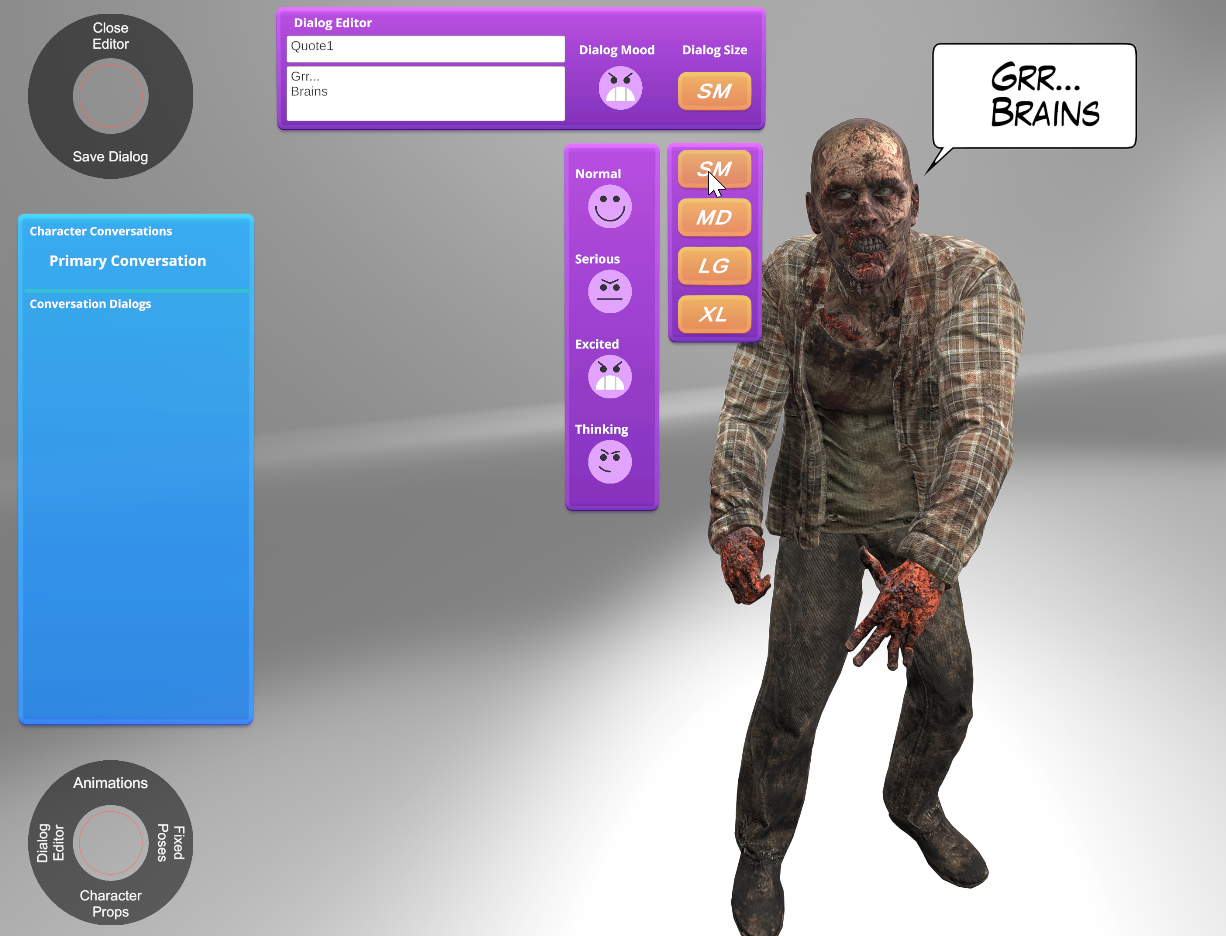
Set the dialog options and text. If you click on the Dialog Mood or Dialog Size buttons, it will open a drop down and allow you to set the mood and size. (Example dialogs will disappear after a few seconds)
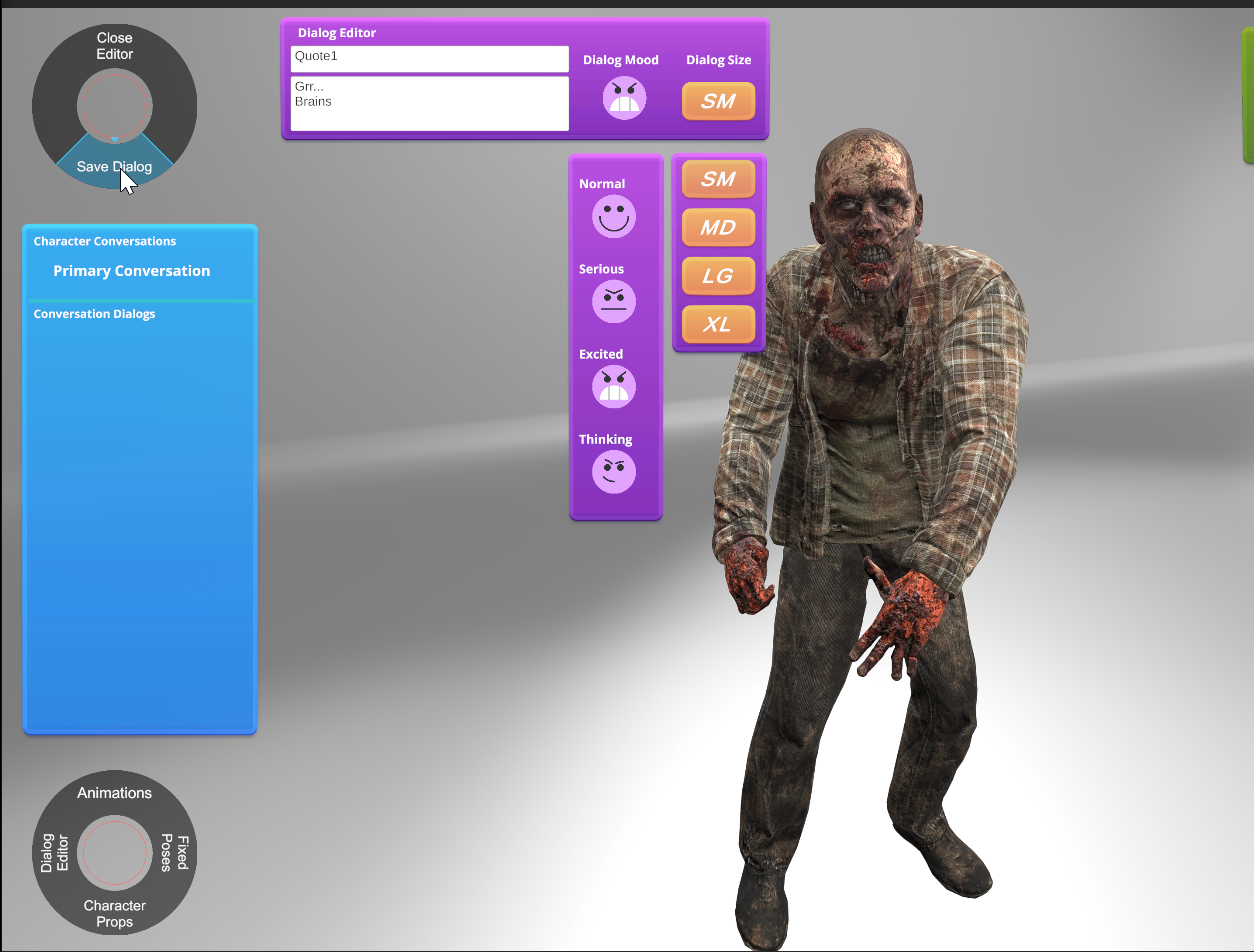
When happy, click the Save Dialog button on the top left radial menu.
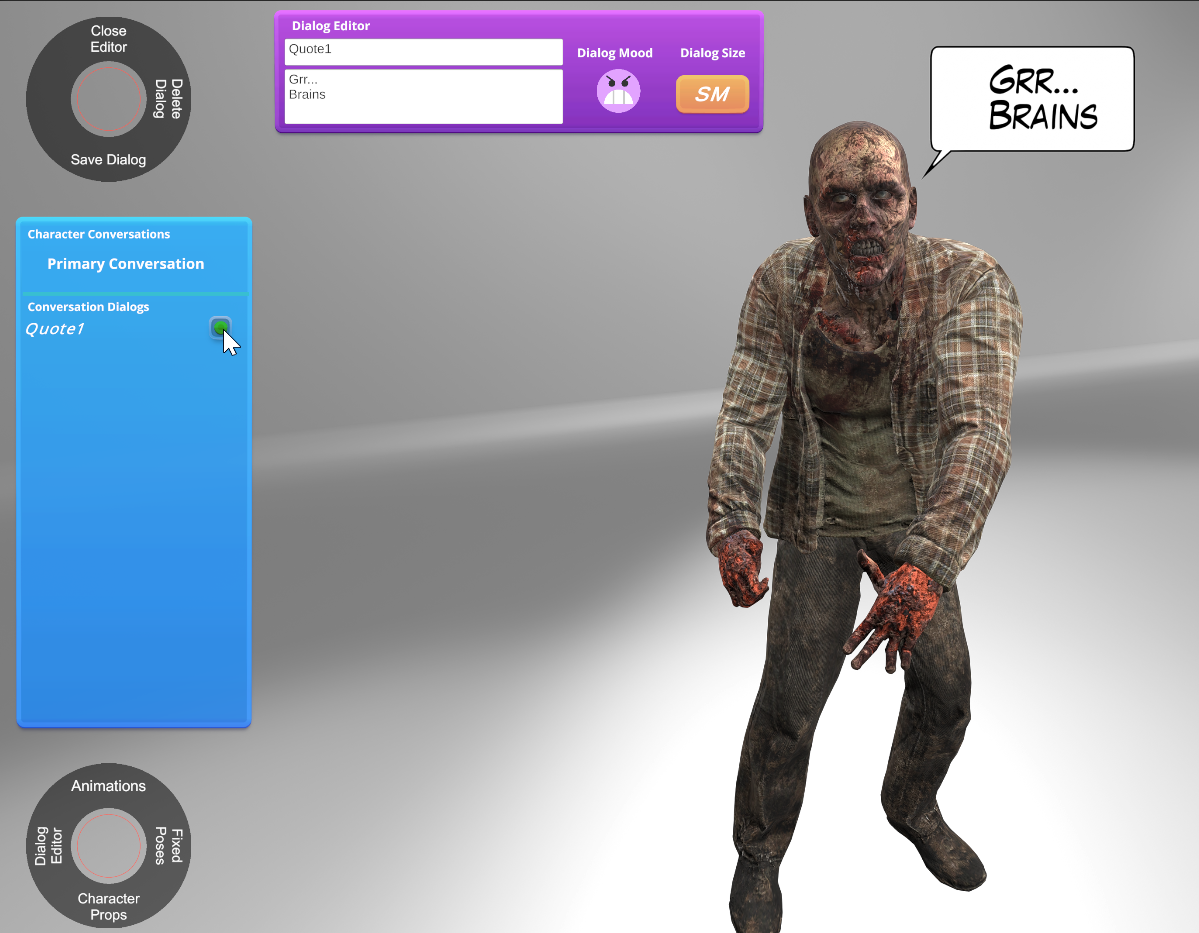
To activate the dialog, click on it from the list for the character. It will automatically open the editor and will keep the dialog active.
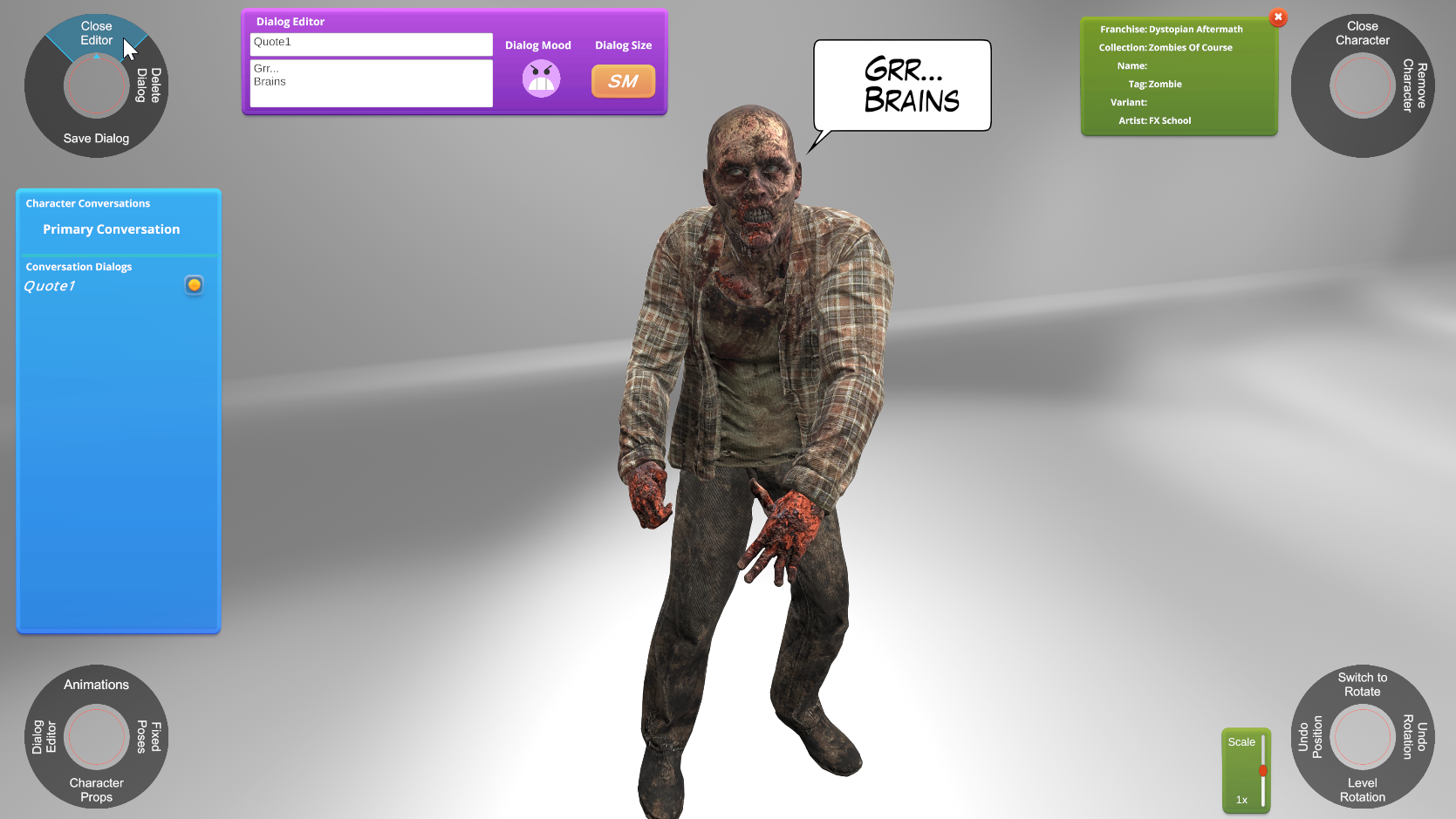
You can click the Close Editor button on the top left radial menu and the editor will close and the dialog will remain.
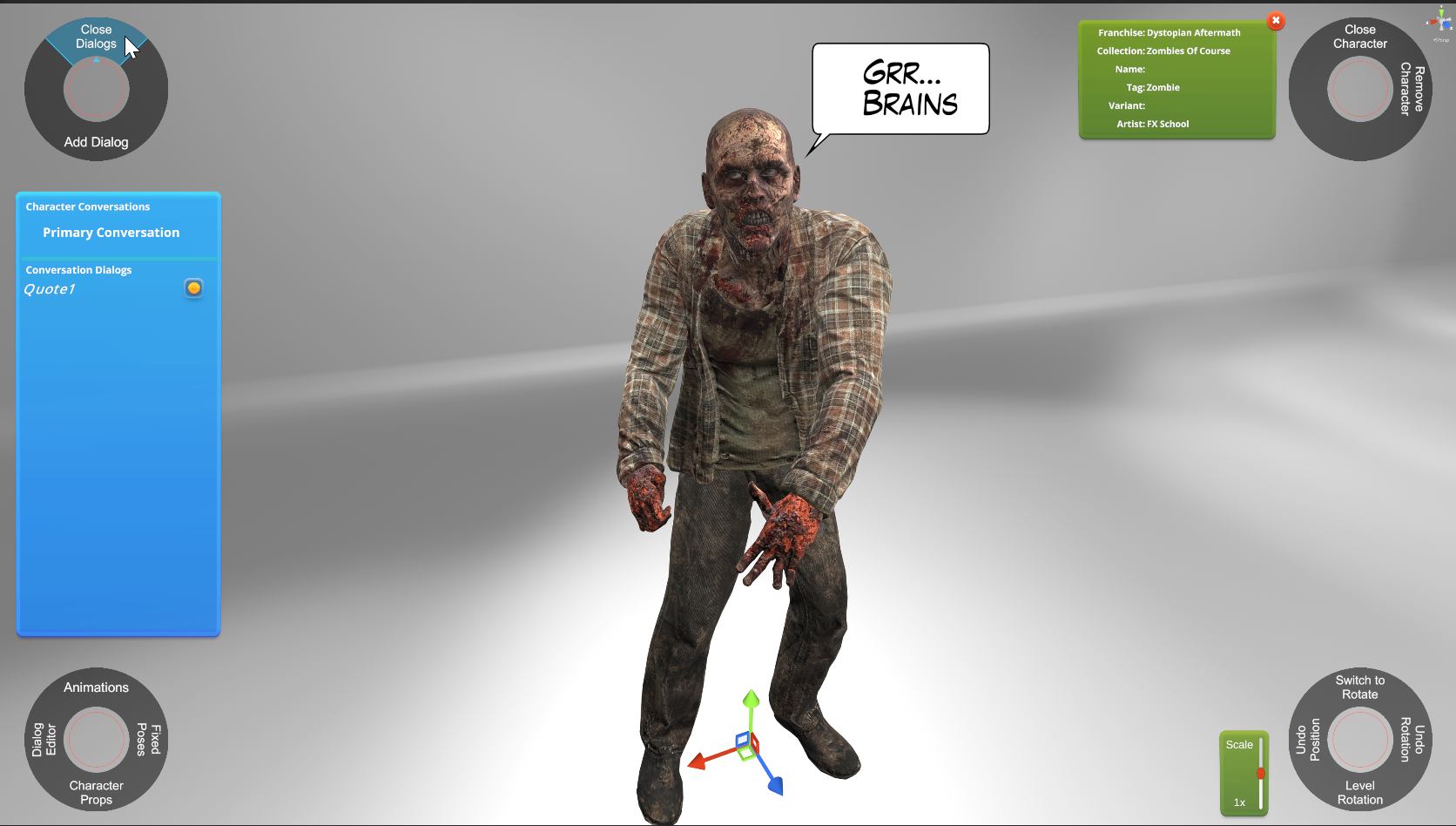
If you want to close the dialog, close the dialog editor and then click the Close Dialogs button.
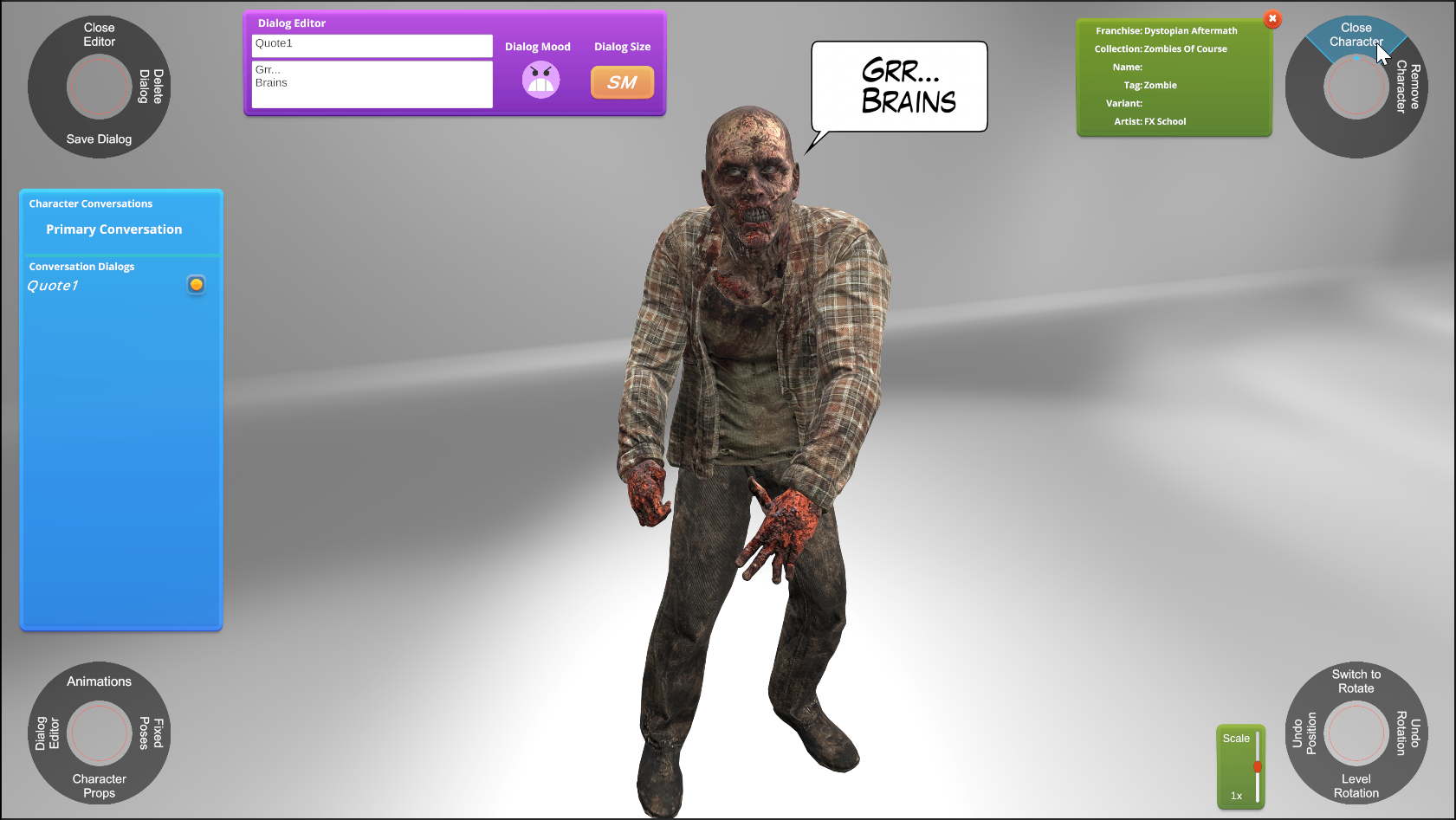
You can close the character and the speech bubble will continue to appear.
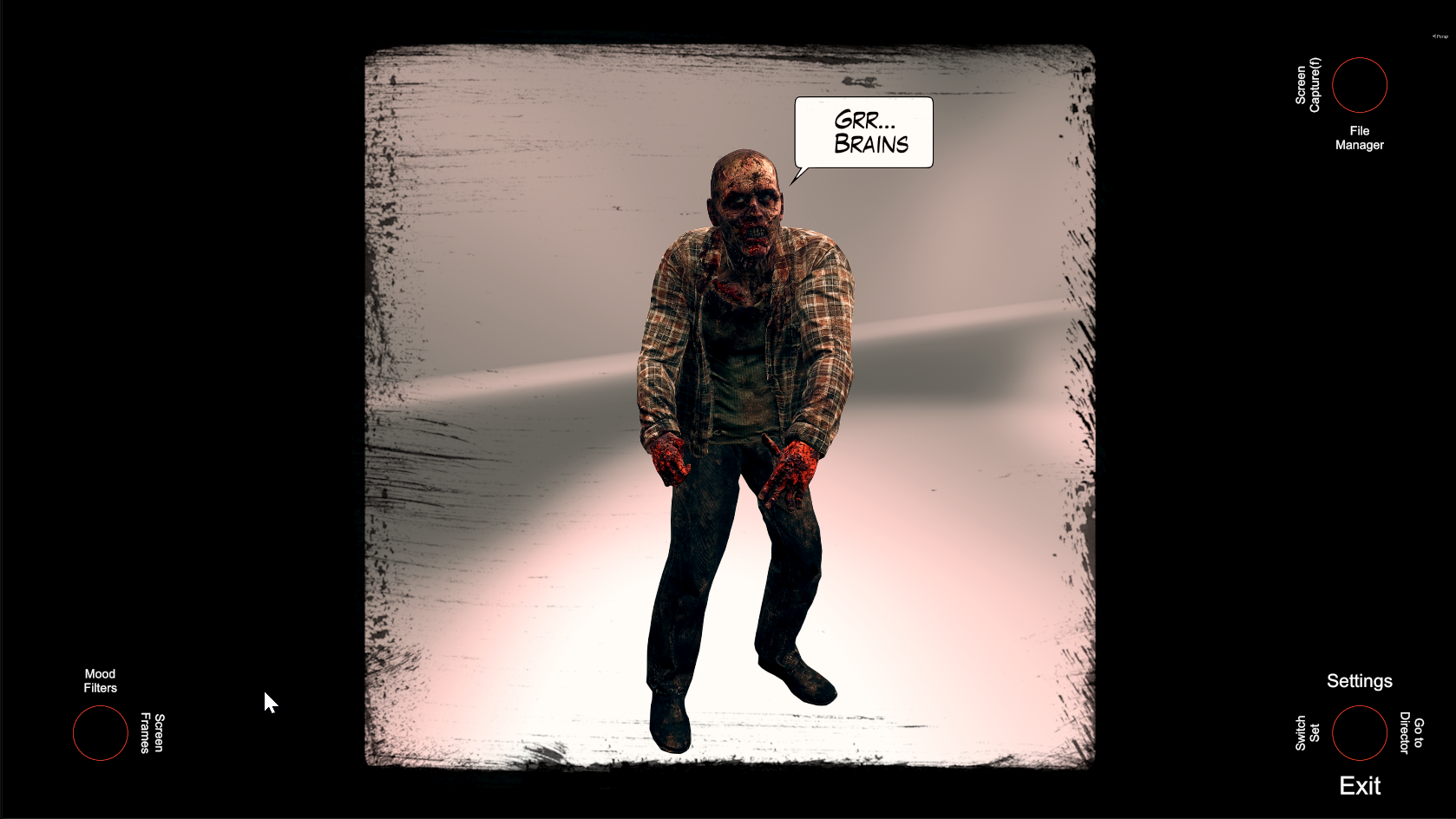
You can go into the producer mode and create an image.
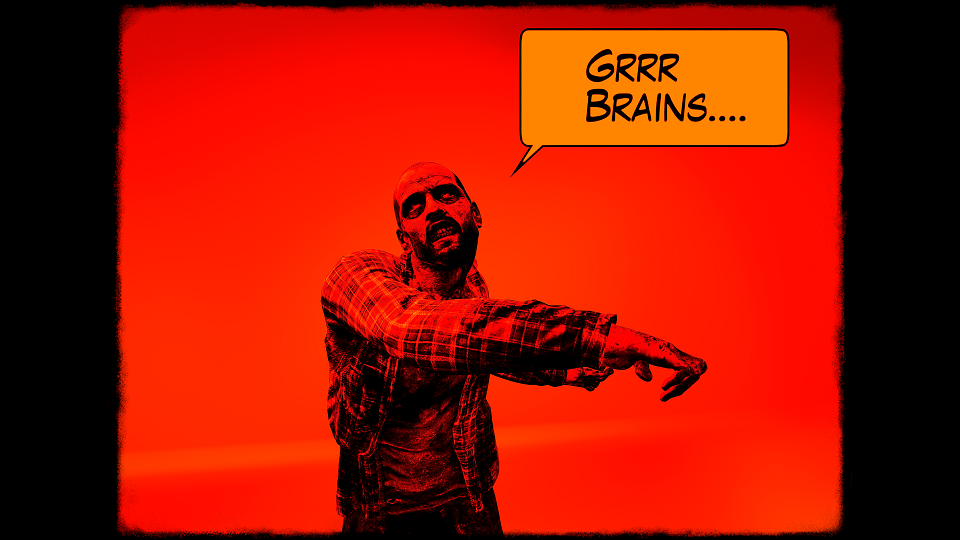
Thanks for reading! (Next up is a look animator)
-ArcadePlayer '99