
New Features
Move Evaluation
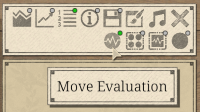
A new button has been added to the top right of the Go board screen for quick play matches and reviews which will turn on the move evaluation feature. This icon is a circle with an analysis line through it. You can hover over each button and a tooltip will be displayed to show their purpose.
When using the move evaluation, as you play your moves, your last move will be highlighted and a color will be displayed over top (a gradient from red, to yellow, to green) giving a rating based on the estimated score loss of the move.
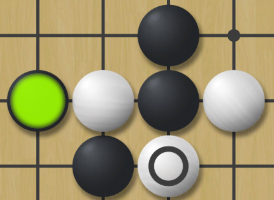
This analysis takes the estimated score prior to your move, and then compares it to the estimated score after you and your opponent's moves are completed. This determines whether your move was successful based on the opponent's response.
In the AI settings, you can also enable the option to display the score loss as text on the move as well, for more precise feedback. A large negative value means that it is estimated that your move was not the most optimal and you opponent responded in a way that took advantage of your mistake. A positive value means that is estimated that your opponent did not respond in an optimal way to your move.
By default, the threshold of a mistake is set to a score loss of 4 points which will be displayed as red, 0 or positive is green. and the midpoint (2) is yellow. This threshold can be customized in the AI settings menu.
The red, yellow, and green colors can also be customized within the custom board theme editor.
Candidate Moves
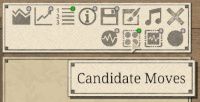
A new button has been added to the top right of the Go board screen which will turn on the candidate moves feature. The icon is similar to the move analysis icon, but with multiple moves in the center of it.
When clicked, this button will show the candidate moves the AI is evaluating for a given board position. This works similar to the existing Move Analysis feature, however detailed information such as move rank, visits, or opacity of the displayed move are hidden from view. All moves are displayed equally to make it not obvious which is the top ranked move according to the AI. Additionally, the move analysis filters out moves that haven't been searched enough, so for a position that has one obvious answer according to the AI, it will display one move on the board with high confidence, where the candidate move analysis will display multiple moves on the board, allowing the player to do the evaluation themselves.
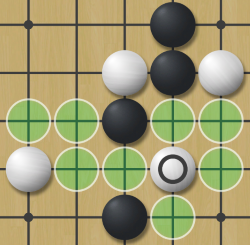
This feature is also added as a campaign ability which costs less than the find moves/move analysis feature.
The default settings will display 8 possible candidate moves, however this can be customized from within the AI settings menu.
Guided Mode
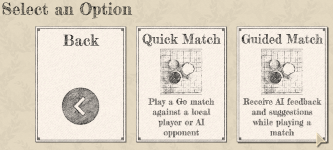
This new game option makes use of the two new features mentioned above to give a more guided experience while playing a match.
As you play your moves, you're able to see the evaluation of your last move. If this move wasn't up to your satisfaction and an undo is used, the candidate move analysis will be turned on automatically to display some options of where you may want to play for a better outcome.
After the first undo for a particular move, each subsequent undo will divide the amount of moves displayed in the candidate analysis by half, eventually displaying only one move (the AI's top recommendation) if the player uses enough undos. By default this will display 8 moves, then 4 moves, then 2 moves, and then 1 move after each undo.
Guided mode can be started from the Quick Play menu.
Guided mode can also be started in the campaign mode by clicking the Start Guided Match button, which costs resources based on the board size. The cost is similar to the cost of a decent strength level ally when using the Ally Match campaign feature. During a campaign guided match, using undos no longer costs resources.
Please note that while using any of the features mentioned above, the AI is performing analysis which will take additional system resources.
Realistic Board Theme
Within Settings > Board Settings, a new board theme can be found labeled as "Realistic".
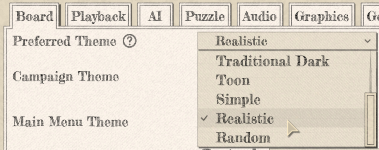
This theme follows the traditional style and gives an appearance of slate and shell stones on a wooden board and wooden background.
The shell stones have 3 distinct patterns and are also randomly rotated so that each placed stone looks different.
Like the other themes, custom colors can also be applied to this new theme for further customization.
Campaign Tutorial Improvements
The campaign tutorial now has the option to select a specific part of the tutorial to play through instead of only being able to play through the full tutorial.
The tutorial is broken into four parts
Part 1: Battles and Resources
Part 2: Reviewing Battles
Part 3: Defending Regions
Part 4: Additional Features
When completing a part of the tutorial, the player is prompted to choose whether they would like to continue to the next part of the tutorial or exit.
The order of messages within the overall tutorial has had some minor changes to better fit into the above mentioned four parts.
The previous version replaced the sound effects of the non-fantasy board themes (Traditional, Simple, Toon, Realistic) with newer more realistic sounds. A new option has been added to revert back to the old sound effects, for those that prefer that sound. You can find this in Settings > Audio Settings > Legacy Sound Effects.
For matches or reviews which are able to make use of the AI features found in the list of buttons at the top right of the screen, a loading icon will now be displayed while the AI is loading before finally showing the AI feature buttons when they are able to be used.
Updates
The starting resources value for each difficulty preset has been increased when creating a new campaign. There have been several features implemented that use resources since this value was initially set. This will help having resources available early on before a steady stream of empire resources starts to flow in. The new values are Beginner (2,500), Novice (2,000), Intermediate (1,500), Expert (1,000), Master (800), Professional (500). This value can of course be customized as well, which now has a max value of 10,000. Players wanting to go beyond this should use the Infinite setting for resource availability so that they can freely use resources. Existing campaigns will retain their existing resource values.
The starting resources value when creating a new campaign is now plainly written as the full value that will be granted for each resource. For instance, it will be displayed as "1000" instead of "10 x" as it was before.
The cost of the undo ability during campaign matches has been slightly lowered.
Matches that are in progress and are resumed from the quick play menu will now allow the player to undo moves that occurred in the prior play session, instead of only allowing to undo the new moves that were played in the new session.
When creating a new color theme and selecting a board theme type from the drop down list of the editor, a new default background color will be used that is unique to each board theme type that has a background (Traditional, Realistic, Toon, and Simple). Once the background color is customized, the new custom color will remain regardless of which board theme type is used.
The campaign tutorial has been updated to also mention the new guided mode.
During a review when guessing which move is the top AI recommendation, a success sound effect will now be played when the player selects the top move for the first time.
The description field displayed on the Learning Center's workshop items and SGF files has been modified to remove any empty lines to fit additional text on each grid item.
The workshop item upload process has been improved to take less time for very large folders, as long as all files are of the correct file extension.
Fixes
Fixed an issue where it was possible to have move recommendations from an automated review unintentionally appear during a tutorial.
Fixed an issue where if the player had enabled puzzle solve tracking features such as puzzle attempts or puzzle timing, it was possible to get stuck during the campaign tutorial if the puzzle attempts or timer had elapsed.
Fixed an issue on the practice board where the alternating stone color was not correct in some cases when undoing a setup node (black and white stones added directly to the board) that had no played move.