
Missing achievements after update
With the changes in Patch 1, heroes and spells now have a lowered star requirement to unlock.
The achievements related to them are granted retroactively on your next victory: just win any stage (with or without those heroes) and you will see the achievement unlock automatically.
Smart App Control blocking .dll or .exe
We're aware of an issue where Windows 11 Smart App Control blocks ksystem.dll or the game .exe after Patch 1. When this happens, the game shows a black or white screen with "Not Responding", or closes before it opens. This happens because Windows doesn't recognize the new build yet.
In most cases it goes away on its own:
close the game
wait 15 to 30 minutes
launch the game again
If the problem persists, you can turn off Smart App Control:
open Windows Security
go to App & browser control
click Smart App Control settings
select Off
Keep in mind that once Smart App Control is turned off, Windows won't let you turn it back on without resetting your PC. We're working on a permanent fix that will stop Windows from blocking the game. We expect to have it ready in about a week. Sorry for the inconvenience.
In case the game runs slowly
The game detects the resolution of your display and adjusts the game resolution and image quality to give you the best possible configuration.
If the computer can't handle this configuration, or the display is configured to 30Hz, it might run slowly.
In that case, change the FPS setting to 30, and/or uncheck VSYNC.
Follow this procedure:
open the game or go back to the main menu (where you pick a save slot to play)
click the Options button in the top left corner
click page 5 of the options
on the right side you have the FPS settings and the VSYNC below.
change to 30FPS and/or uncheck VSYNC.
Help with wrong screen settings
The game auto-detects when you change displays or resolutions.
n case the game detects the screen resolution wrong follow this procedure to show the launcher and configure it manually.
Find the folder where the settings file is stored:
- Windows: C:\\Users\\[YOUR USERNAME]\\AppData\\Roaming\\kingdom_rush_genesis
- macOS: ~/Library/Application Support/kingdom_rush_genesis
delete the settings.lua file and the global.lua file
restart the game
wait until you hear the splash screen sound effects.
press and hold the left ALT key in your keyboard (Option in Mac)
hold the key until a window appears that allows you to configure the resolution.
We're working on a fix to make this process easier. Sorry for the inconvenience.
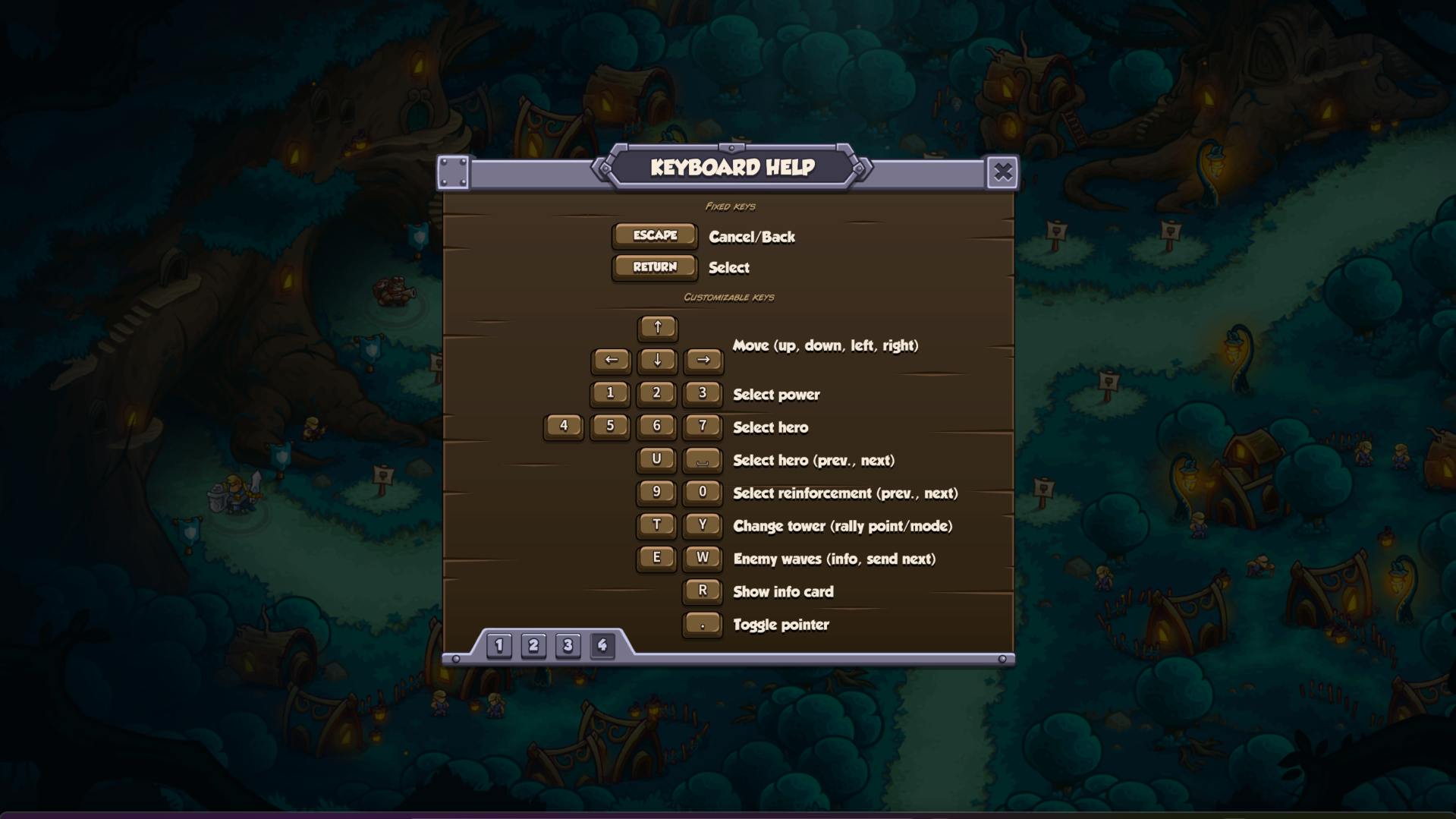
Custom Keybinding
The game has Keybinding customization settings enabled. To set it up, open the SETTINGS menu while in-stage (not in the main menu or map) and head to tab 4. Customization in the other screens will be added in a future update. To edit keybindings in the setting menu, simply select which shortcut you want to change, click it, and type the new key.
Hero Drag Line Issues
We're aware the hero drag line can freeze when selecting and dragging a hero to move them, especially when to path corners. If this happens, try clicking a few times to clear the line.
If you’re experiencing something that isn’t listed, please contact support by submitting a ticket.