
First steps
When you open the game for the first time, there are two versios of the game. You should select normal verison. The other version, the student version, is intended for use only in a school classroom.
Once you have chosen the appropriate version, we recommend going to the Settings menu (see Image 1), changing the language, and setting the graphics quality and audio configuration to your preference. If your computer is not very powerful, we recommend using the lowest graphics quality.
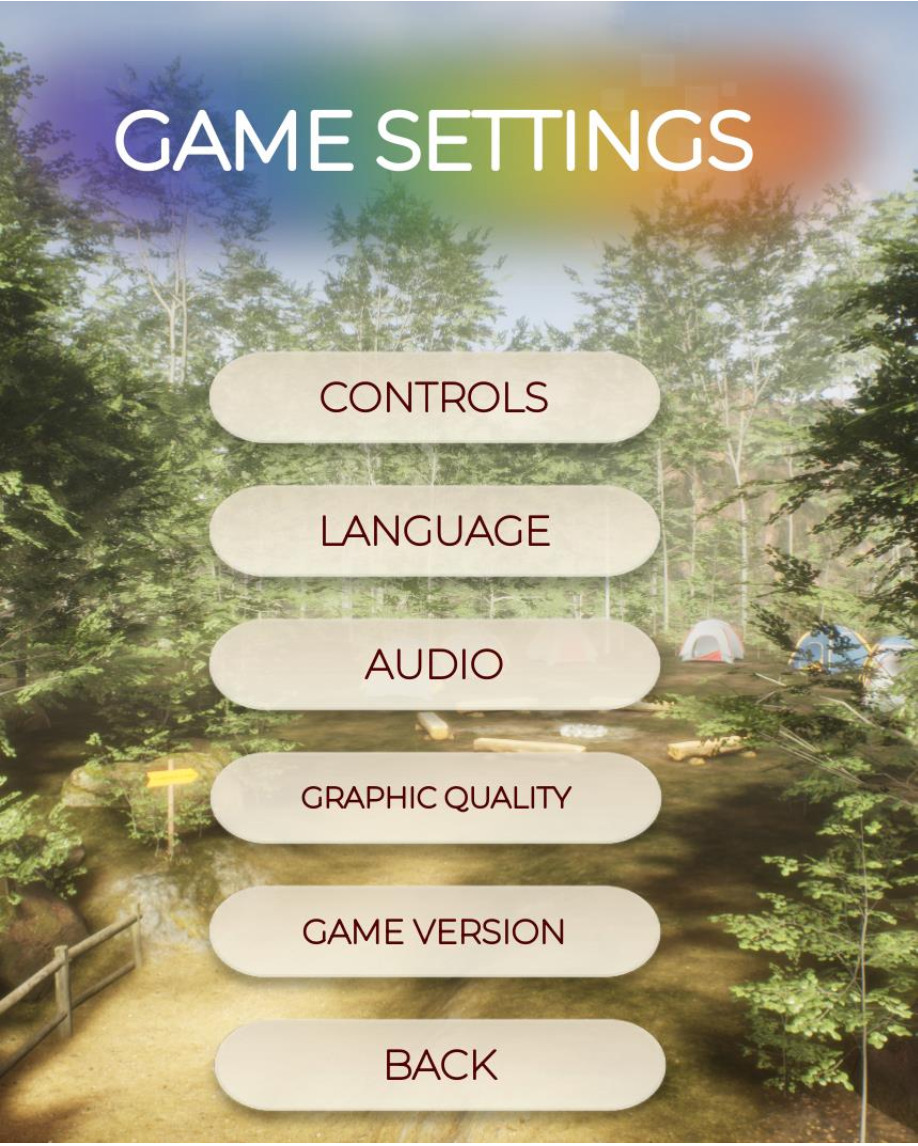
Image 1. Settings Menu
Now you can create a new game and start playing.
How to play the game
The first thing you need to do is choose one of the three selectable characters and enter the name you want for them. After that, the game will begin.
You can move around using the arrow keys or the WASD keys on your keyboard.
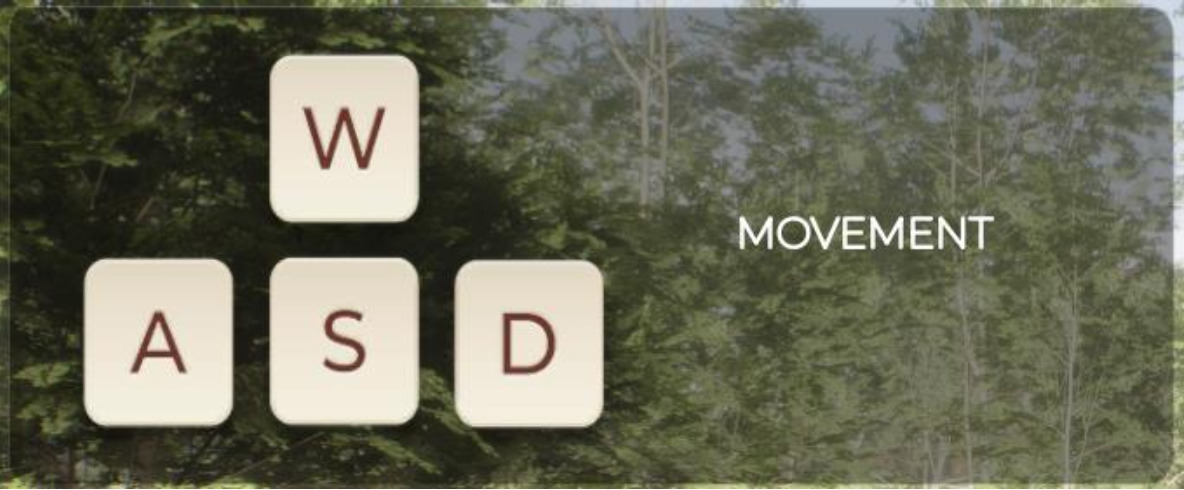
Image 2. Movement Keys
You can also use the mouse to rotate the camera when you are in outdoor areas. In indoor areas, a fixed camera will be used.
There are other important keys on the keyboard (see Image 3). You can interact with your environment and with the people around you using the E key (see Image 5). You can also use this key to advance through dialogues. To pause the game or access the settings menu, press the ESC key. To run, press the SHIFT key (the key located below the Caps Lock key).
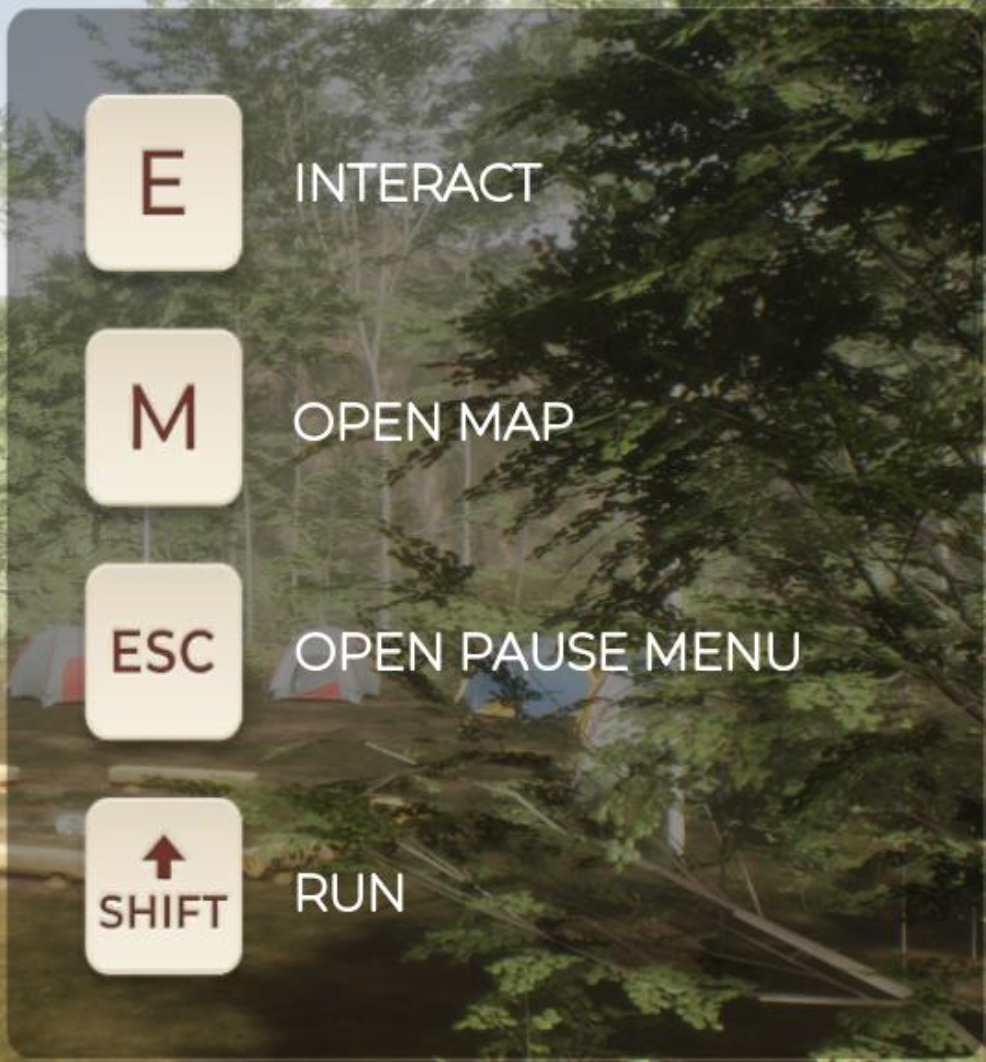
Image 3. Use of Other Keys
Once you pick up the camp map, you can open it by pressing the M key.
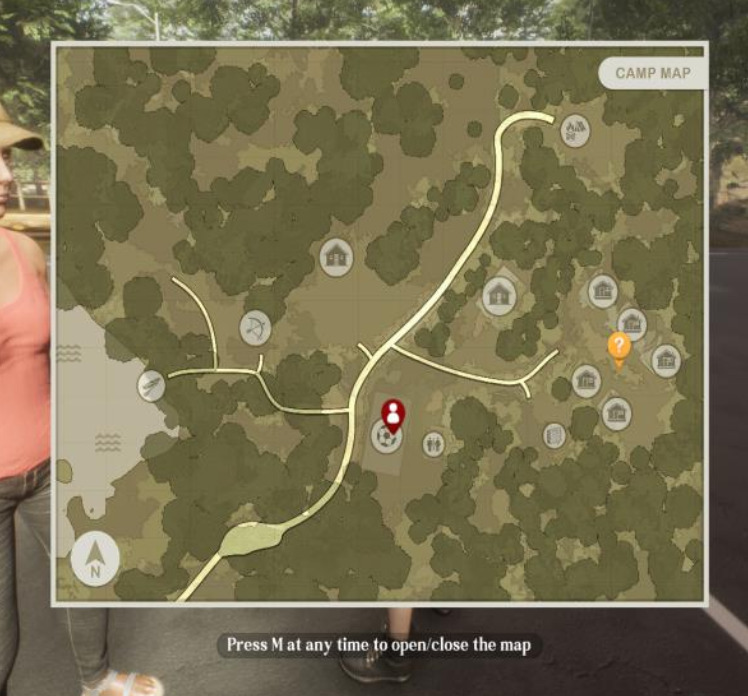
Image 4. Camp Map
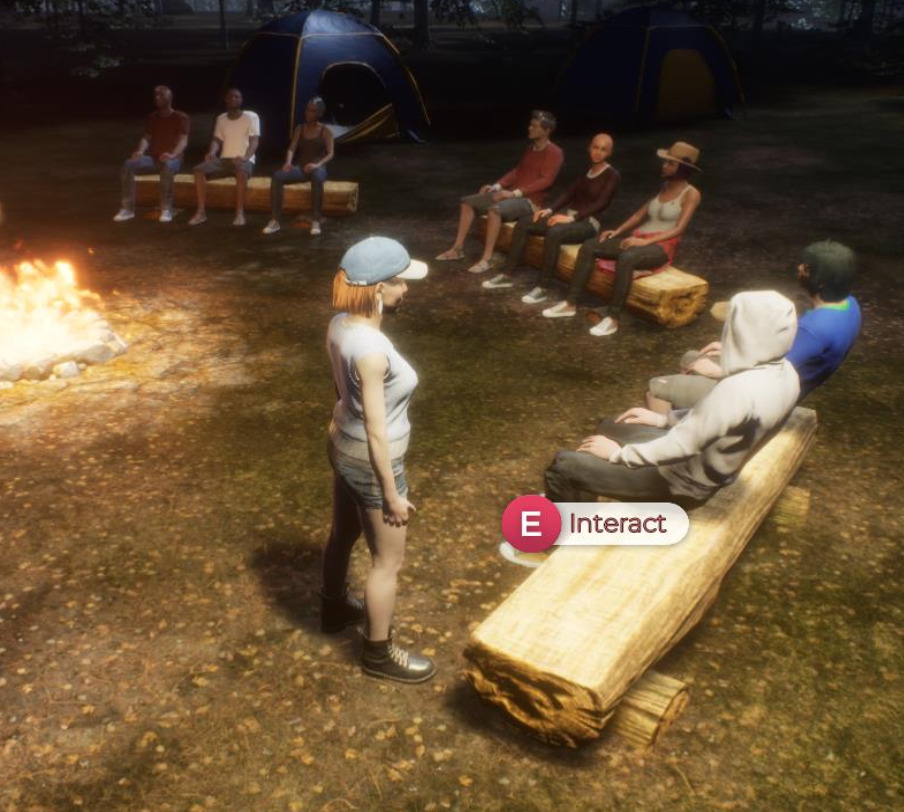
Image 5. Key to Interact
When you interact with certain objects, you can inspect them. With the inspection feature, you can rotate the object using the mouse to examine it. Depending on the object, you may also have some additional movement options available at the bottom of the screen (see Image 6).
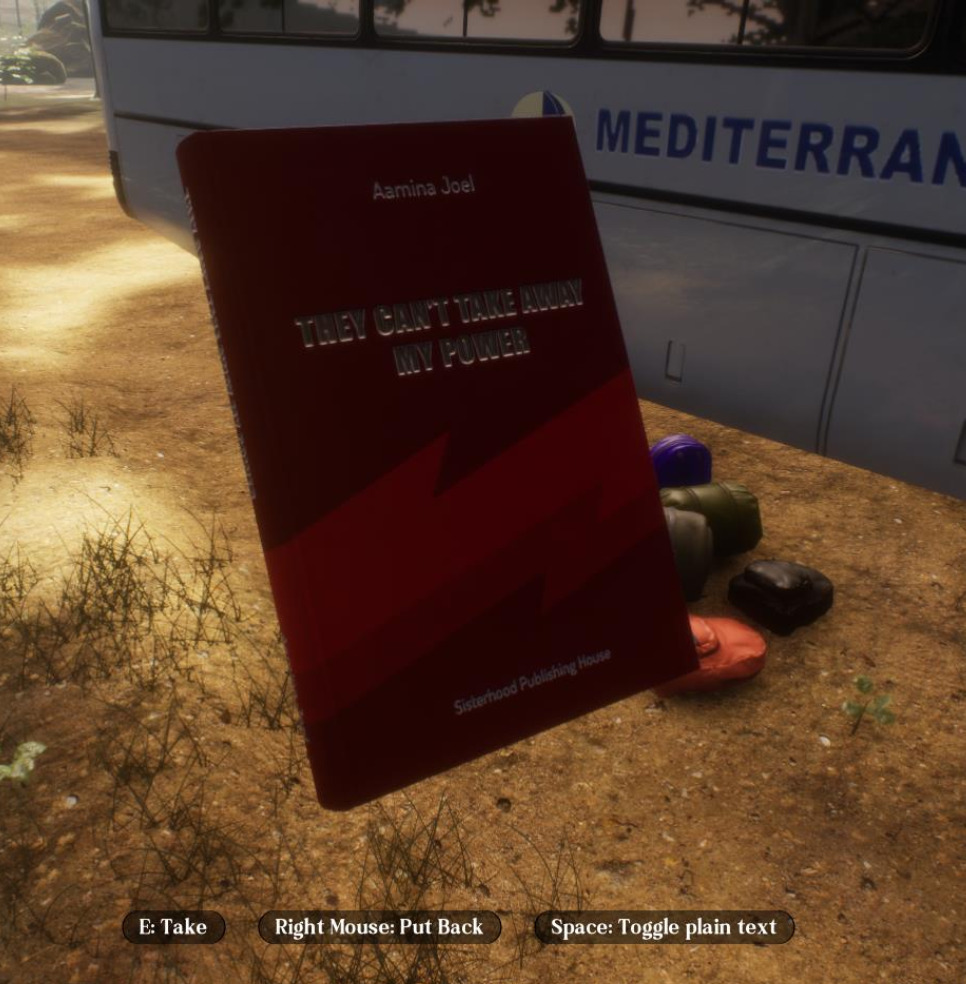
Image 6. Object Inspection Options
Throughout the game, you will have to make different decisions (see Image 7). When two or more options appear, you can select the one you prefer using the mouse or by moving the cursor with the arrow keys, then pressing the spacebar to confirm your choice.
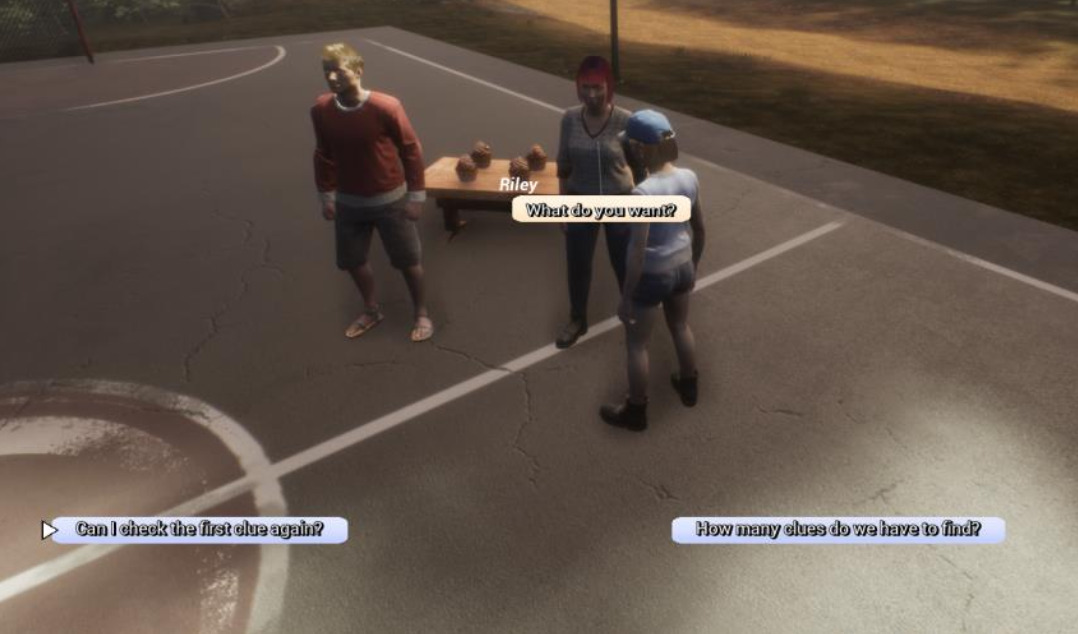
Image 7. Choice Alternatives
One action you can learn with your character is shooting arrows. Once you have acquired that skill, to use the bow (see Image 8), you can aim with the mouse (see Image 9), draw the bow by pressing the right mouse button, and shoot by pressing the left mouse button (see Image 10).
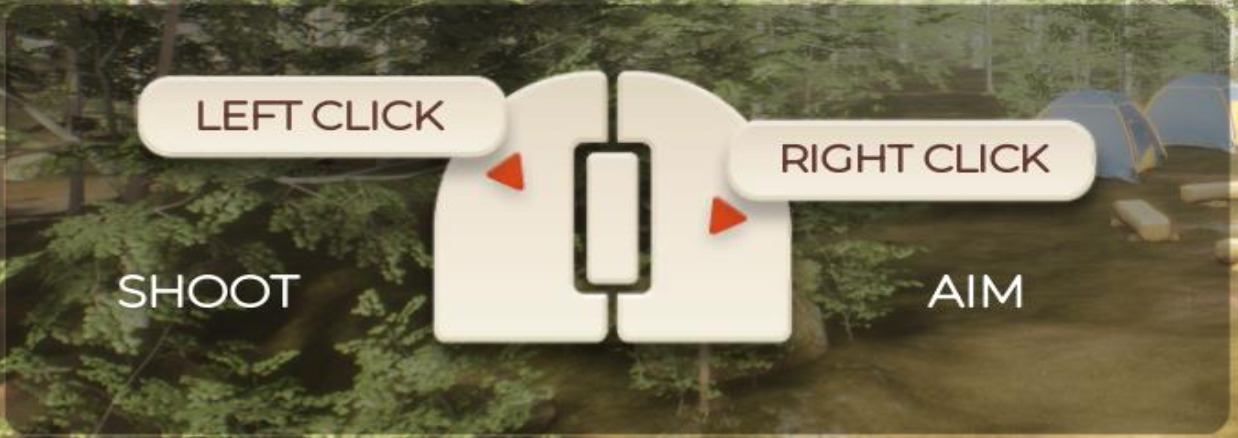
Image 8. Using the Bow
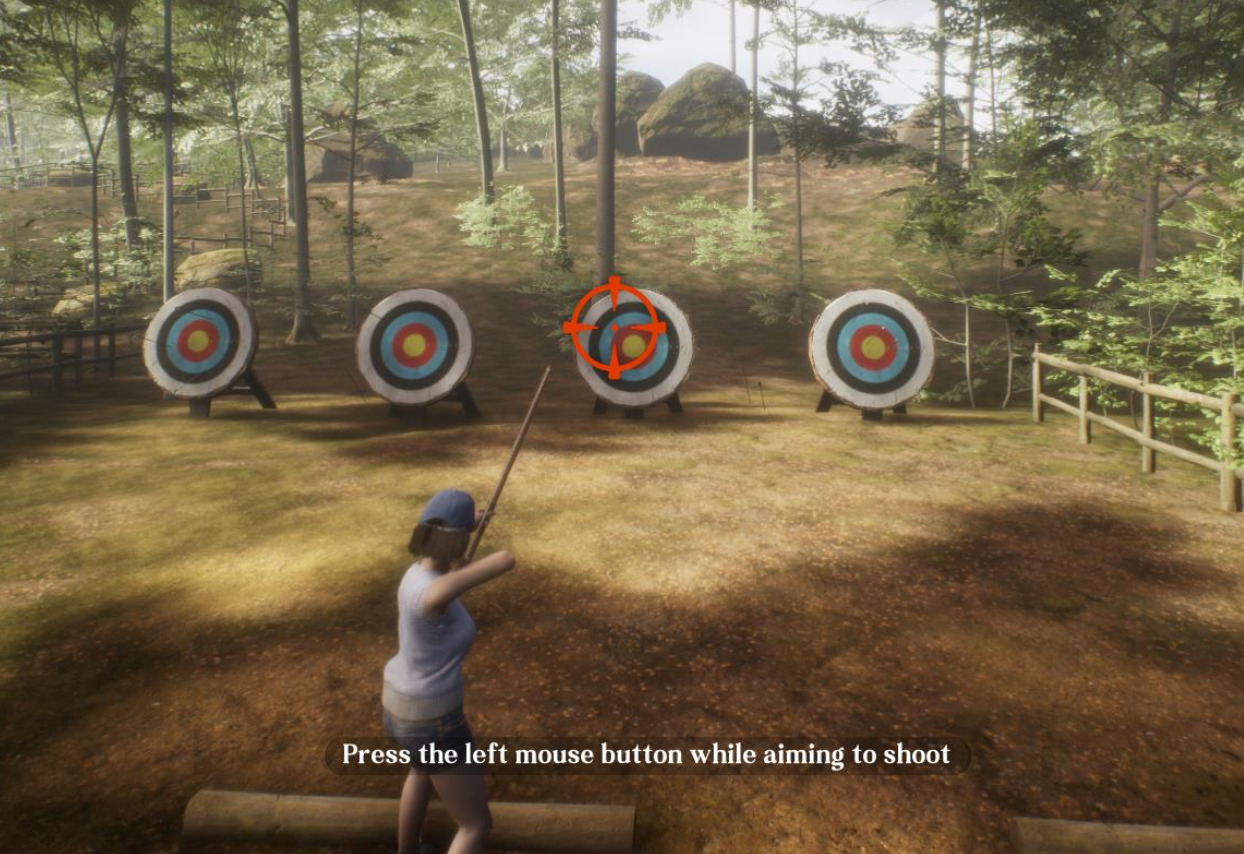
Image 9. Aiming the Bow
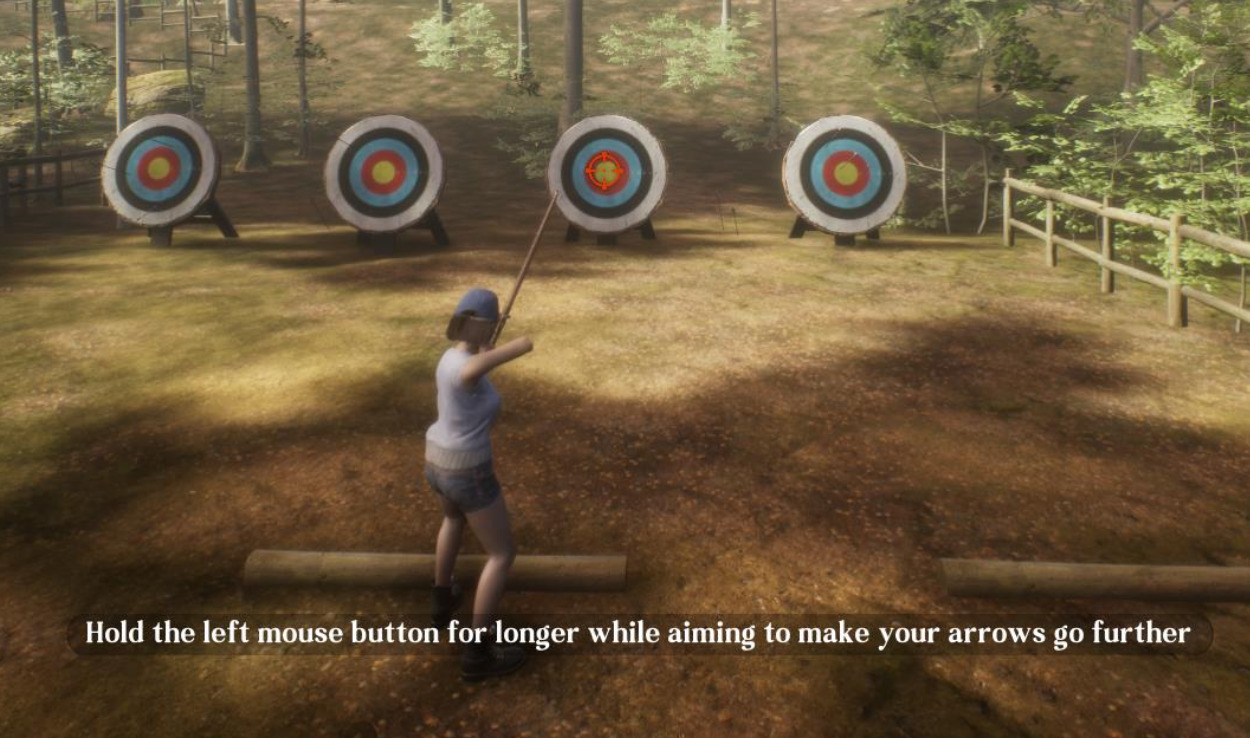
Image 10. Shooting the Bow
How to save the game
The game uses an auto-save system based on checkpoints. In practice, this means that when the player reaches one of these checkpoints, if they decide to quit, they will be able to continue from that point the next time they play. There are different save points throughout the game, but in the current version they are not visible. They are usually reached when a new conversation starts or when the day changes at the camp.