
🚒 Update 2 – The Highlights at a Glance!
With Update 2, things are getting even more varied at the fire station! Alongside numerous bug fixes and technical improvements, you can look forward to a new oil spill mission, revamped training exercises, Steam Workshop missions in your daily routine and many adjustments that make your everyday life as a firefighter even smoother.
Changelog:
Placement Test / Practices:
Removed the clothing box; the container is for changing clothes
Placement test: Increased dialog range at the start of the hollow jet task
Missions:
Added TH0 oil spill mission
Subscribed workshop missions integrated in daily schedule
Recalculation of the distributor's position for a generated mission
Fixed errors in the navigation mesh at and around mission sites
Material replacement at the end of a mission is no longer random; instead, it includes all equipment used
Practices and Courses:
Added Halligan tool practice
Edited practice - Hollow Jet Nozzle:
Added missing task descriptions
Reworked high score saving
Shortened a few of Dennis’s texts
The exercise can no longer be restarted if Dennis is already on his way home for the day
The exercise can now be restarted after you’ve finished it, as long as the time window is still active.
RPE Course:
Added "You're wearing the wrong clothes." tooltip for respirator
Fixed a bug that caused smoke to not been shown
UI:
Adjusted the display of the settings
Fixed stuttering when opening/closing the in-game menu
Fire station:
Emergency exit signs are now in compliance with the DIN standard
Lighting: Adjusted dynamic skylight to brighten extremely dark areas in the station during the day/night transition
Lighting: Final Gather enabled in low-light settings to prevent artifacts caused by indirect lighting
Adjusted pressure washer so that the task can be completed 100%
Fixed a bug that caused door animations to play at wrong times
Florian no longer runs into the fence by the soccer field on his way to the practice ground
Removed duplicate speakers from the vehicle hall
Repaired a hole in the wall of the vehicle hall
Savegame:
Fixed: When the end of the shift was reached during a mission, an incorrect checkpoint was saved.
Fixed: Task "Sign up for duty" was started, even though a role was already chosen
HLF:
Fixed the HLF shifting when getting in the vehicle (hopefully)
The rear doors no longer have an offset after the entry/exit animation
Optimized animations of getting in the vehicle
Fixed a bug that sometimes allowed the roller shutter to be closed even though the connecting head was connected to the pump
The siren is no longer constantly active; instead, it turns on when approaching intersections and turns off when leaving the intersection
Machinist remembers how to use a turn signal now
Rear warning lights are now correctly assigned to the incident mode
Skills:
New skill - Broom
Fixed a display error in skill training
Other:
Added more partners to the main menu
Crash reporter enabled
Toxic substance container placeholder replaced with final mesh
Two new vehicle models for road traffic have been added
Oil spills can also be set in the editor
Steam Workshop Guide
We are super happy that you guys found our small mission editor and already saw lots of cool missions you created! Thanks for sharing them with us!
What's even cooler is, that you can share missions you created with your friends and the whole Emergency Call Community via Steam Workshop. Some of you already used that feature to publish your missions, however we saw, that only a fraction of missions are visible to the public. So just to make sure, that everyone can enjoy the creativity with which you created your missions, here's a quick guide on our Steam Workshop implementation, as well as how to make your missions publicly visible.
Step 1
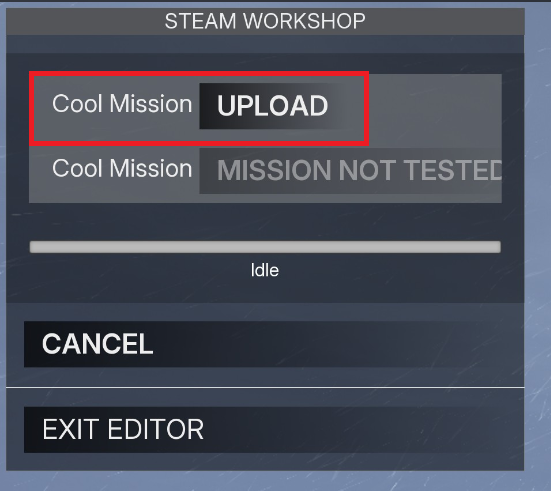
Create a new mission in the common room and save it. You have to play your own mission at least once to have it verified for Upload. Once that's done, you can Upload it to the Steam Workshop.
Step 2
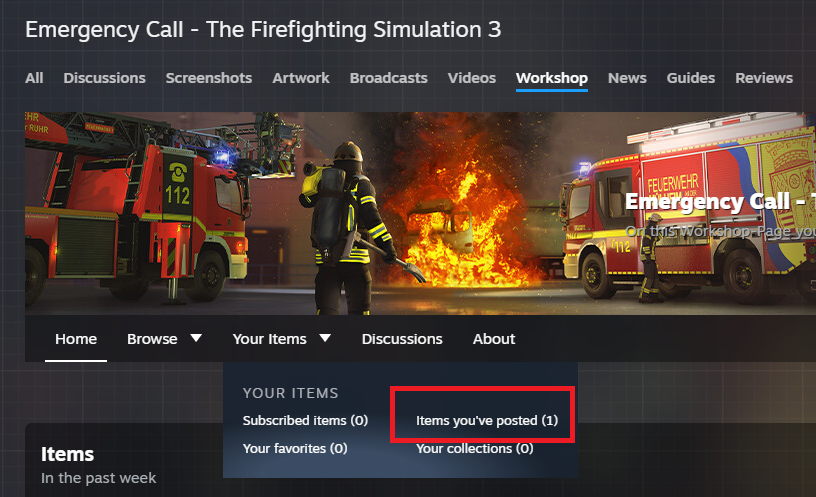
Navigate to the Steam Workshop in Steam. To do this, go to your library, choose "Emergency Call - The Firefighting Simulation 3" and click the "Workshop" Button. Afterwards you need to go to your posted items.
Step 3
Select the newly uploaded mission and go to "visibility settings". Click on it and choose which visibility you want your mission to have. You can either choose unlisted, hidden (which is the default value), Friends-only (for when you only want to share it with your friends) and Public (for when you want to share it with the entire community.
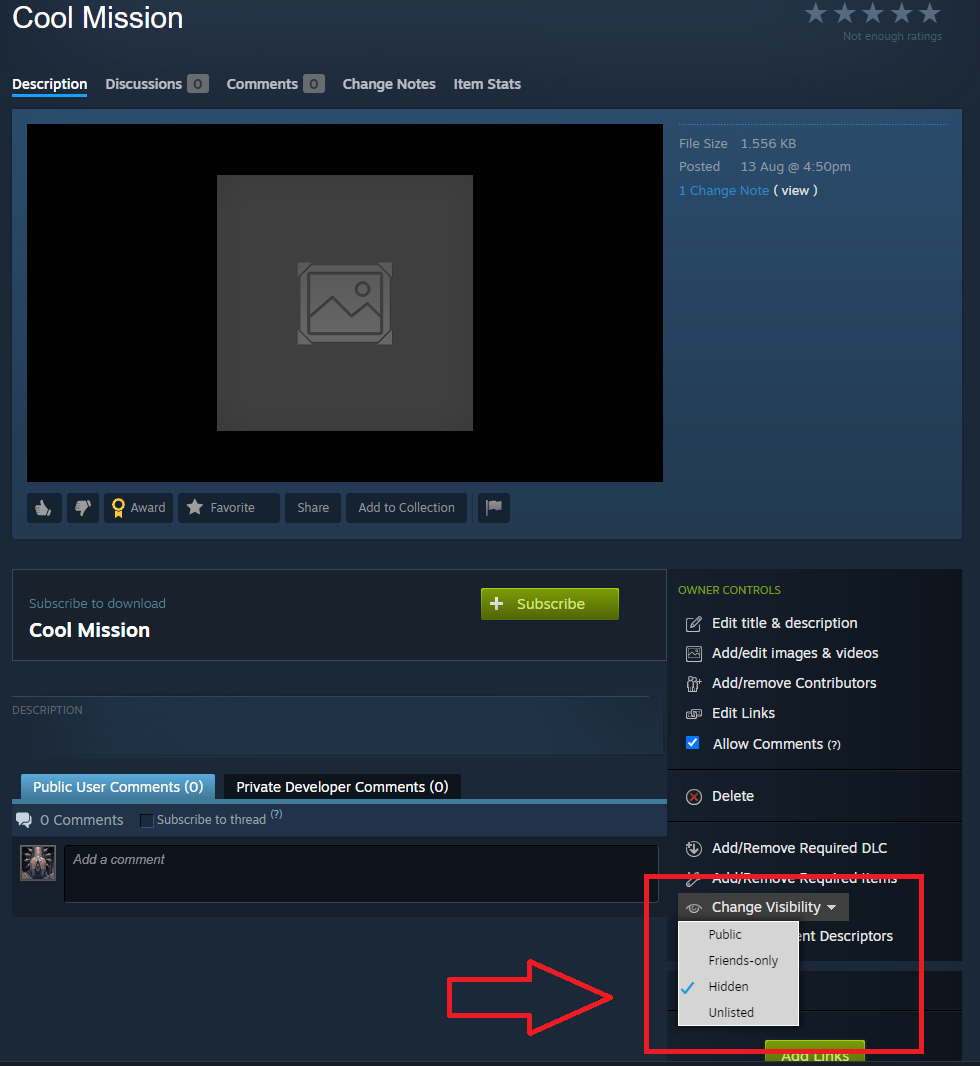
Here you also can edit your mission, give it a description, a cool name and a thumbnail.
The best thing!
Other players can subscribe to missions you created. This means they can select the mission in their mission editor ingame and play it. But that's not all! With this new update, all missions that you have subscribed to, can now randomly spawn during your daily routine, and will be neatly implemented into the gameplay!
We are looking forward to your awesome creations and would love to hear your feedback about this feature either here or on our discord server!
Have fun playing!