Source: Steam Community (opens in a new tab)
Fullscreen Magnifier Enhancements
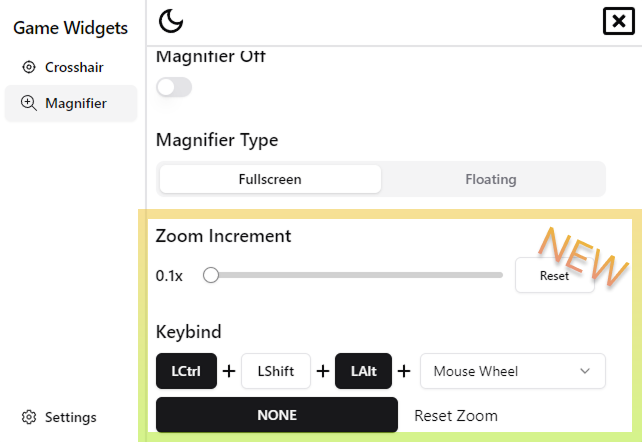
- Scroll Wheel Zoom Mode Added: You can now enable a mode where the mouse scroll wheel adjusts the zoom level for the Fullscreen Magnifier. Customize the increment/decrement value for each scroll step to control how quickly the zoom changes.
- Reset Zoom Hotkey: When using the scroll wheel zoom mode for the Fullscreen Magnifier, you can now bind a dedicated hotkey to instantly reset the magnification back to 1x (normal view), quickly disabling the zoom effect.
- Selectable Maximum Magnification: Choose a maximum zoom level for the Fullscreen Magnifier with new options: 5x, 10x, 20x, and 50x. Selecting a maximum will adjust the range of the magnification slider, making it easier to fine-tune the zoom within your preferred limit.
Tips & Notes
- Unbinding Hotkeys: To unbind a hotkey, simply right-click on the binding button for that specific function. The display will change to "NONE", indicating that no key is assigned and the hotkey activation for that feature is disabled.
- Crosshair Management: You can manage your added crosshair images directly. Right-click on any added crosshair image to access options like Rename, Delete, and Duplicate.
- Crosshair File Location: Your added crosshair images are stored in the following directory:
SteamLibrary\steamapps\common\Game Widgets\GameWidgetsData\crosshairs
- Desktop Icon Size: Please be aware that when you are directly viewing the Windows desktop (where your wallpaper and icons are displayed), using Ctrl + Mouse Scroll Wheel is the default Windows shortcut to change the size of your desktop icons. If you accidentally resize your icons while on the desktop, you can easily fix it by right-clicking anywhere on the empty desktop background and adjusting the size via the 'View' options in the context menu.
- Overlay Compatibility with Fullscreen Exclusive Mode: In some games running in "Fullscreen Exclusive" mode, you might find that the Game Widgets overlay cannot be brought up. If you encounter this, we recommend switching the game's display setting to "Borderless Fullscreen" mode. However, compatibility can vary, and some games might still allow the overlay even in exclusive fullscreen – feel free to test. Difficulty with overlays in certain fullscreen exclusive games is a common issue faced by many overlay applications, this is due to the rendering logic of the Windows system; even Discord recommends switching to borderless fullscreen mode to display their voice-chat overlay.
If you have any questions, suggestions, or bug reports, please post them on the Steam Discussions.🫡
