
CROWZ Game Guide
– Main Interface –
■ Introduction
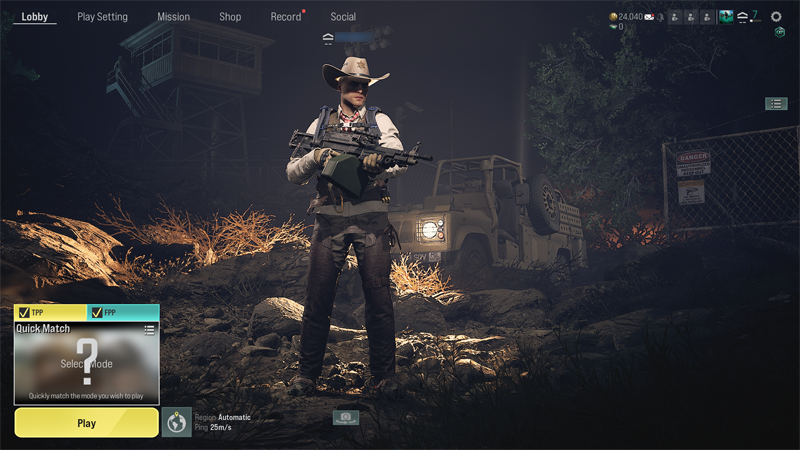
In CROWZ, players can check almost all functions through the interface on the main screen.
We will provide you with information about character settings and various content UIs quickly and accurately.
■ UI
1. Upper Left UI
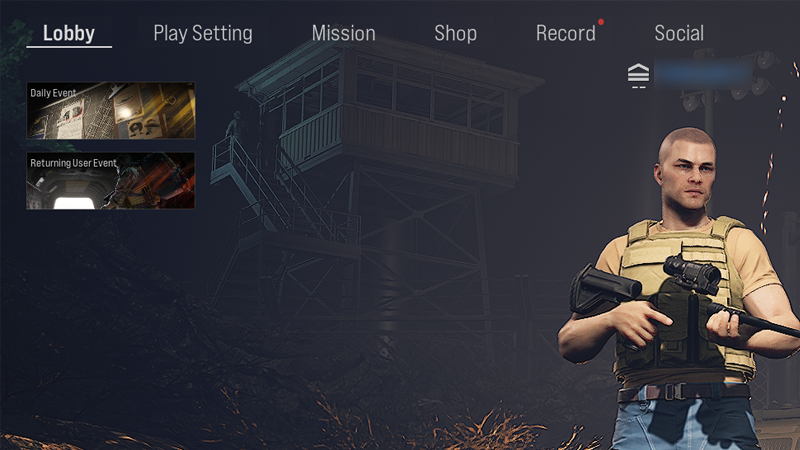
The UI in the upper left corner that is displayed on the standby screen after launching CROWZ allows you to access various systems that support play content.
① Lobby: Move to first screen after connecting to CROWZ
② Play Setting: You can set or purchase equipment, costume, appearance, emotion, spray, vehicle etc.
③ Mission: You can check the daily/weekly mission list, progress, and rewards.
④ Shop: This is a place where you can purchase various items and Battle Pass with RCP after recharging it in Shop.
⑤ Record: Ranking information can be viewed by segmenting your activity level.
Mercenary rank, season level, Blood Zone and Squad Operation status can be checked.
⑥ Social: This is where you can add friends, manage your friend list, and use the search functions.
⑦ Event: You can check information for the ongoing events.
2. Upper Right UI
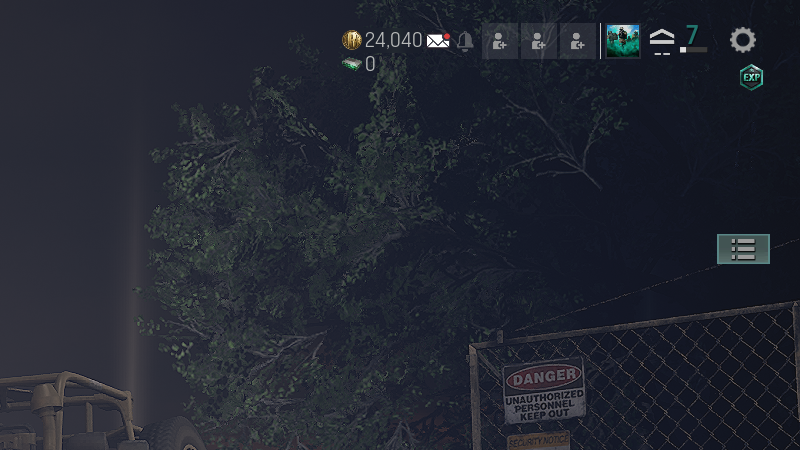
① RCP: You can check the RCP you currently have.
② Q-on Point: You can check the Q-on Points you currently have.
③ Mailbox: You can check and receive mail sent to your personal and account inbox.
④ Received Request: You can check the history of squad and friend requests.
⑤ Squad Invite: You can view the current squad and send squad invitations.
※ You can check your personal rankings and records by selecting your profile in the squad.
⑥ Settings: You can set display, audio, character control, gameplay, control, and other functions.
⑦ Buffs: Here you can check the boosters provided by the ongoing events or currently used ones. Please note that booster icon is only displayed when the booster is applied.
3. Lower left UI
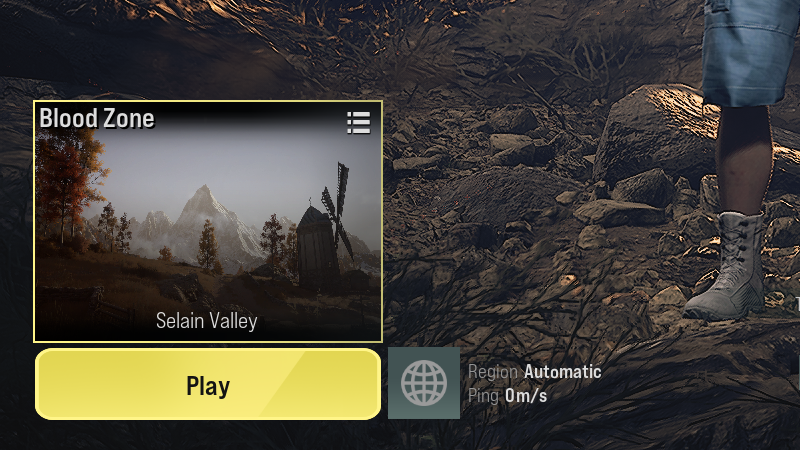
① Select Mode: When you move the mouse on the map thumbnail, the word ‘Select Mode’ appears. If you click on it, you can choose from Quick Match, Squad Operation, Blood Zone, Custom Mode, and Training Ground.
② Play: Press the ‘Play’ button to play the content you chose in Select Mode.
③ Region Setting: You can choose which region to play based on the ping for a smooth gameplay.
4. Right middle UI
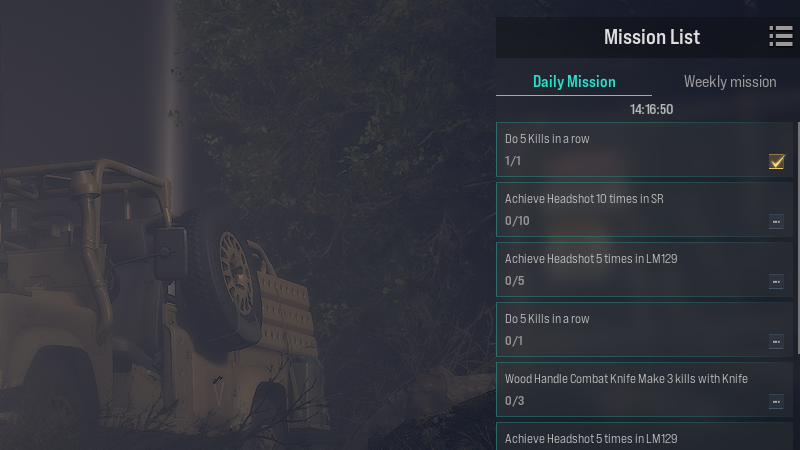
Click the list to see the daily/weekly missions. In this list, you can check the mission progress and time remaining until the reset.