
The latest update to the Figurine Scene Simulator pre-release demo is the ability to capture gifs. It has a couple of different modes to allow you to grab an animation from start to finish or rotate the last active character and take a seamless loop capture.
The use the new feature, follow these steps:
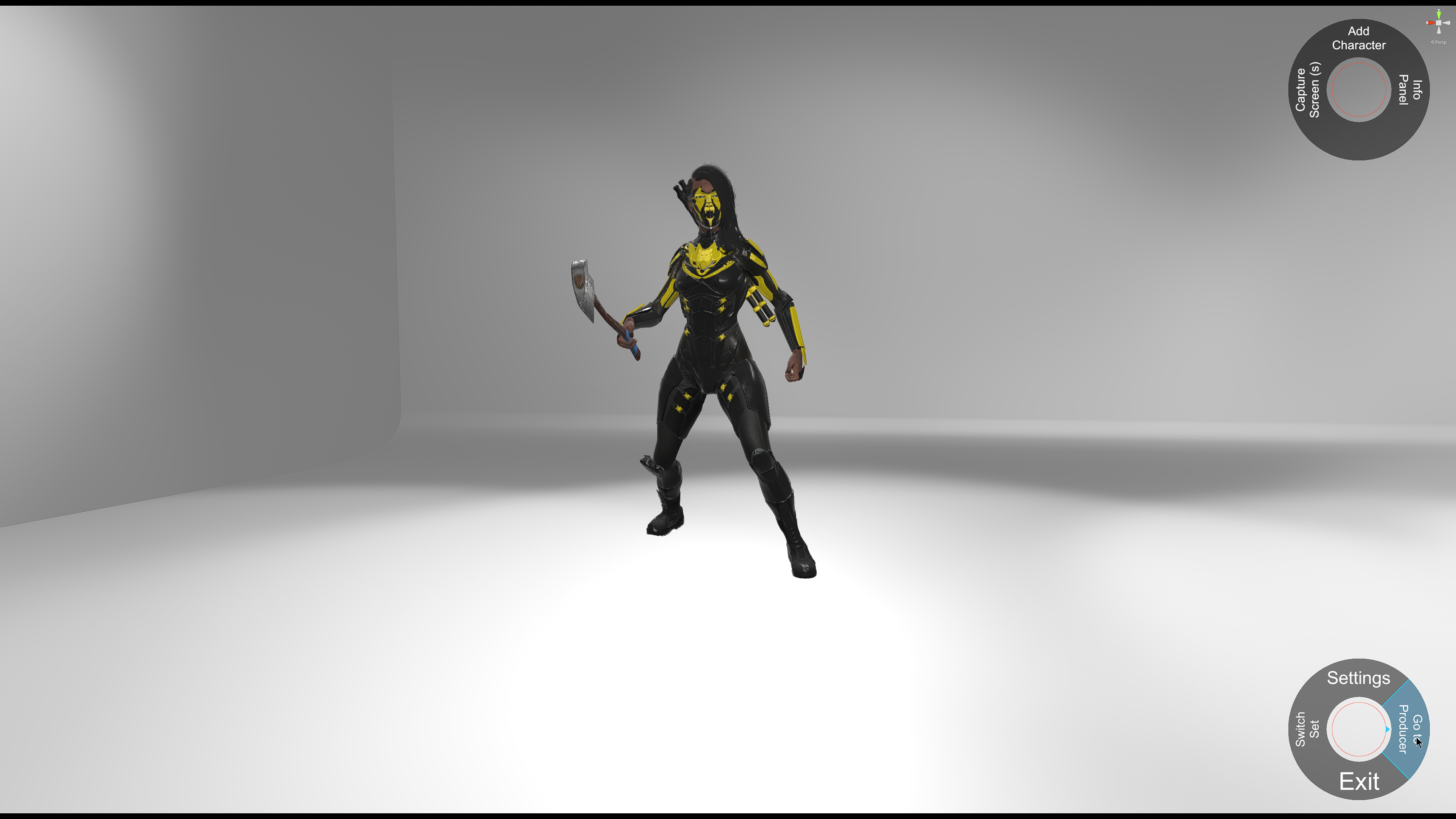
1. Create a new character, (optionally give it props, realism effects), choose an animation and then click the' Go To Producer' on the lower right radial menu. (In the examples, we also have a frame and mood effect selected)
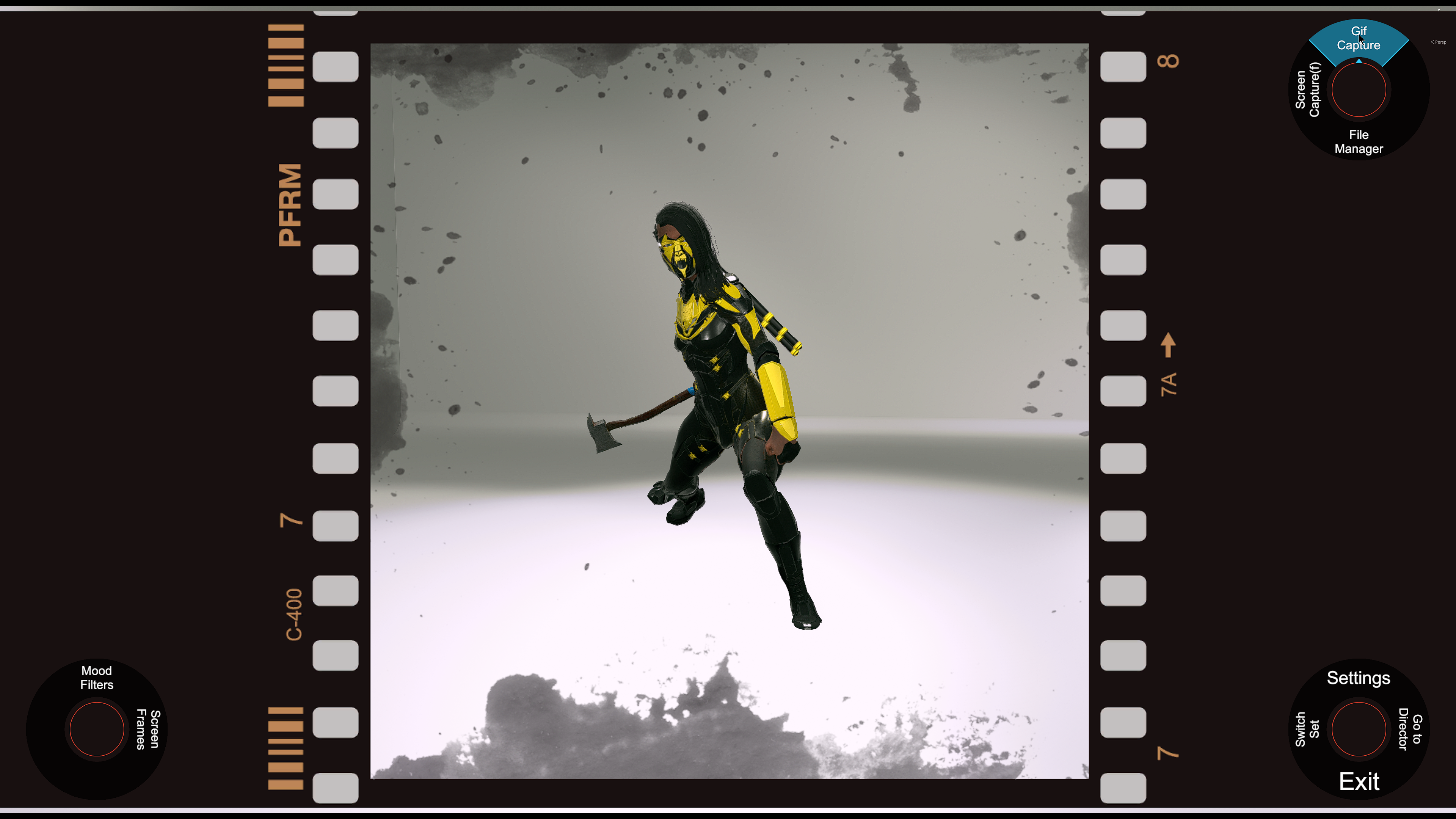
2. While in Producer mode, open the Gif Recorder by clicking on the 'Gif Capture' button on the top right radial menu.

3. Click the 'Recording Details' button to select different recording options.
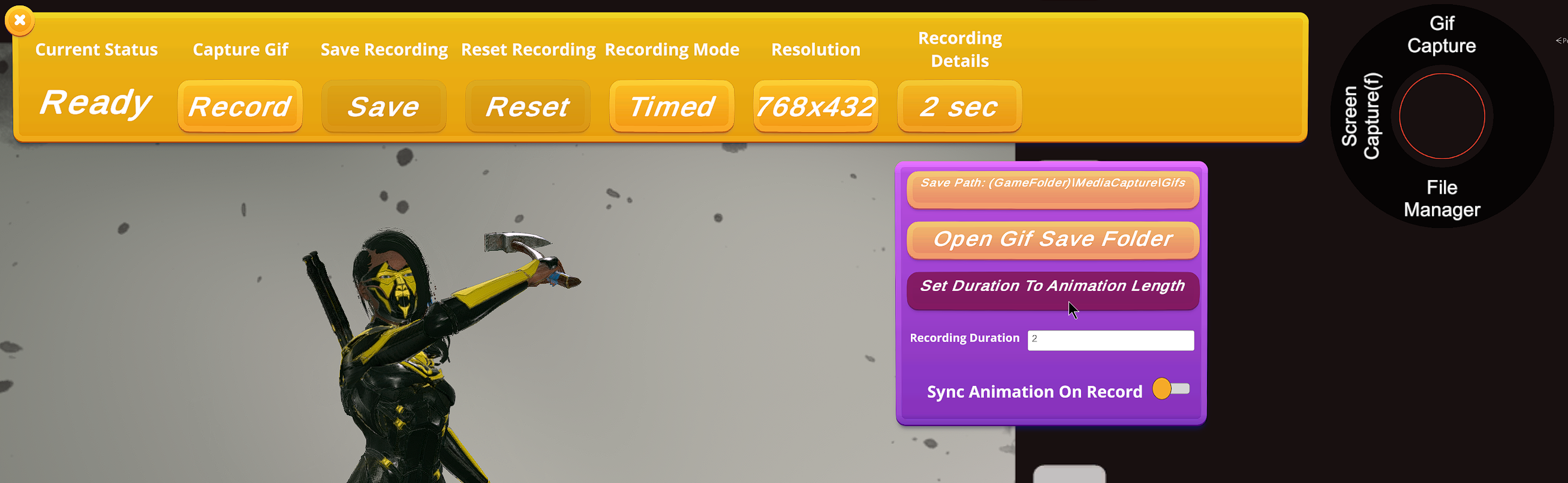
4. Click the 'Set Duration To Animation Length' button to sync the recording duration to the animation length of the last active character.
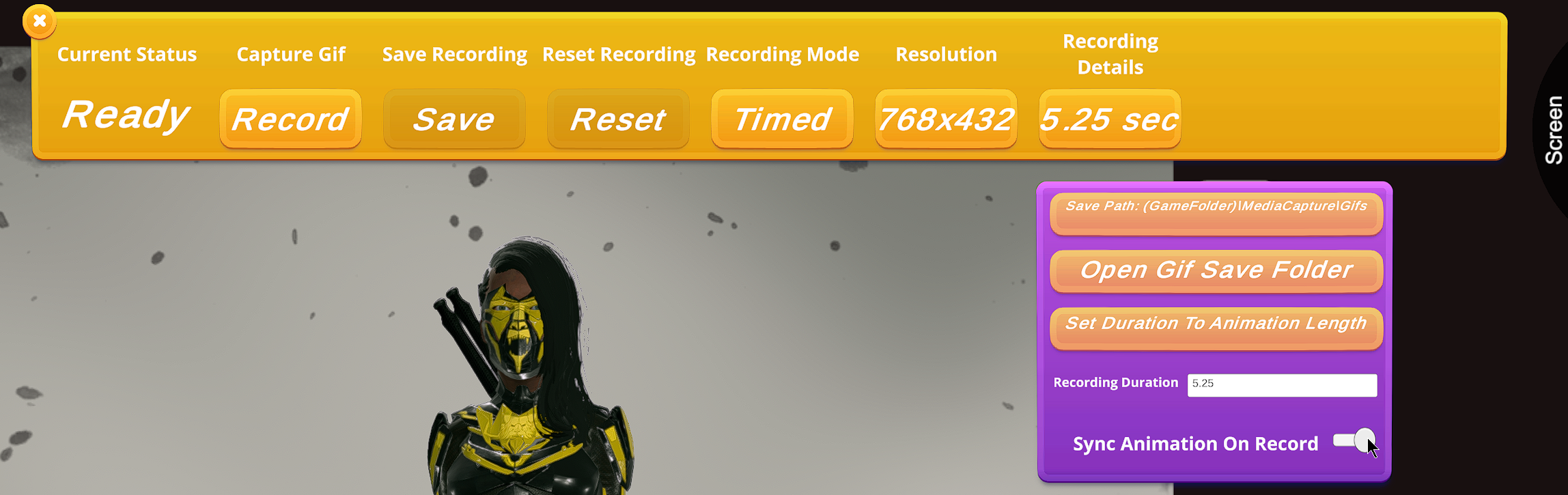
5. Toggle the "Sync Animation On Record" slider in order to have the recorder reset the animation when recording starts.
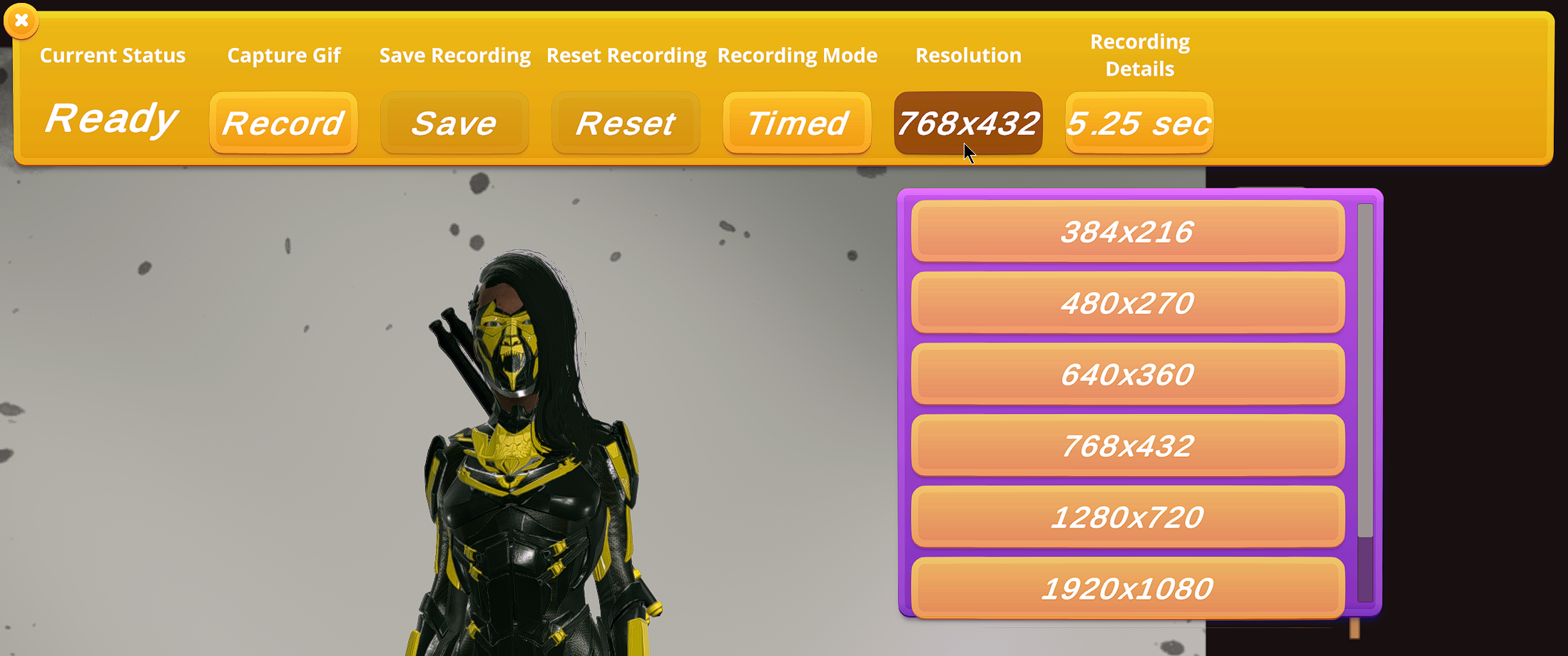
6. Click the 'Resolution' button and select a resolution.
Note: Each frame is it's own gif capture, so a large resolution will cause the file size and saving time to add up fast. If you need under the file to be under 5MB, you'll want to go with 384x216. 1280x720 is a good medium desktop resolution, and 1920x1080 is usually the max desktop resolution unless you have a high end machine.

7. Click the 'Record' button to start recording.
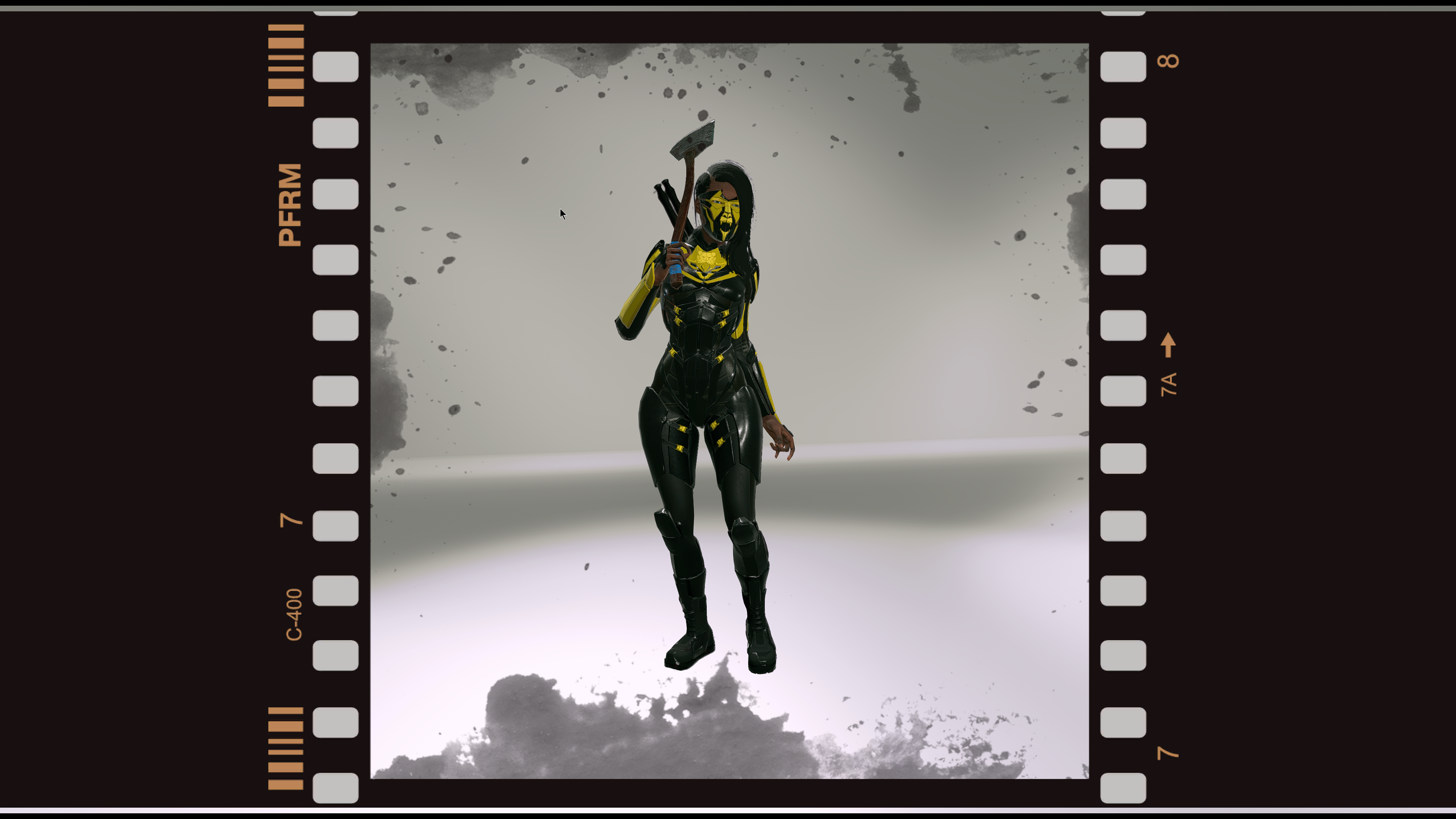
(The UI will disappear during recording)

8. After recording is complete, click the 'Save' button to save it to the output folder. (You can change the output folder in the Recording Details drop down)
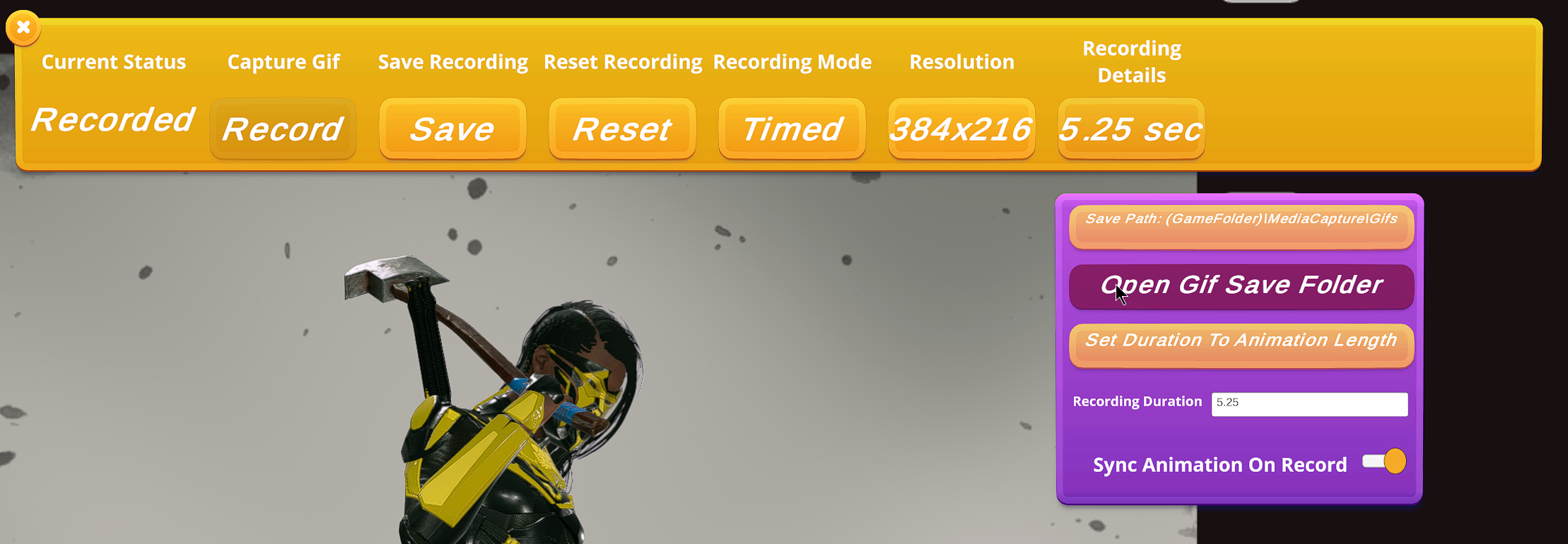
9. The status will show on the Gif Recorder bar. When it's been saved, you can click the Recording Details button, and then the 'Open Gif Recording Folder' button to open the folder the gif was saved to.
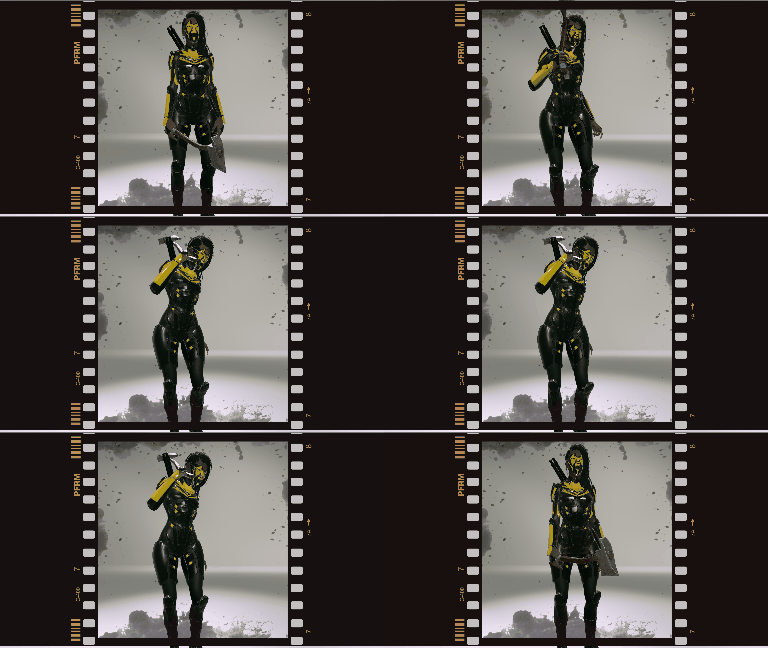
Gif Capture
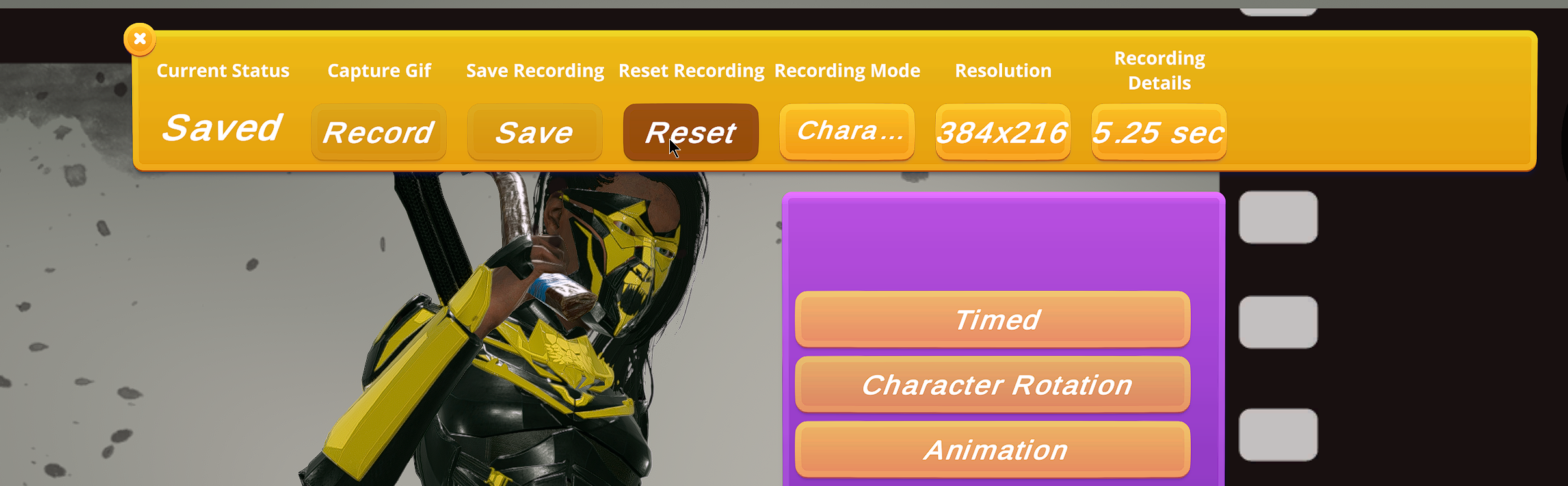
10. After the Gif is saved, click the Reset button if you want to record another gif.
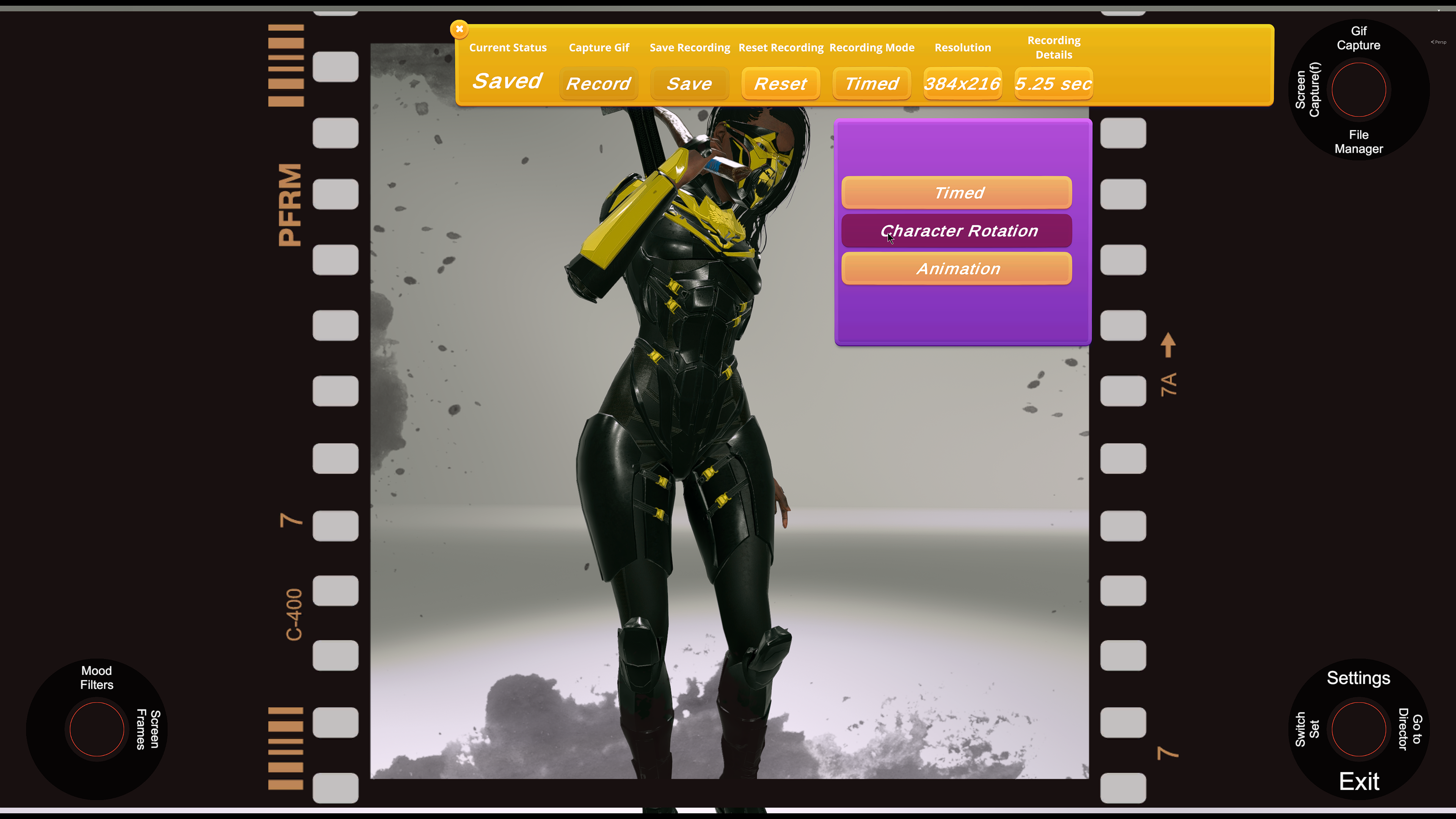
11. Another mode will rotate the last character during recording. Click the 'Recording Mode' button and then the 'Character Rotate' button on the drop down. You can then click the 'Record' button on the main bar to record a new gif. After, save the image like last time.
(The 'Animation' mode will sync the recording duration to the animation and reset the animation when recording starts automatically without setting the options under details)
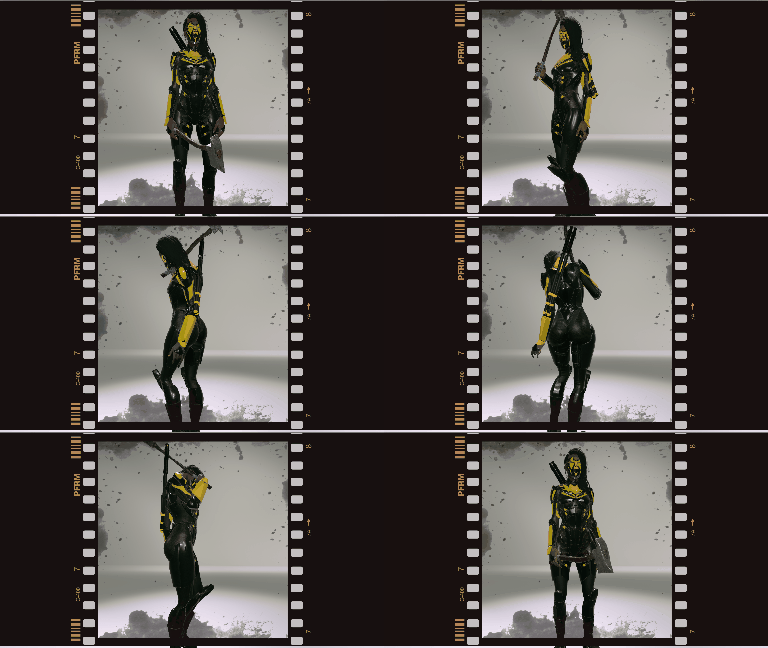
Character Rotation Mode
Higher Resolution Versions:
Thanks for your time!
Arcade Player '99