
Hi everyone,
Hope you are all doing well. Happy Easter to those who celebrate! Since the last update, I’ve been focusing on support for custom model import for common model file types and refinements to the sky and light settings.
Importing a Model
I’m happy to share with you that you can now import models, including FBX, STL, and OBJ files, as custom assets into your Battle Map Studio environments!
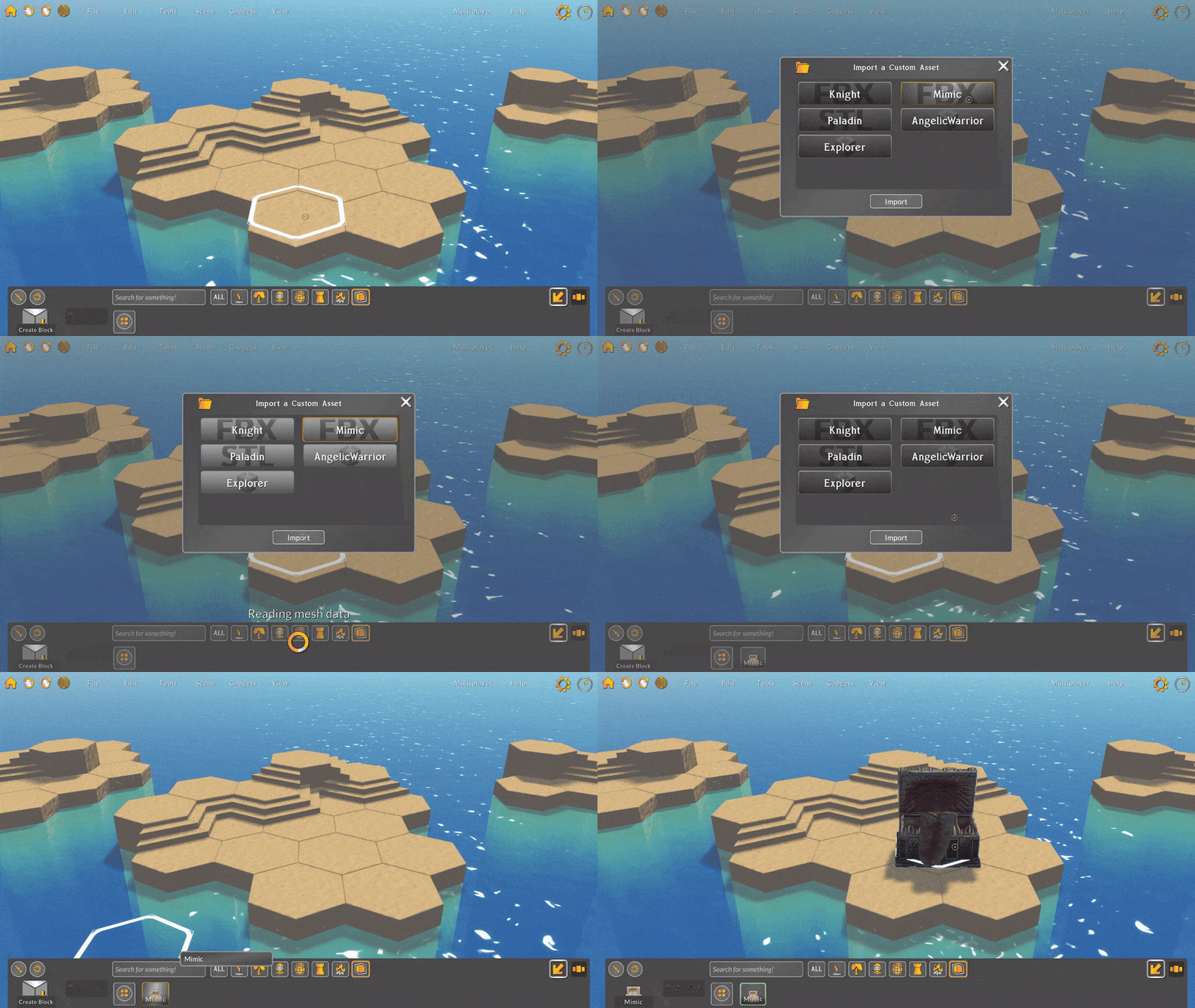
Just like with Unity asset bundles, you can select the import button in the palette view to open the Asset Import window, which displays local model files (make sure to put any models you wish to import in the BMS_Data/Assets folder first). Select any supported file and press the import button to make the asset available in the palette.
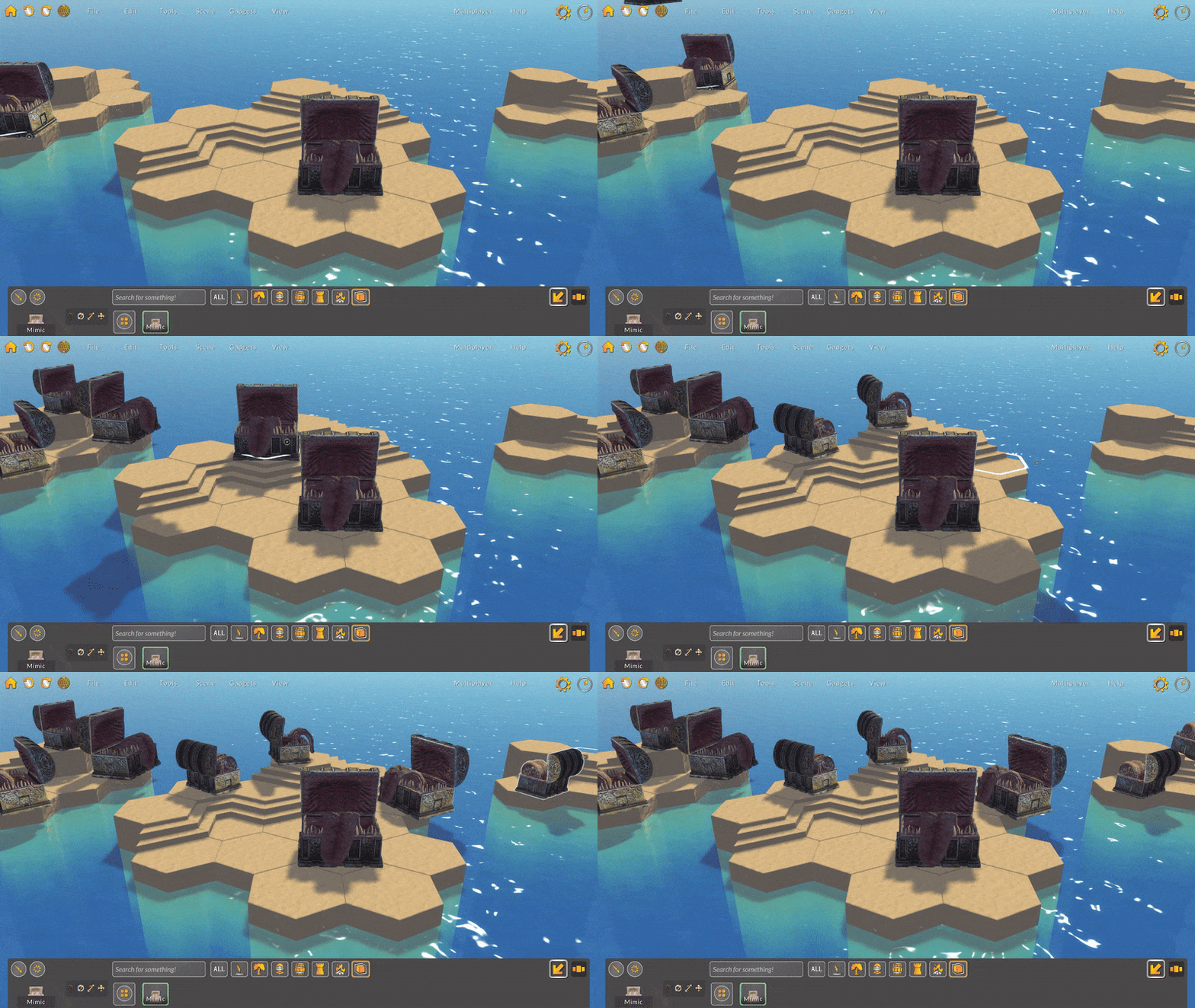
Once an asset is imported into the palette, you can place it onto your environment just like any other prop or character.
Import Settings
Custom assets now have additional properties that you can edit, like import name, rotation, and scale. Custom assets can also now be deleted.
Now when right-clicking a custom asset selector in the palette, there are two new options: Edit Import Settings, and Delete.
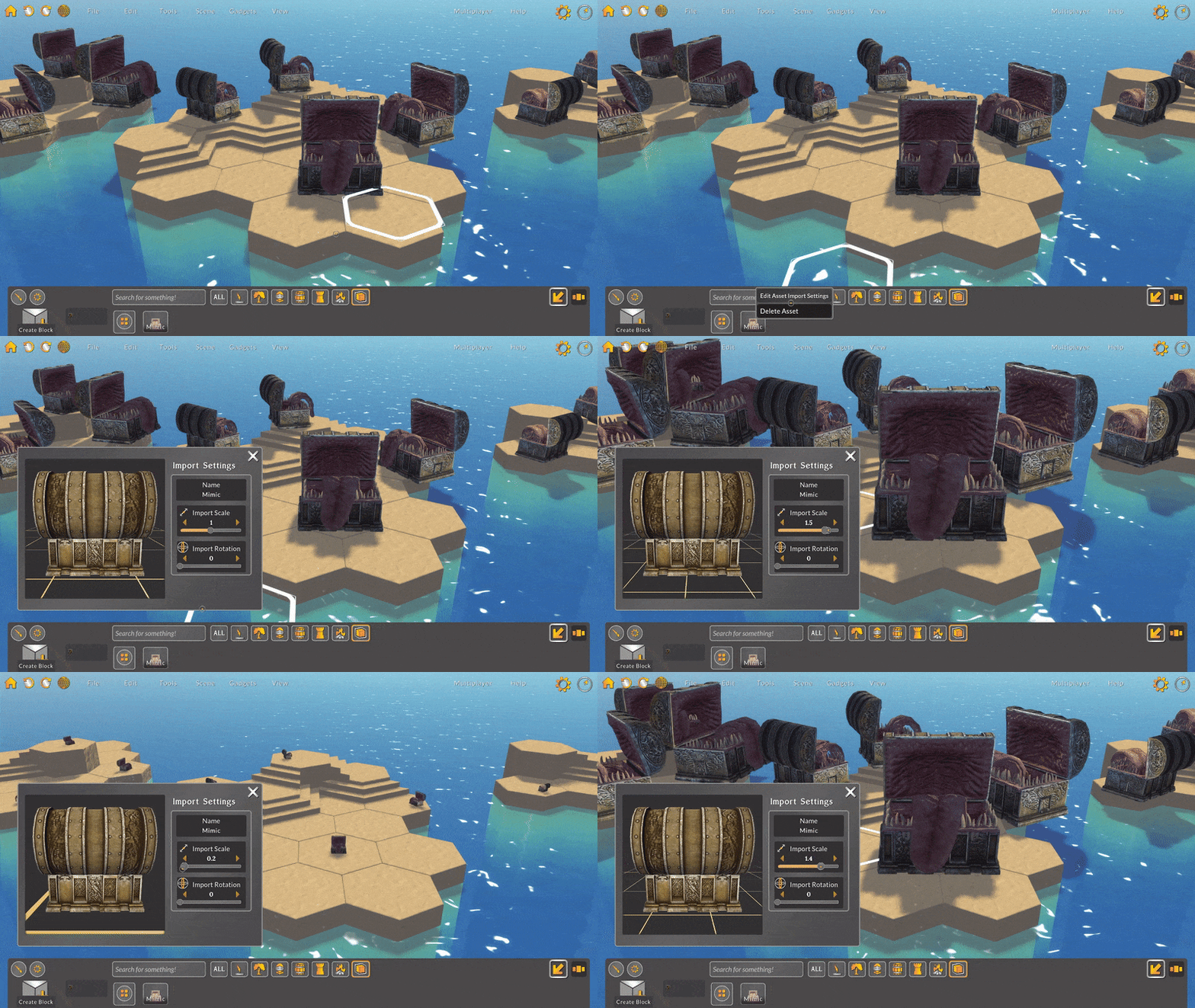
Selecting the Edit Import Settings option opens the asset in the new Asset Import Settings window. Here you can change the asset’s name, its import rotation, and its import scale. Since an asset’s rotation and scale are base values, rotating or scaling an asset in the import settings window will change all placed props/characters using that asset.
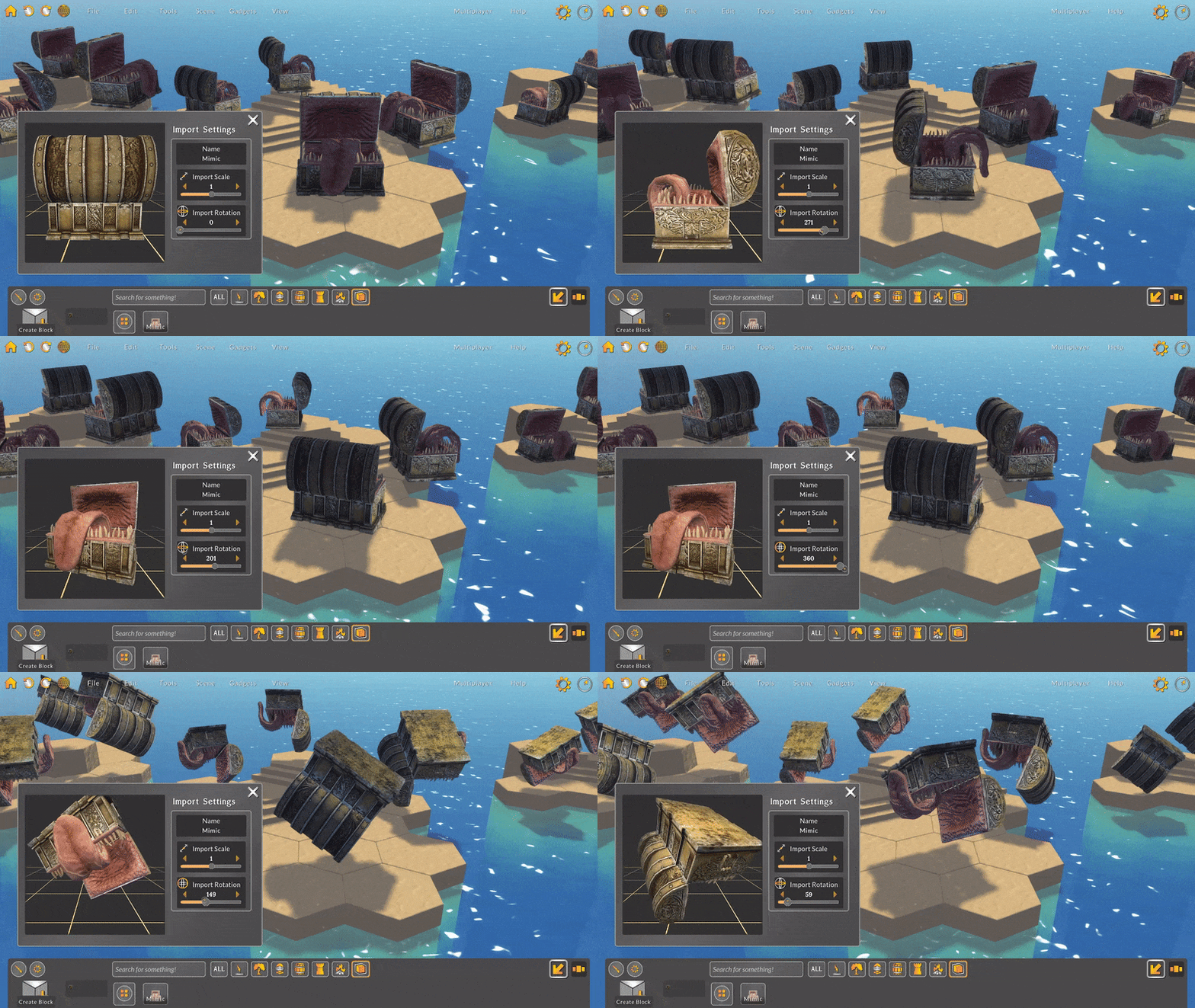
Keep in mind too that assets are scaled to fit on import and are currently meant to be used as individual placeable props. For example, right now a treasure chest model would work great, but a full-scale city model wouldn’t.
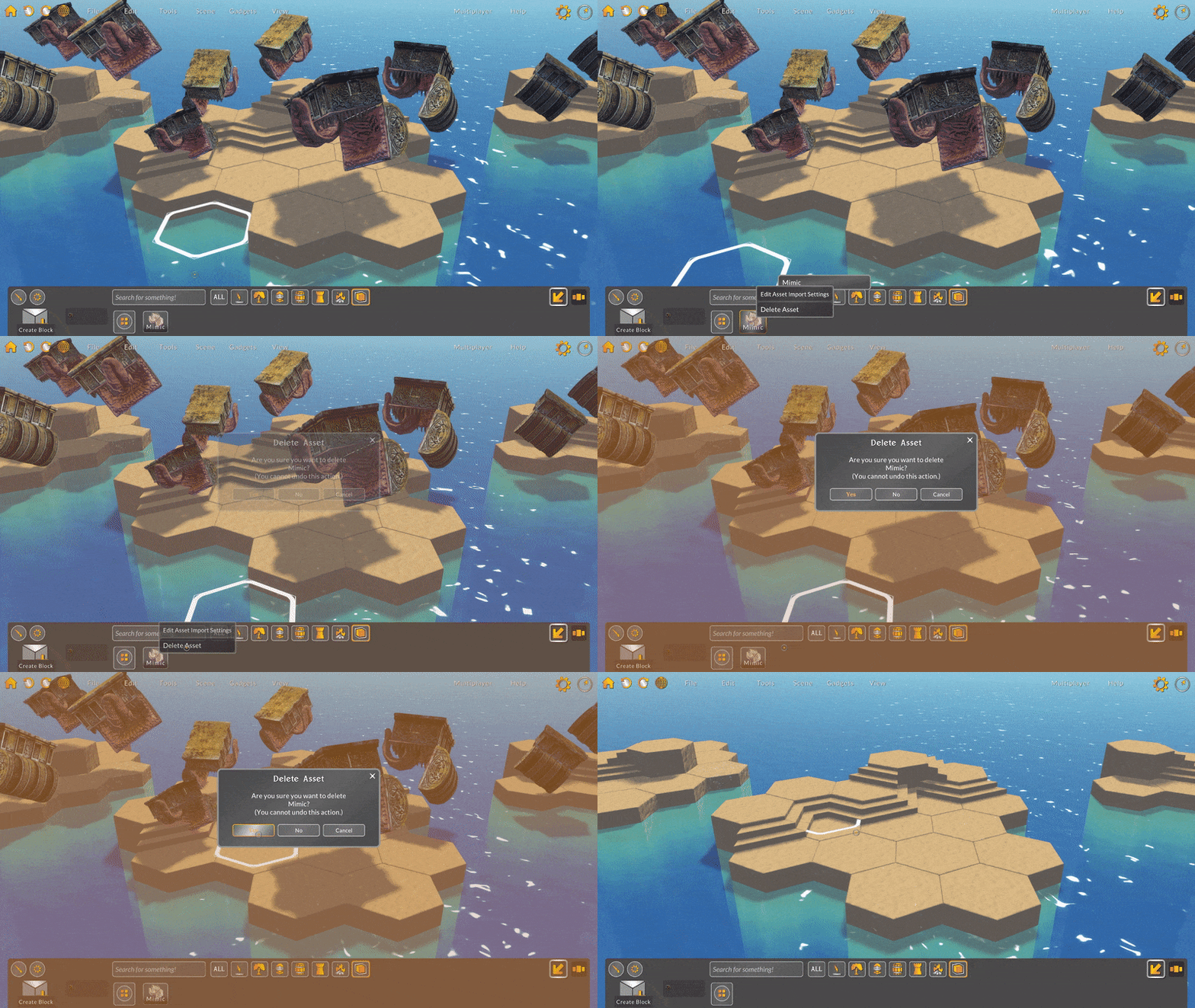
Selecting the Delete option removes all placed props using that asset and then removes the asset from the palette. Be careful deleting assets because you can’t undo asset deletion!
Light Settings
As I evolve Battle Map Studio’s graphical user interfaces, part of the process includes identifying and updating outdated designs. I was recently interested in refining the sky and light functionality and noticed that the light settings panel was actually kind of complicated to work with.
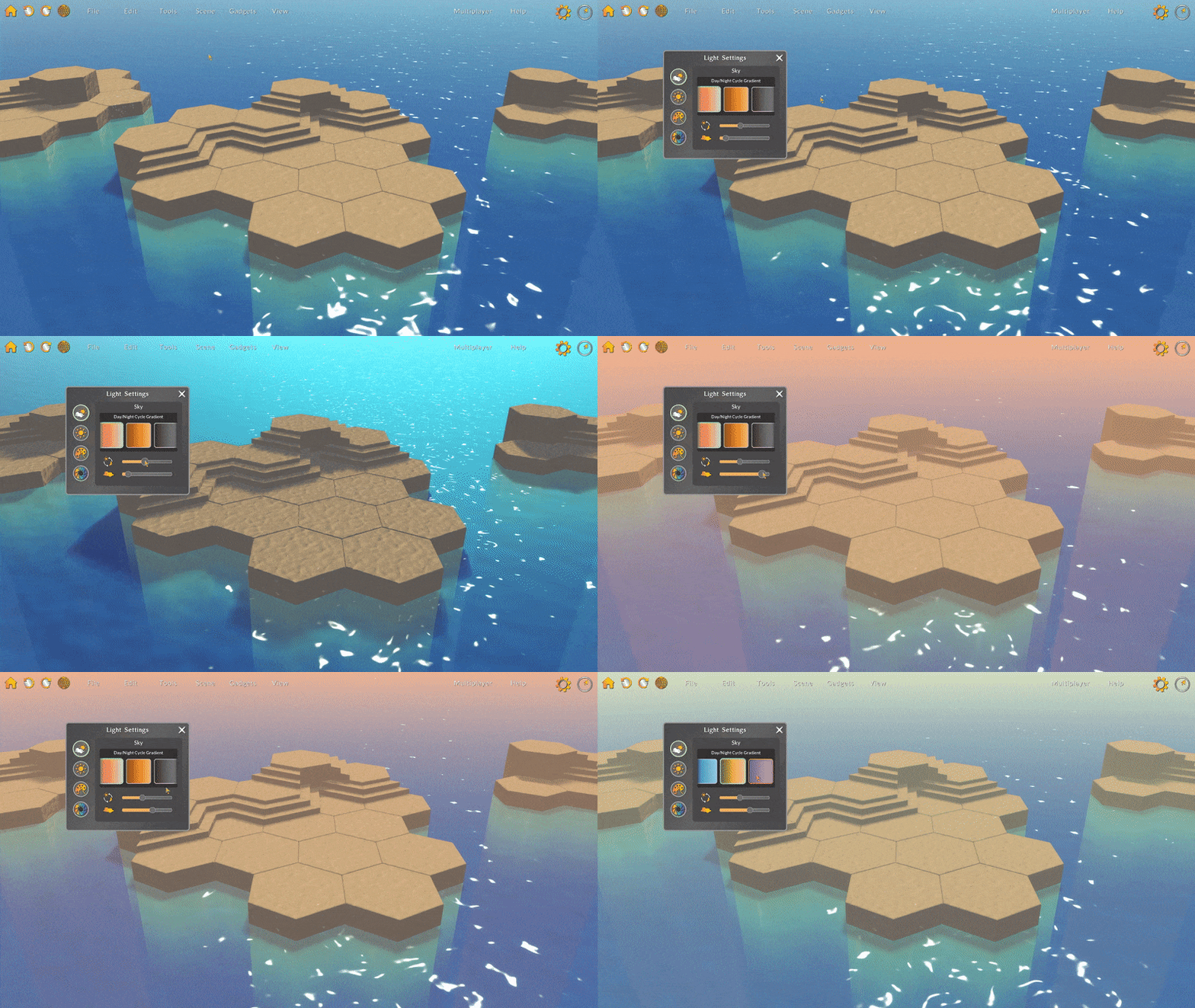
The light settings have changed over time, but the associated settings window hasn’t really been brought up to speed with other UI elements. For this update, I wanted to simplify the settings so that changing a color or rotating a light is simple and easy to do.
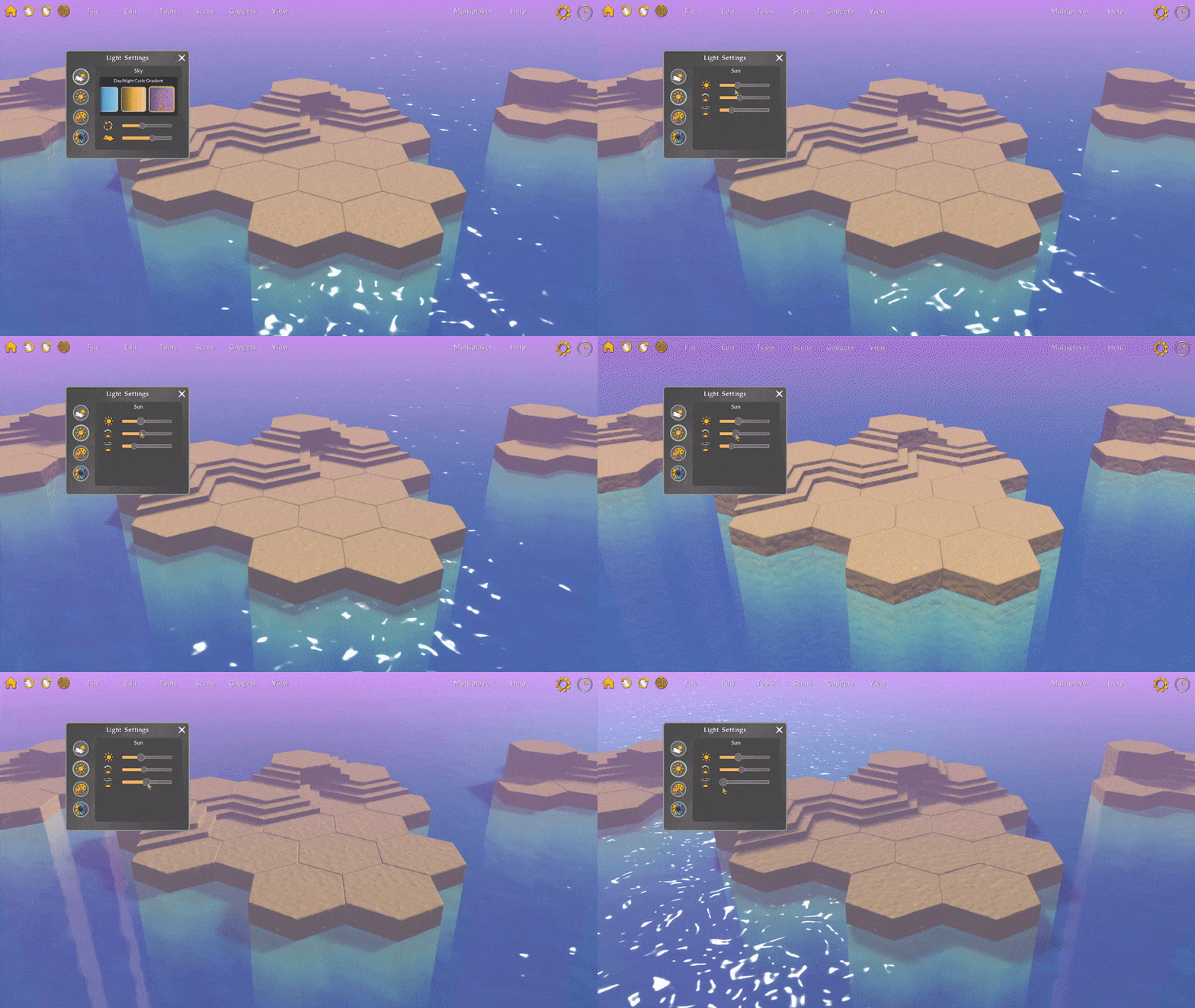
Between consolidating the advanced settings, removing redundant sliders, and updating various layouts and input designs to be consistent with the newer UI elements, I think the light settings panel is much easier to work with.
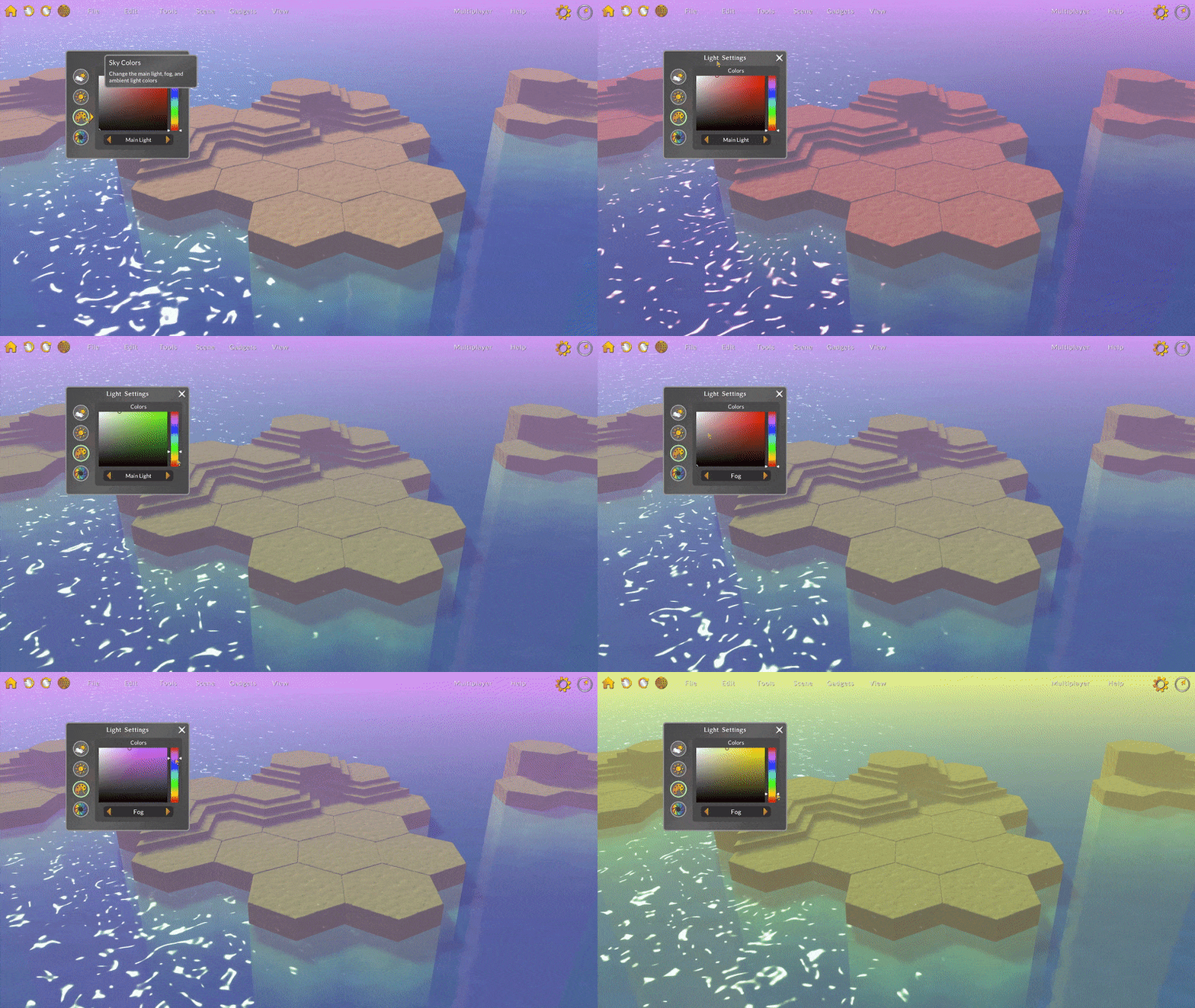
I hope you find the light settings easier to understand and work with while you build your environments! Let me know what you think: is there a light setting that you think should be added?
Here are some other updates:
- Many of the tutorials have been moved to YouTube. This makes it much easier to add new tutorials without updating a build and should make viewing tutorials while playing more manageable. Some tutorials are now outdated and I’ll need to remake them. If there are other tutorials you think would be helpful, let me know!
- Now when selecting the Tutorials button, the tutorials playlist will open in an internet browser. There are two playlists, one for Tilt Five and one for PC/Mac. The Tutorials button opens the YouTube playlist associated with the configured platform.
- The network region name text is now a button that, when clicked, toggles the visibility of the network status window, which allows you to switch regions.
- Fixed a bug with custom asset import where, if there was an error importing, the window would not become interactable until after application restart.
- Fixed a multiplayer bug where the host client was not initialized properly, causing players joining a host room not to be set up with the correct permissions.
- Fixed various layout issues with the asset import window.
- Fixed a camera control bug where rotating around a pivot would slowly move the pivot position over time.
Let me know how you're liking this update! Join the Discord to leave a message, or send annonymous feedback here. 🙂
Enjoy!
Bradley