Added two small features : It is now not necessary to switch to another preset to apply the last selected Clicking anywhere outside the preset box (within the application) will close the preset box
Added two small features :
It is now not necessary to switch to another preset to apply the last selected
Clicking anywhere outside the preset box (within the application) will close the preset box
It is now possible to create your own custom presets for Volmatic! Those presets will enable you to save the following settings : The intensity (Volmatic's main slider) The slow correction toggle The boost intensity The slow correction speed The maximum volume if you are using he
It is now possible to create your own custom presets for Volmatic!
Those presets will enable you to save the following settings :
The intensity (Volmatic's main slider)
The slow correction toggle
The boost intensity
The slow correction speed
The maximum volume if you are using headphones
By clicking on this button :
You will open the presets management options :
The way it works is pretty straightforward :
Clic on a preset to apply it.
Clic add to add a preset with the current settings and the name typed in the text box.
Clic remove to remove a preset having the same name as the one in the text box (clicking on a preset will copy its name into it).
If a preset with the same name already exists, it will update the existing one.
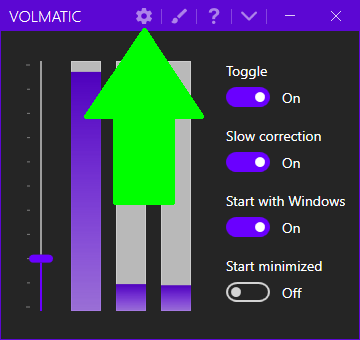
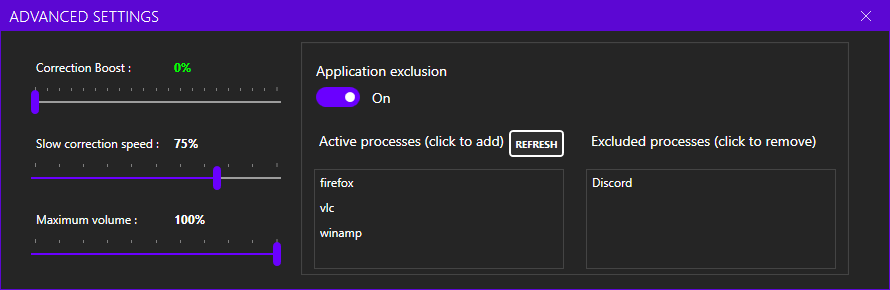
As a popular request, the possibility to exclude specific applications from the volume control has been added! You can now find that option in the advanced settings by clicking on the gear icon : The advanced settings now look like this : In order to exclude an application, first
As a popular request, the possibility to exclude specific applications from the volume control has been added!
You can now find that option in the advanced settings by clicking on the gear icon :
The advanced settings now look like this :
In order to exclude an application, first enable the switch below the "Application exclusion" text. Then add your app by simply clicking on it in the first list.
If your application does not appear in the list : - Make sure you started it so it can be detected - Make it make some noise (not always necessary) - Press the refresh button
After clicking on it, it will appear on the second list. Clicking on it there will un-filter it and submit it again to Volmatic control.
What about the help that was displayed in the advanced settings?
A question mark icon can now be clicked from the main window. It will then open the new help page.