
Hi Folks.
Today we start a series of posts on the core of the game - the Battlefield. This screen is where you will lead your army throughout the Saga.
Battles will be fought on many different types of terrain. Choose wisely where to position your troops for attack and defense as some will excel on certain tiles whilst others will perform poorly.
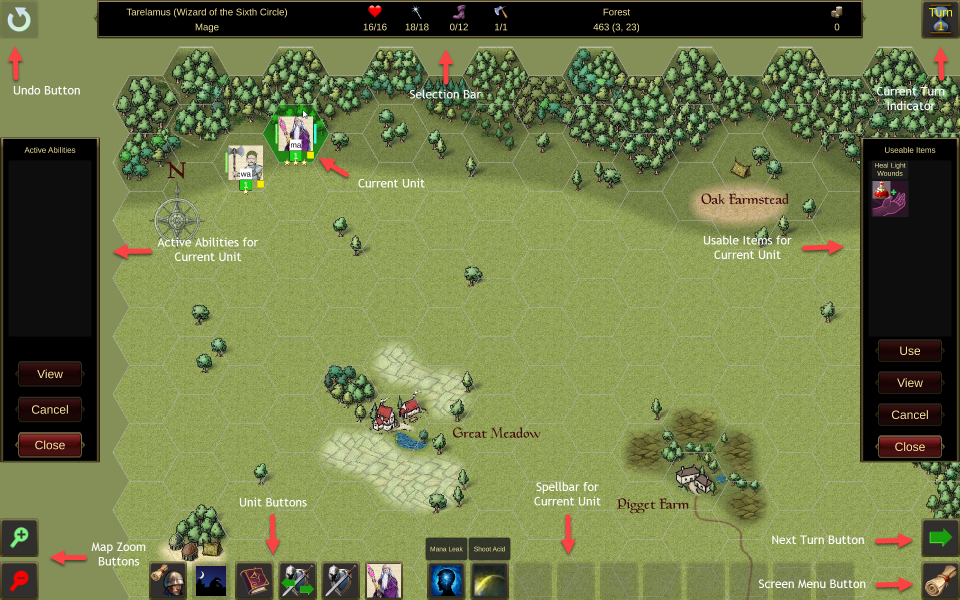
There will be one or more objectives that will have to be achieved to win a battle. The objectives may also vary on every Campaign, as will the number and types of enemy you will face. No battle will ever play exactly the same each time. The interface looks like this:

(Click to download)
There are two of your units shown near the top left of the screen. The unit highlighted in green is the Current Unit and many of the buttons on the screen will invoke actions or display dialogs for this unit.
Across the top of the screen are displayed:
Undo Button - Allows the move of the current unit to be cancelled under certain conditions.
Selection Bar - As you hover the cursor over any tile on the map or you click a specific tile, the Selection Bar will give details about the tile and any unit it contains. The right hand side of the bar also shows the amount of Qaedi you have to spend and the Turn Timer if this has been turned on in the Advanced Rules.
Current Turn Indicator - Display the current turn number in format 'Turn X' or 'Turn X/Y' if the current battle is turn limited.
On the left and right screen edges you can see:
Active Abilities - This dialog will show any Abilities that the current unit can use during its turn. An example might be the Web ability used by some Spider units. Using an ability comsumes an Action for the unit. Most abilities have a limited number of uses in each battle but will recharge between battles.
Usable Items - This dialog will show any Items in the current unit's inventory that can be used during its turn. Potions, Scrolls, Consumables and Tomes are examples of this type. Using an item comsumes an Action for the unit. Items are usually one shot and so using it will consume (destroy) the item and it will be removed from the game. Some items however have 'Charges' which will deplete as they are used.
In the bottom left corner are buttons to scale the map (Zoom In and Zoom Out). This can also be done using the Keyboard (by default the Page Up and Page Down keys) or by scrolling the Mouse Wheel.
In the bottom right corner we have:
Next Turn Button - Will end your turn and activate the AI. You can set options as to whether you want a confirmation dialog to appear and also whether you want to see an animated timer that runs while the AI is playing. This button can be activated via the Keyboard (default T).
Screen Menu Button - Displays a dialog of in-game options (for example Save Game, Player Guides and Exit Game). This button can be activated via the Keyboard (default X).
Along the bottom edge of the screen are buttons that relate to your units. On the left are the Unit Buttons.


(Click to download)
Purchase - Not shown on screenshot. This is In Development and when completed will allow you to spend your Qaedi during battle (for example to buy new units) instead of only Army Management as at present.
Unit Menu - Displays a mini-menu that allows quick cycling through your units on screen. The mini-menu allows you to select Previous Unit (with Moves/Actions), Previous Unit, Next Unit or Next Unit (with Moves/Actions). These functions can also be accessed by the Keyboard by default using the V, B, N, M keys.
Sneaking - Only available if the current unit has a Sneaking attribute of greater than zero (usually Rogues). Will attempt to sneak which makes the unit invisible to the enemy. If the unit is already sneaking, clicking this button will stop doing so. Available on the Keyboard using the '[' key by default.
Spellbook - Only available if the current unit is a Spellcaster (usually Clerics and Mages). Will display the Spellbook page for the current unit. Can be accessed from the Keyboard using the P key.
Transfer - Only active if the current unit is next to another of your units. Clicking this button will highlight any such units and selecting one of them will display the Transfer Items dialog. Available on the Keyboard using the O key by default.
Inventory - Displays the Inventory page for the current unit. Can be accessed on the Keyboard by pressing the I key.
Profile - Displays the profile dialog for the current unit at the Attributes page. Available on the Keyboard by pressing the U key.
Next to the Unit Buttons is the Spellbar. This is only active if the current unit is a Spellcaster and allows quick access to selected spells. By default the Keyboard keys 1 to 0 correspond to the buttons left to right.