Creation Manual
》》》》》1.1 World Introduction
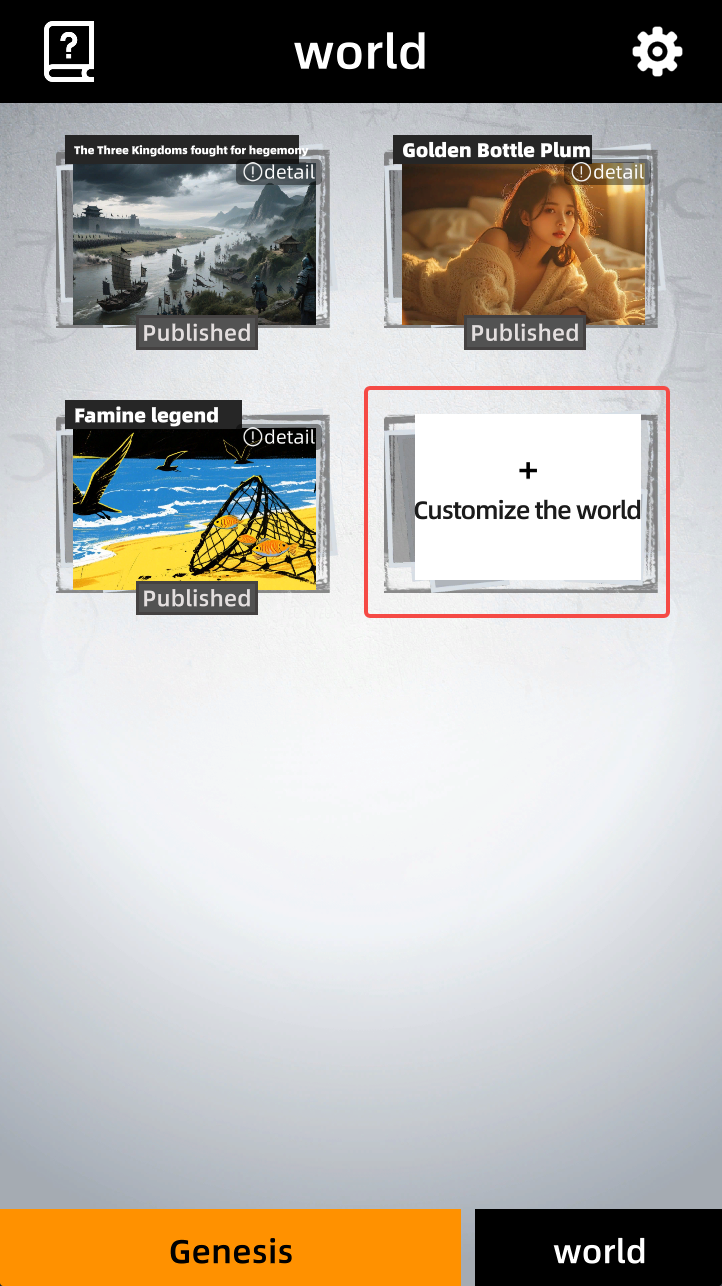
1.1.1 Click the “Create” button to create a world
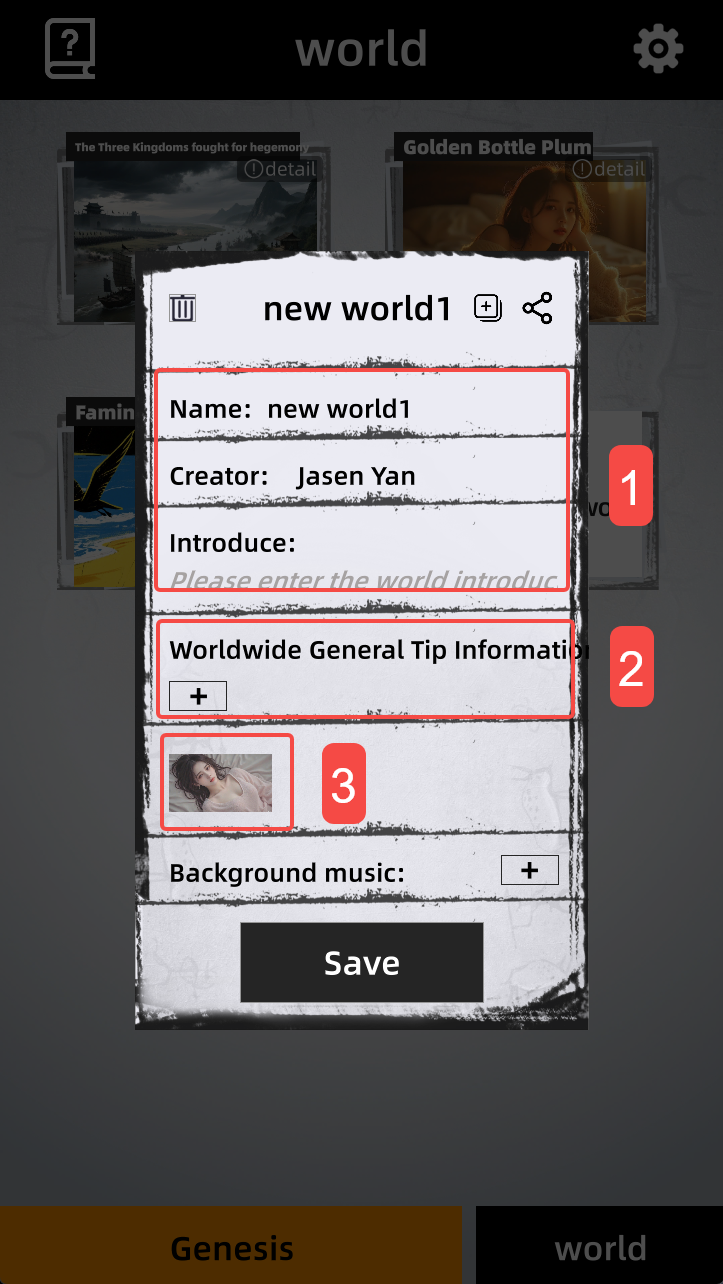
Basic world information
Configure universal tips for the world; they will rotate in the tip area while playing. One line at a time.
Game cover
》》》》》1.2 Configure World
1.2.1 Basic Interface Introduction
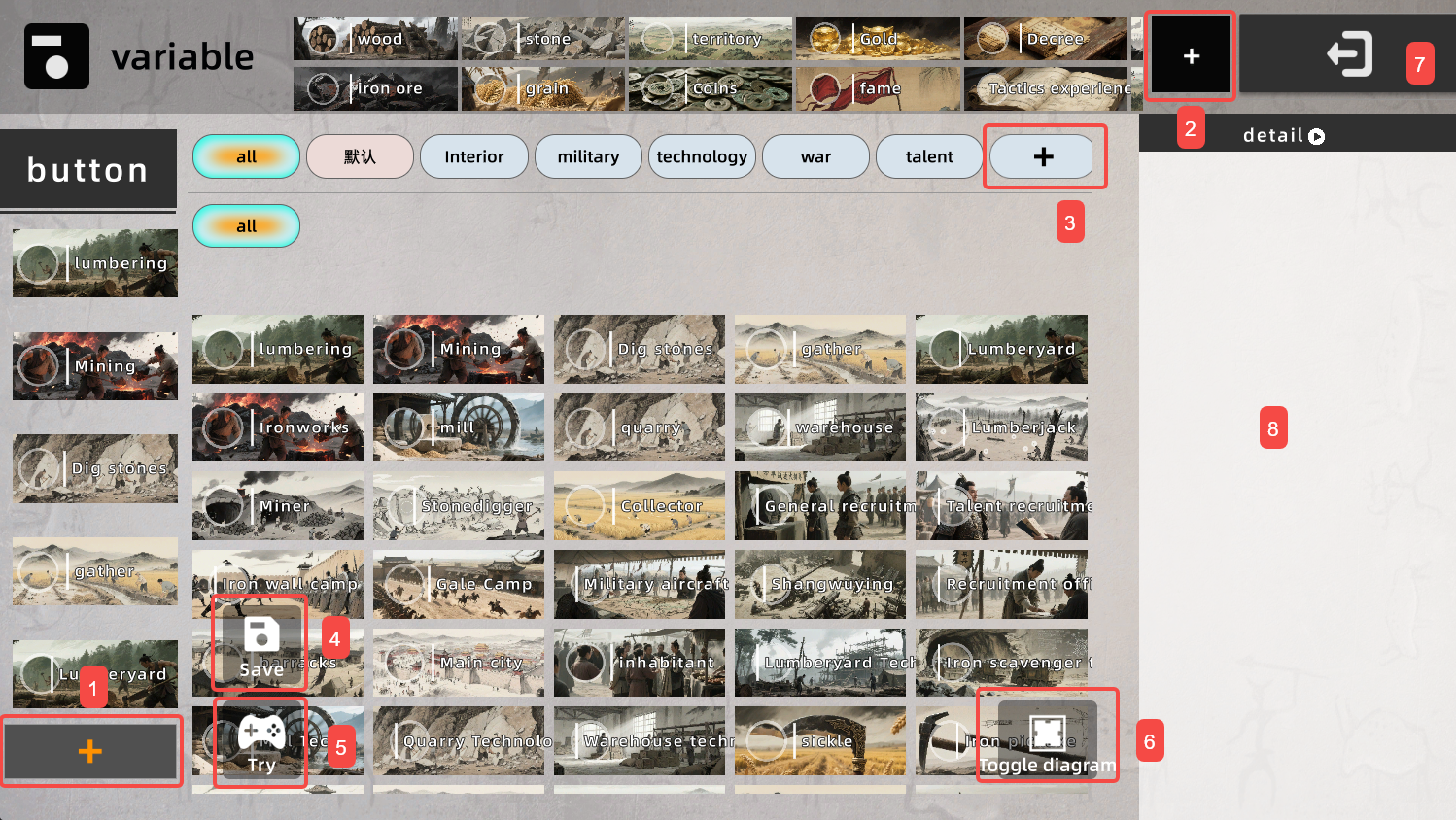 In [Creation], click a world to enter the world-editing interface
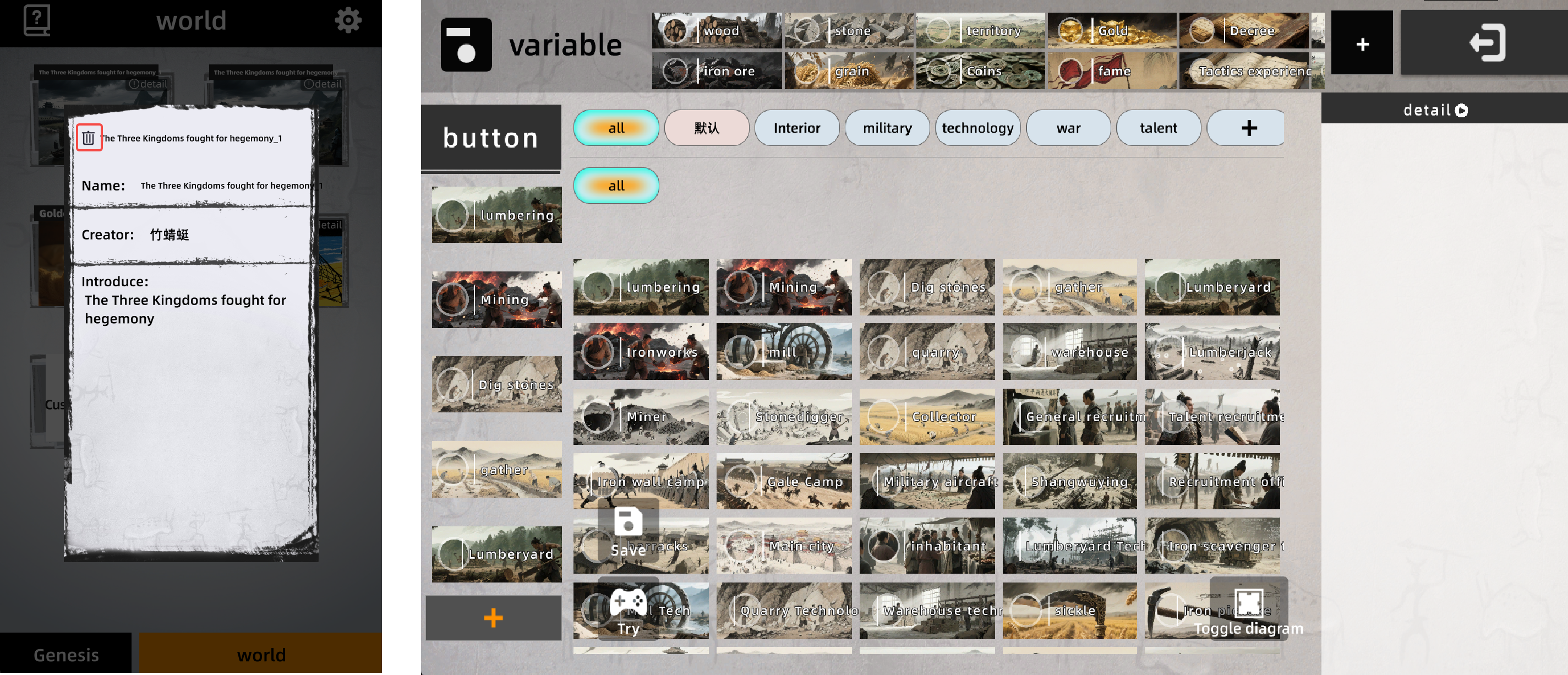
[Create Button]: Click the [+] to add a [Button] — an interactable entity in the world.
E.g. upgradeable buildings: lumber camp, etc.
Or assignable jobs, equipment, special NPCs that can be interacted with, etc.
You can set its detailed functions in [8] Details.
[Create Variable]: Click the [+] to add a [Variable] — key resources in the world.
They have no clickable button, but serve as ongoing consumption or upgrade conditions for [Buttons].
You can configure a view function; e.g. if [Variable] = number of beauties, you can link a beauty gallery in Details.
[Add Category]: Categorize [Buttons];
Click [Create Button] under a category to place the new button directly into that category!
[Save World]: Save the current world.
[Test World]: Instantly test-run the world for quick debugging.
[Toggle Relation Graph]: View other [Buttons] and [Variables] connected to the selected [Button] or [Variable].
[Exit]: Exit editing.
[Details]: When a button is selected, shows all editable content and details. When a variable is selected, shows its editable content and details.
1.2.2 Basic Operations
Universal add / delete button logic:
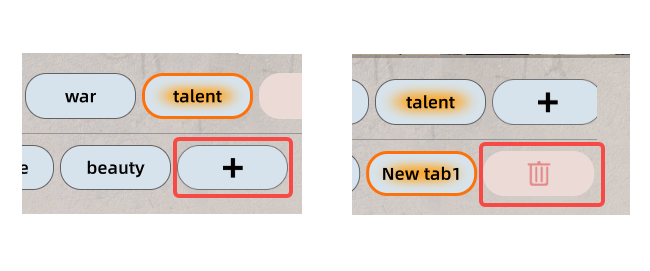
Click [+] to add a corresponding item.
When an item is already selected, [+] automatically becomes delete.
Clicking an empty area restores the default state!
In most sub-windows, clicking an empty area closes the window.
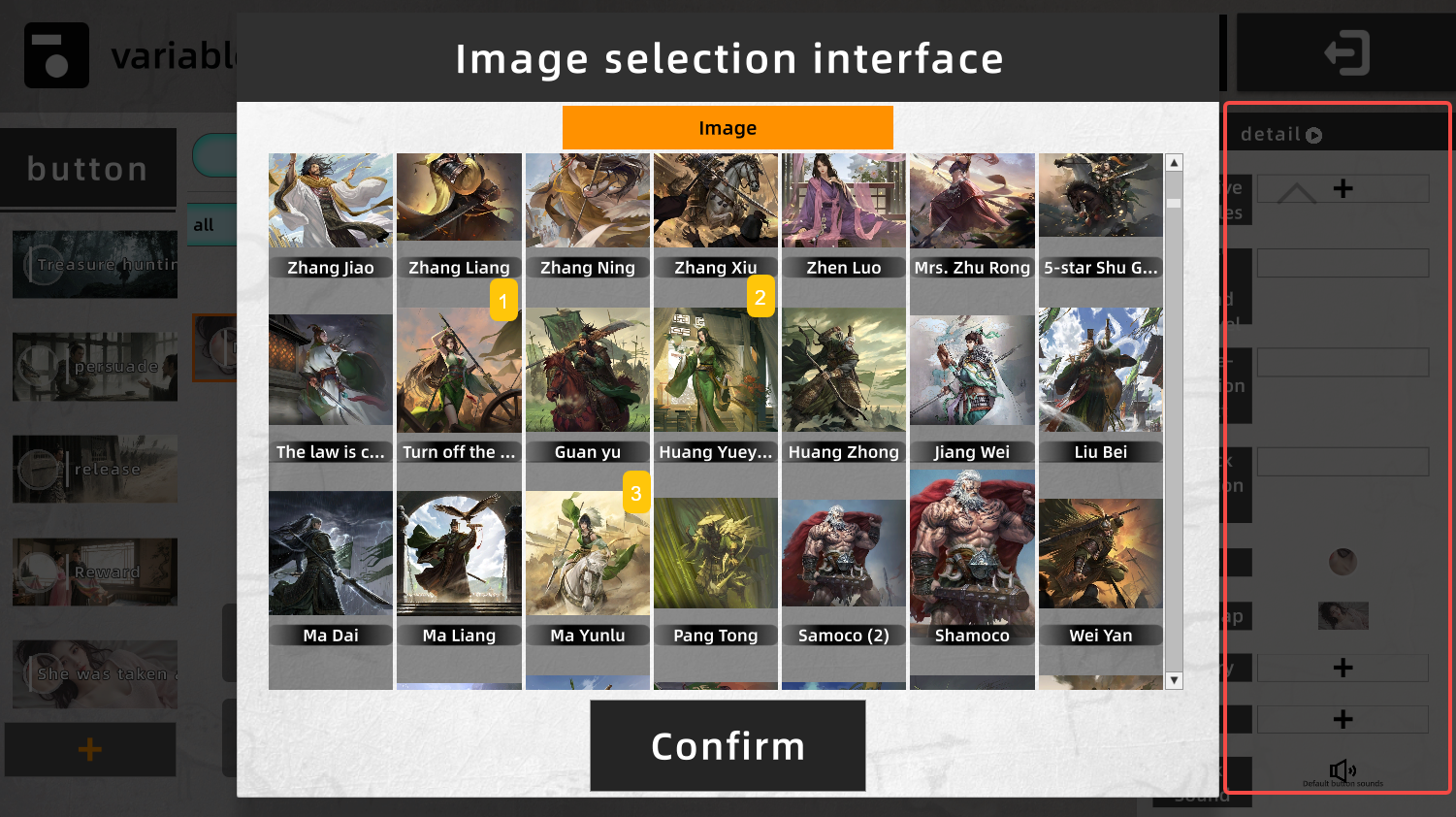
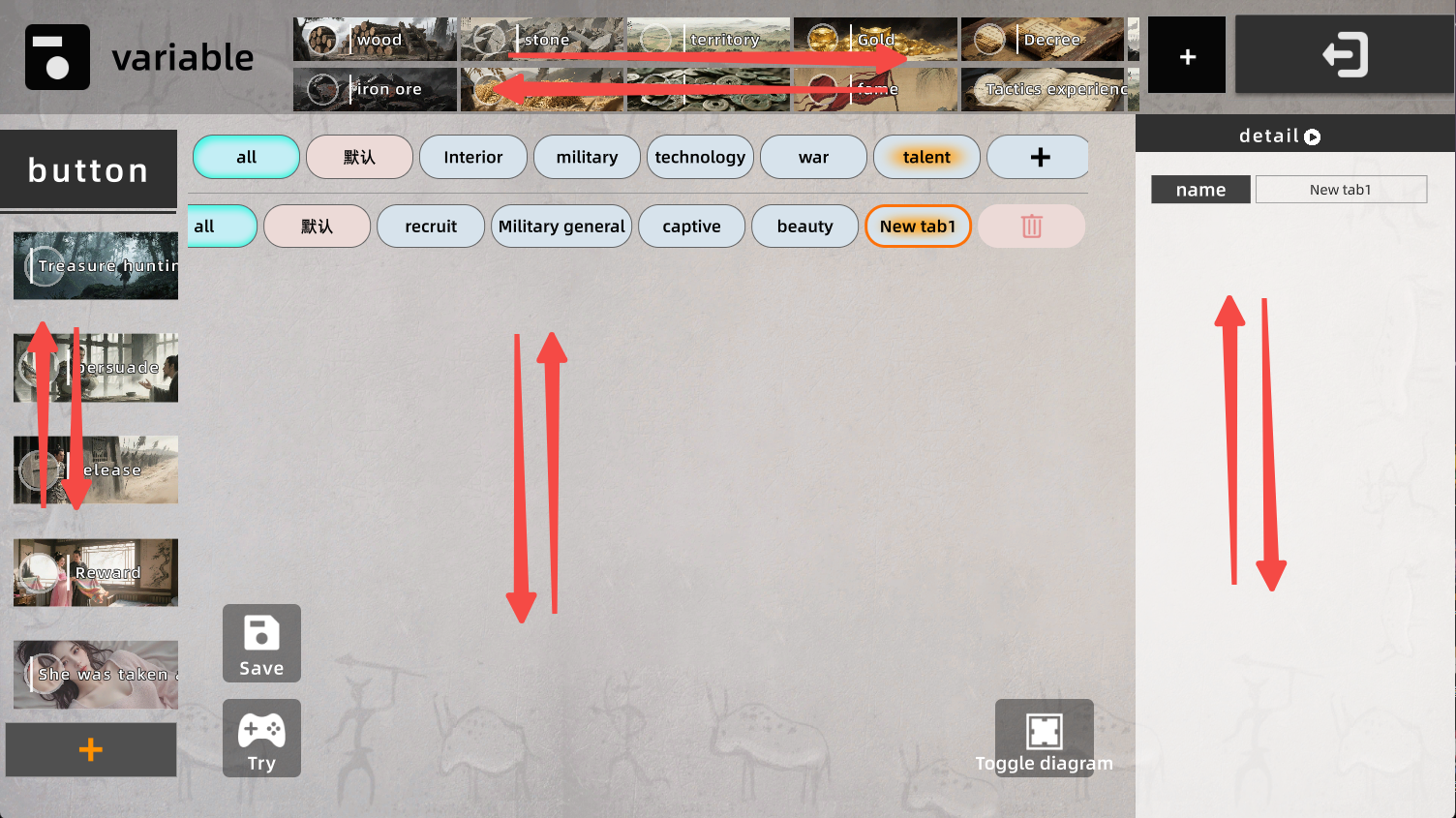
Most areas support scrolling.
1.2.3 Details (Basics)
Most content can be edited directly; just input or select the desired value.
Every N levels vs. Level N
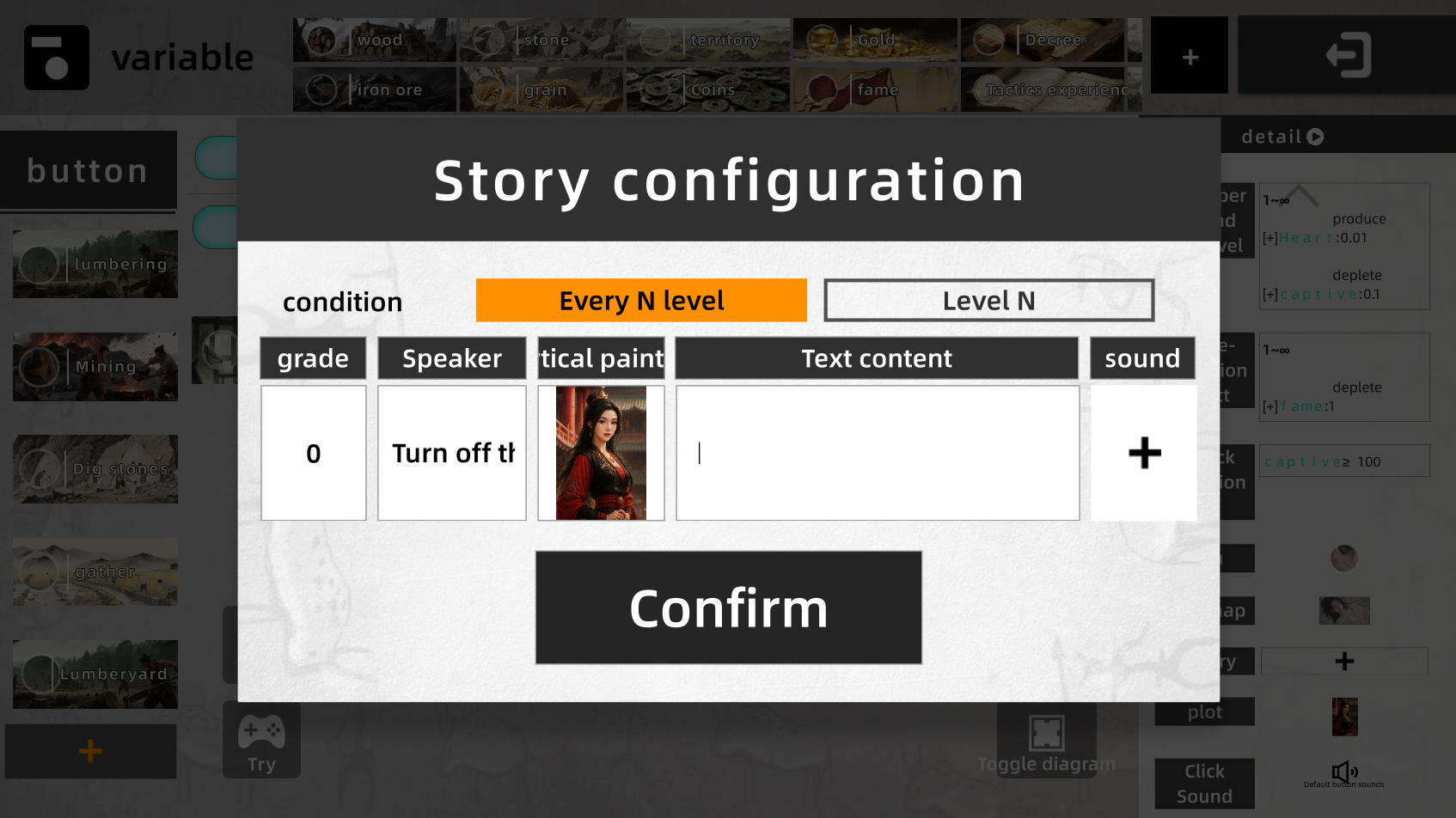
Every N levels: e.g. enter 5 → triggers the effect every 5 levels.
Level N: custom level at which the effect triggers.
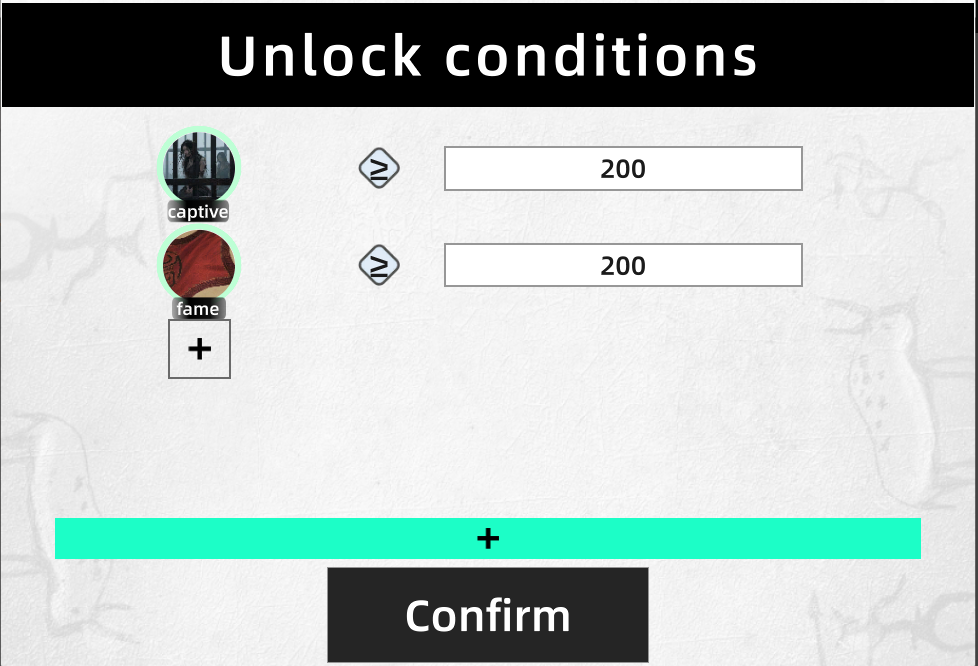
3. Button Unlock Conditions
If unlock conditions are set, the button stays hidden until unlocked.
Parts joined by OR are in an OR relationship — satisfying any one unlocks.
All conditions on the same side must be met.
In the example: 100 copper coins AND 1 decree unlocks; OR 1 fame also unlocks.
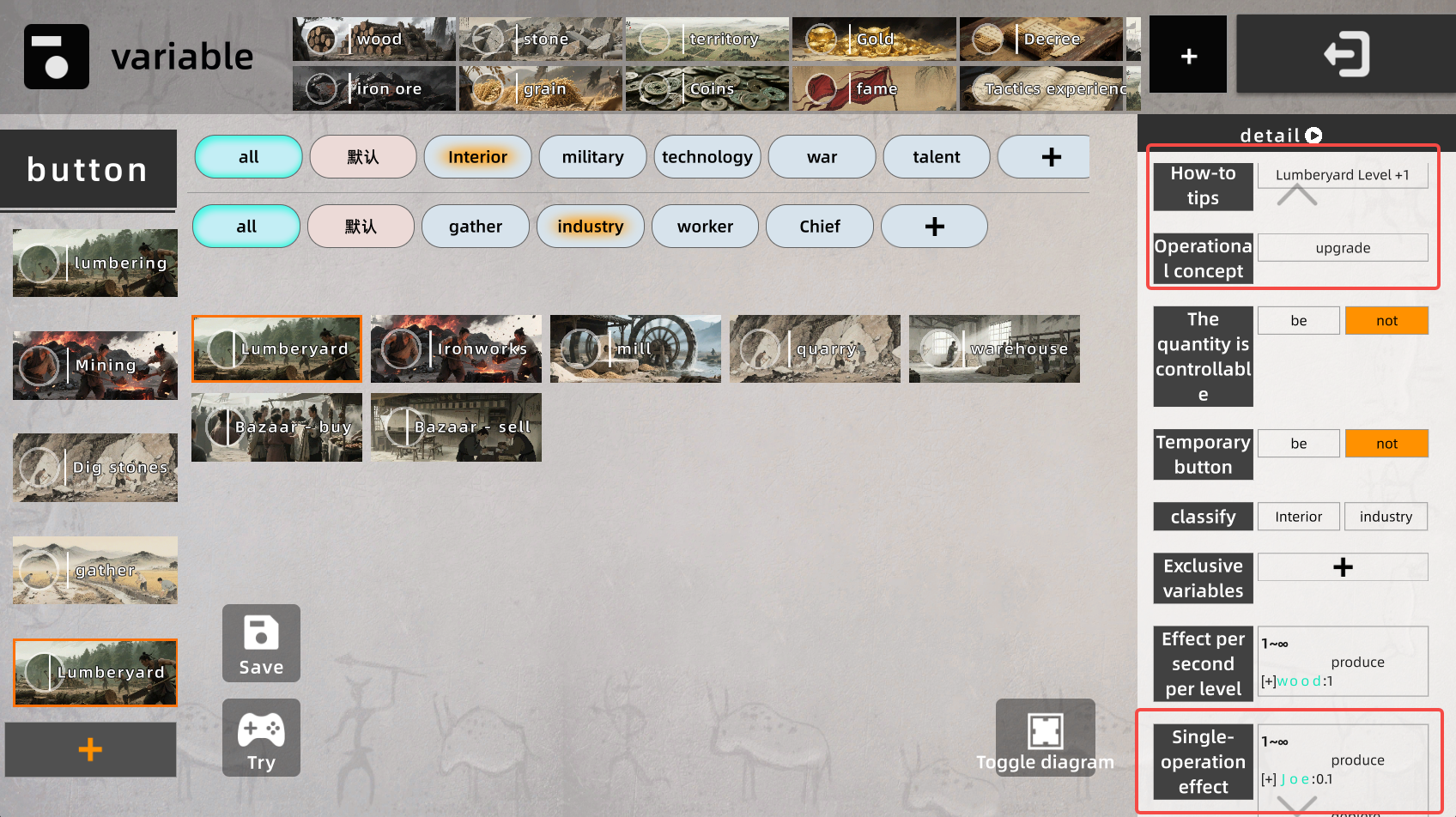
1.2.4 Per-Level Per-Second Effects & One-Shot Operation Effects
This is the most important and most frequently used feature!
One-shot Operation
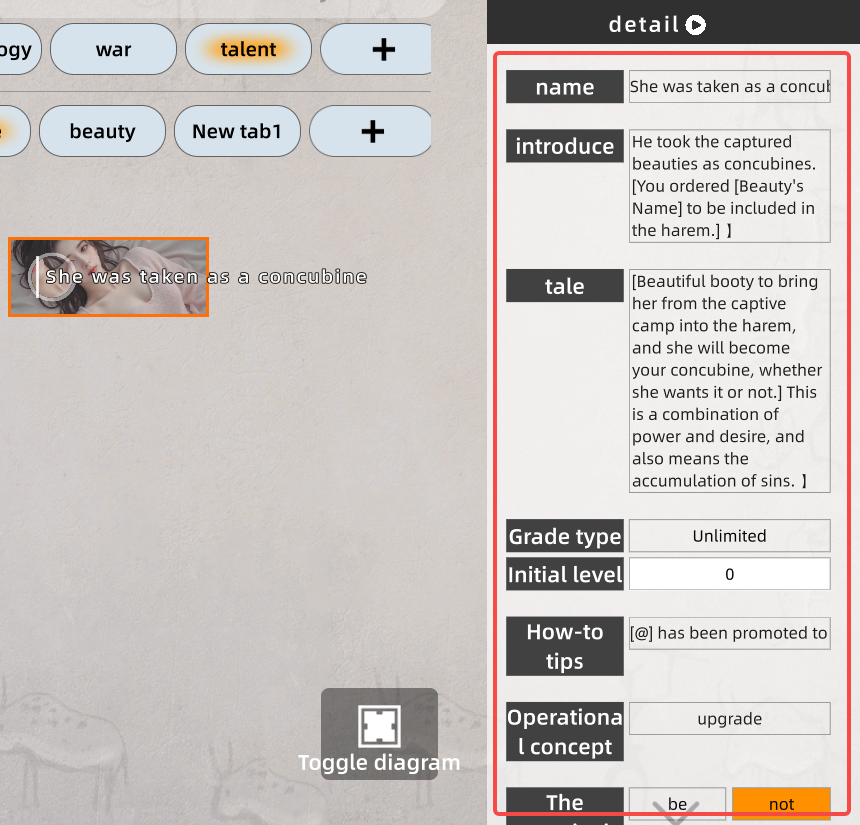
Operation Concept
The idea of an operation — e.g. [Upgrade], [Merge], [Awaken], [Learn], anything works.
Operation Tip — Upgrade Tip
The tip shown when performing the operation. Contains some generic tokens. Default: [@] has reached level #
@ = current button’s name
# = current button’s level
Operation Effect — One-shot Effect
The changes caused by this single operation; button level +1.
This is NOT ongoing; only the result of this [click].
E.g. current lumber camp:
Click concept is upgrade; upgrade costs 100 stone + 100 copper coins. One upgrade → level +1.
Per-Level Per-Second Effect
Under the current [button] level, the change applied every second.
E.g. current lumber camp:
Produces 1 wood every second.
Effect Configuration
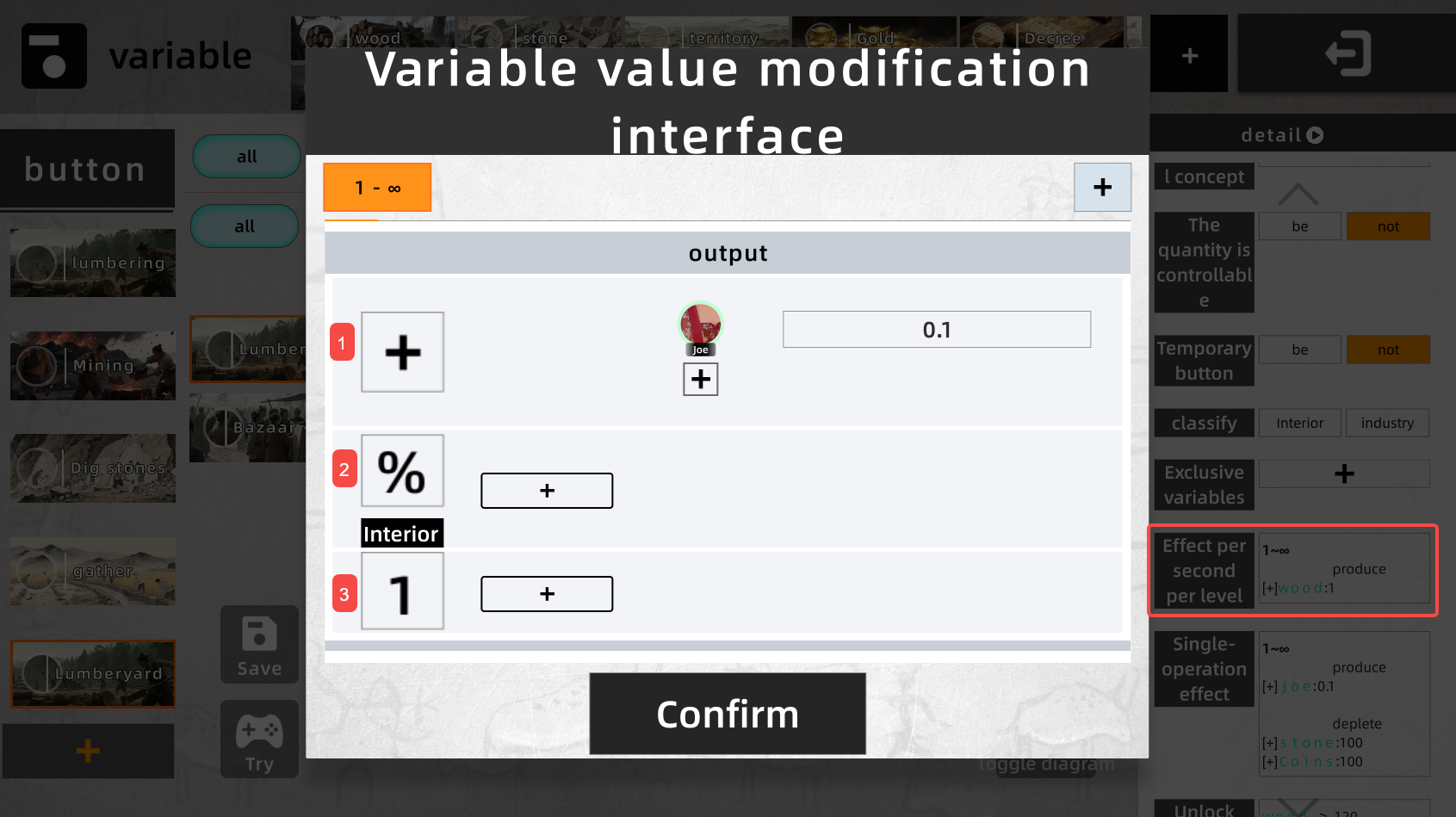
Constant Change. E.g. here: produce 1 wood per second.
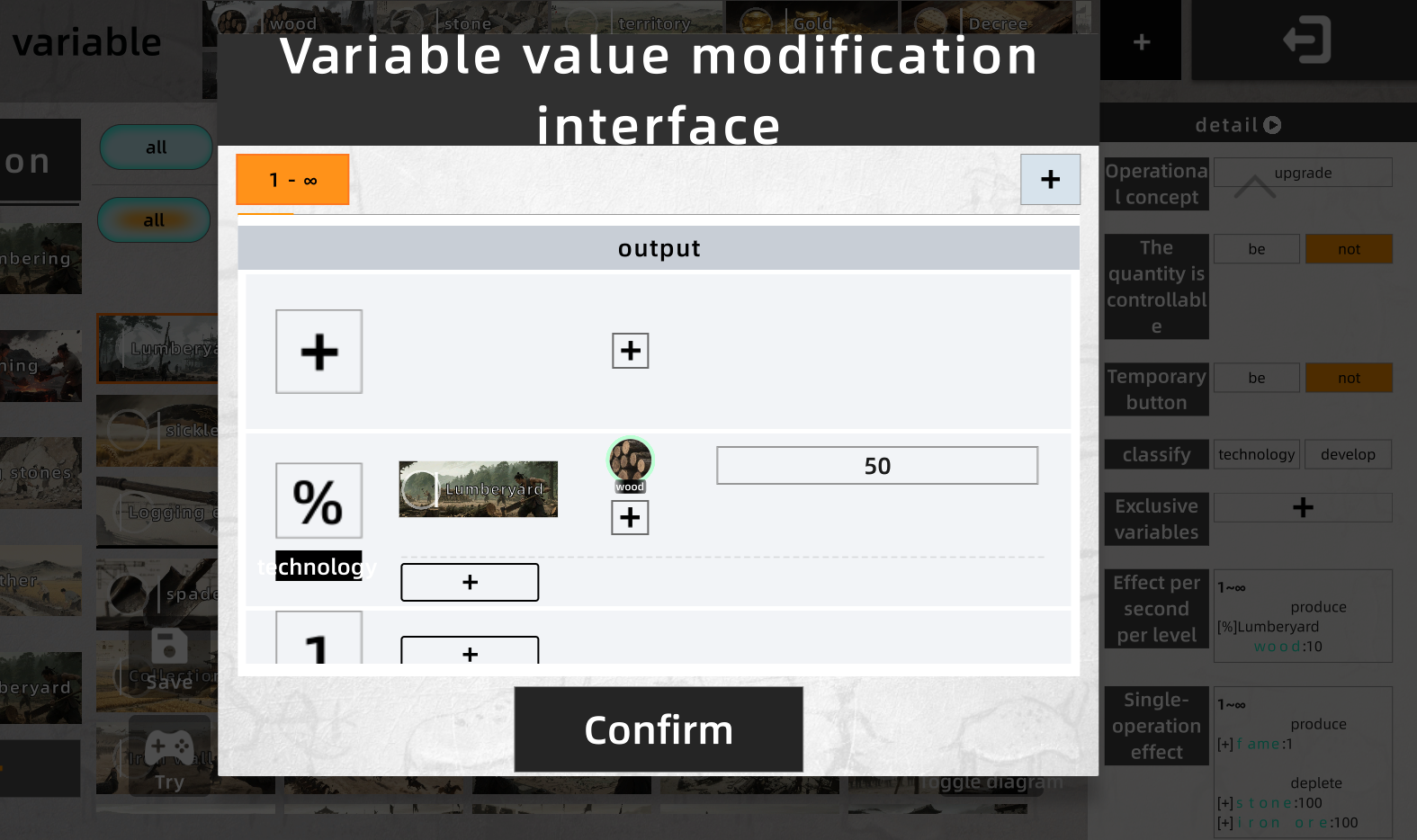
Percentage Modifier.
Need to choose target button. Applies a percentage modifier to the target variable of the target button.
E.g. an “Interior Affairs” building boosts lumber-camp efficiency by 50 %.
Click [+] to add lumber camp, set parameter 50.
The label below the percentage ([Interior] or [Tech]) is the multiplier zone.
Same zone: add then multiply. Different zones: multiply independently.
Original wood output = base × (1 + 50 % [Interior]).
Another Interior 50 % → base × (1 + 50 % + 50 %) = base × 2.
A new Tech 50 % → base × (1 + 50 %) × (1 + 50 %) = base × 2.25.
Zone = the category the current building sits in.
Constant Modifier.
Choose target button. Applies a flat modifier to the target variable of the target button.
E.g. an environmental building reduces lumber-camp wood output by 0.5 per second.
Click [+] to add lumber camp, enter parameter [-0.5].
Formula Editor
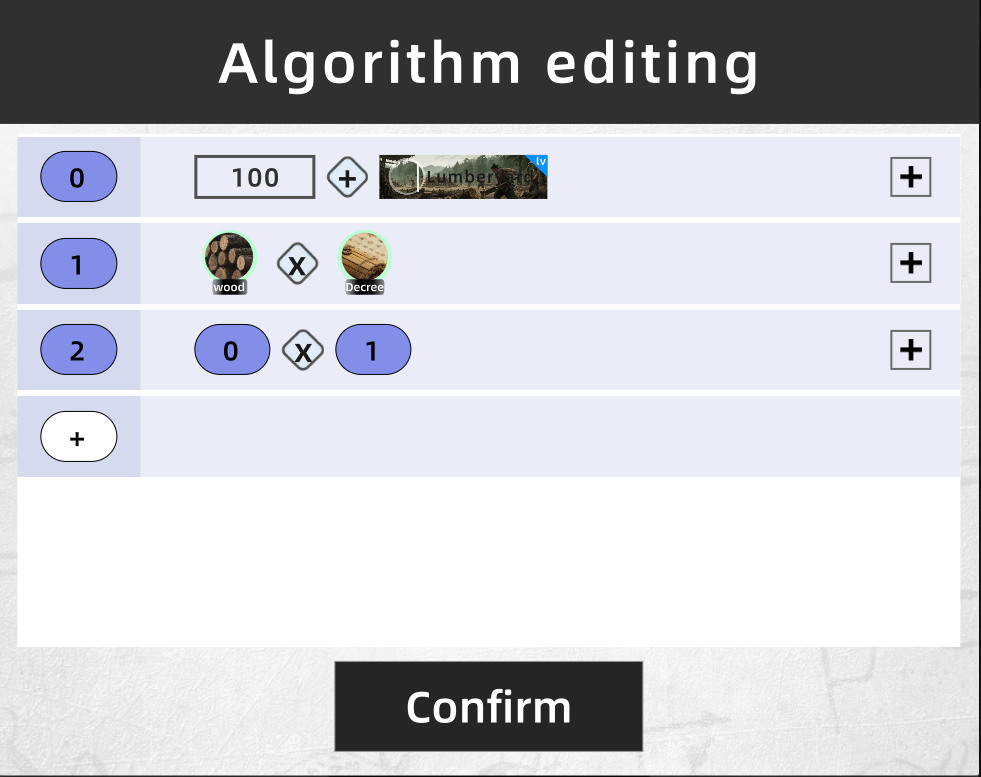
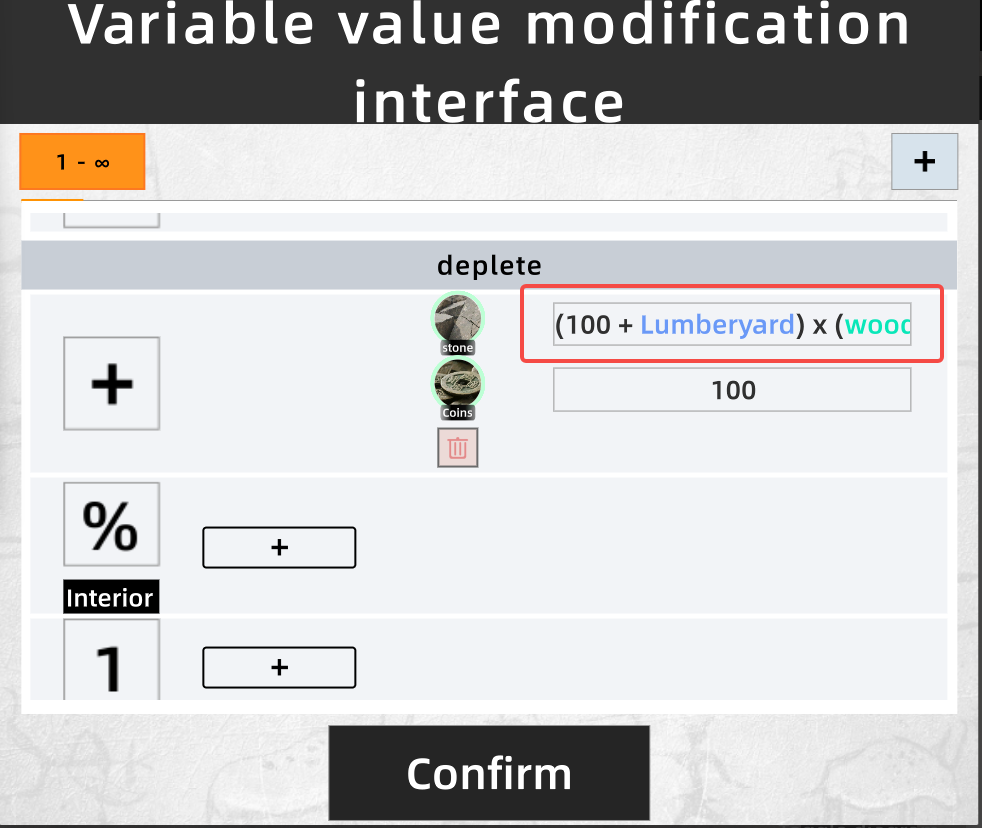
Simple example
Button cost can use a highly customised formula.
You can design any calculation you want.
Currently supports: output + cost in one-shot effects.
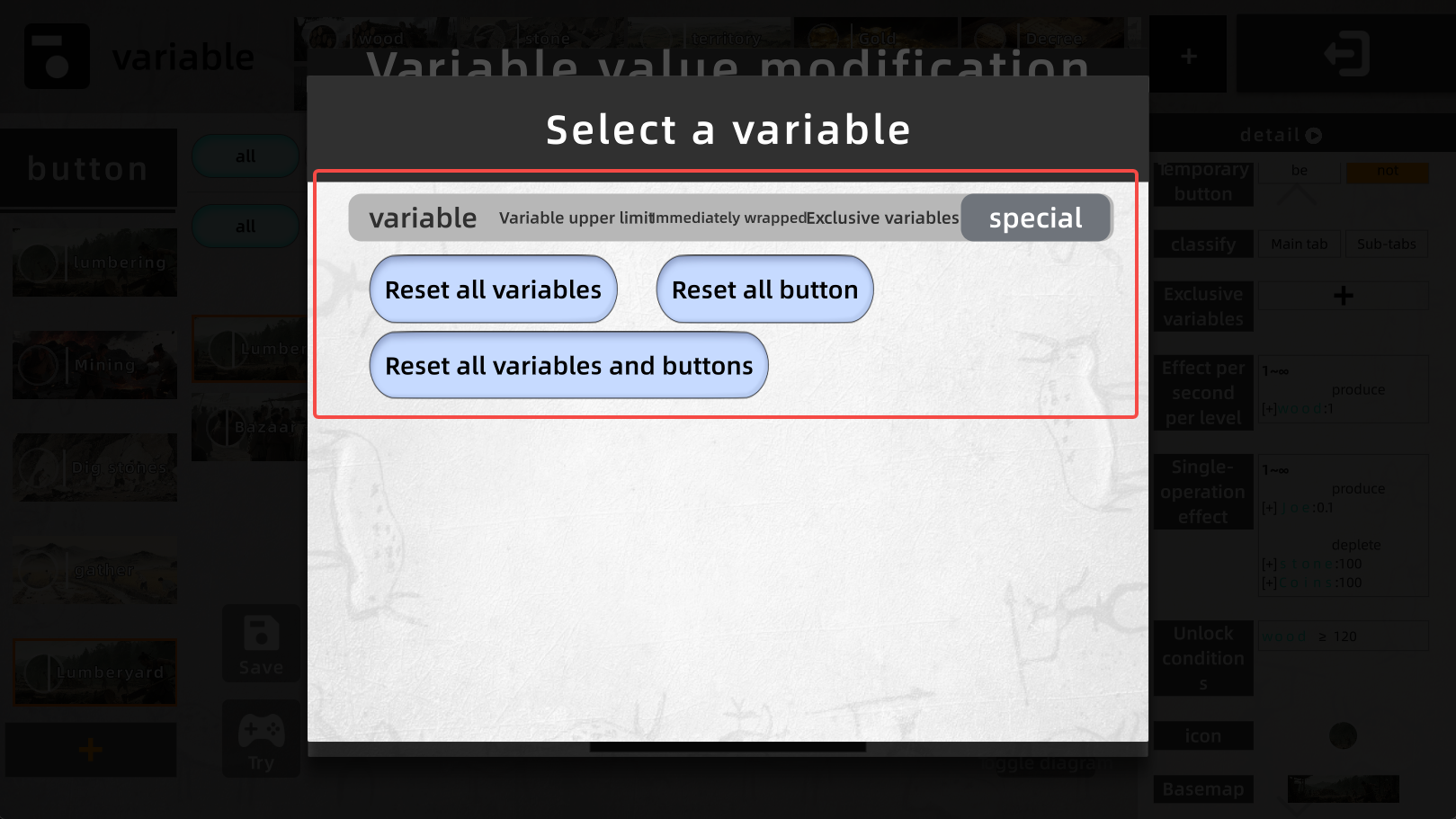
Special Variables
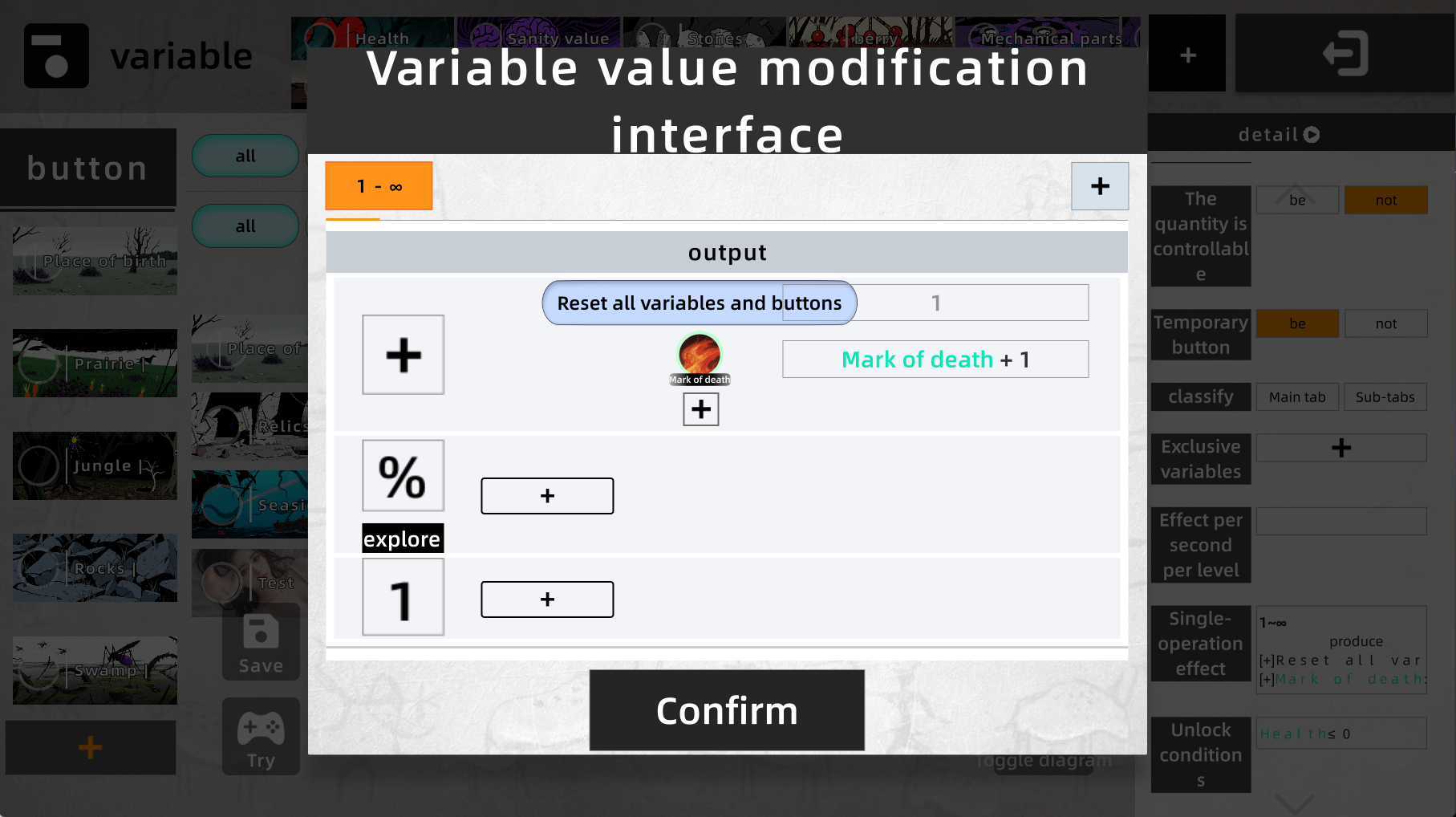
Reset Variable and Reset All can restart the world, achieving a “death & retry” effect.
Core logic of output
Every upgrade stacks one copy of the configured content, both output and cost.
E.g. lumber camp: each level outputs 1 wood, costs 1 stamina.
At level 2 the final effect is doubled → 2 wood, 2 stamina.
Equivalent to current effect + one copy of the formula.
Level 10 → 11 change:
10 wood → 11 wood; 10 stamina → 11 stamina.
If you want output / cost NOT to scale with level, or to scale stage-wise:
E.g. levels 1-10: +1 wood each level, but cost stays 1 stamina.
Configure:
Level range 1-1: 1 wood, cost 1 stamina.
Level range 2-10 formula: 1 wood.
Achieves the desired behaviour.
1.2.5 Special Functions
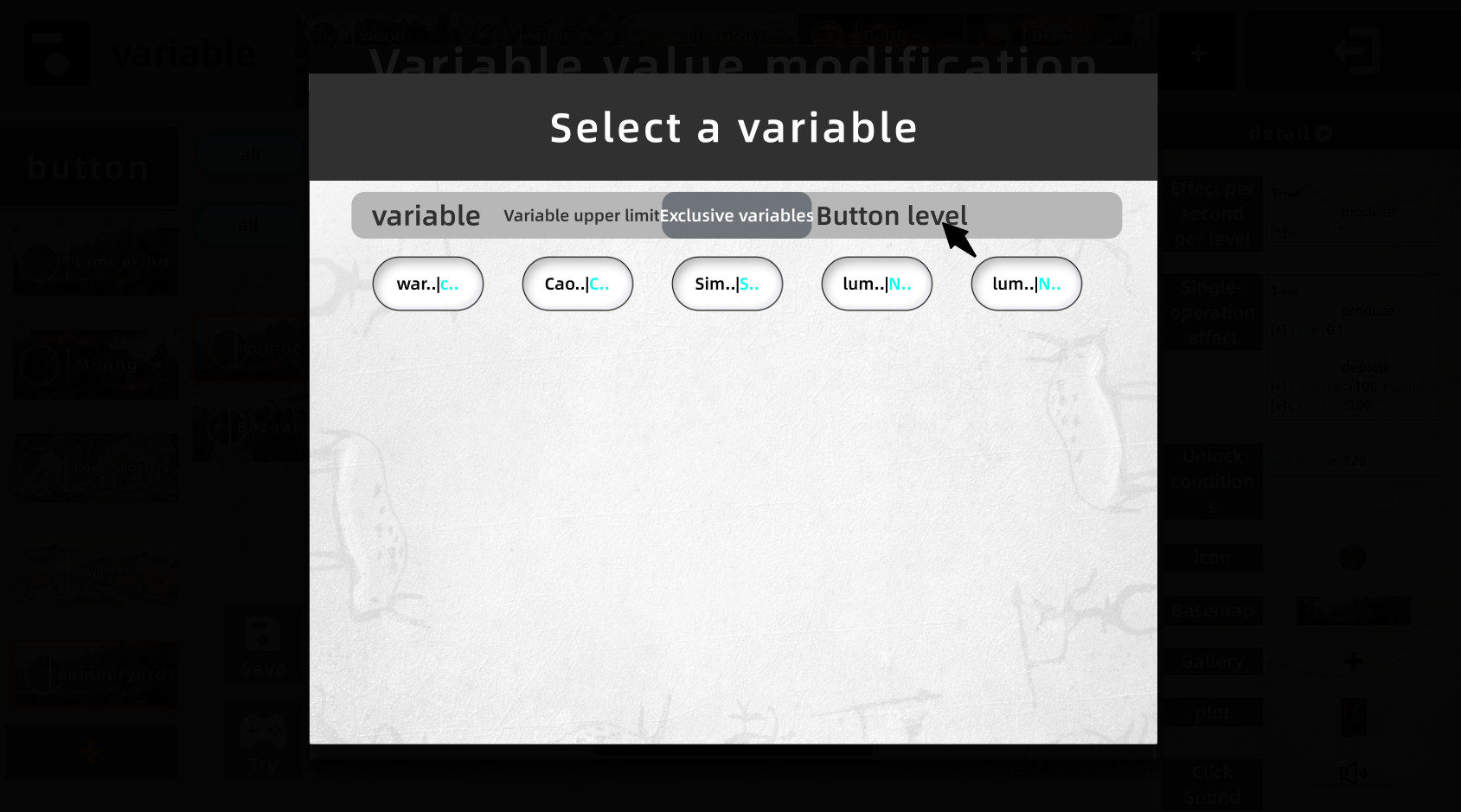
Exclusive Variable
Used to configure exclusive variables for an interactable (button).
E.g. design a button as a creature — famous general or monster, etc.
They need their own ATK & DEF; this is how you do it.
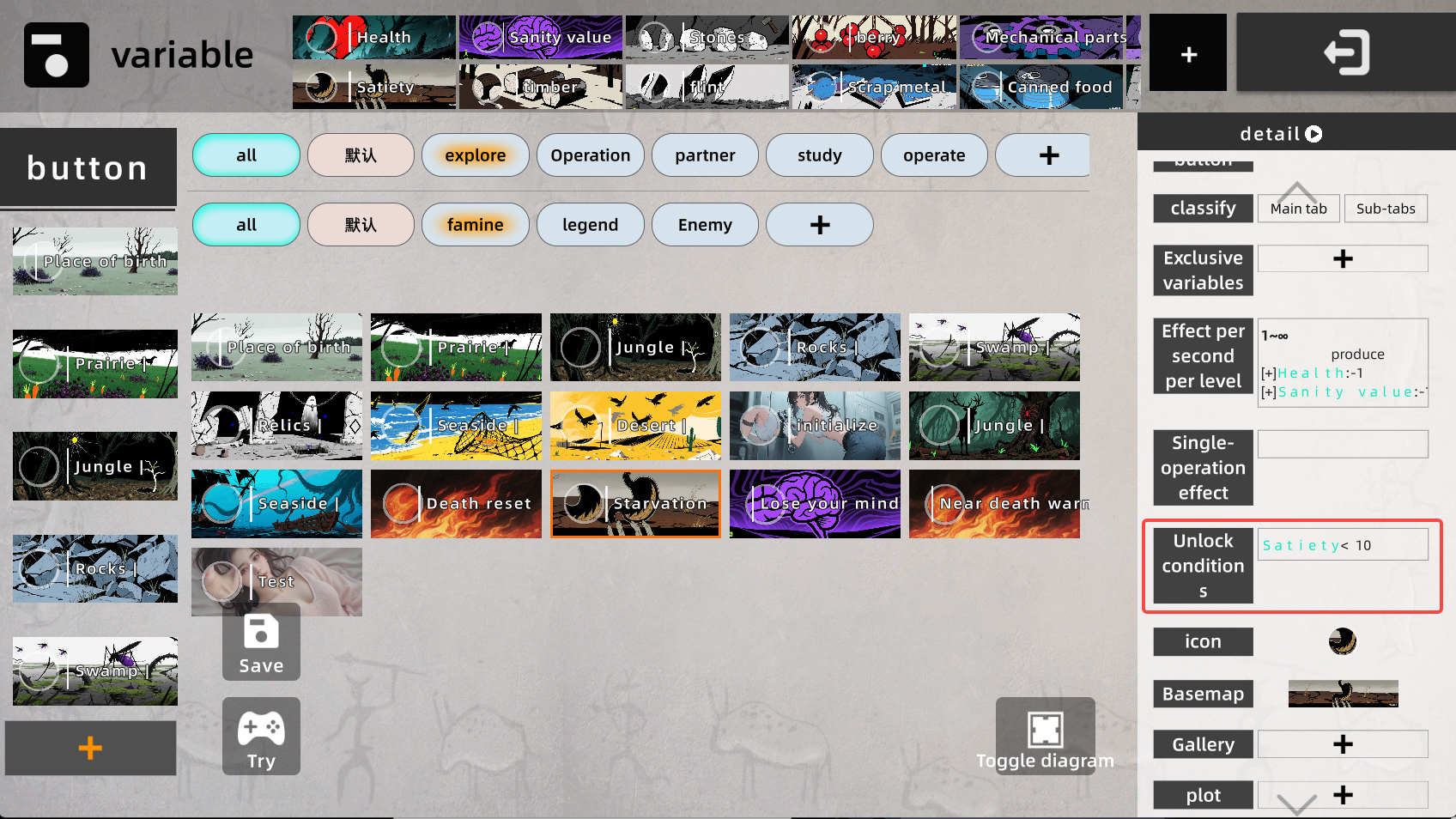
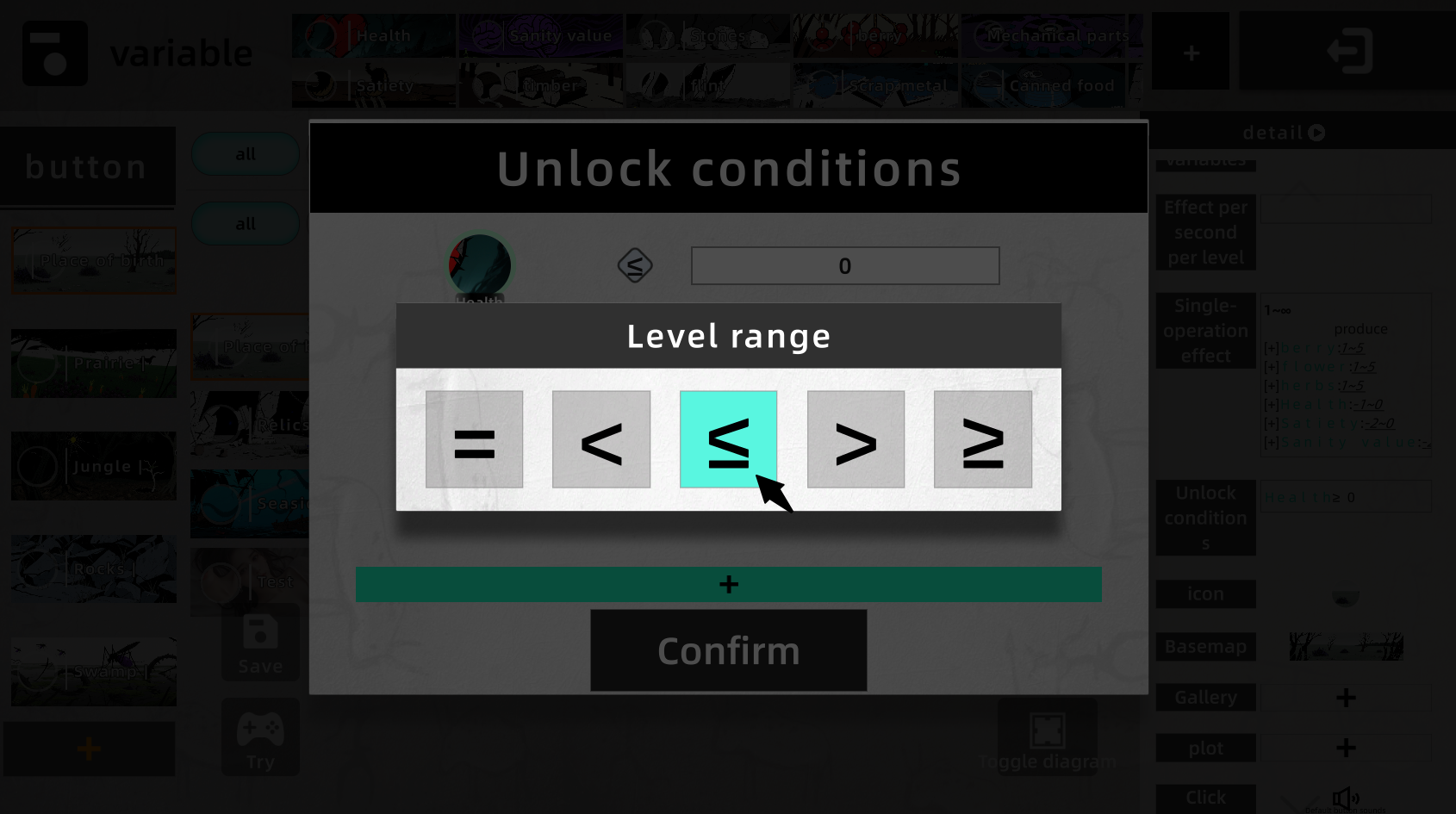
Conditional Unlock
Controls when a button unlocks instead of being unlocked by default.
Supports >, <, == and many other conditions.
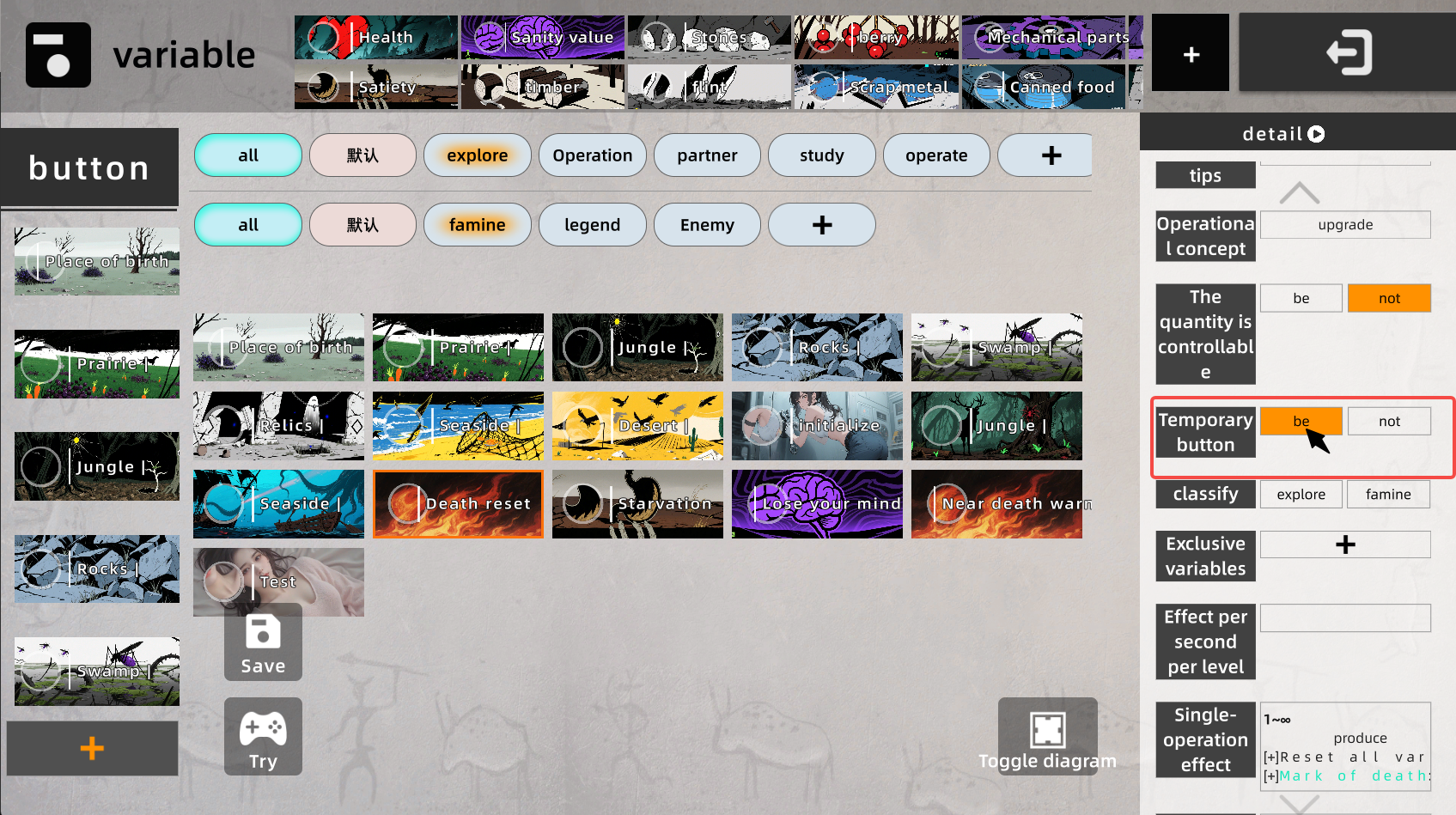
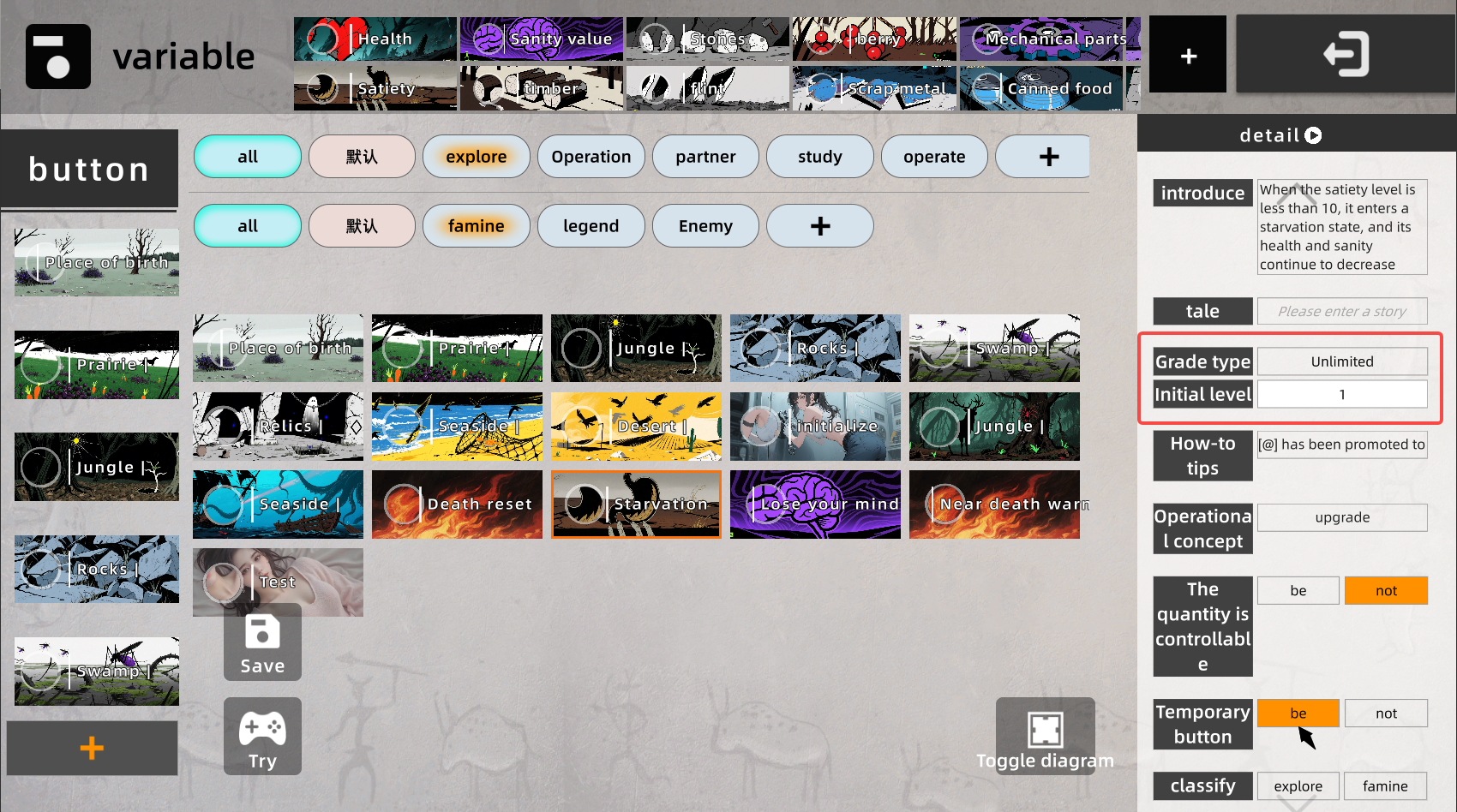
Temporary Button
Works with Conditional Unlock. After unlock, is it permanent or only temporary?
If temporary: when conditions are met it unlocks; when they fail it locks again!
Otherwise, once unlocked it stays unlocked forever.
Initial Level
The starting level of a button. You can set an initial level so its effects run immediately.
No need to unlock then manually upgrade.
Combined with unlock conditions and temporary button, you can create temporary buffs.
Special Variables
Currently mainly “Reset Variable”, “Reset All”, etc.
Can be used to design character death / game restart mechanics.
E.g. survival games where hunger < X triggers restart.
Reference case — [Don’t Starve Legend].
》》》》》1.3 Publish & Re-edit World
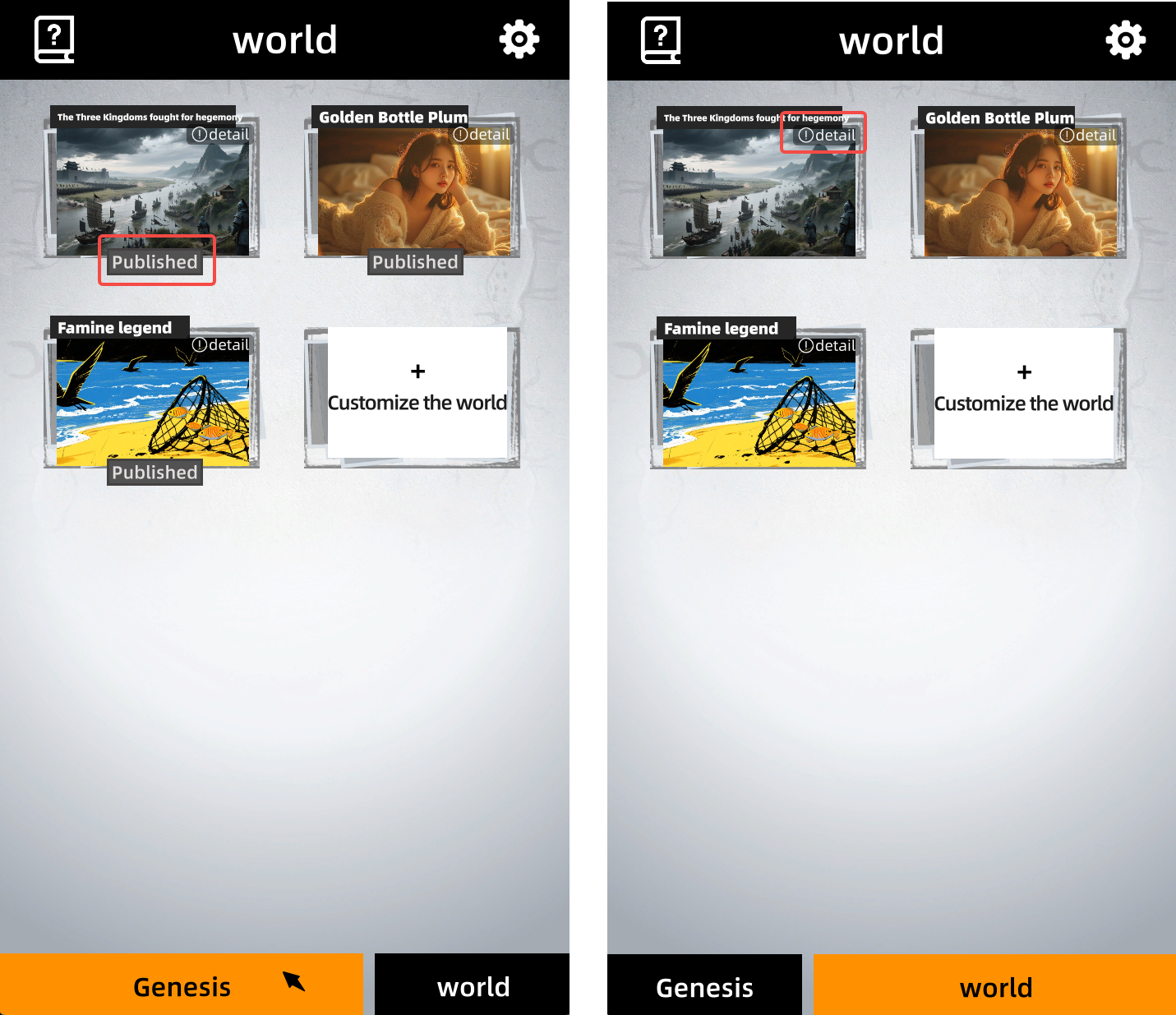
Click [Publish] to publish the world; it will then appear in the [Worlds] tab for everyone to play.
To re-edit:
In [Worlds], click [Details] on the corresponding world, then delete it.
You can then edit it again in [Creation].