Add manual and auto save functions
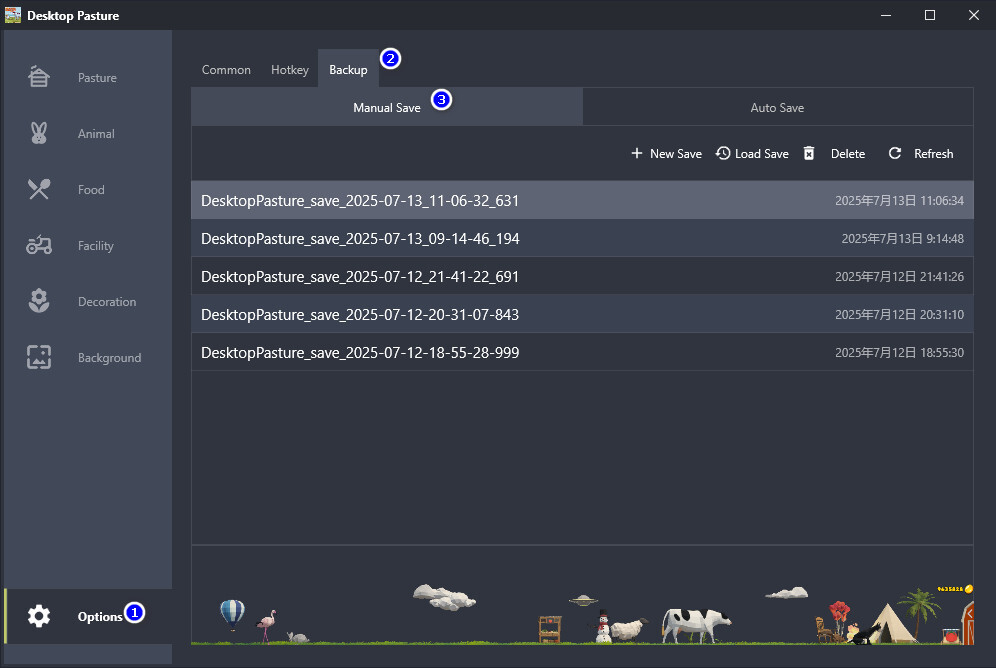
The "Manual Save" function can be found in the main window Options > Backup.
Click "New Save" at the top-right corner to create a backup save file with a screenshot for the current game.
When you select a save file, you can view its corresponding game screenshot at the bottom. Click the "Load Save" button at the top-right corner to load this save file, which will overwrite the current game data.
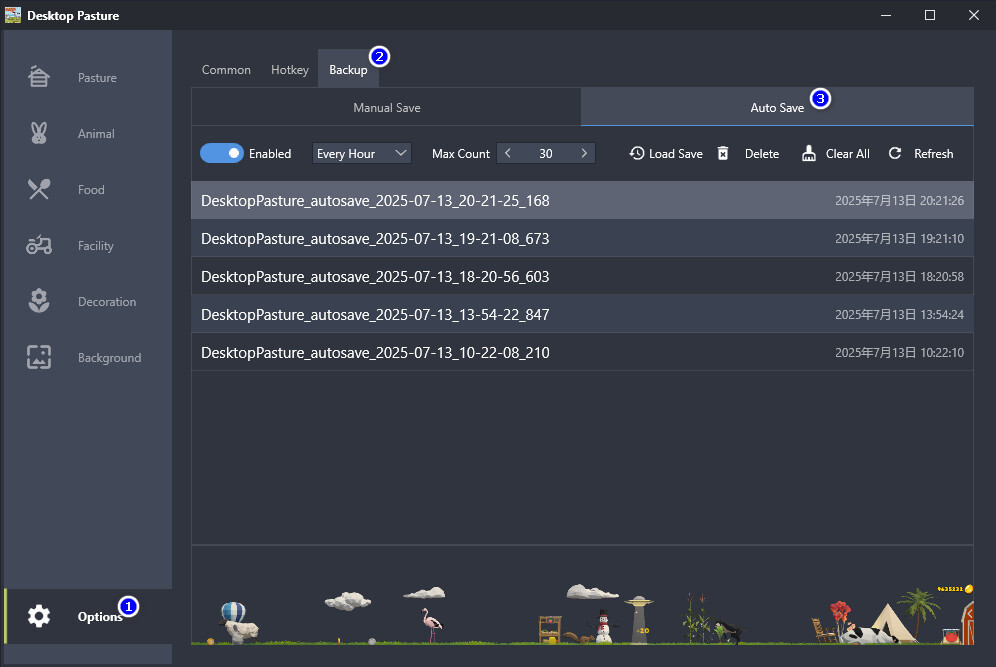
The "Auto-save" function can be found in the main window Options > Save. You can set whether to enable auto-save in the top-right corner, and select the auto-save interval as "Every hour" or "Every day". You can also set the maximum number of auto-saves.
When you select a auto-save file, you can view its corresponding game screenshot at the bottom. Click the "Load Save" button at the top-right corner to load this save file, which will overwrite the current game data.
Improved Game Graphics Rendering
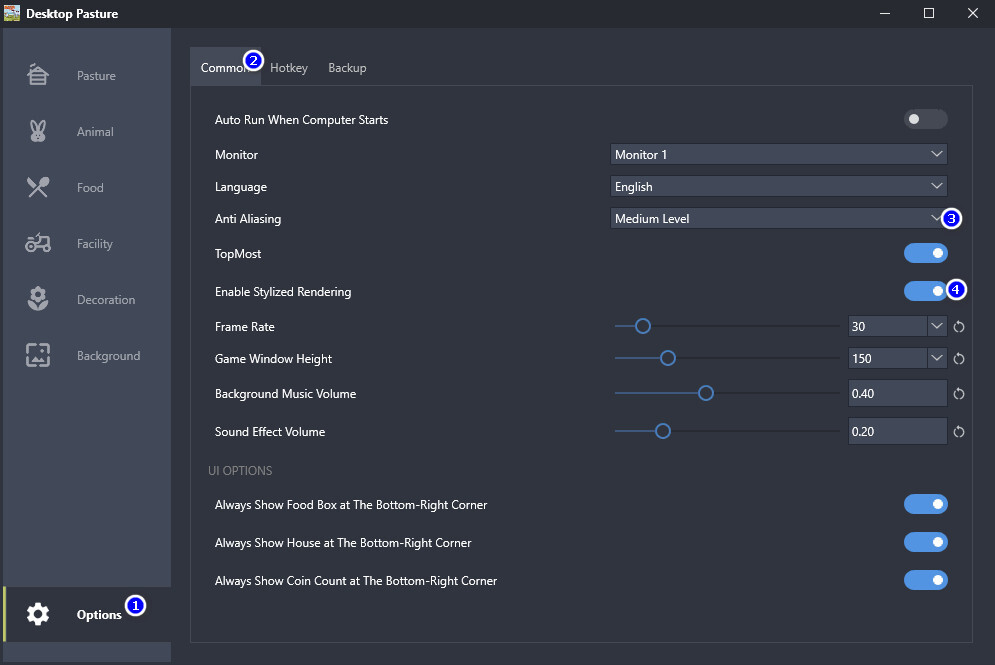
The current version now enables stylized rendering by default, significantly enhancing the overall visual experience. Additionally, anti-aliasing is set to medium level by default for smoother graphics.
If you encounter issues such as a black screen, rendering artifacts, or wish to reduce system resource usage, you can disable stylized rendering and adjust the anti-aliasing level in the main menu under Options > Common.