
🗓️ Event Duration:
July 31 – August 14 at 00:00 AM (PT)
✨ How to Join:
There are 2 separate prize categories - feel free to join both, but please submit a different screenshot for each!
🧪 Category 1 - Unlock the Recipe
Unlock the full recipe (3/3) for Witch’s Brew.
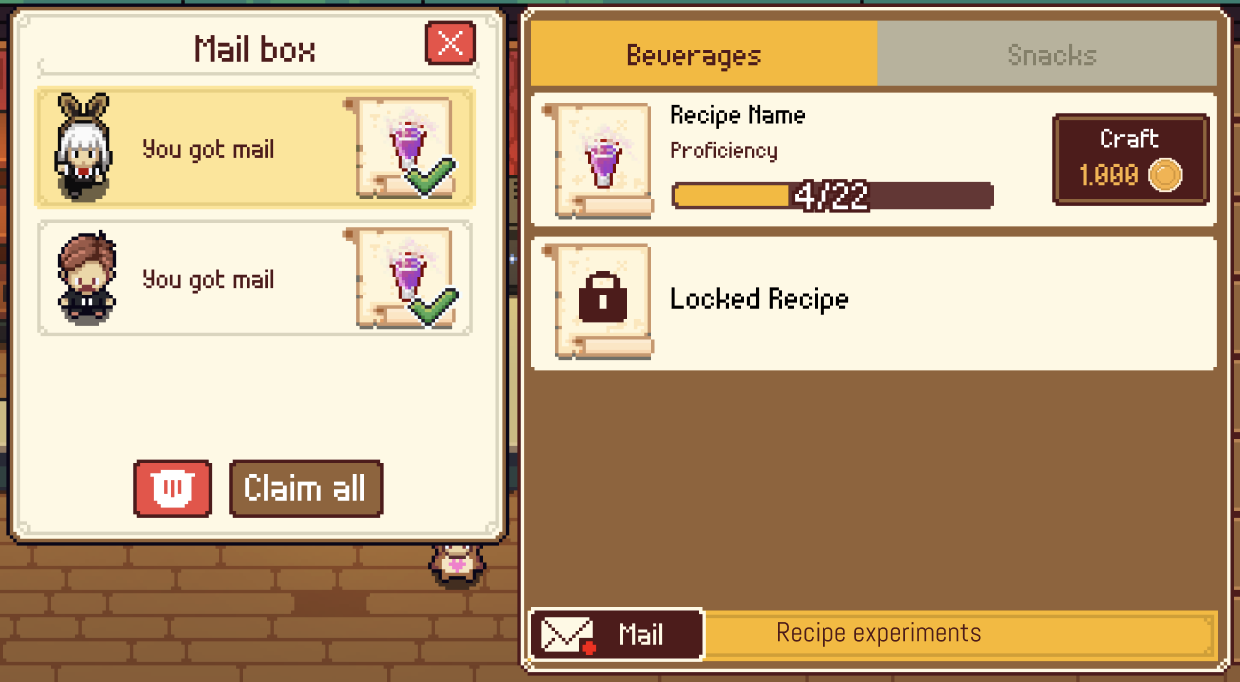
Take a screenshot showing the completed recipe.
Upload it to your Steam profile (please set it to Public) or Screenshots section in our Community Hub.
Share the link in the Event thread under the Community Discussions tab. Don’t forget to add a note saying which category your screenshot is for!
Example caption: “Category 1 - Unlocked Recipe”
Reward: We’ll randomly select 3 lucky winners to receive a $5 gift card!
🧹 Category 2 - Perfect Craft
After unlocking the recipe, craft the dish to reach Perfect status.
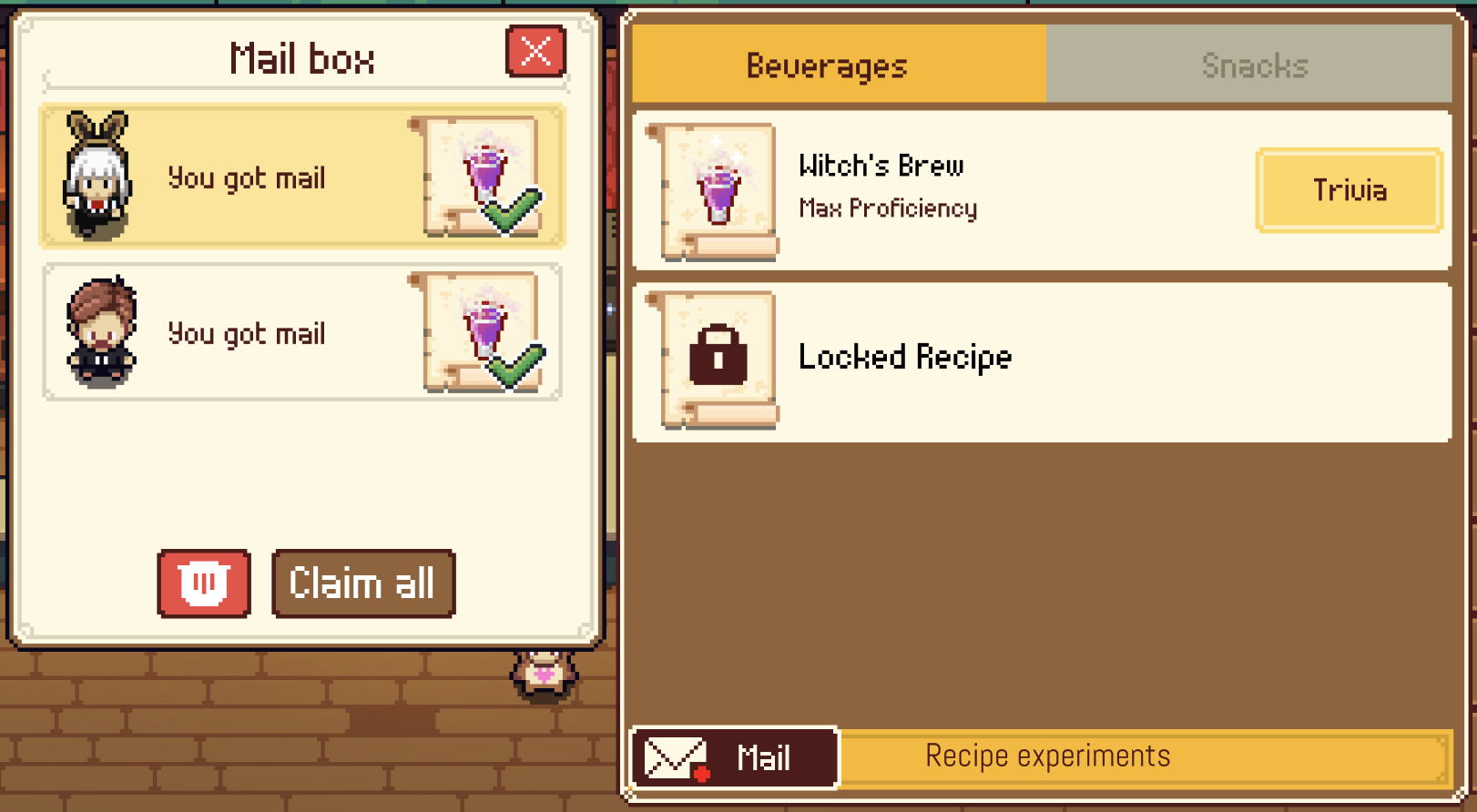
Take a screenshot showing the completed recipe.
Upload it to your Steam profile (please set it to Public) or Screenshots section.
Share the link in the Event thread under the Discussions tab. Don’t forget to add a note saying which category your screenshot is for!
Example caption: “Category 2 - Perfect Craft”
Reward: We’ll randomly select the luckiest winner to receive a $10 gift card!
📌 Notes:
These are two separate challenges, so one screenshot can’t be used for both. For example: a screenshot showing a Perfect brew can’t be used for Category 1 (Unlock the Recipe).
If you’re joining both, make sure to upload 2 different screenshots - one for each category.
Gift card values can fluctuate slightly due to currency conversion when used in different countries or regions
👩🍳 Good luck, bartenders! We can’t wait to see your brews! 🍵✨
—-----------------------------------------------------------------------------
How to Take a Screenshot in a Game
Open your game via Steam.
When you're ready to take a screenshot, just press the F12 key on your keyboard (default Steam screenshot hotkey).
You’ll see a small notification confirming that your screenshot was saved.
How to View Your Screenshots
Exit the game. After you've finished playing, Steam will usually open the Screenshot Uploader automatically.
If the Uploader doesn't open automatically: Go to Steam (top left) > View > Screenshots.
How to Upload Screenshots to Steam
In the Screenshot Uploader window, select the screenshot(s) you want to upload.
Choose your visibility setting (Public, Friends Only, Private).
Click "Upload".