Hello everyone,
We just added a branch on Steam to assist those who lost their progress in the game regardless of the reason. This is a special branch with a single screen giving specific options to players so they can choose the appropriate base progress closest to where they were before as possible.
THIS ACTION IS PERMANENT! Using this branch and clicking on the options will alter your Save FOREVER. So we recommend using this branch ONLY if you lost your save.
Review any information about how the save files work and where they are saved in your local files on this announcement here: Regarding Lost Save Files
Important information about the saves are referred there. Remember that launching the game without Steam won't backup your save files properly and using any third-party plug-ins/software to alter any of the game's information can cause issues to the game and end up corrupting your save files and erasing your progress. Use them at your own risk.
Changing to the new branch
If you have lost your save file, you can change to this new branch to alter your current empty save to recover some of the progress.
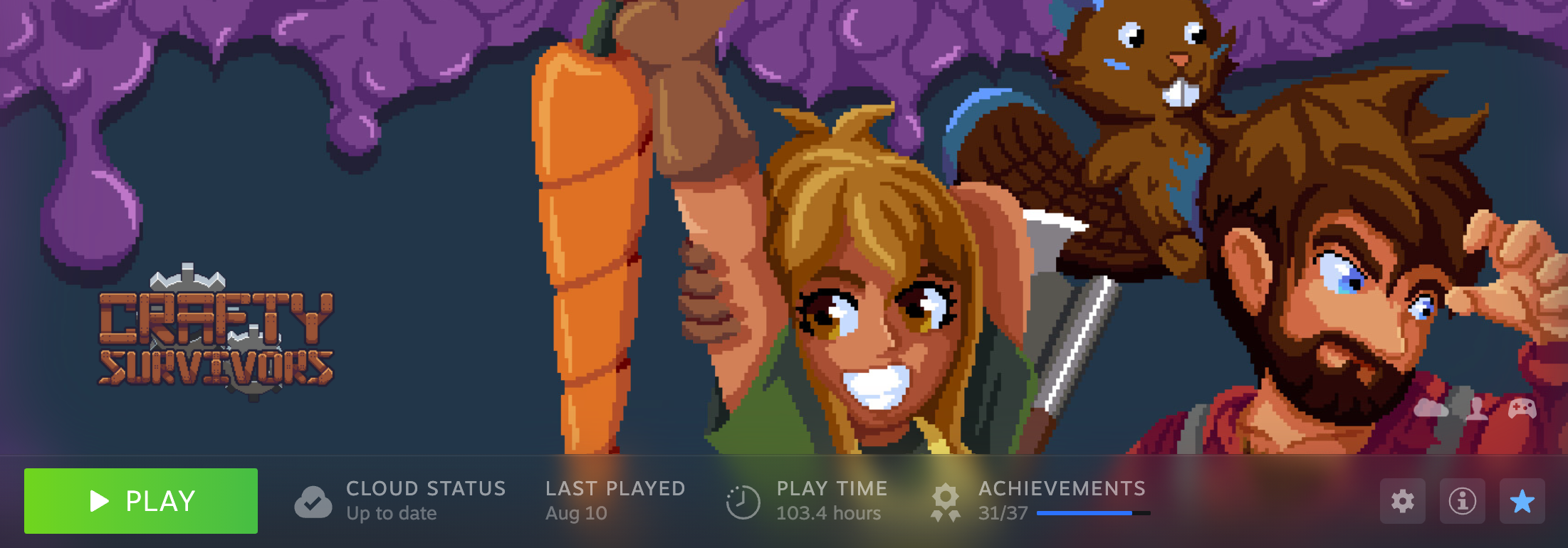
1 - Click on the Manage Button on the game's page, represented by a Cog. Select the Properties option.
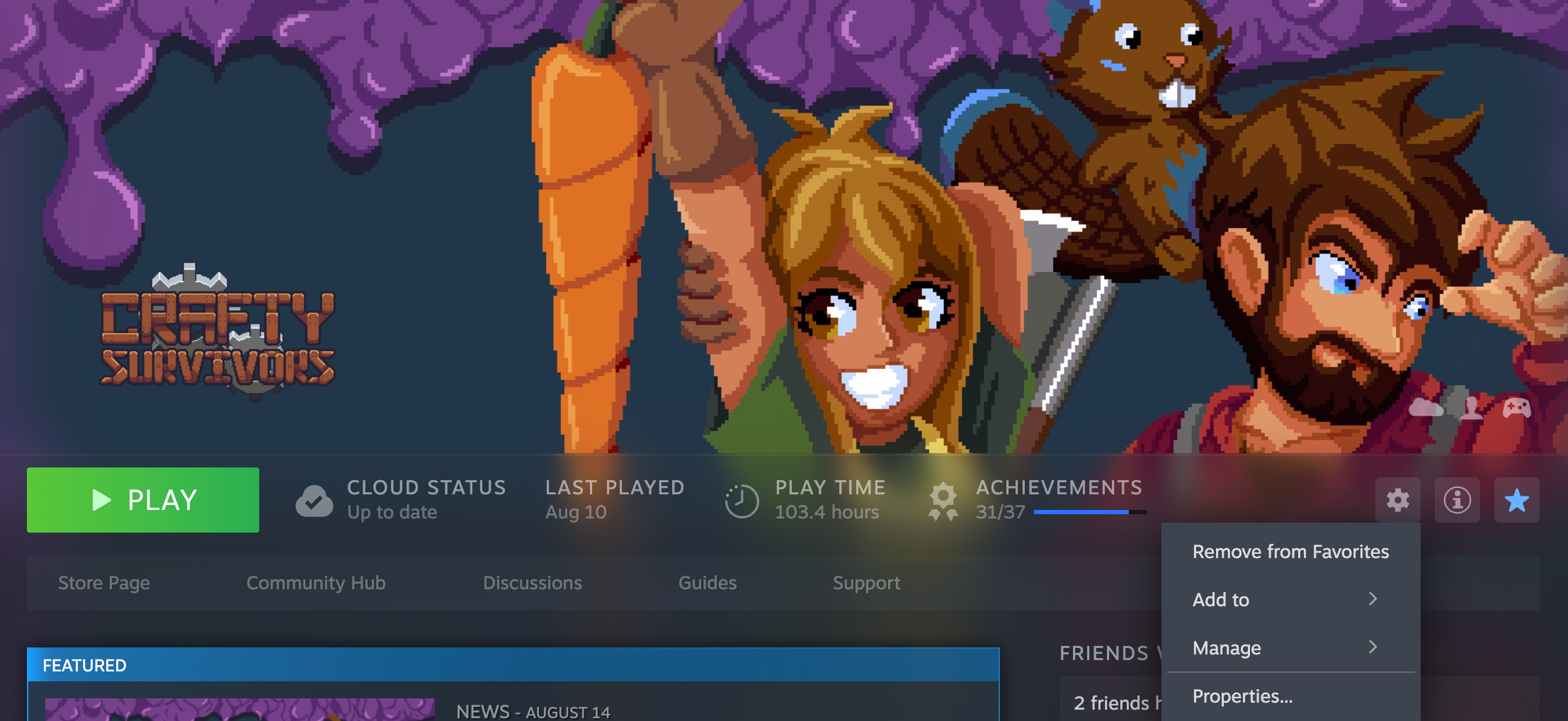
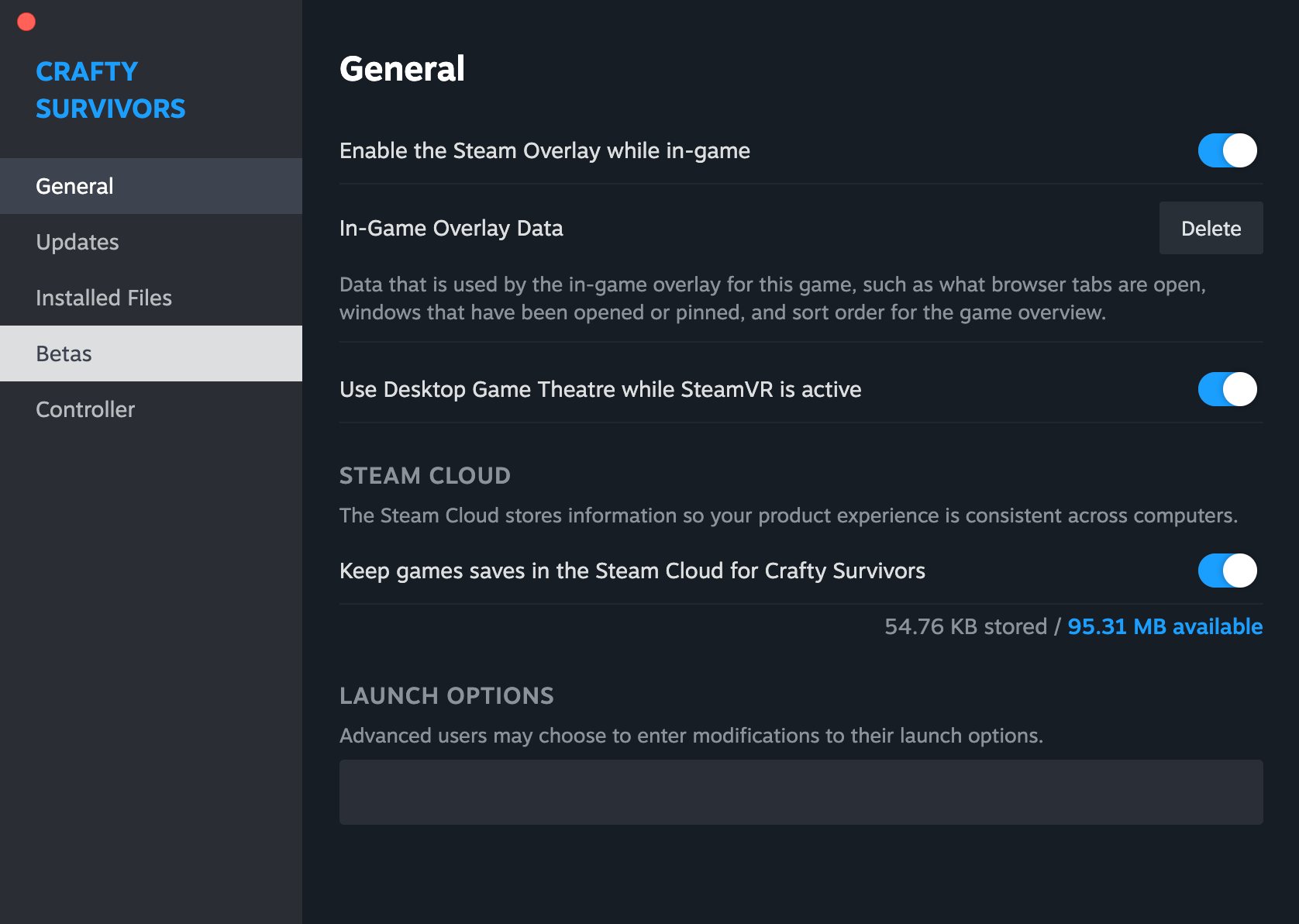
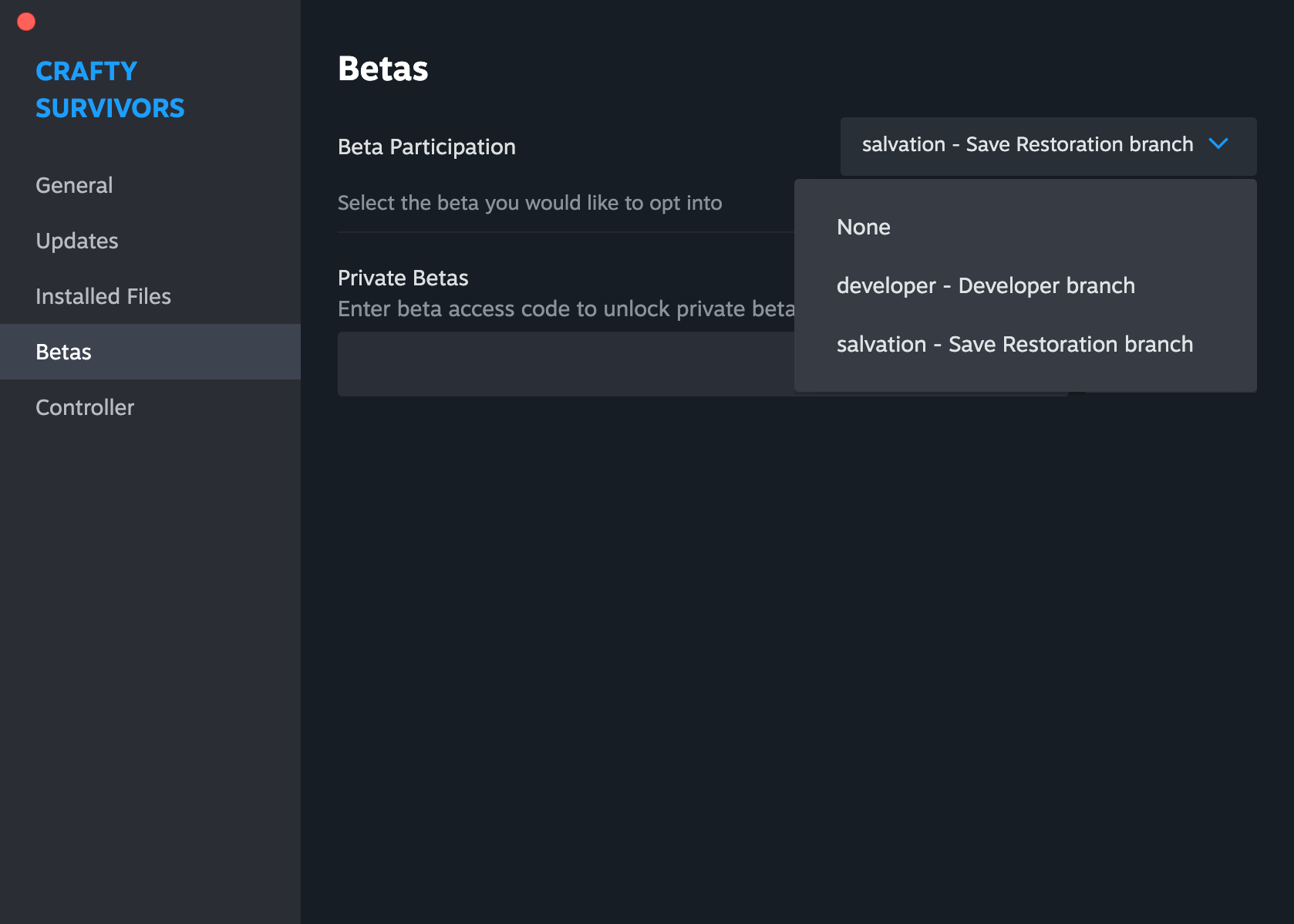
2 - Click on the Betas menu on the left side of the new window.
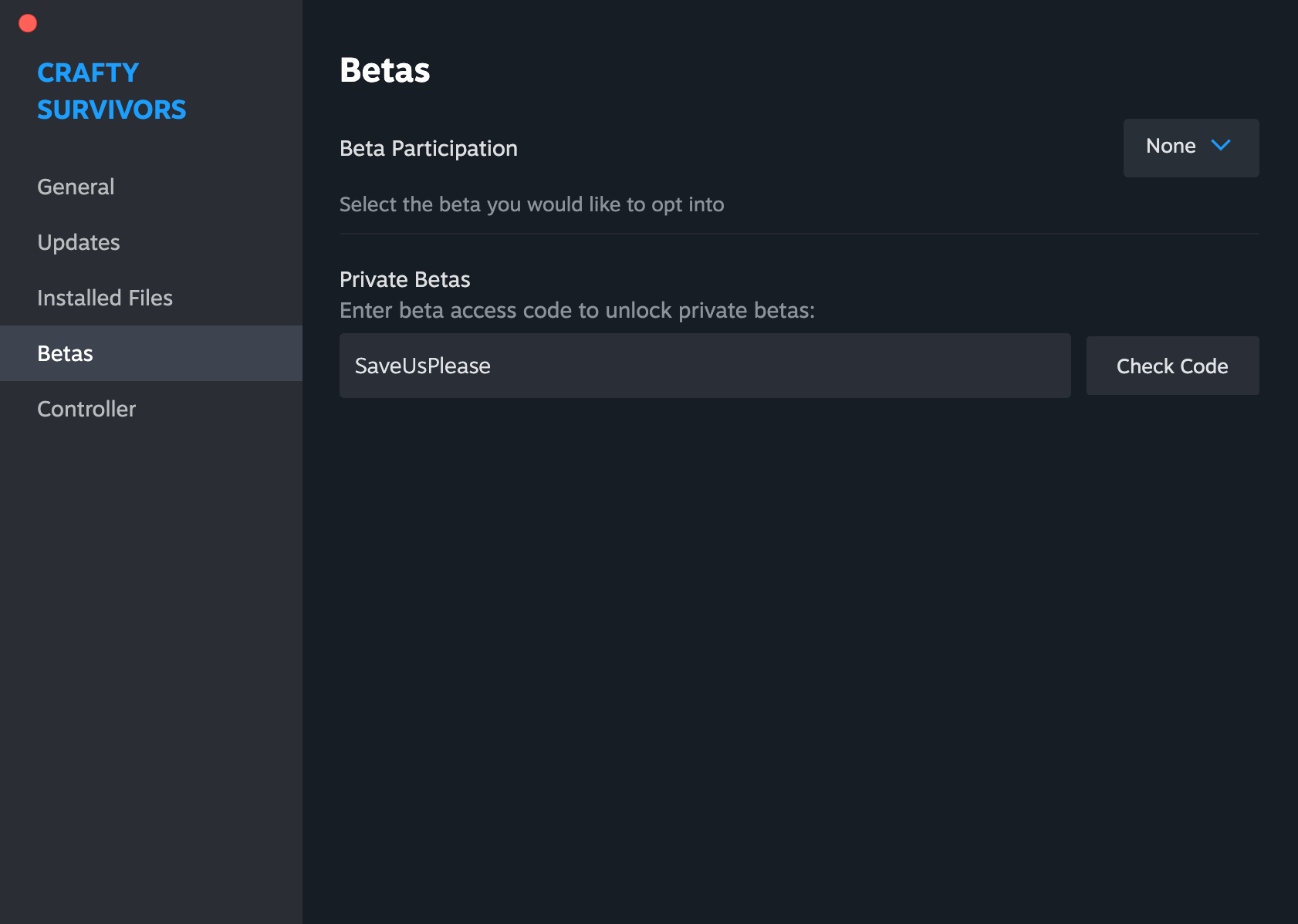
3 - Type the code SaveUsPlease in the Private Betas section. Make sure it is written properly. The field is case-sensitive.
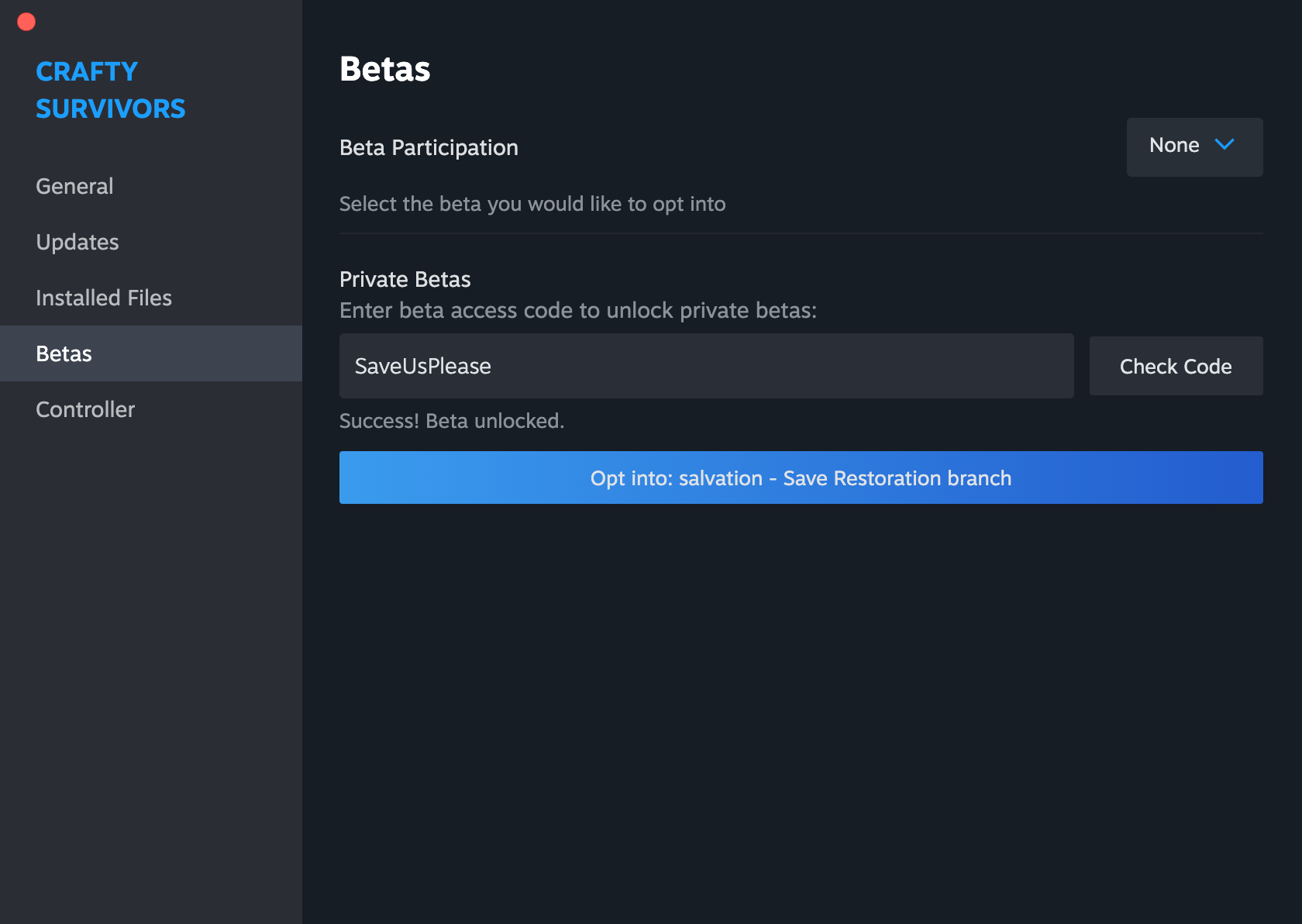
4 - Click on the blue button that appears to opt-in the new Salvation Branch and automatically start adjusting to the new branch. Steam will start downloading new files to adjust the version.
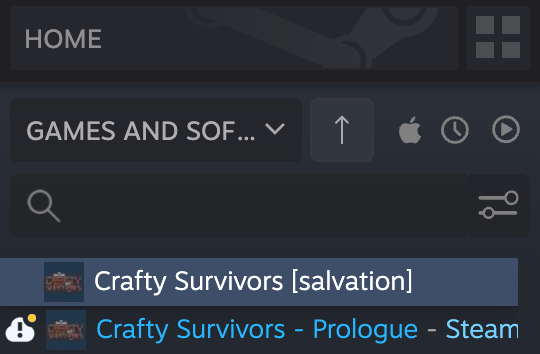
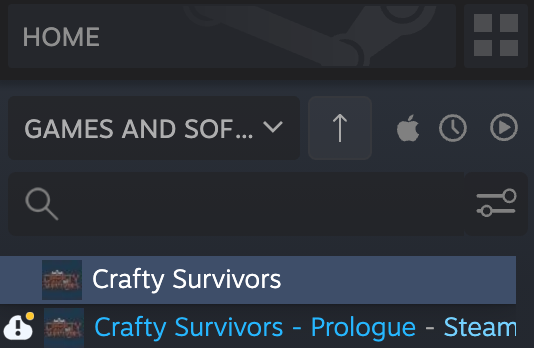
5 - Make sure the Branch is being properly shown on the left side menu of your Library. It must say [Salvation] next to the game's name.
6 - Launch the game on Steam using the Green Play Button.
Altering the Save File
After launching the game a different screen will appear. This screen will give the main information regarding the alteration of the save files through this Branch.
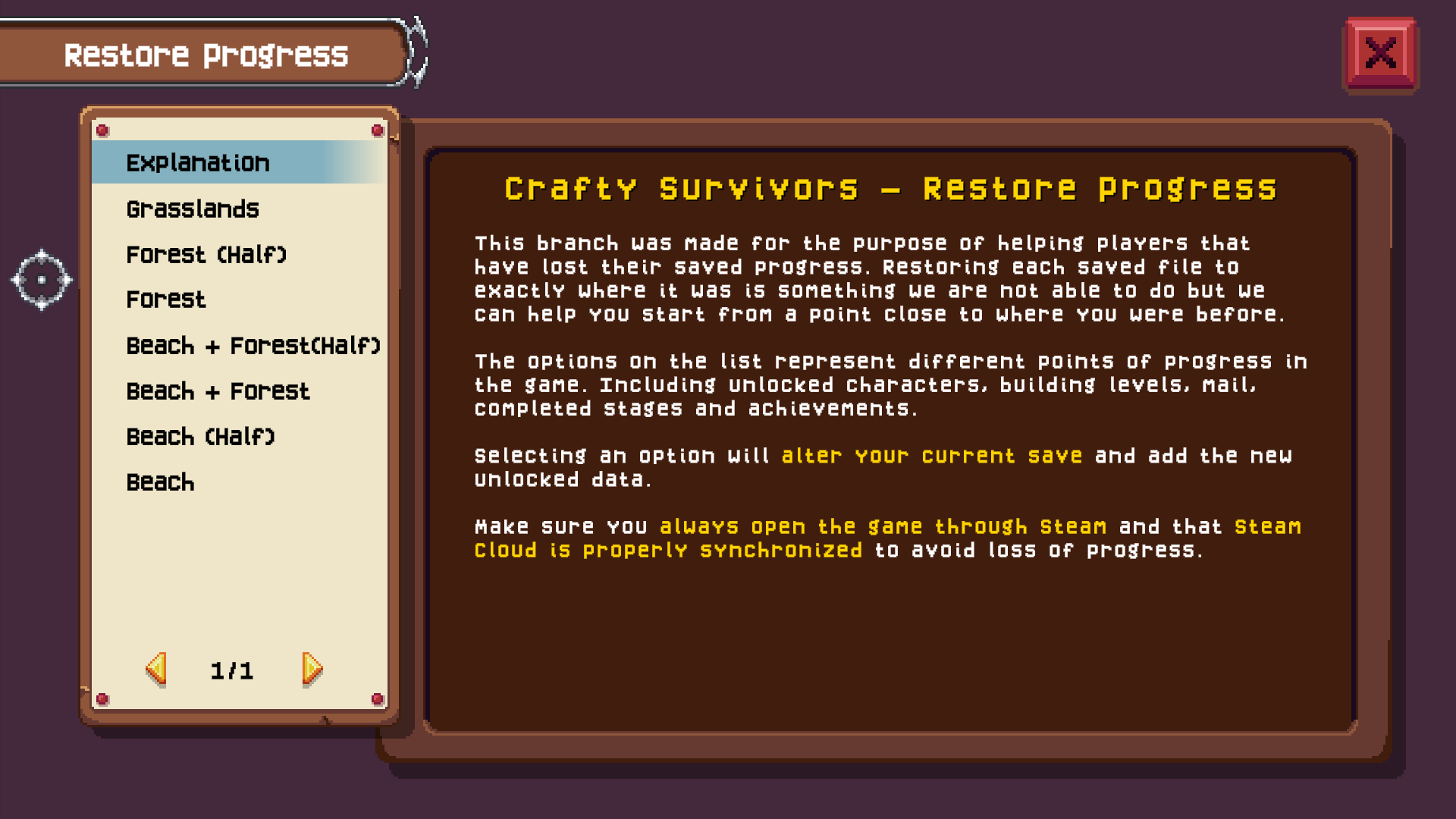
1 - Select the appropriate option considering how close they are to your lost progress. Each option has a description of what threshold of the game it takes the player to.
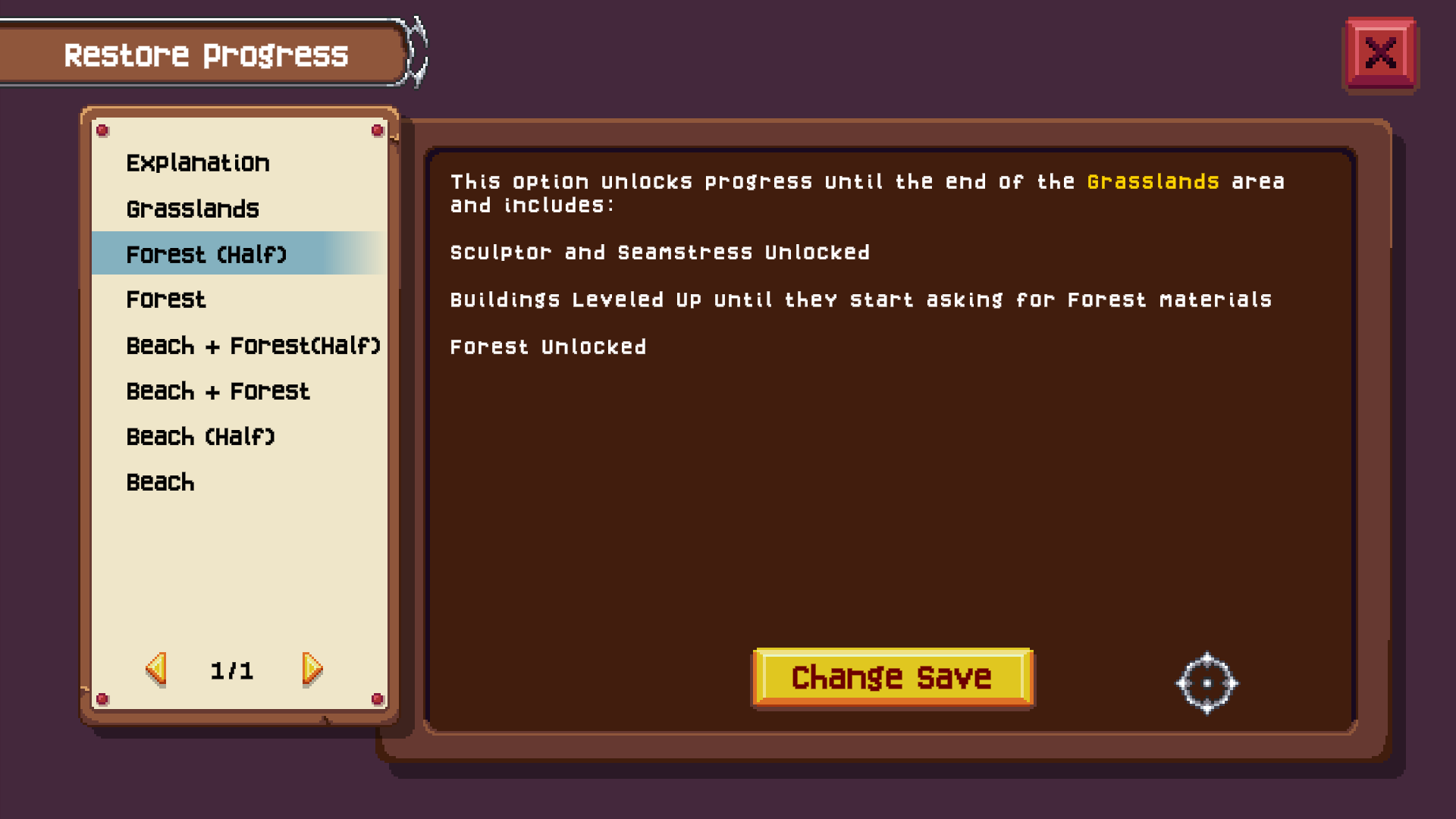
2 - A pop-up to confirm your action will appear. Click Yes if you want this option or No if you want to choose a new one. Remember that this action is PERMANENT! There is no turning back from this option.
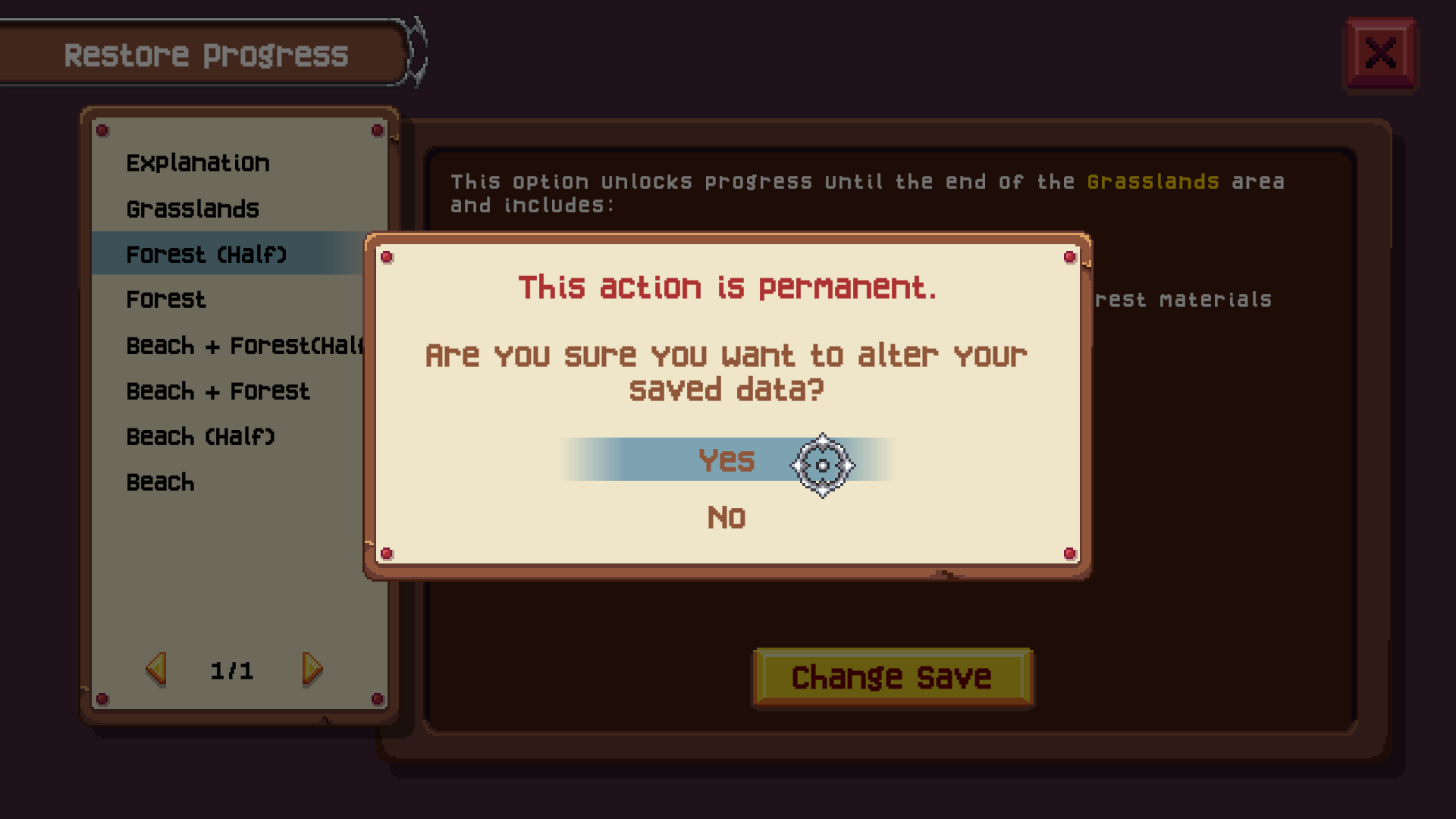
3 - Click on the Red X button at the top right corner to close the application properly.
Return to the Default Branch
When the game closes after clicking the Red X button, MAKE SURE to return to the default branch in order to play the game. The Salvation Branch doesn't have the game, so it will never run from it.
1 - Click on the Manage Button on the game's page, represented by a Cog. Select the Properties option.
2 - Click on the Betas menu on the left side of the new window.
3 - Click on the drop-down menu on the right side of the window and select None. This is the Default Branch of the game. Clicking on the option None will adjust the game back to its main branch, redownloading the proper information.
4 - Make sure that the game's name has no information extra on the menu of your Library. The [Salvation] should not be showing anymore.
Important Information on this Process
Using this branch to restore some of the progress will mostly bring back things like unlocked characters, cleared stages, materials being sold by the merchants, mails, secret stages, chests, recipes and statues.
Some particular things won't be recovered, as there is no way to get back this information on the saves:
- Characters that cleared specific stages in specific difficulty modes;
- Amount of materials. All materials will be reset to 1, in order to assure that players have access to the materials of the area they finished at so they can be sold by the merchants;
- Amount of gold;
- Foods, statues and any information regarding the Systems, such as what was at the Farm or Fisherman's Hut.