*Edit* After posting this notice, we had an idea to possibly help with lost saves.
We are going to work on adding a branch on the game that will allow players to recover some of their lost progress. We are still discussing how it's going to work and the specifics of it. Since we can't know the specifics of each save file to get back the exact progress of the game, we are planning on a way that a player can temporarily change the game's branch and alter the game's progress to certain predetermined thresholds. We know this is not the perfect solution, but this at least gives an option for players to recover some of their lost progress without starting from the beginning.
After we implement this, we will create a notice with all the steps to adjust the save files for the players that lost it.
Hello everyone,
We are really sad to hear that some players reported losing their save files and wanted to make some points clear as well as provide some instructions that may help with this situation.
The saving system of our game only save files locally on your computer. We do not own a server or database that hold this info, therefore we don't have access to any save files nor any version of them at any given time. This means that, unfortunately, we cannot help you recover your lost progress. What we can do is help you understand how this process works and where the files are located.
What players can do to make sure they can save their files in the cloud and use them on other computers is through Steam Cloud Save. The way we had to setup the saving process for Steam Cloud Save ties your save file to your Steam Account ID and it uses this info when you start the game to find the data, which means you have to open the game through steam to make sure everything will work.
We realized that most of the players that reported this issue to us lost their progress close to an update or when we push quick patches to solve some issues. We know that Steam Cloud does not synchronize properly when the version the player currently has doesn't match the latest version so make sure to update your game to the latest version before launching the game again and make sure Steam Cloud is properly synchronized. In our experience, we found out that restarting Steam forces it to update games.
With that said, we want to show you where you can find the files in your computer in case you want to create a manual backup or check them.
You can find the saves on your computer at:
For windows users:
LocalDisk/Users/(yourcomputeruser)/AppData/LocalLow/FlannelBearGames/CraftySurvivors
For Mac users:
~/Library/Application Support/FlannelBearGames/CraftySurvivors
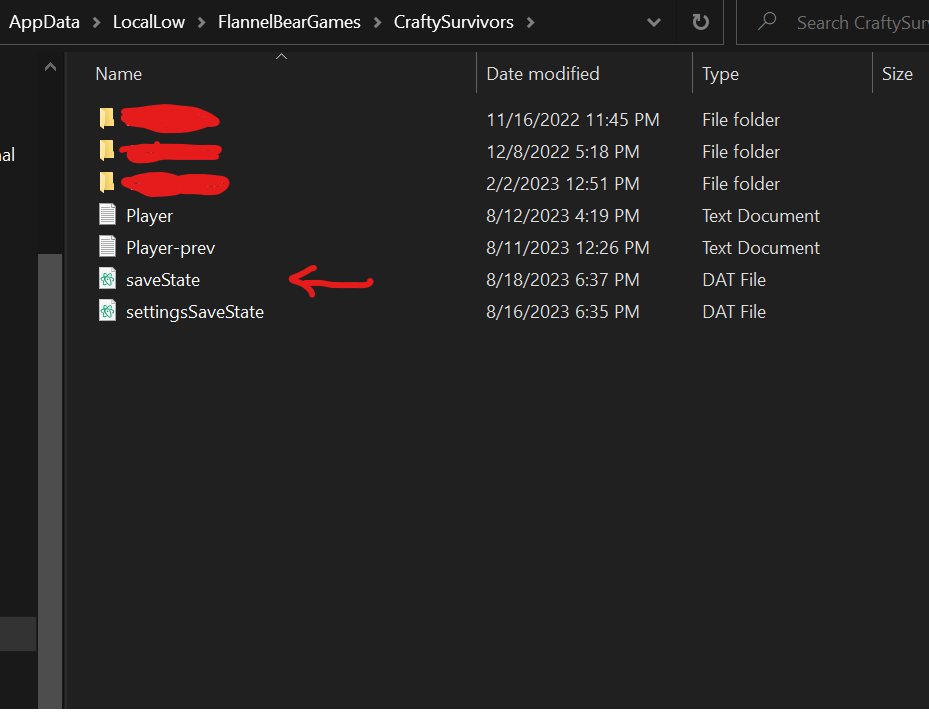
Here you will be able to find a folder that is named after your Steam ID, usually represented by a series of numbers. Inside this folder you will be able to see your save file named as saveState.dat and the saved settings as settingsSaveState.dat.
IMPORTANT: If there is a "saveState.dat" file that is located OUTSIDE this folder, it is a different saved progress that is used when you launch the game without Steam being opened. This save is not linked to any account and is not saved on Steam Cloud. That is why it is important to always launch the game through steam, so you can make progress on the proper save file.
Here are also a link that may help you understand/solve your situation:
https://help.steampowered.com/en/faqs/view/68D2-35AB-09A9-7678
We hope this sheds some light on the situation and helps those who were affected.