Steam Early Access Build: V0.238
Update Highlights:
- New Terrain/Biome Shader (Glowing (Lava) and metallic textures are now possible)
- Tweaked rendering to allow High dynamic range textures and effects like lava
- New Biome textures from floors
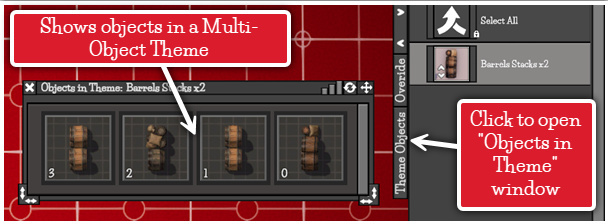
- See inside Multi-Object themes with the Theme Objects Icon window (Objects Tool).
- New written User manual on the web page How To Map
Change log:
Unity Version Update: The version of Unity which DMM uses has been updated from 2019 to 2022. Lots of stuff had to be changed and fixed under the hood, either bugs with Unity or systems that work differently in 2022. You shouldn’t notice any difference in basic functionality. It took longer than I wanted but now everything is working and updated (hopefully!) I can start to implement features that were not possible using 2019.
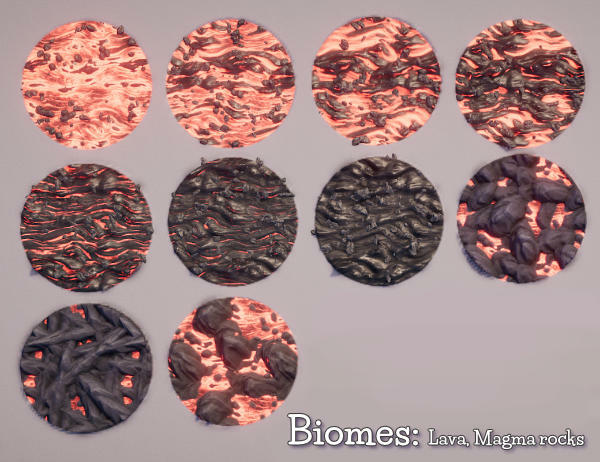
Added new Terrain/Biome Shader: A new terrain shader has been added now we’re in Unity 2022 that gives some new features.
Metallic surfaces
Glowing/Emissive surfaces (Lava etc)
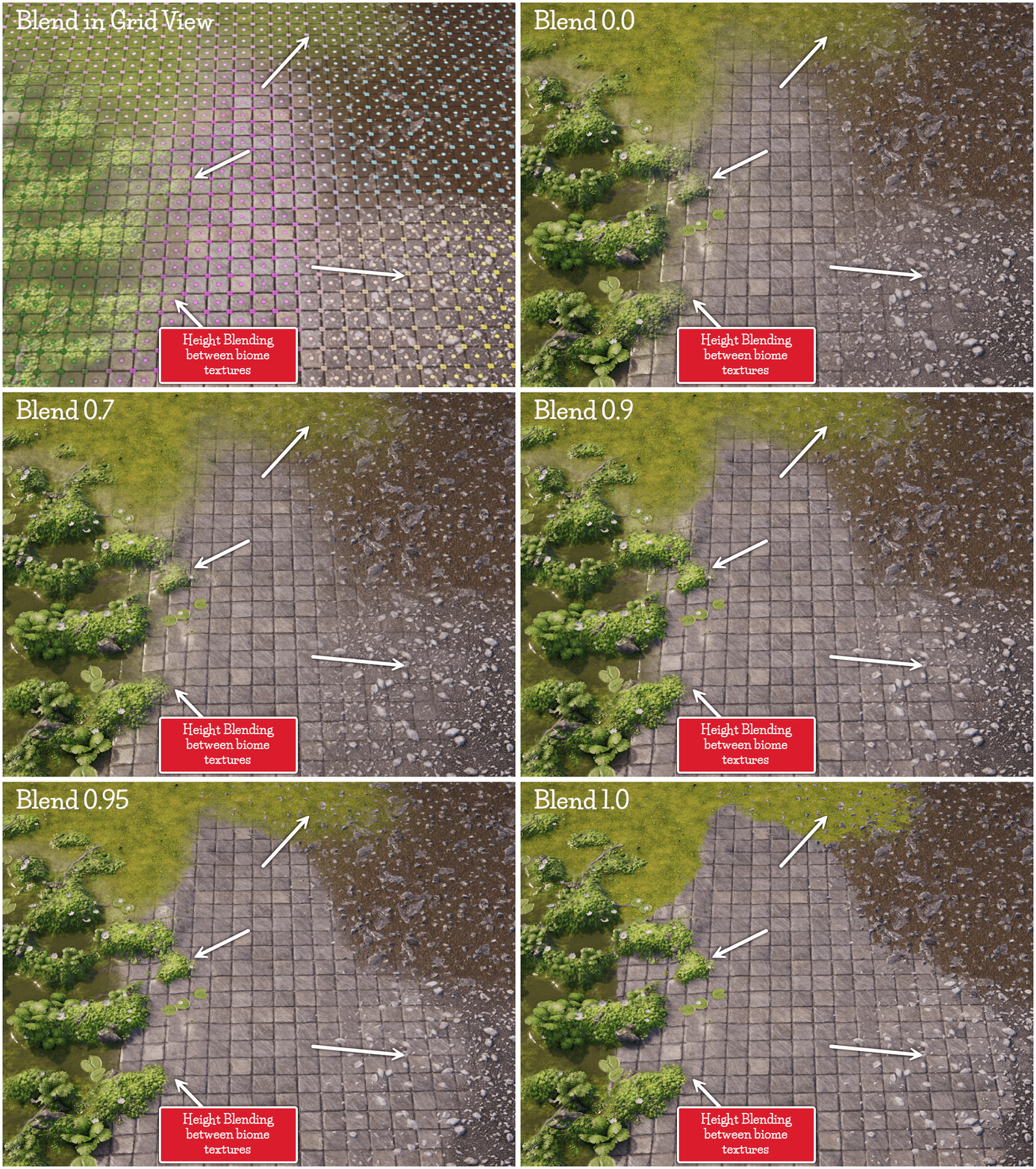
Height blending between biome textures
Added Asset: Lava biomes
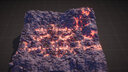
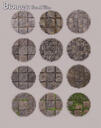
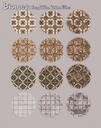
Added Asset: Biome textures from the Floors Tool. All the Floor Tool textures have been converted to be used as Biome textures! (its a lot of textures)
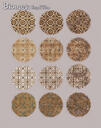
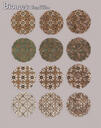
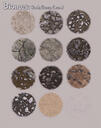
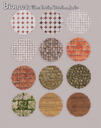
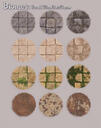
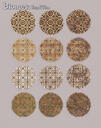
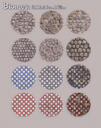
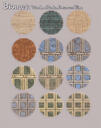
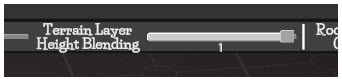
Added UI/Feature: Height Blend slider for map terrain/biome textures.
This value is saved with your map .dmm file and its default is set to 0.7.
Biome textures will "hight-blend" together when they are not at 100% opacity in the painted layer mask and underlying biomes are visible through this. Each Biome texture now contains a height map. When two biome textures are blended together this height texture will effect how they blend. Higher parts of the biome textures get more weight than lower parts when blended. So a taller rock will be more visible than a lower patch of ground in a blended texture.
Set the slider value to 0 to replicate the previous blending mode.
This is a global effect and cant be controlled for individual biome layers.
I like the effect, it makes blended biomes look more natural but will change how they blend compared to the grid view.
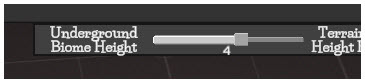
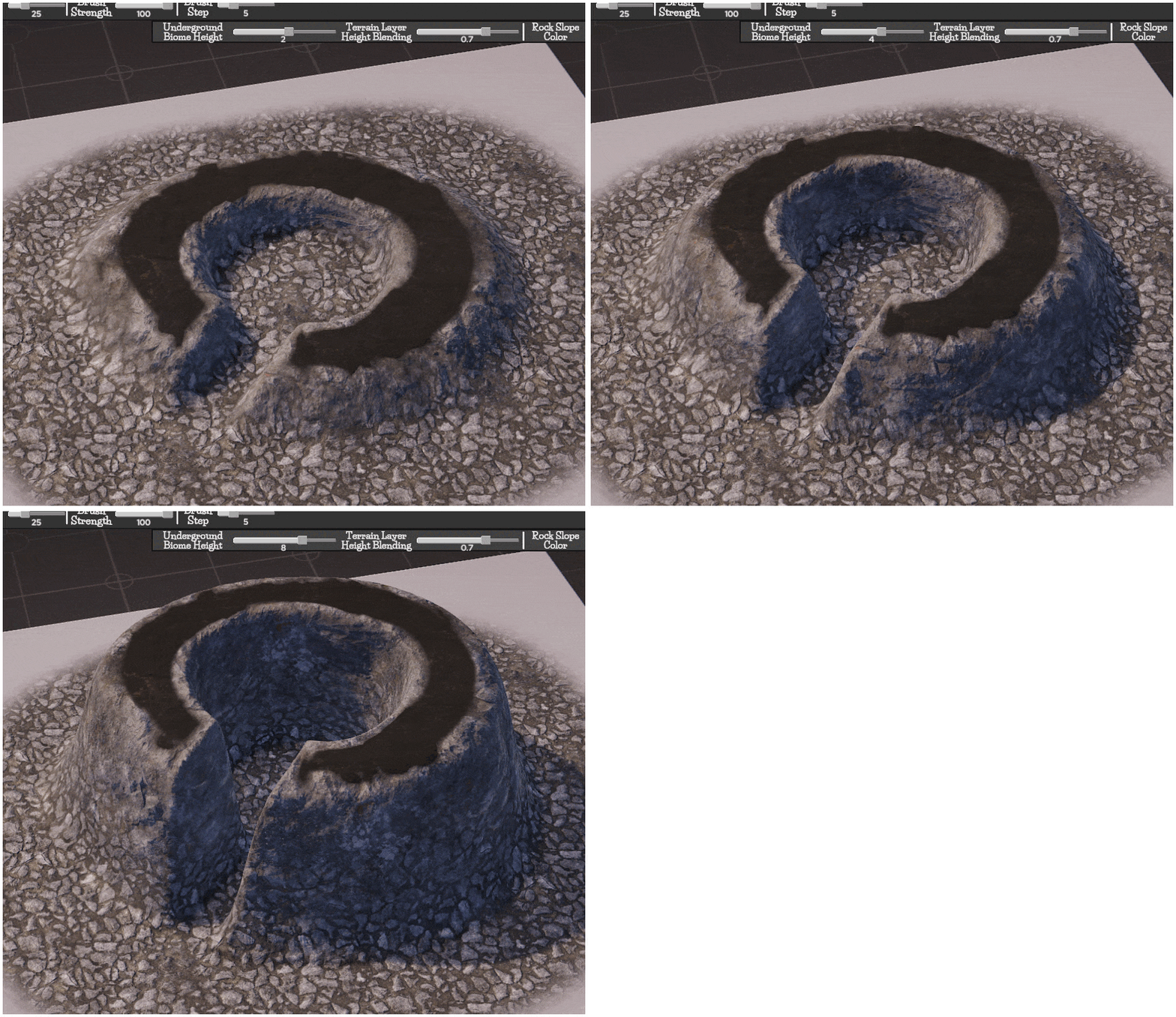
Added UI/Feature: Underground Biomes Height Control slider. You can now control the top height of the Underground Biomes. Currently this is a global setting.
Added UI/Feature Objects Tool “Multi Object” peeking window: A window showing what a Multi-Object Theme contains has been added. Open the "Theme Objects" window using the button found on the side of the Map Theme List for the Objects Tool. Clicking on an “Object Icon” will change the selected objects or “Spawn Tool” example object to the relevant object clicked. You can peak into Multi-Object themes in the Theme Library without loading them as well! Just remember what ever you clicked last will be displayed, so its possible to have the window open on a theme that is not on your map.
Map Rendering Speed: If you’re using the cap frame rate feature in the Options panel you should notice a small to large speed increase when rendering a map (depending on your GPU speed) as the frame cap is now disabled when the map renders. The frame capping was having a much greater effect on map rendering speed than it should have...
Lighting Panel:
Added UI: Time of Day buttons. Reset time of day button and buttons to set commonly needed times (These have been set to give the best looking lighting angles for each time of day).
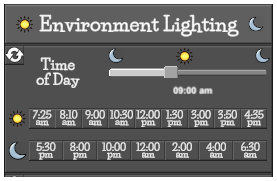
Added UI: Reset Sun-Moon Direction
Minor UI changes:
Changed UI : “Object Themes” tool text to “Object Theme Markers” to make naming of tools more consistent.
Changed UI: Help window. Now points to the Tutorial page of our website How To Map (which was also updated)
Added UI: Eraser Icon. Added to Terrain Icon in Floors tool list to make the function of this theme a little clearer (it’s used to erase rooms!).
Changed UI: Changed the color scheme of the file browser so its easier to read.
.uvtt export:
Added UI/Feature Fix: Version number for FoundryVTT export. The FoundryVTT import module “Universal VTT Importer” by moo_man has changed how it deals with Portals (doors and windows) which can affect DMM cropped maps. Make sure what ever version of FoundryVTT you are using that you’ve updated the module as well. Then choose the version of FoundryVTT you are using in the .uvtt export tab. If your windows and doors are offset or missing you’ve clicked the wrong version. (FoundryVTT v10 = module v2.6 and FoundryVTT v11 = module v3.0)
New Bridge and Fence Assets:
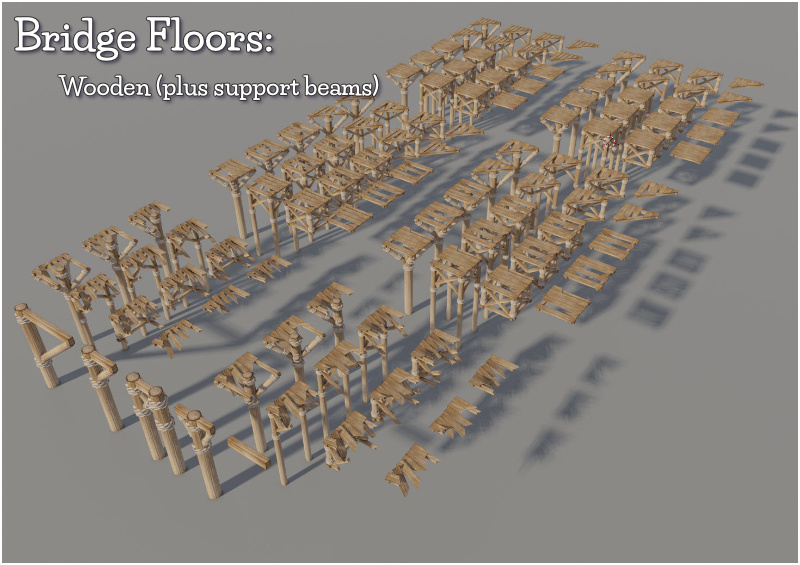
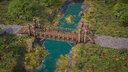
Asset Added: New wooden bridge objects. Added to Floor (Used with the Height > Sticky Room tool) and Object tools.
Asset Added: New wooden fence objects. Added to Wall and Object tools.
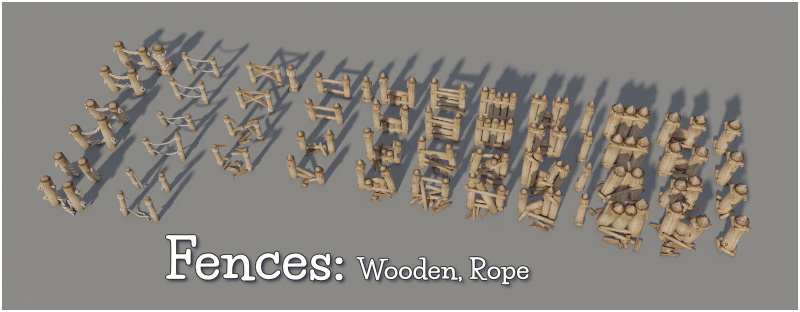
Help/Tutorials:
New written “User manual” and “Quick Start manual” as Google Docs (meaning you can translate them as well). Find them here How To Map. People have often requested a written user manual and tutorial as some people don’t like learning using the video tutorials. It was quite a bit of work but these are now in a good state and explain 95% of the features of DMM. In addition they should be quite quick to update in the future!
Index for Web video tutorials: I added an index for the web video tutorials on the Dragon Map Maker How To Map web site. Click on a heading to be taken to that video.
Bug fix: Color picker window when opened for the first time could be outside the screen bounds on certain screen aspect ratios and UI sizes. Fixed
Bug fix: If the scaling of the UI is not close to the standard 1920x1080 (1.0) dragging biome layer buttons line indicator may not line up on the lower half of the button. Fixed
Bug fix: Fancy Wood Wall had the wrong shader applied to certain parts: Fixed
Bug fix: Stairs Objects kept highlight turned on when switching out of the objects tool: Fixed