Steam Early Access Build: V0.241
Update highlights:
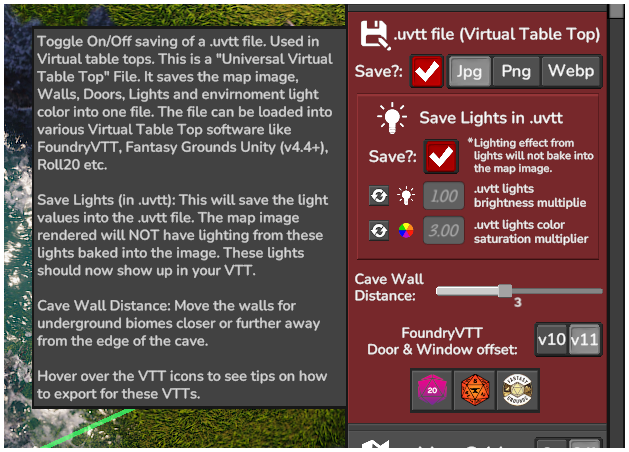
- VTT lighting export
- 36 Language support for the DMM interface
- Native OS file browser
- Stone bridges and Castle wall themes
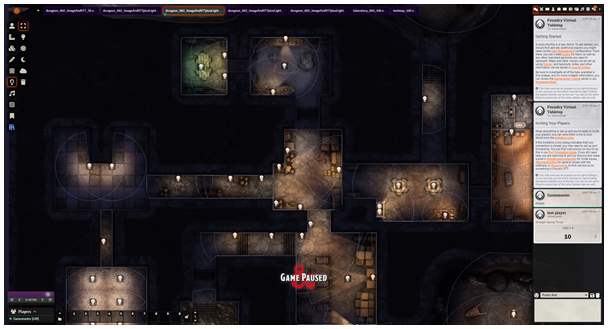
Added Feature: .uvtt Lighting export.
The .uvtt file format supports importing of lights into VTTs. I’ve tested this in FoundryVTT and it does work quite well. It however will never look quite as good as a light in 3d and you may need to tweak light settings and light ranges once you’ve imported to the 2d VTT map. I’ve included some controls in DMM that should help you tweak your overall light export values for your VTT. Please keep in mind, light range values may be visually different in 3d vs 2d. A 3d light is a sphere while a 2d light is a circle. So the higher off the floor a 3d light is the smaller its light effect will look vs a 2d VTT where it will light up its whole range value.
Added Feature: Full translation of the DMM app
DMM has been translated into 36 languages (interface, key mapping, theme names, theme override info text and theme search words). I’ve used Amazon Translate to do this as there was a massive amount of text to translate that wouldn’t have been possible to do manually. I hope it’s useful even though it may not be 100% perfect (some languages being worse than others).
- Languages: English, Afrikaans, Arabic, Bulgarian, Czech, Danish, Dutch, Estonian, Finnish, French, German, Greek, Hebrew, Indonesian, Italian, Japanese, Korean, Latvian, Norwegian, Polish, Portuguese, Romanian, Russian, Serbo Croatian, Slovak, Slovenian, Spanish, Swedish, Thai, Turkish, Ukrainian, Vietnamese, Hindi, Hungarian, Chinese Simplified, Chinese Traditional.

Added Feature: Set height and scale of the Objects Tool.
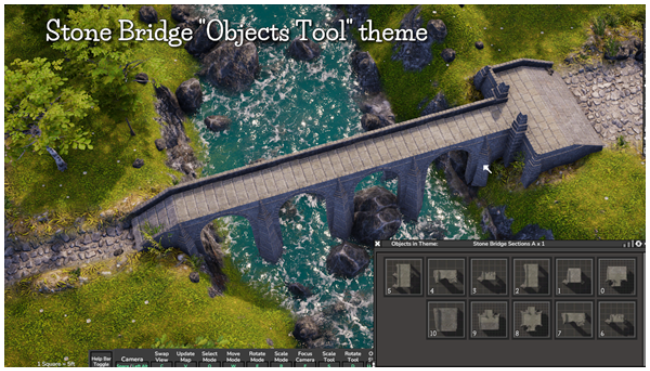
Adding the stone bridge assets into the Objects tool made me realise I needed a way to apply height and scale to Objects at a set value when Spawned or already on the map. You can now do this with the “Use Set values”, “Set height” and “Set Scale” options in the Objects Tool top bar.

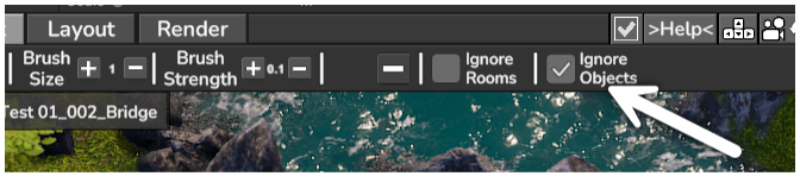
Added Feature: Height Tool “Ignore Objects” Toggle.
Added a toggle to make height tools not affect objects placed with the “Objects Tool”. This is useful when editing height, when for example bridge parts or water have been placed above the terrain and need to stay at that height.
Added Feature: Native file browser support.
I’ve switched out the old file browser for a new version that should use your operating system file browser. If you have issues with this for any reason you can swap back to the old one by going to the bottom of the opinions panel and toggling it on.
Added UI: All Theme icons have been updated
Theme icons have been updated to match the icons in the Objects tool “theme icon window”. I also spent some time making the objects renderer in the Unity Editor work better so that when Steam Workshop support is added it’ll be a one click process to render icons to use in your themes.
Changed UI: Tooltips
Cleaned up and corrected some tooltip text. In the process of adding translation I found some incorrect tooltip text. Also changed the key bind text in Tooltips to show as green instead of white making them easier to pick out.
Changed UI: Buttons/Toggles
Updated UI elements such as Buttons and Toggles. Toggle buttons are now slightly rounded and have an indented look when clicked. While buttons remain squarer.

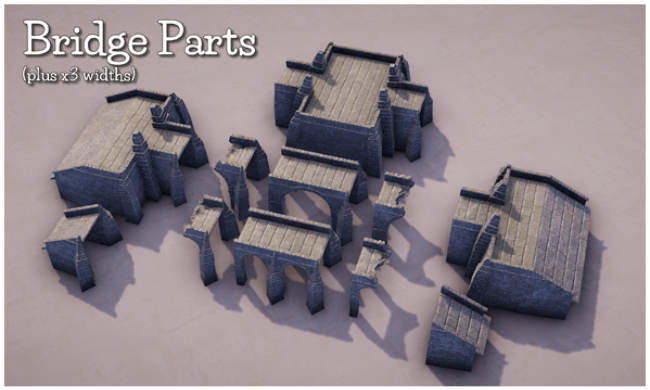
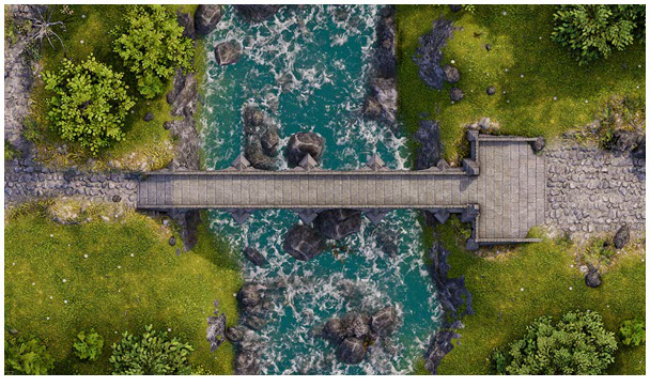
Added Assets: Stone bridges in the Objects Tool.
You can use these parts to create stone bridges of any size. Use the new “Use Set Values” in the spawn tool to place them at the height and scale you need.
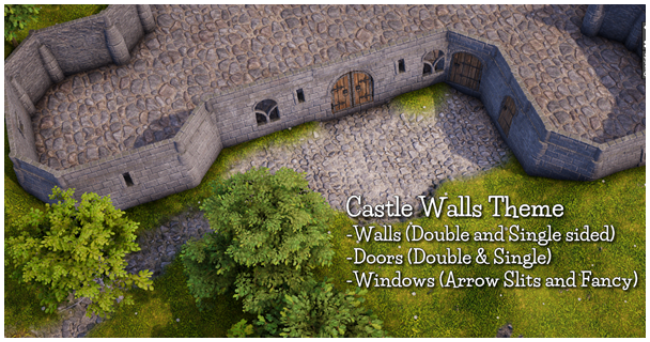
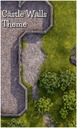
Added Assets: Castle Walls, Doors and Windows.
These have a larger thickness to them. With two style variants and include single and double sided versions. (These are still a work in progress)
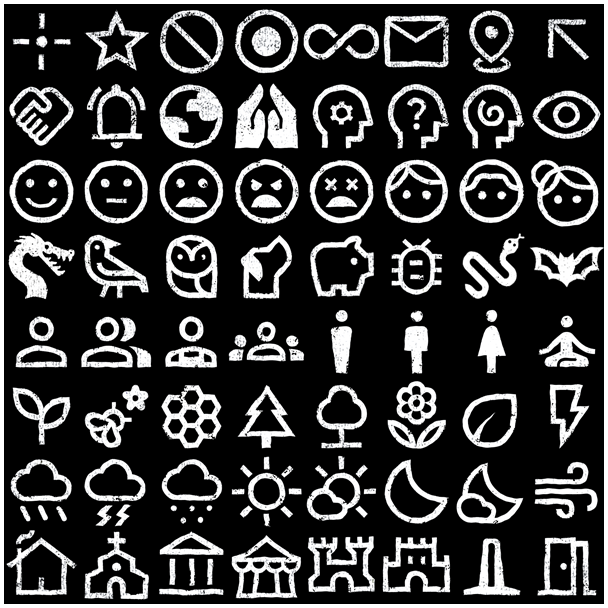
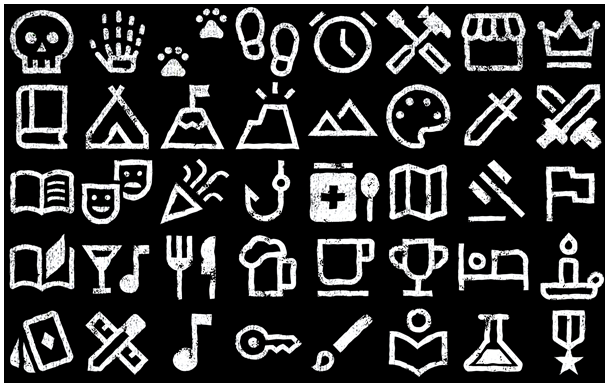
Added Assets: Tokens and Symbols in the Objects Tool.
Found under “Decals”.
- Creatures
- Nature
- People Emojis
- People Pawns
- Places
- Shops and Businesses
- Symbols
- Weather
Bug Fix: Some asset override values were not working. Fixed
Bug Fix: Turning on the Snow effect while in Orthographic camera mode or vise versa would break DMMs camera rendering (everything would go white) and need a reload to fix it. I’ve not been able to get the Snow effect to work in orthographic mode so the snow effect will be turned off while in orthographic camera mode automatically and turned on again when Orthographic is turned off. Fixed