Beta builds of Desktop+ are now available. These builds allow you to access upcoming features early and help testing the next stable release.
Please note that these builds have only gone through very rudimentary testing. In general, expect things to break.
When reporting bugs in one of the beta builds, please use the Bug Reports section in the forums and make sure to indicate which version you were using at the time (see Misc -> Version Info). Thank you.
What's new in Desktop+ 2.3.4 Beta?
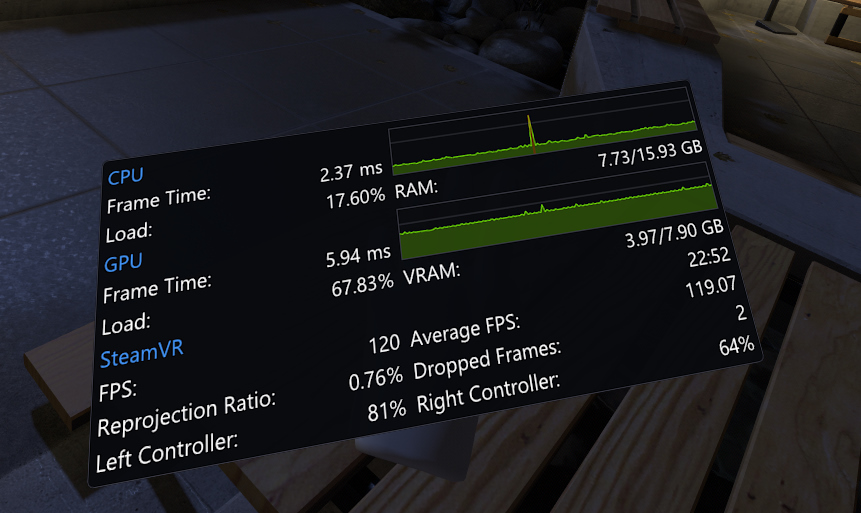
Performance Monitor
Version 2.3.4 adds a new kind of overlay: The Performance Monitor.
This overlay lets you quickly check the current state of your system from within VR in real time. It can be customized and positioned like any of the desktop/window overlays.
The following performance characteristics and other kind of state can be displayed by the Performance Monitor:
- CPU Frame Time Graph
- GPU Frame Time Graph
- CPU Load %
- CPU Frame Time
- RAM Usage
- GPU Load %
- GPU Frame Time
- VRAM Usage
- FPS
- Average FPS
- Reprojection Ratio
- Dropped Frames
- Controller Battery Levels
- Tracker Battery Levels
- Vive Wireless Temperature
- Time
You can configure and create the Performance Monitor overlay in the Performance settings page. Newly created Performance Monitor overlays will appear on the left hand-controller by default if connected.
Keep in mind that while you can create as many overlays of it as you want, they will all be showing the same content. Performance Monitor settings are global.
Other Changes
Fixed:
- Fixed overlay input not working while the Performance settings page was open
- Fixed maximum cropping area being limited to the last selected desktop when using Desktop+ UI while SteamVR wasn't running
How to switch to the Beta Branch
- Open the properties window for Desktop+ on Steam by either right clicking the list entry or clicking on the cog icon on the application's overview page and selecting Properties.
- Click on Betas
- Select the "beta - Desktop+ Beta Testing" branch from the drop-down menu
- Desktop+ will now be automatically updated to the latest beta build