Hello Gamecrafters,
We’re ready to share an extremely early preview of the work we’ve done so far on multiplayer with you dedicated crafters. We want to keep things small for now so we’re opening the preview branch back up for anyone interested in helping us test out the core multiplayer functionality.
Everything is currently being handled through console commands and slightly ‘out of the way’ things so this isn’t intended as something everyone can just pick up and play. There’s still a lot of work left before things are stable enough for a wider release and we’re already aware of a whole host of issues that need to be resolved but we wanted to get what we have out there to get some insight and feedback from the community.
The Details
So, let’s start with some of the key information regarding the state of the preview, then we’ll cover getting access and what we actually want to accomplish.
We really can’t stress this enough; this is an extremely early preview with the bare essentials. That means:
- No public servers
- You will only be able to build and simulate together (not “play” games)
- No fancy UI, you connect via console commands
- You will likely encounter bugs
- You will need to keep things you build relatively simple at this stage, the more complicated you make the builds the more issues you will likely see
- There is no limit to how many players you can add, but the more you add, the more stress you’ll put on the system and will likely see more issues
To go into a bit more detail on these points; all hosting and connecting will be done directly through Steam P2P (Peer-to-peer). This means that one player acts as the “server” (while also playing) and other players, who will connect directly to that player via the console, which we’ll cover shortly. This is far from the end goal of having a nice intuitive UI, party system and server browsers, but once you get the hang of it you’ll be able to play together with relative ease.
With the recent changes to “play games” starting the simulation automatically, we won’t be able to allow players to host servers in those games. We still have a lot of work before we can cleanly handle clients trying to connect to a server while there is an active simulation (as things could get wildly out of sync) so for now, we’re avoiding Community Games in multiplayer.
We don’t have any “host” or “connect” buttons hooked up yet, so everything is currently being handled with trusty console commands. As these are only available outside of the menu the host will need to load up a “Create Games” save file before they can start the server. Other players that want to join will also need to load up a save (any save at all) before they can connect to the host. All of this will be a lot smoother in future but the focus for now is to get the core nice and solid first.
The last few points all tie together. Certain features like text blocks, commands blocks (and commands themselves) still need some work before they can be synced between multiple players correctly. The host will be able to use most of these with no issues but other connected players will not. Colours and even joints and channels may also have issues still, although we’ve done a lot of work to avoid this. We’re already aware of some issues with lag and are working hard on reducing that as much as possible, but a lot of these improvements are massive tasks in their own right, so expect a bit of input delay, things getting out of sync slightly, parts visually jittering around etc. at this stage.
As the save gets larger, performance is typically expected to take a hit, as the host needs to send more data about the world and the clients need to process this data more frequently. We’d definitely recommend starting out with empty saves and getting a feel for things before trying to get your friends to help build a gigantic spaceship replica for now. If you do decide to host, make sure you have a strong connection otherwise you’ll run into these issues a lot sooner.
The Goal
The most important thing for us is to get as much information about your experiences as possible. From the big things like connection problems, performance issues, multiplayer specific bugs and big UX (user-experience) concerns to the smaller things like “I don’t like seeing other players ghost cubes”.
If you run into any bugs, please gather as much information as you can before reporting them. Whether the issue is multiplayer specific, only happens to the host or other players, only happens on poor connections etc. as this kind of information will really help us narrow down the cause.
General information on your network upload/download speed, traffic in-game and ping (accessible via the F3 menu), location of players you’re playing with any other information like that is crucial as well. So please take a moment to gather as much of this as you can with any reports.
Theoretically, we can support an unlimited number of players at the moment but the performance is not going to smooth. While it is still helpful to get information on those kinds of tests, building with a couple of close friends and spotting fundamental issues is the bigger focus here.
When you’ve had a good play around in multiplayer, gather up all of your issues, concerns and thoughts and post them as clearly and concisely as possible over on our Reddit https://www.reddit.com/r/GamecraftGame/ If you have any player logs, crash logs or images then let us know as well and we’ll contact you to grab them.
From there, we can see how well the test went, if it matches the kind of experience we’ve seen internally so far and make an action plan to get multiplayer form where it is now to a more refined state
Accessing the Preview
With all that out of the way, let’s move on to the fun stuff!
For those of you that took part in our first preview, you’ll be a bit more familiar with these steps. For anyone who didn’t take part, we’ve got a simple step by step guide on getting into the preview below.
N.B: Please, do only join this preview if you’re willing to help us test out multiplayer in its current, barebones state and feedback any issues and concerns as concisely as possible. This is far from “ready”. Things aren’t going to be smooth and things will almost definitely go wrong.
Please avoid sharing the code around as well, as we want everyone to really have a good read through and know what they’re signing up for before jumping in.
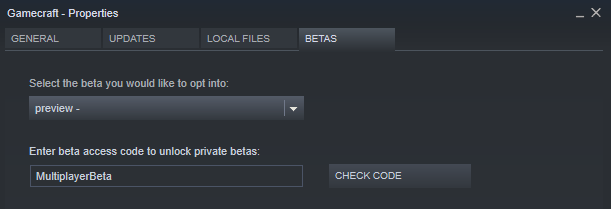
To access the Preview Build, follow these steps:
- Open the Library tab on Steam
- Right-Click on Gamecraft
- Click on “Properties”
- Click on the “Betas” tab
- Enter the code “MultiplayerBeta” and click on the “Check Code” button
- Click on the dropdown and select the “Preview” branch
- Give this a minute to download
- Make sure the game appears as “Gamecraft [preview]” in the Library
- Click Play and get started
N.B: Preview versions of Gamecraft grab local save files from a slightly different location. If you want to use your existing save files in the Preview branch, you'll need to copy them from "C:\\Users\[USERNAME]\\AppData\\LocalLow\\Freejam\\Gamecraft" to "...\\GamecraftPreview".
Hosting and Connecting to Servers
From there, things get a little less straightforward. We’ll split this section in two, one for hosts and the other for players that want to connect.
To Host
If you want to be the host player:
- Load up a save file from the “Create Games” screen, or create a fresh one
- Press F3 to bring up the “Advanced Info” panel
- Open the console with ‘/’
- Enter the “ShowDebugDisplayExtraInfo true” command and hit Enter
- Enter the “StartDefaultServer” command and hit Enter
- Confirm that you are now “Running As Server” in the info panel
Once everything is set up there, you’ll need to grab your public SteamID. You’ll need to share this with other crafters in order for them to connect to you. The SteamID can be found in a couple of different ways so we’ll go over some of them.
The “official” route is:
- Open your Steam client
- Click “Steam” in the top left corner, then “Settings”
- Open the “Interface tab
- Tick the “Display Steam URL address bar when available” option, then click OK
- Click on your profile name at the top (next to “Community”)
- You should then see a 17 digit number in the URL just below

- If you see your profile name instead of a number (like me), then you’ll need to try a different method
The quickest and simplest alternative is:
- Open your prefered browser and go to https://steamidfinder.com/
- Type your profile name in and click the “GetSteamID” button
- Grab the 17 digit “SteamID64” number
Once you have this, send it out to the people you want to join you and they’ll be able to connect using the steps below.
To Connect
- If you know someone who is willing to host a server and you just want to connect to them and play, you’ll need to ask them for their SteamID (covered in the above section). Once you have that, follow these steps:
- Load up a save file from the “Create Games” screen, or create a fresh one
- Open the console with ‘/’
- Enter the “ConnectToCreativeServer” command with their SteamID as the value (e.g. ConnectToCreativeServer “12345678901234567”)
- After a moment, you’ll spawn in to their save
Key notes
- Make sure you’re in Stasis, rather than simulation when anyone is trying to connect, otherwise they’ll likely fail and cause issues.
- While you’re playing together, only the host will be able to save, so make sure you regularly save anything you want to keep.
- Only the host will be able to start/stop the simulation in this version. So make sure everyone is ready before you do this.
Known Issues/Outstanding Features
This list isn’t going to be extensive but we just wanted to reiterate and highlight some of the more obvious concerns and issues before everyone starts reporting them.
- The host being the only one to control simulation is a temporary thing. We want to have either a “ready check” system for starting simulation, or individual simulations if possible, to avoid conflict. All players will need to ready up, then the simulation will start/stop.
- When players join during a simulation, we want to put them in a “standby” state until everyone returns to Stasis again (with messaging to show someone is waiting)
- Multiple players can currently interact with the same buttons/levers. In future we’ll restrict this to whoever grabbed it first
- Console commands will only trigger for the host. We’ll be making as may of these available to all players as possible in the future.
- Certain commands won’t sync for all players. For example, sky colour changes will only visible to the host for now.
- Colour, text blocks and a few other things may not sync correctly for all players at the moment
Please do let us know of anything else that you come across, along with general feedback regarding multiplayer so that we can continue to improve on it and clean up as many issues as we can.
The Gamecraft Team