Hello Gamecrafters,
Our latest major update is live and available to all Gamecraft owners NOW! The headlining features are the switch to the Havok physics engine, a new Colour painting system, and the Prefab Workshop, but we’ve got plenty more to talk about as well! We’ll get into the details in the full patch notes below.
Colouring and Hotbar Pages
Now you can bring your games to life with the new colouring tool, one of the more highly requested features! Crafters now have access to 100 colour variants to spruce up their worlds.
The hotbar is divided into two separate versions; The “Parts Hotbar”, which holds blocks, joints and all of the other parts that are available, and the “Colour Hotbar”, which holds all 100 colour variants in a fixed order. These two hotbars can be toggled by pressing ‘C’.
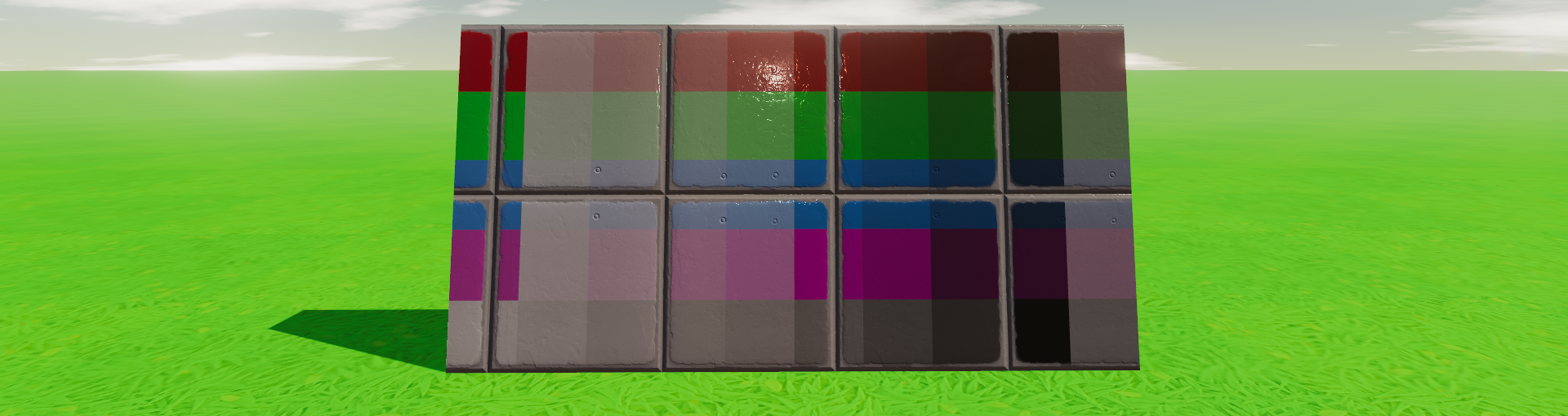
With the Colour Hotbar selected, you’ll have access to 10 pages of colours. These pages can be navigated by holding Ctrl and pressing 1-0 on your keyboard. The first page is the default colour palette with your vibrant shades of the common colours. Pages 2-9 are pastel-esque to darker variants and page 10 is an extra “desaturated” variant.
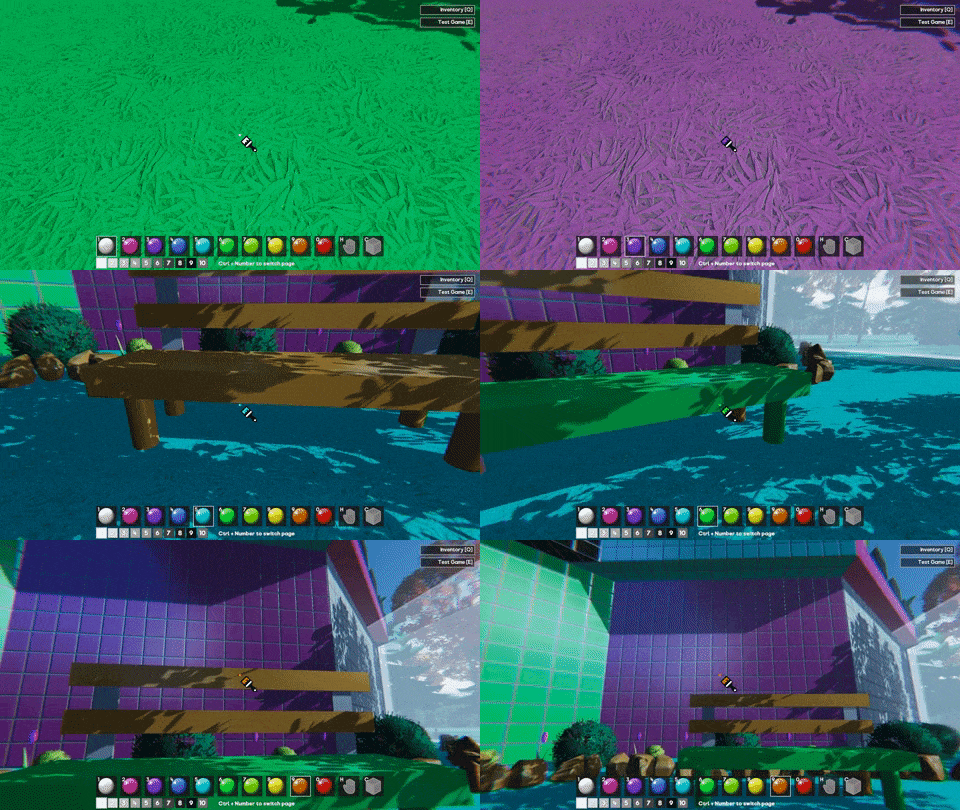
To get painting, just toggle the Colour Hotbar, select a page, select a colour and click away! You’ll even be able to paint multiple parts in a row by keeping the left mouse button held down.
Any parts that are selected from the Parts Hotbar or Inventory will be placed with a default colour. These defaults closely match the colours seen in experiment 10 and earlier, although some will be slightly different. You’ll be able to place these parts with their default colour, then paint over them as you please. If you want a part be placed in a particular colour then you’ll be able to “select” a part that’s already placed with the middle mouse button. This will select the part, size and colour.
With 100 colours being available and needing somewhere to store them all, it felt like the perfect opportunity to carry this page functionality over to the Parts Hotbar. You’ll also notice that there are now 10 pages in this hotbar too! That means you can have almost every item stored no more than two buttons away.
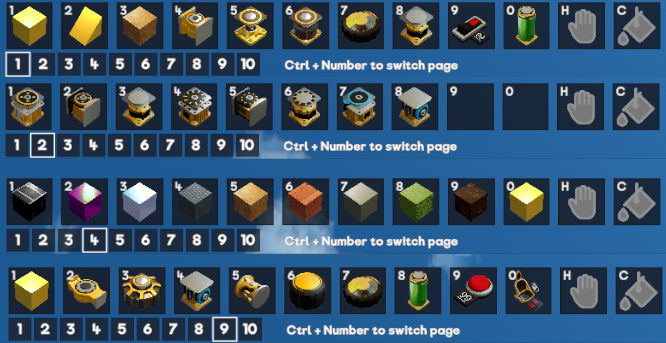
Just like before, you can drag and drop parts from the Inventory for quick access. As an added bonus, these hotbars will also be saved across multiple sessions and even machines (if you play on the same account)! We’ll cover the details on that a bit later.
The default page 1 has been shuffled around a bit as well, while the rest will start out empty. You’ll also notice the “Empty Hand” has also been moved from 0 to ‘H’. This is consistent across both hotbars and was necessary to make space for the colours.
Prefab Workshop
The Prefab Workshop is a place for crafters to share their non-game creations in a slightly more collaborative environment. The aim of this workshop is to provide a space for users to share builds that are not full games in themselves but that could be used to form parts of games. Say you’ve made an amazing vehicle or a beautiful environment and you want others to use it in a game, you can share it in the Prefab Workshop.
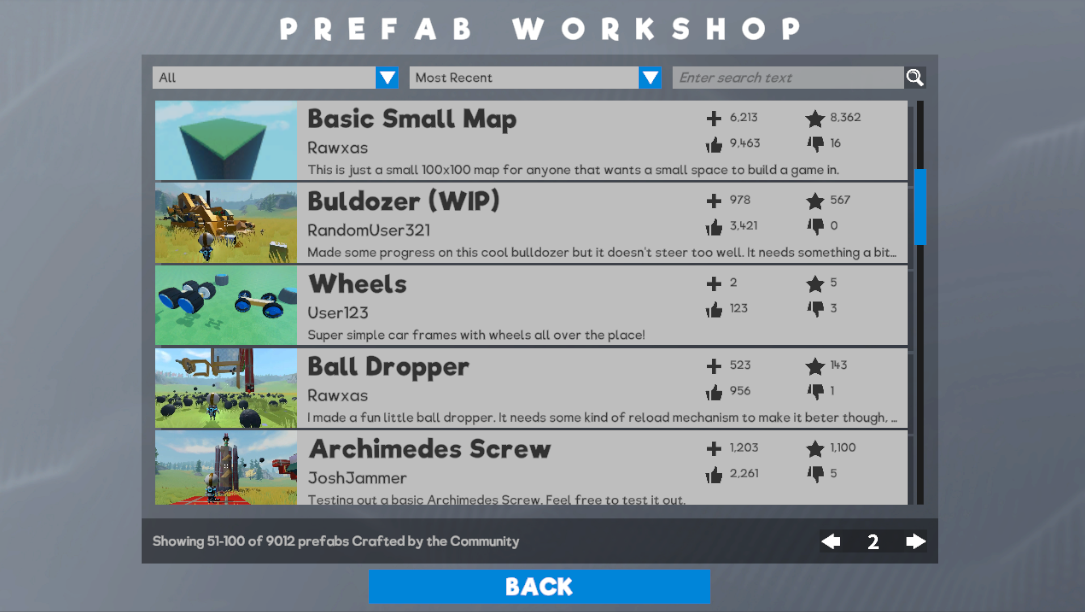
When publishing your save files, you’ll now have a few extra options. If you’re publishing a game, just select “Game” from the list and it will work exactly the same as before, putting that game in the Community Games section for others to play. Selecting one of the other options in the list will publish the save to the Prefab Workshop instead.
On the Prefab Workshop screen, you’ll be able to filter through various prefabs in the same way you can filter through games. There’s an added filter for category as well, in case you’re looking for something specific. The categories for this launch are:
- Vehicle: As you’d expect, this option is recommended for any kind of car, bike, helicopter or walker you can think of
- Environment: Environments can be breathtaking landscapes with lush forests, ready for other crafters to build their game in
- Building: If you’ve built a nice little house for Leo, this is the place to share it
- Prop: Props can be things like doors, postboxes, nice flower arrangements to larger bits of scenery
- Gizmo: Gizmos can be cool contraptions like logic gates or even a steering system
- Other: If you don’t feel like your Prefab fits in any of the above categories, let us know and we can consider adding some more over time.
The details page for Prefabs is a little different from Community Games. Instead of “Play”, you’ll be able to “View” the prefab. While viewing, you’ll still be able to edit, add or remove parts of the scene, as if it were one of your own games, but you won’t be able to save directly over it. If you like what you see, or you’ve made some tweaks that you’d like to save for later, you’ll be able to “Copy” the prefab to your own local saves!
Copying a prefab will add it to your list in the My Games screen, under the name of the original creator initially (if done via the details screen). If you build something with the prefab and save over it, you’ll become the “owner” and if decide to publish it, be sure to credit the original creator.
In the near future we plan to add a copy/paste feature when you can select things that are prefabs, copy them, then paste them into your games as many times as you like. This way we hope that the incredible Gamecraft community can collaborate to make great games if they wish.
Havok Physics

Gamecraft is one of the very first Unity games to publicly release with the world famous AAA Havok Physics engine incorporated in it. Up until now Unity developers have not been able to incorporate Havok into their games and a recent partnership between Unity and Havok has allowed those developers that have adopted Unity’s new DOTS technology to also use Havok. Havok is in beta form and Freejam has been an early adopter of the technology.
We’ve spent a lot of time trying to tweak and improve the physics of Gamecraft and Havok is the next big step. Havok Physics offers a lot of improvements, both in performance and stability, as well as a few fixes to issues that have been plaguing us for a while now.
Thanks to DOTS, the switch is practically seamless. So seamless in fact, that you can do it while running a simulation, but we’ll get to that shortly! There are some massive changes that come with this, but, from internal testing it looks like the majority of games that have already been published are performing better in Havok. There are definitely a few areas where Havok Physics slightly break existing saves or generally cause them to behave slightly differently due to Havok being more precise when it comes to collision detection and joint solving. For this reason we’ve implemented a sort of “legacy support” system to ease the transition and give crafters a chance to test their game out with the new physics before publishing them again.
Some of the main changes and fixes are:
- Performance: Havok physics is faster than Unity Physics in most general cases that apply in Gamecraft.
- Welding: Havok has a welding system that joins the seams of connected blocks. This allows for vehicles, sliding blocks and character to move more smoothly over connected block seams.
- Joint Solving: This is improved in Havok. Joints are more rigid and stable when being ‘solved’ in physics simulations. This allows for better build reliability and less glitches.
- Stacking: Stacked blocks are much more stable now and settle nicely without ‘jiggering’ apart.
- Collider Penetration: When this occurs it is resolved more gently, so things do not ‘explode apart’ so much when objects penetrate each other.
- Tyres: We’ve made use of some of Unity Physics and Havok Physics special low level features to treat the circumference of Tyres as perfect spheres. This allows for very smooth collision when they are spinning at speed which improves the contact with the ground and reduces bumping etc.
Legacy Support
With the sheer number of changes, some existing games are not going to perform exactly the same. In most cases, they’ll be much better, but there are a few parts that relied on the quirkiness of Unity Physics. These games are simply never going to work the same way in Havok without some minor tweaks. With this in mind, any existing saves will remain on Unity Physics for now, with most of the old settings and values, while newly created game will default to Havok. We have supplied a way to convert old saves over to Havok also.
When you load up an existing save (local or published), you can press F3 to show the “extra info panel”. This panel will show you which physics engine the save is running. With the new console command, “switchToHavokPhysics”, you’ll be able to switch to Havok physics.
IMPORTANT: If you save your game after switching to Havok the game will permanently save in Havok mode and you will not be able to switch it back. If you switch to Havok using the command but do not save it, you can reload your save and it will still remain in Unity Physics mode.
Published games will work with whichever physics engine they are published in (according to the save file), so if you’re happy with the way it behaves in Havok physics you can re-publish your game to the portal for others to play with the new physics option.
New Materials and Parts
New Materials
We have three new materials in this update:
- Wood - A non-conductive, fairly lightweight material
- Brick - A non-conductive, fairly heavy material
- Concrete - A non-conductive, heavy material
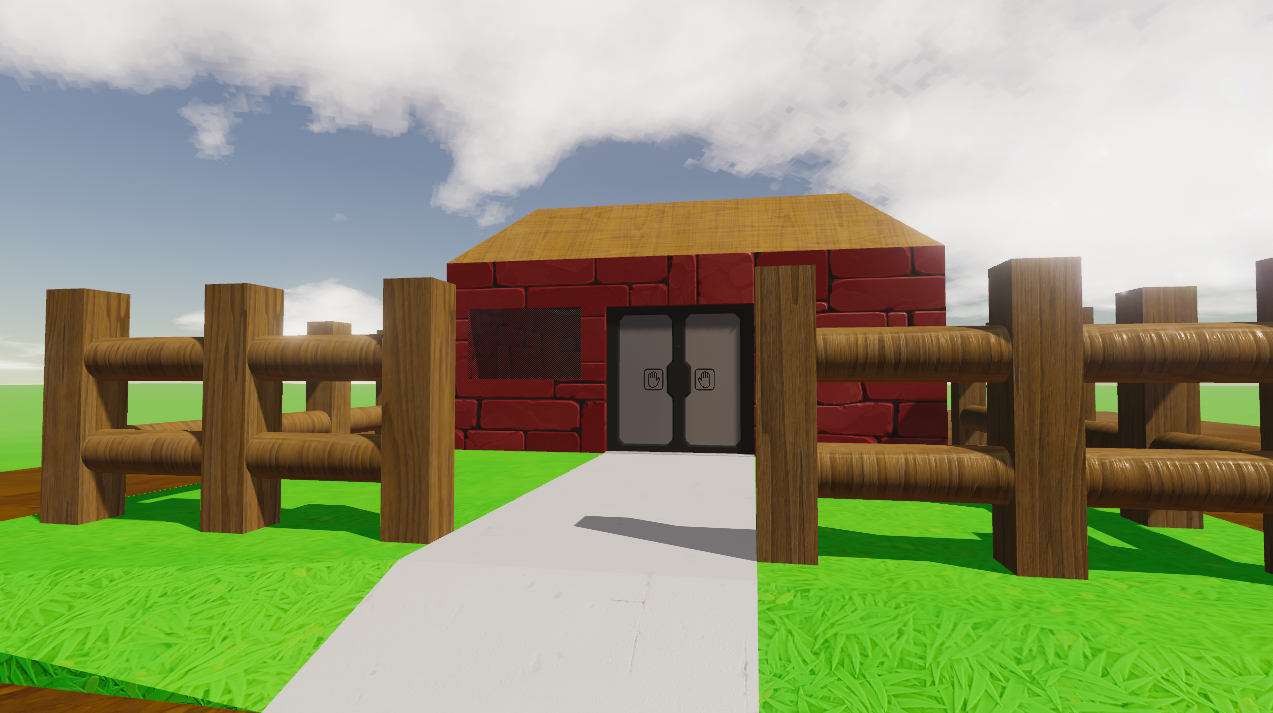
Wood is available in all existing shapes and works wonderfully with our triplanar shader so you’ll be able to create seamless wooden objects
Brick and Concrete are currently only available in four basic shapes; Cube, Cube Sliced, Slope and Corner. These felt like the shapes required for “buildings” but we may add more over time.
Doors
While crafters have been making absolutely outstanding doors with the parts available, we realised that it was quite restrictive, particularly when it comes to creating smaller, Leo-sized doors. These new parts offer a clean, compact alternative to building your own. They come in four variants; Solid and Glass, Unpowered and Powered.
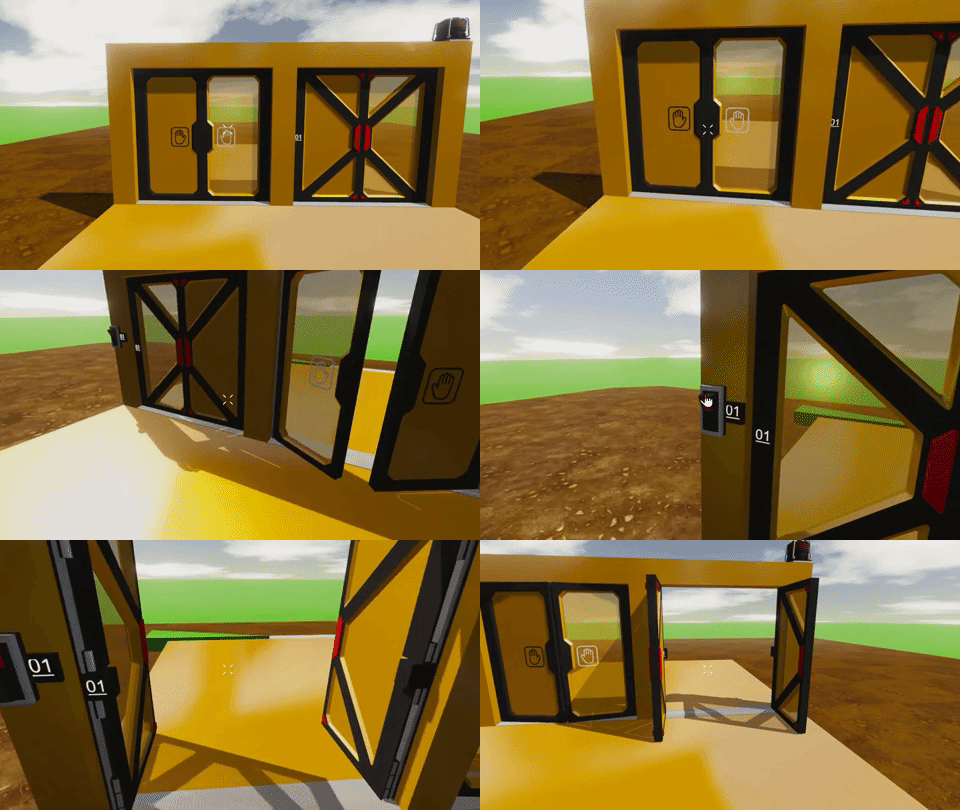
Unpowered doors are spring loaded and will open when Leo walks into them, before swinging back closed. Powered doors can be opened only with a controller, so they must have a channel assigned and a power source.
Tubes
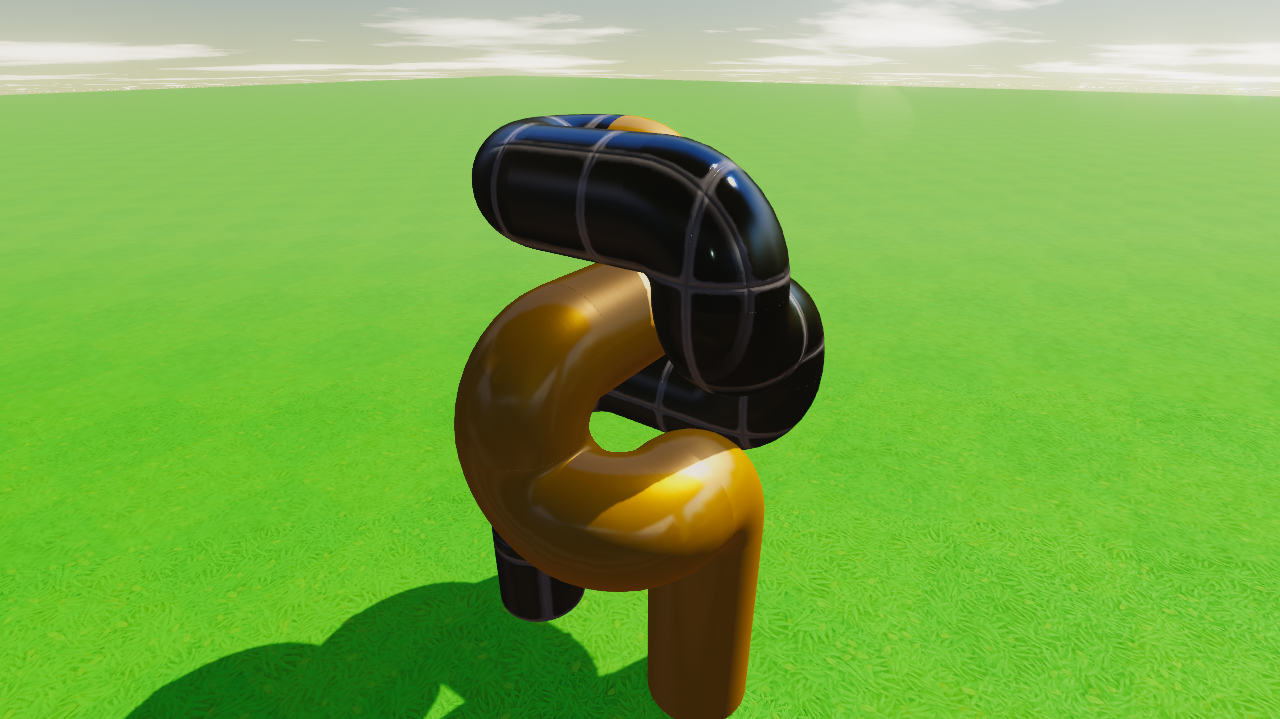
Aluminium and Iron Corner Tubes have been added. These offer a nice transition between cylinders.
Updated Player Spawn Point
The Player Spawn Point has received a bit of an overhaul. We’ll cover the “why” below, but this spawn point is now actually player-sized and doesn’t confine Leo in the same way the other box spawns do.
Auto-Simulation in Community Games
We’ve made some fairly large changes to the way players “play” games in this update. Previously, players would spawn into a white box, where they would then need to Press ‘E’ before being able to actually play that game. We felt that this was a little unintuitive and annoying, so we’ve made Community Games auto-start in simulation when there is a Player Spawn Point in use. Games that require building will still work the sam way, just make sure you include a small-large building spawn point instead of a player spawn point.
Any commands scheduled to run when simulation starts will still run as expected, so this has the added bonus of letting you set your ambient lighting, colour and time of day without having a jarring switch when a player presses ‘E’.
While the simulation is running, pressing ‘E’ will also now bring up a pause menu instead of automatically restarting the level. We’ve all accidentally hit ‘E’ and had to start over, I’m sure. This new pause menu will have Resume, Restart and Quit. Restart will do exactly that, sending you back to the spawn point and restarting the simulation.
Persistent Player Hotbar and Filters
We’ve been working on syncing some data to the Steam Cloud and the first stage of this is a couple of specific things. For this update, your hotbar (all 10 pages of it!) will be saved to the cloud. This means any parts you drag from the inventory will stay saved for the next time you run Gamecraft. You’ll also have access to this setup if you log in on another machine. The filters in the Play Games and Prefab Workshop screens will also be saved in the same way, so you can load the most recent games by default, rather than the tutorials every time.
We’ll be working on saving more data in future as well, from game saves to other player settings.
Other Changes
Ongoing optimisations
We know things have been getting a little more sluggish over the last few experiments so we’ve spent a lot of time going back through old shaders, parts and code to make sure we’re reducing our overheads as much as possible. We’re hoping everyone sees some noticeable improvements across the board already but we’ve still got plenty of things to work through over the next few updates as well
Character size and movement changes
Leo’s shrunk a little bit in this experiment! With the introduction of doors, we felt that now would be a good time to tweak Leo’s size a little bit. He should now be able to fit through a 2x5 gap with ease. This does make a few games slightly harder now as Leo will also fall through smaller gaps between platforms.
We’ve also made some tweaks to the way Leo moves. His acceleration and deceleration have been bumped up so that he slides around a lot less. The brief pause when Leo lands has also been reduced a little bit.
Capped cube scaling
We’ve capped the maximum size of a stretched cube to 1080 units in each axis for the foreseeable future. Parts above this scale had multiple issues that were tough to solve cleanly and this cap still offers a lot of building flexibility.
Steam Now Required
With the Workshop requiring players to be logged in to Steam and the added data saves, we’re now running checks on launch that ensure players are logged in to Steam and actually own Gamecraft. Previously, we’d only run these checks when you try to interact with Workshop content.
My Games order change
We’ve made a slight tweak to this screen. Games are now displayed by date created in descending order rather than ascending. We felt this would make more sense, as you’d prefer easier access to the latest games you’ve been working on.
Bug Fixes
- Fixed a couple more cases where the client could crash when exiting from the main menu
- Fixed a bug that could prevent Triggers activating on low framerate
- Fixed a bug when calculating the inertia tensor of joints - This should make builds with lots of joints perform a little better, but may affect some existing games
- Fixed some bugs with cubes overlapping at larger scales, preventing placement or connections - Existing parts that were placed may not connect still but deleting and placing them again should resolve the issue
- Fixed some collision issues where the colliders didn’t quite match the visual shape - This shouldn’t have a noticeable impact in most cases, but helped fix the issue of placement/connections
- Pressing Enter to search in the Community Game search filter will now correctly use the input
- Fixed a couple of bugs with save descriptions that could lead to errors when using Rich Text Tags. These have now been disabled in the My Games and Play Games screens
- Publishing changes to a save that is marked “Hidden” or “Friends Only” will no longer set it to Public
- Fixed a visual issue with the Cone Segment parts
- Fixed some visual issues with Leos positioning in Pilot Seats and Control Consoles
- Fixed some audio timing issues with Servos
These new features and changes open up so many more possibilities, we’re all looking forward to seeing the amazing creations you can make and share with the new Havok Physics now, as well as the beautiful worlds you can create with the new materials and colours. If you haven’t left a review yet, please do as it really helps us all grow the community.
The next step for Gamecraft is a preview of multiplayer! We’re hoping to get an extremely early version in your hands very, very soon. It will be very barebones and we’re expecting a lot of issues so the sooner we can get some feedback and hands on testing, the sooner we can work on stabilising it and getting it ready for a public release. We’ll share more information on this as we get closer.
The Gamecraft Team