Custom Language Guide
What this is: DungeonMunchies2 ships with Traditional Chinese and English built in. If you'd like to play in another language, provide an alternate translation, or even try your hand at a re-write, you can export a translation template, fill it in and preview it instantly in-game
What this is: DungeonMunchies2 ships with Traditional Chinese and English built in. If you'd like to play in another language, provide an alternate translation, or even try your hand at a re-write, you can export a translation template, fill it in and preview it instantly in-game. There's also an option to publish it to the Steam Workshop so anyone can subscribe and use it. These changes are text-only: and never affects saves, multiplayer, or gameplay.
Open the Custom Language panel
Export the translation template
Fill in your translations
Preview it in-game
Publish to Steam Workshop
Push an update later
Using someone else's translation
Troubleshooting
1. Open the Custom Language panel
From the main title screen or the pause menu, open Settings, then click the 自訂語言 ("Custom Localization") button in the General tab.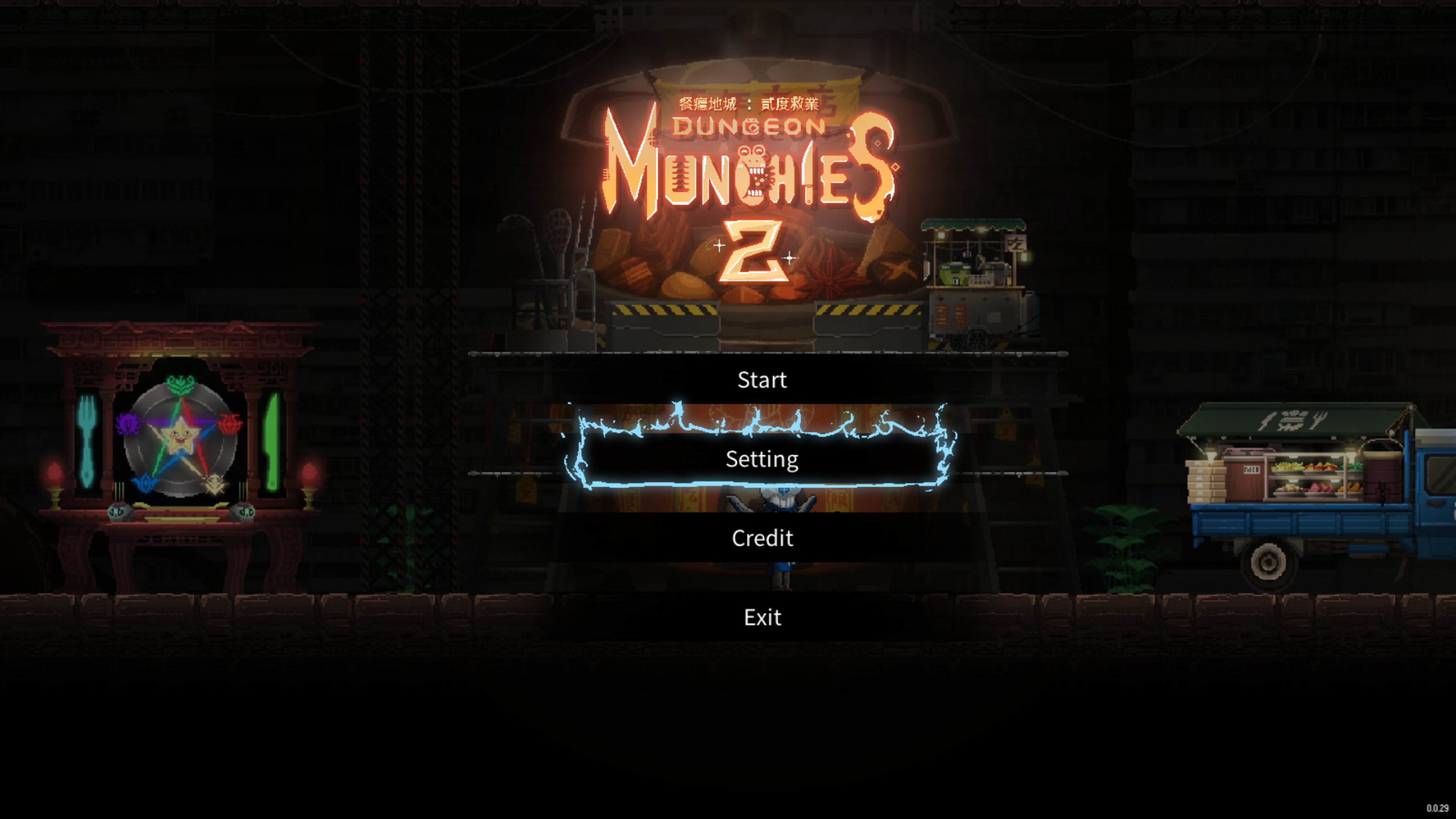
Settings ▸ General |
Language ▾ (dropdown) |
自訂語言 ← click this to open the panel below |
2. Export the translation template
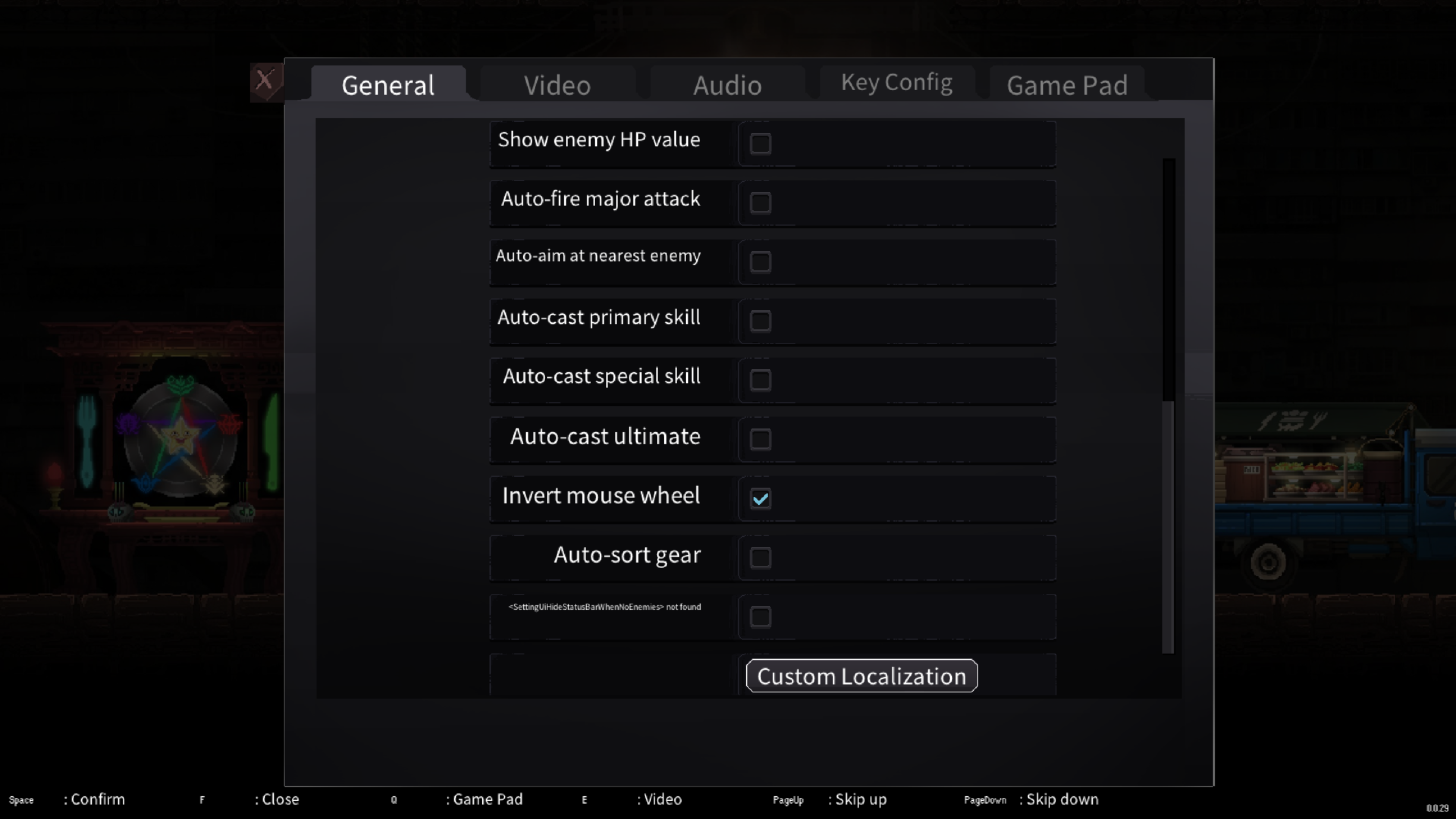
In the panel that opens, click the top button. It writes two spreadsheet files (.csv — comma-separated values, opens fine in Excel, Numbers, or Google Sheets) covering every piece of text in the game, and opens the folder for you automatically:
a main template — UI text, item/gear/talent names, tooltips, and so on
an events template — story dialogue and character names, kept separate so it doesn't crowd out everything else
自訂語言 ▸ Open template ← click this first |
Preview edited template |
Publish as a new Workshop item |
Both files are saved to:
Windows |
|---|
%AppData%\DungeonMunchies2\workshopTranslationTemplate.csv
%AppData%\DungeonMunchies2\workshopTranslationTemplateEvents.csv
macOS
~/Library/Application Support/DungeonMunchies2/workshopTranslationTemplate.csv
~/Library/Application Support/DungeonMunchies2/workshopTranslationTemplateEvents.csv
[expand type=details expanded=false]Re-exporting is safe — will it overwrite my edits?[/expand]
If you click Export again after editing, your existing translations (in both files) are kept and any new text the game has added since your last export is merged in automatically — nothing you already typed gets overwritten.
3. Fill in your translations
Open both files in a spreadsheet app.
The main template (
workshopTranslationTemplate.csv
) has five columns: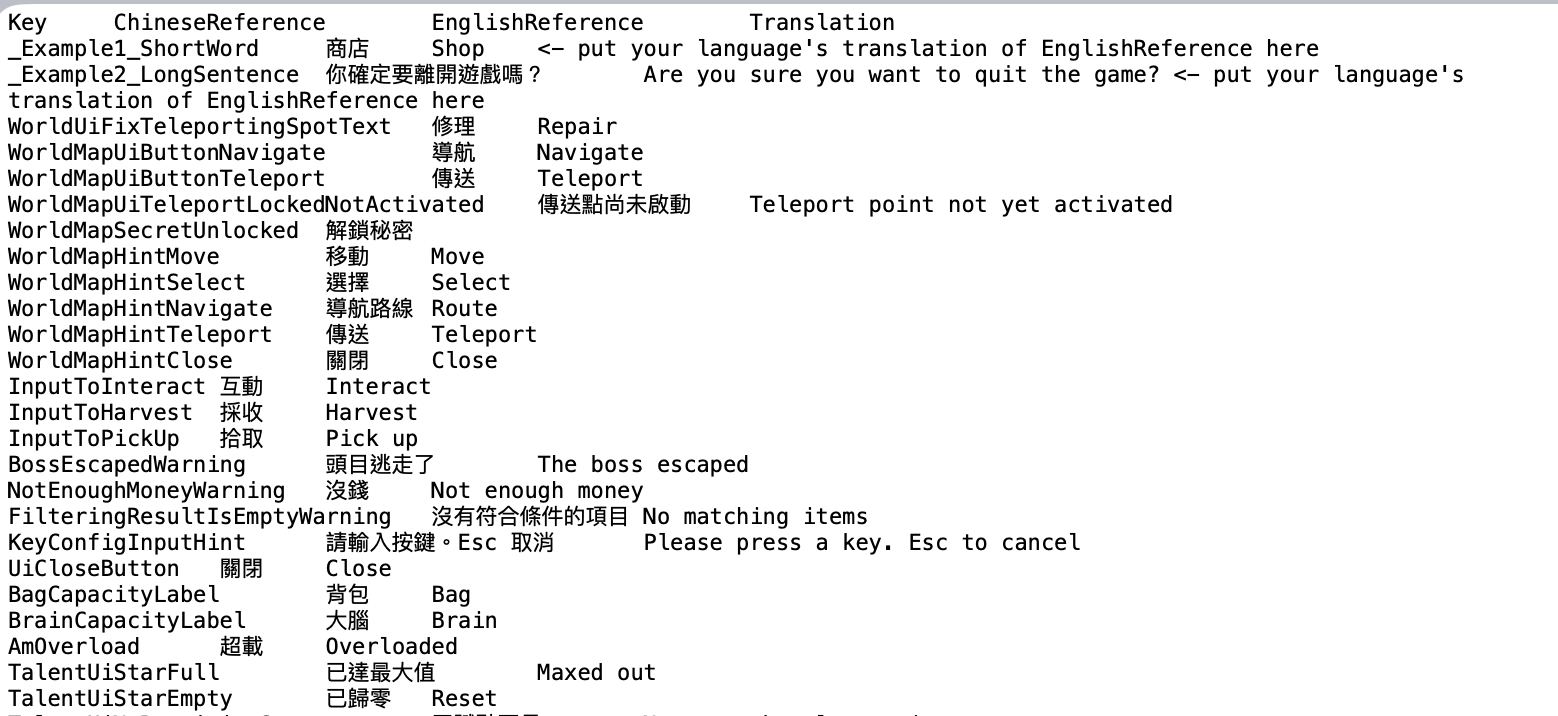
Column | Meaning |
|---|---|
Key
Internal identifier — don't edit this
ChineseReference
Original Chinese text, for reference
EnglishReference
Official English text, for reference
Translation
Type your translation here
CreatedAt
When this row was first added to your template — informational only, ignore it
The events template (
workshopTranslationTemplateEvents.csv
) has the same five columns plus one more,
Speaker
(who says this line — blank for a character-name row or a line nobody speaks). Translate it the same way; both files get combined automatically when you Preview, Publish, or Update.
You don't have to translate everything. Any row you leave blank automatically falls back to English in-game. If you've already previewed or published that language, an untranslated row shows up as
English text
instead of plain English — that's intentional, it's how you spot at a glance what's still left to do, and it disappears the moment you fill in a real translation.
Save both files in the same place, keeping the
.csv
format (don't let your spreadsheet app "helpfully" convert them to
.xlsx
).
4. Preview it in-game
Back in the game's My Translations panel, click Preview edited template. Then close Settings and reopen it — your translation now appears in the Language dropdown as "Preview (unpublished)" by You. Select it to see your text live, in context, before sharing it with anyone.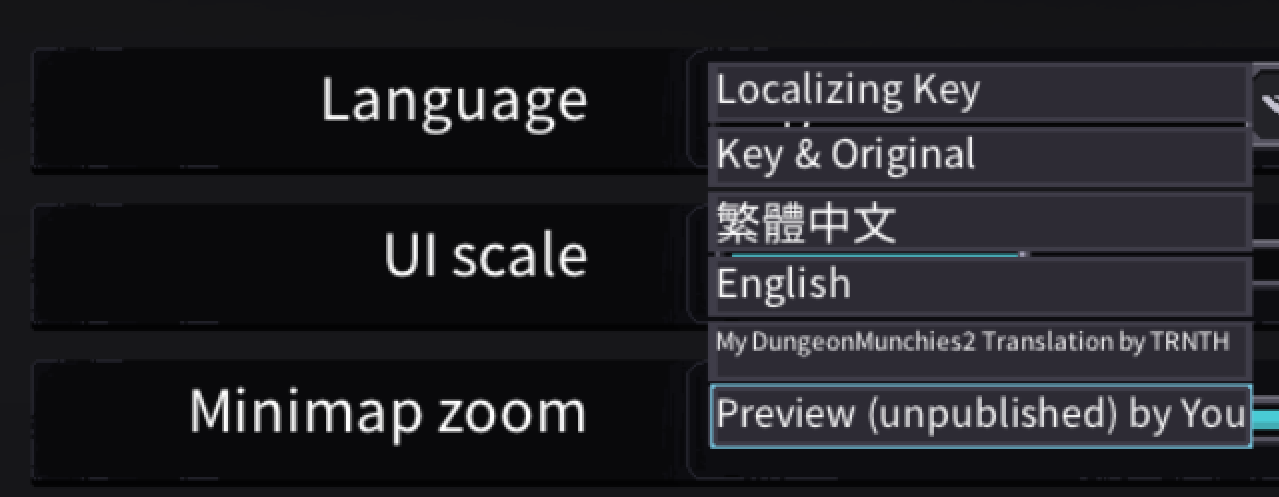
Settings ▸ General ▸ Language ▾ |
中文 (繁體) |
English |
Preview (unpublished) by You |
Repeat steps 2–4 as many times as you like — edit, re-export, preview again — until you're happy.
5. Publish to Steam Workshop
Publishing requires the Steam client to be running and you to be logged in. When ready, click Publish as a new Workshop item. This button only appears before your first publish — after that it's replaced by an Update button (step 6).
自訂語言 ▸ Open template
Preview edited template
Update: My DungeonMunchies2 Translation ← re-uploads your edits
Click Update — this revises the same Workshop item, so everyone already subscribed gets the new version automatically, no re-subscribing needed.
7. Using someone else's translation
To play in a language someone else made, find it on DungeonMunchies2's Steam Workshop page and click Subscribe. Steam downloads it in the background. Next time you launch the game (or the next time Settings loads, if it's still downloading), it appears in the Language dropdown labeled "{title} by {author}" — pick it like any other language.
Settings ▸ General ▸ Language ▾ |
中文 (繁體) |
English |
Downloading Workshop languages… |
Deutsch Fan Translation by MaxMustermann |
Troubleshooting
[expand type=details expanded=false]Publish/Update buttons are grayed out, "(Steam unavailable)"[/expand]
Steam isn't running or you're not logged in. Start Steam and reopen the panel. Clicking the button anyway shows "Steam is unavailable — publishing is disabled."
[expand type=details expanded=false]"Invalid CSV: ..." / "Invalid events CSV: ..." toast on Preview/Publish[/expand]
The file has a duplicate
Key
, a missing required column, a row with the wrong number of columns, a cell over 2000 characters, or was saved in the wrong format. Re-export a fresh template and re-apply your edits.
[expand type=details expanded=false]Some text still shows in English (or as English text) after selecting my language[/expand]
Expected if you left that row blank in the Translation column — it falls back to English on purpose; the prefix just marks it as not-yet-translated once your language is registered.
[expand type=details expanded=false]A subscribed language doesn't show up yet[/expand]
Steam may still be syncing it in the background. It's retried automatically on every launch — no action needed.
DungeonMunchies2 — Custom Language / Steam Workshop translation guide ▲ back to top