Libretro Improvements, Drag & Drop Fix - Client Update 2/21/2026
Hey everybody! This update focuses on improving Libretro support, improved local MP3 playback, a fix for drag & dropping images into items in the world, and a Tube Head achievement fix. Improved Core Compatibility Cores that require OpenGL are now supported! In Libretro, seve
Hey everybody! This update focuses on improving Libretro support, improved local MP3 playback, a fix for drag & dropping images into items in the world, and a Tube Head achievement fix.
Improved Core Compatibility
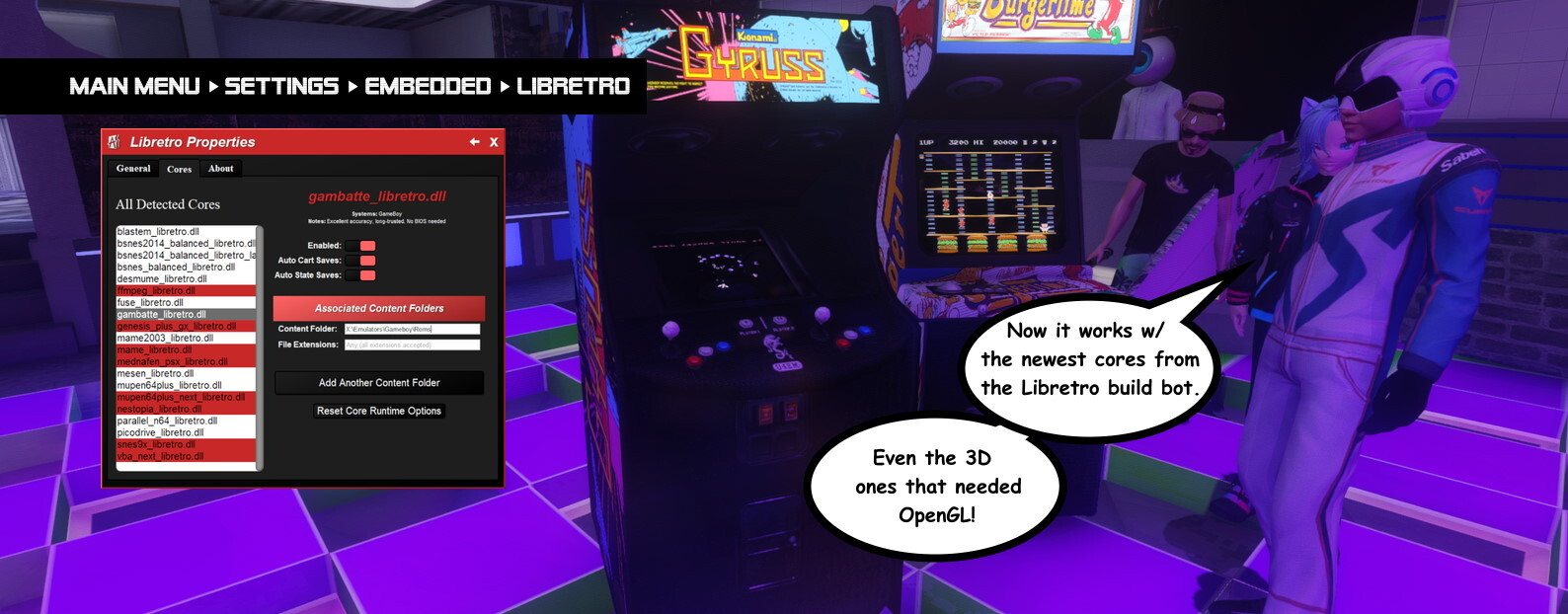 Cores that require OpenGL are now supported! In Libretro, several of the gen-5 & newer consoles require OpenGL hardware acceleration support to run, and even some older consoles have the option to use OpenGL to improve performance or offer extra features. Now all that is automatically supported.
To go along with OpenGL support, AArcade has been updated to the newest libretro.h from the RetroArch GitHub repo. And the support for the various feature #defines offered by the newest libretro.h has been greatly improved. I tested at least 2 cores for each major console (when available) and only came across 1 that didn't work.
You can access the Libretro Properties menu at Main Menu > Settings Menu > Embedded tab > Libretro button. There you'll find an About tab that will explain the details of how to set things up.
YOU WILL LIKELY NEED TO UPDATE YOUR CORES. Especially if you were using older cores. Check the About tab in the Libretro Properties menu for info about the Libretro build bot.
Note that it's still ONLY 32-bit cores that are supported.
Making It Run
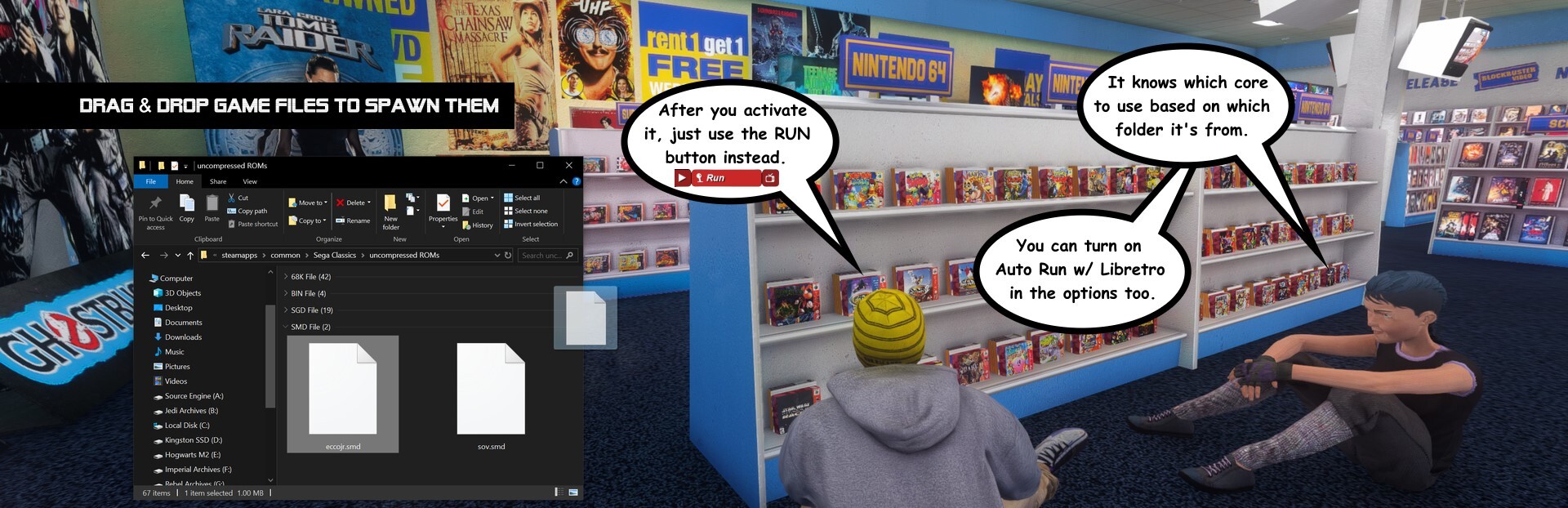
First, you have to configure your file paths for each cores that you enabled in that Libretro Properties menu. You only need ONE core enabled per-system - the one you want used for files in the path you set.
Sub-folders are supported, so if you have each game in a different folder, you'd set the file path to the parent folder. You just have to keep files for different systems separate, because AArcade knows which core to use based on which folder the game came from.
Then on the in-game screen when you activate it, just use the RUN button instead of launch. If you turn on Auto Run w/ Libretro in that Libretro Properties menu, then it'll happen automatically!
Runtime Core Options
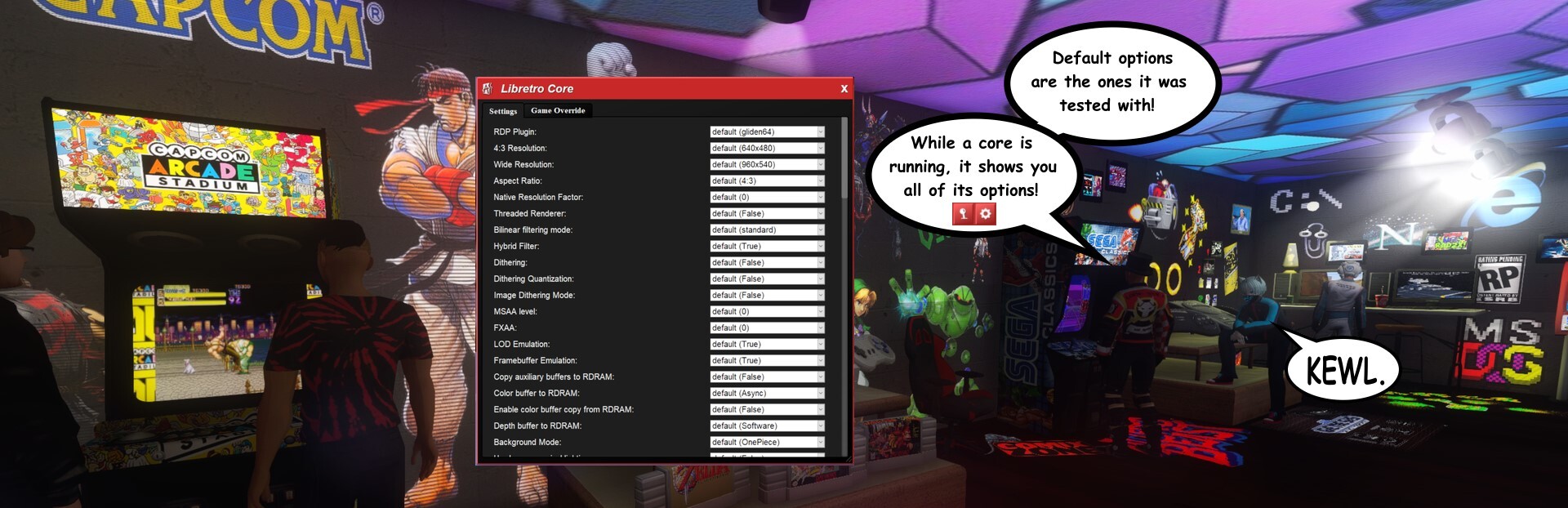
While the core is running, if you pull down the Libretro Tab (up where it's usually the Address Tab when on a website) you can access the Libretro Core and Libretro Input menus.
This lets you configure the options that each core provides. Only the DEFAULT settings have been tested! And many of the options will require you close the core & re-run it to see the changes.
The core & input options provide per-game overrides in case you want different settings for different games. (And per-core overrides in the case of input options.)
The left & right analog sticks of your IRL gamepad are HARD-CODED to be passed through as left & right analog sticks to Libretro. And your gamepad's L and R triggers are bound to what some cores see as the "Z button". These analog binds are ONLY active if your input is focused on a Libretro core.
If you want to lock your input focus to a screen without maximizing it, you can use the Input Lock command in the (F7) Commands Tab. (For advanced users, you can use "find cmd_" in the developer console to see the commands.) Then your input is locked to that screen until you press ESC.
And speaking of advanced users - Libretro currently does a lot of debug messages while it runs, so you should probably keep "developer 0" unless you actually are trying to debug something.
MP3 Playlists
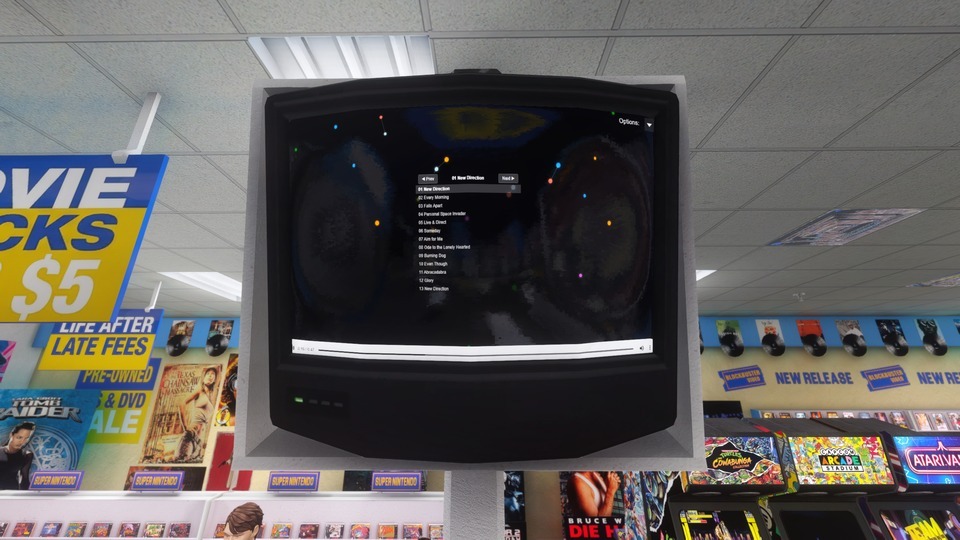
When you spawn a local MP3 file, sibling MP3 files get pulled into the in-game preview on a playlist. Now this playlist shows on the screen for you to interact with. Up to 40 sibling MP3 files can get pulled into the playlist.
Note that Unicode is NOT supported in file names or paths. (It confuses the UI and I haven't figured out how to properly support it yet.)
Drag & Drop Fixes
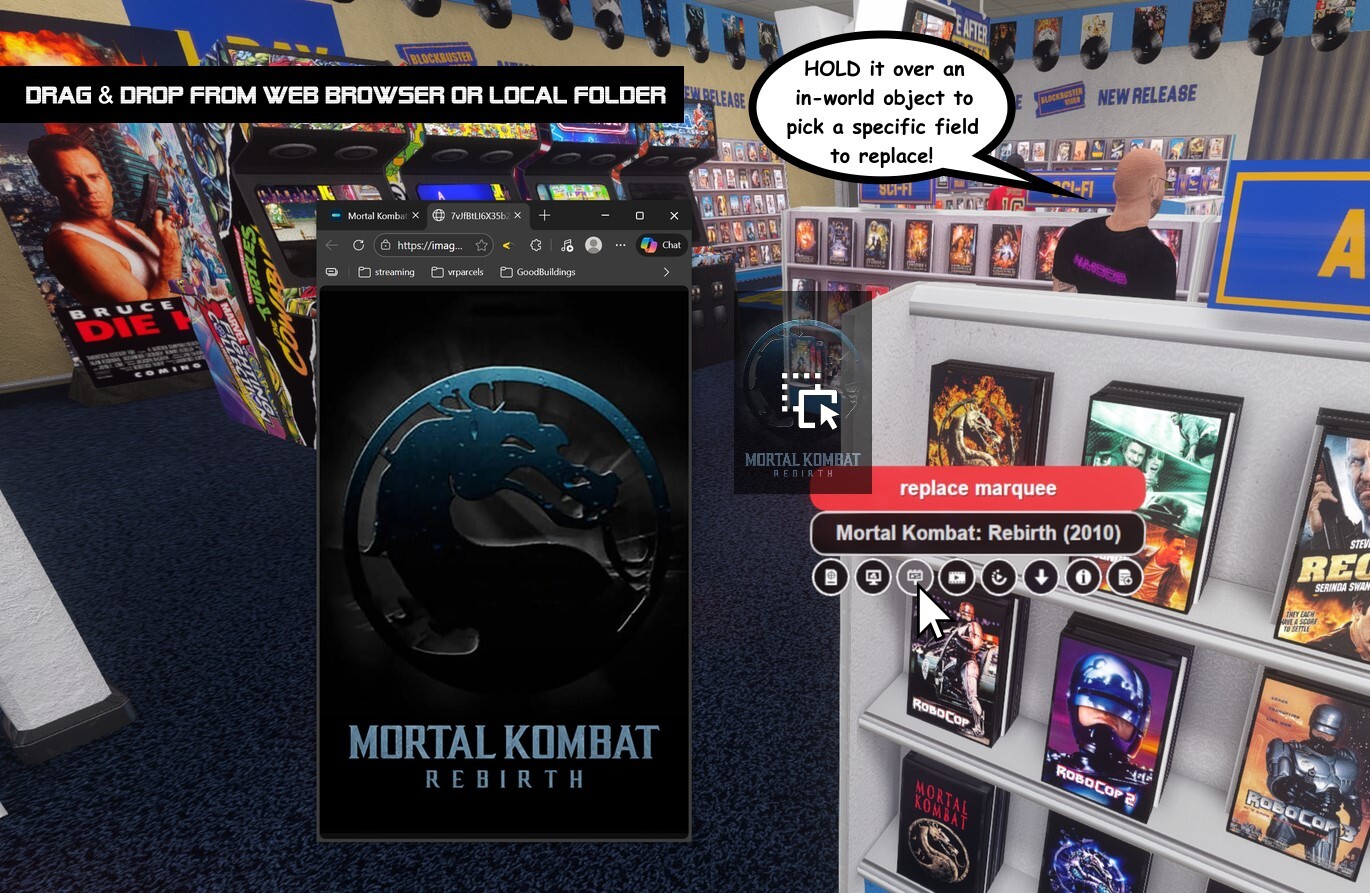
The "wizards" are being phased out. (Only the Steam Store and TheMovieDb wizards are being maintained.) So the preferred way to edit the images on your items is to use Drag & Drop from your standalone web browser OR from local folders on your computer.
For web pages (like a YouTube video you're watching) you'd drag & drop from the address or bookmark bar. For images, you'd Open Image in New Tab and drag the image itself. (Sometimes this works w/o even doing the new tab.) The same for local files from Windows Explorer - you just drag the file itself.
You can drop stuff into an empty spot to create a NEW item. Or if you hold the file over an in-world object, it shows you the different fields of that item and you can drop it into the specific field you want to replace.
The "fix" in today's update makes this work on any screen resolution, and even if AArcade is being ran in a smaller window.
Also remember you can CTRL + V paste any URL while in walking around mode to spawn it.
Achievement Fix
The Tube Head achievement has been fixed so it properly increments the associated stat when watching YouTube videos in-game.
That's all the news for this update! If you have any questions or just want to connect with the AArcade community, you can leave a message here (thanks Daleth for helping with Steam notifications) or look up the Discord community link on the Anarchy Arcade website. (We still use Discord... for now.)
ːilyː
Change Log:
Improved MP3 auto-playlist support on MP3 files. (NOTE: Unicode is still NOT supported in file names/paths.)
Fixed an issue with the aa_tubes_watched stat & the Tube Head achievement. (Thanks to heatray for bringing the bug to my attention.)
Fixed drag & drop support on non-1080p fullscreen resolutions. (Works on any resolution now and when in non-fullscreen resolutions.)
Libretro: Improved support for modern 32bit cores from Libretro build bot.
Libretro: Improved Libretro Config menu to have some help notes & a "reset core options" button.
Libretro: Updated confirmed supported core list.
Libretro: Updated to modern libretro.h from RetroArch repo.
Libretro: Added support for MANY defines in libretro.h that were missing.
Libretro: Added indirect 7z game support. (For cores that don't directly support 7z file extension.)
Switched to VCRHook_RegCloseKey, and VCRHook_ScreenToClient to revert protected_things.h to its default state. (Also restored GetTickCount as protected thing.) No real impact, but keeps the code closer to using all in-engine methods.
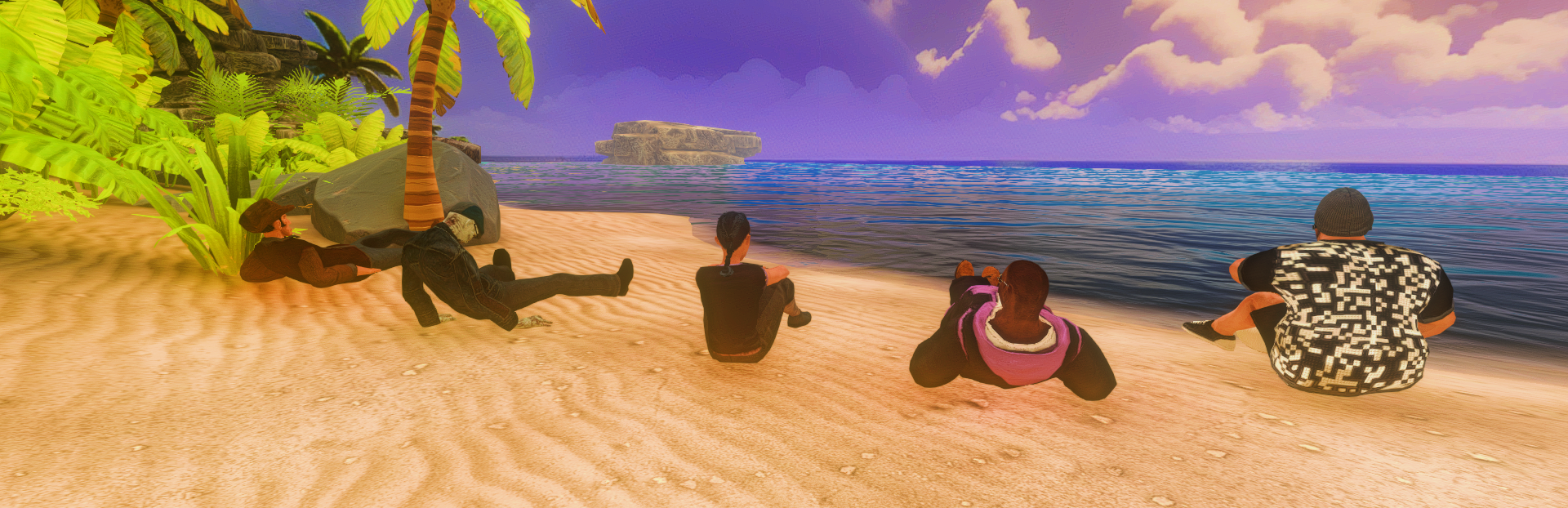 You can play as the pets - so to start you off there are 5 default pets you can spawn & play as from the classic set of AArcade NPCs: Hacker Haley, Fit Frank, Timbo Tyson, Cowboy Carl, and Zombie Joe.
They each now have unique idle, walk, run, and fall animations. (Plus swimming, dancing, & a few more.) So they are well suited to show you how the pet system works. But the real fun comes when you setup your own custom models to be pets.
You can play as the pets - so to start you off there are 5 default pets you can spawn & play as from the classic set of AArcade NPCs: Hacker Haley, Fit Frank, Timbo Tyson, Cowboy Carl, and Zombie Joe.
They each now have unique idle, walk, run, and fall animations. (Plus swimming, dancing, & a few more.) So they are well suited to show you how the pet system works. But the real fun comes when you setup your own custom models to be pets.
 Pets can be
 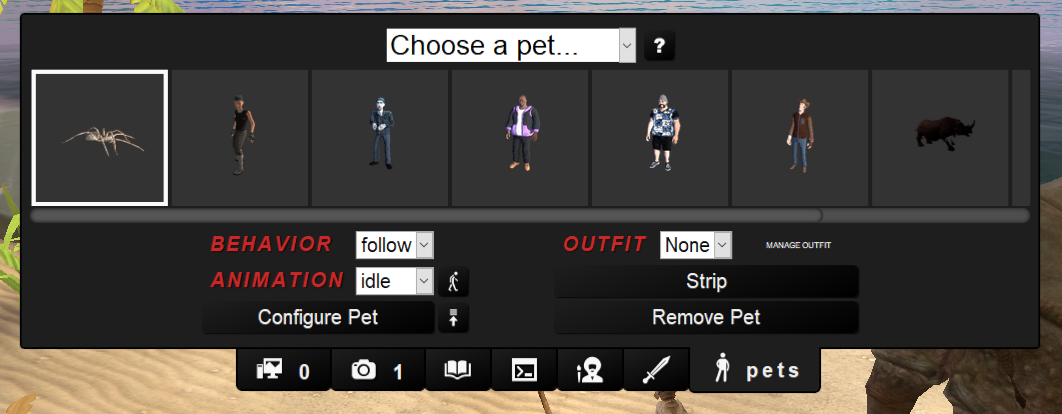 The F9 button is now the Pets Tab. It lets you switch between any pet you have living in your world wherever they are.
There is a ? help button there that has instructions on how to do various pet-related things.
You can have as many pets alive as you want, but keep in mind the entity limit per-world is 2048. (The status console command shows how many are used.)
The F9 button is now the Pets Tab. It lets you switch between any pet you have living in your world wherever they are.
There is a ? help button there that has instructions on how to do various pet-related things.
You can have as many pets alive as you want, but keep in mind the entity limit per-world is 2048. (The status console command shows how many are used.)
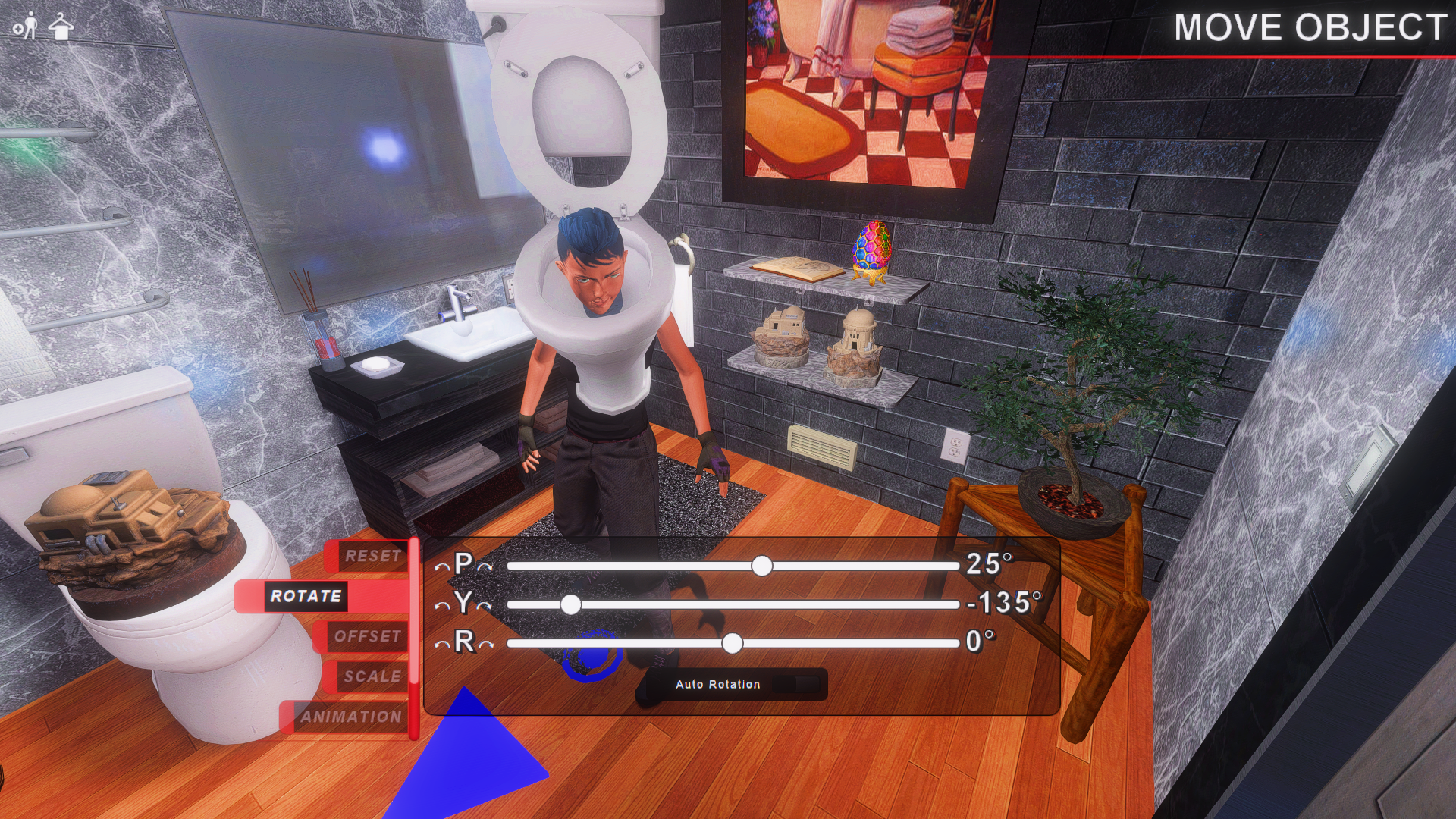 There is also a new Player Look-Spot Toggle command that shows an indicator in the world to help attaching things easier.
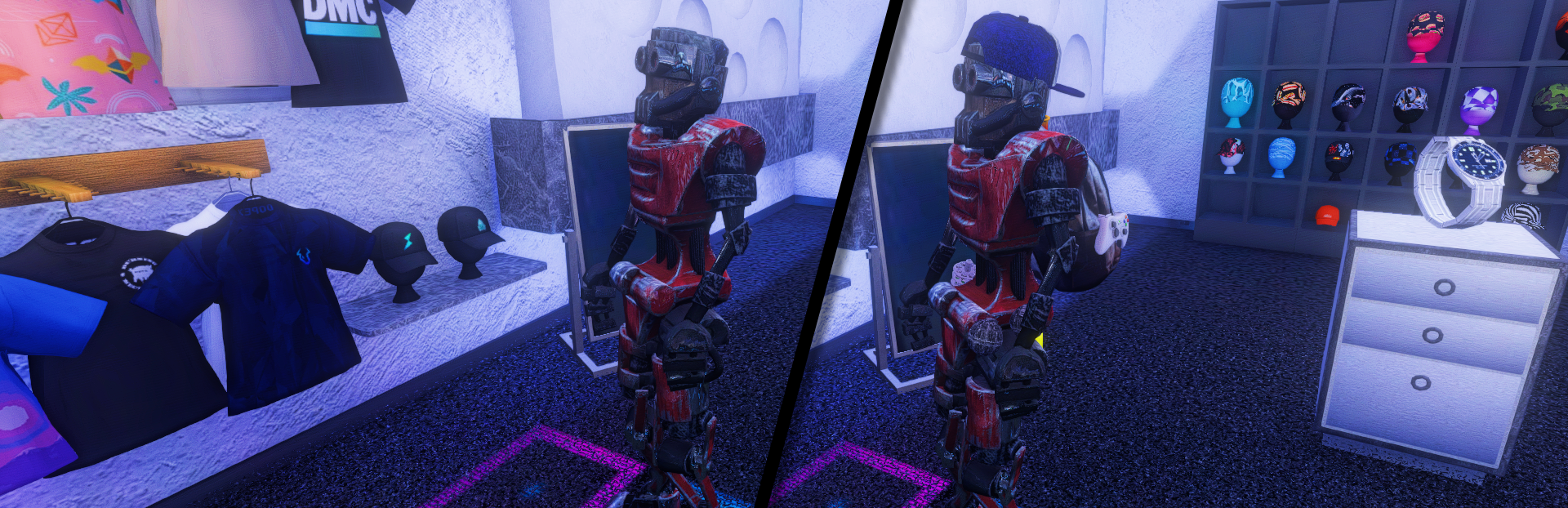 With Pet Persistence enabled (by default), it will remember which pets are alive in each world & the outfit they are wearing. And if you are playing as a pet, you take your pet & its saved outfit with you between worlds.
 For more help w/ pets, check the help button in the Pets Tab. And feel free to jump into the Anarchy Arcade Discord or Twitch streams if you have questions.
That's about summarizes it for pets. Note that pets are singleplayer-only for now; however, they are likely to become our main avatars in MP also in the future.
For more help w/ pets, check the help button in the Pets Tab. And feel free to jump into the Anarchy Arcade Discord or Twitch streams if you have questions.
That's about summarizes it for pets. Note that pets are singleplayer-only for now; however, they are likely to become our main avatars in MP also in the future.


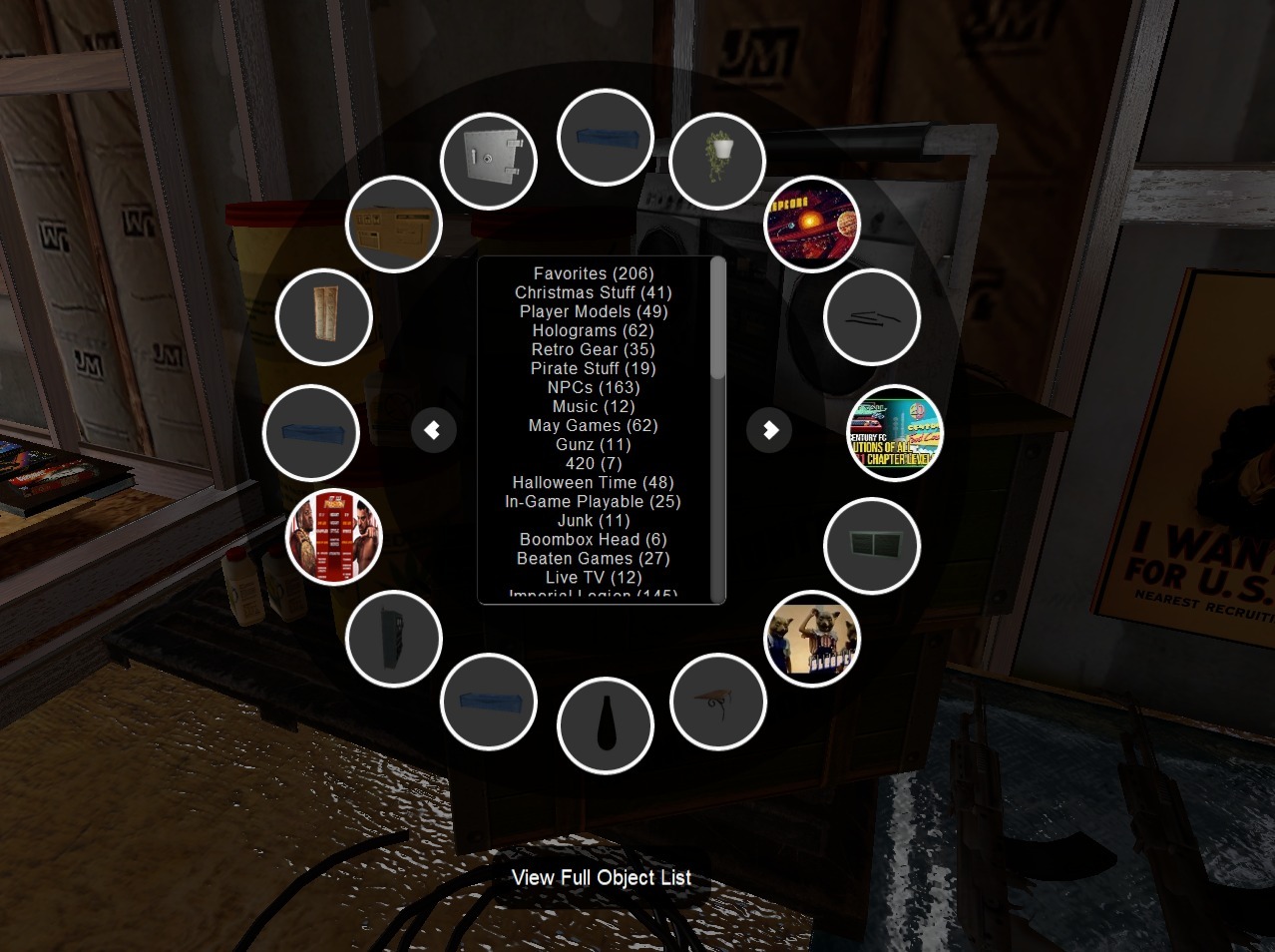


 The avatar images of other people are now fixed on the menus & in-game, so now you’ll once again be able to know who you’re lookin' at just by lookin' at 'em.
Singleplayer in our own worlds are where most of us spend our time, but you can always try clicking the small Multiplayer > Servers button on the main menu to find other worlds, or host your own world that you’re in.
ːfallingmanː When exploring as a multiplayer guest, remember to have patience as things load in. For the best experience, it’s good to not click the OK button until after it looks like all the objects have finished spawning in. And check your Transfers Tab (by holding down TAB button) to watch as custom assets load in - to understand where any lag might be coming from as you walk around. Sometimes re-joining the server after all the custom assets have transferred helps things sync up more accurately. ːilyː
The avatar images of other people are now fixed on the menus & in-game, so now you’ll once again be able to know who you’re lookin' at just by lookin' at 'em.
Singleplayer in our own worlds are where most of us spend our time, but you can always try clicking the small Multiplayer > Servers button on the main menu to find other worlds, or host your own world that you’re in.
ːfallingmanː When exploring as a multiplayer guest, remember to have patience as things load in. For the best experience, it’s good to not click the OK button until after it looks like all the objects have finished spawning in. And check your Transfers Tab (by holding down TAB button) to watch as custom assets load in - to understand where any lag might be coming from as you walk around. Sometimes re-joining the server after all the custom assets have transferred helps things sync up more accurately. ːilyː
 The menus for importing your Steam games are fixed and once again let you import your Steam collection in 1 large batch - or you could import just recent games instead.
You can access this feature by middle-clicking on an empty spot & choosing the Steam icon that’s underneath the search box.
Alternatively, you can still add your Steam games one-at-a-time instead by typing the game’s name into the search box BEFORE you click on the Steam icon & choose Steam Store.
And remember that you can spawn ANY game (ie. non-Steam games) by dragging & dropping their desktop shortcut into AArcade’s window while in walking around mode.
The menus for importing your Steam games are fixed and once again let you import your Steam collection in 1 large batch - or you could import just recent games instead.
You can access this feature by middle-clicking on an empty spot & choosing the Steam icon that’s underneath the search box.
Alternatively, you can still add your Steam games one-at-a-time instead by typing the game’s name into the search box BEFORE you click on the Steam icon & choose Steam Store.
And remember that you can spawn ANY game (ie. non-Steam games) by dragging & dropping their desktop shortcut into AArcade’s window while in walking around mode.
 Stickers let you apply a game’s Steam Achievement icon images - or your own custom PNGs - as decorations on the cabinet’s marquee surfaces.
You do this by going to an item’s Edit Item menu > Stickers tab. There it’ll show the default stickers available, and also instructions on how to add your own custom PNGs as stickers. (You should try to use low-resolution PNGs so they load quickly for you.)
In today’s update, you’ll be able to add up to 6 stickers per item (increased from 4.)
Stickers let you apply a game’s Steam Achievement icon images - or your own custom PNGs - as decorations on the cabinet’s marquee surfaces.
You do this by going to an item’s Edit Item menu > Stickers tab. There it’ll show the default stickers available, and also instructions on how to add your own custom PNGs as stickers. (You should try to use low-resolution PNGs so they load quickly for you.)
In today’s update, you’ll be able to add up to 6 stickers per item (increased from 4.)


 To mark an image as Always Animated, just look at its object and press the Always Animating Image button on the Commands tab!
This feature is still in phase 1, so it has a few bugs still, but is very usable & stable. If your GIFs start acting nuts, hold down TAB and close the Always Animating Images task. It will auto-reload the GIFs. The other limitation is that always animating images do not sync in Multiplayer yet. These will be improved in the future!
Happy Halloween everybody & have a great time! You are invited to join us in the Discord if you have questions or just want to show off something you've built. :) https://discord.gg/9FSCDuJ
To mark an image as Always Animated, just look at its object and press the Always Animating Image button on the Commands tab!
This feature is still in phase 1, so it has a few bugs still, but is very usable & stable. If your GIFs start acting nuts, hold down TAB and close the Always Animating Images task. It will auto-reload the GIFs. The other limitation is that always animating images do not sync in Multiplayer yet. These will be improved in the future!
Happy Halloween everybody & have a great time! You are invited to join us in the Discord if you have questions or just want to show off something you've built. :) https://discord.gg/9FSCDuJ
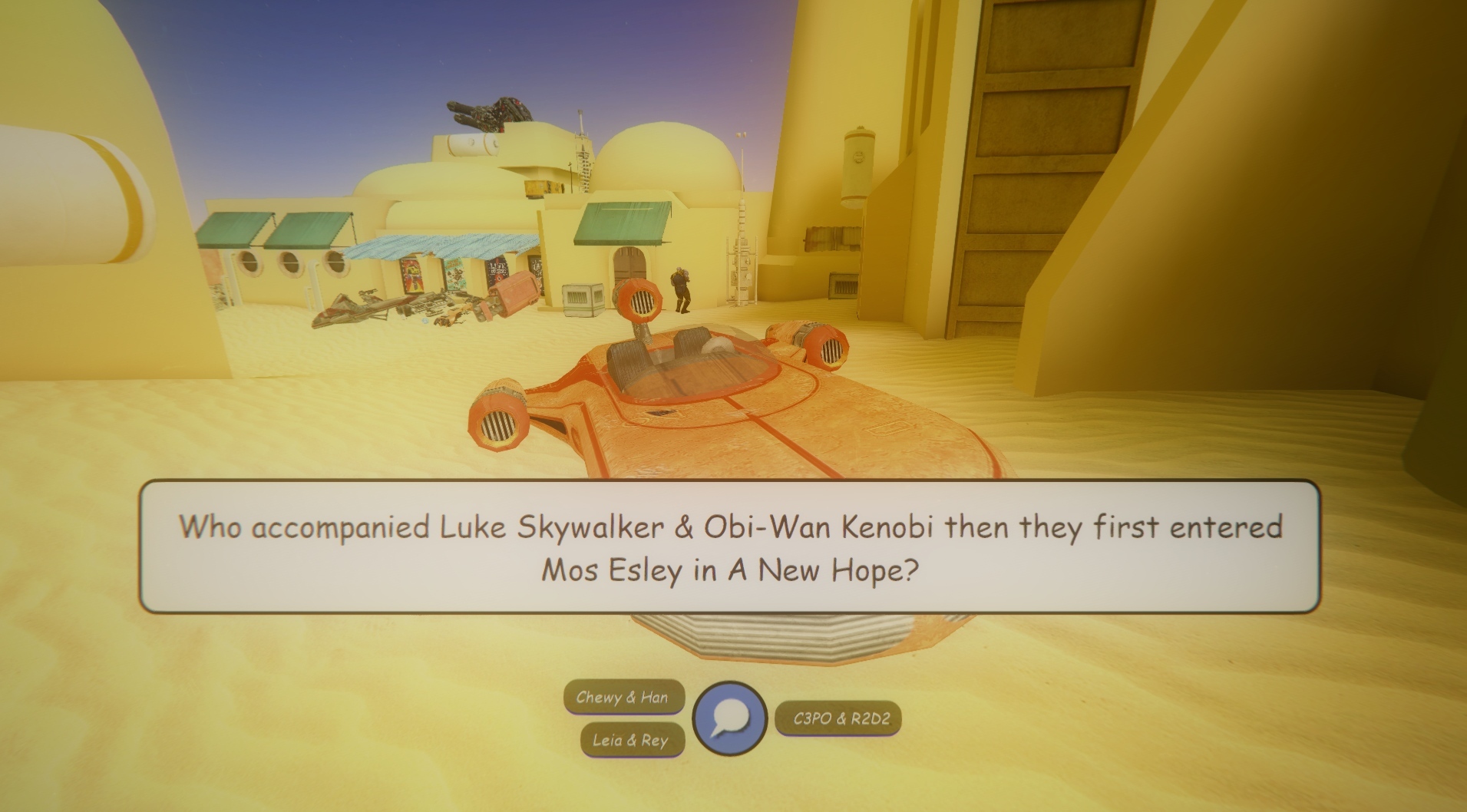 Gossip quests are the most versatile. When the player interacts with your quest object, they are given an interactive dialogue. Gossip quests can be used for talking to characters, interacting with terminals, or simply to provide commentary or inner monologue to the players.
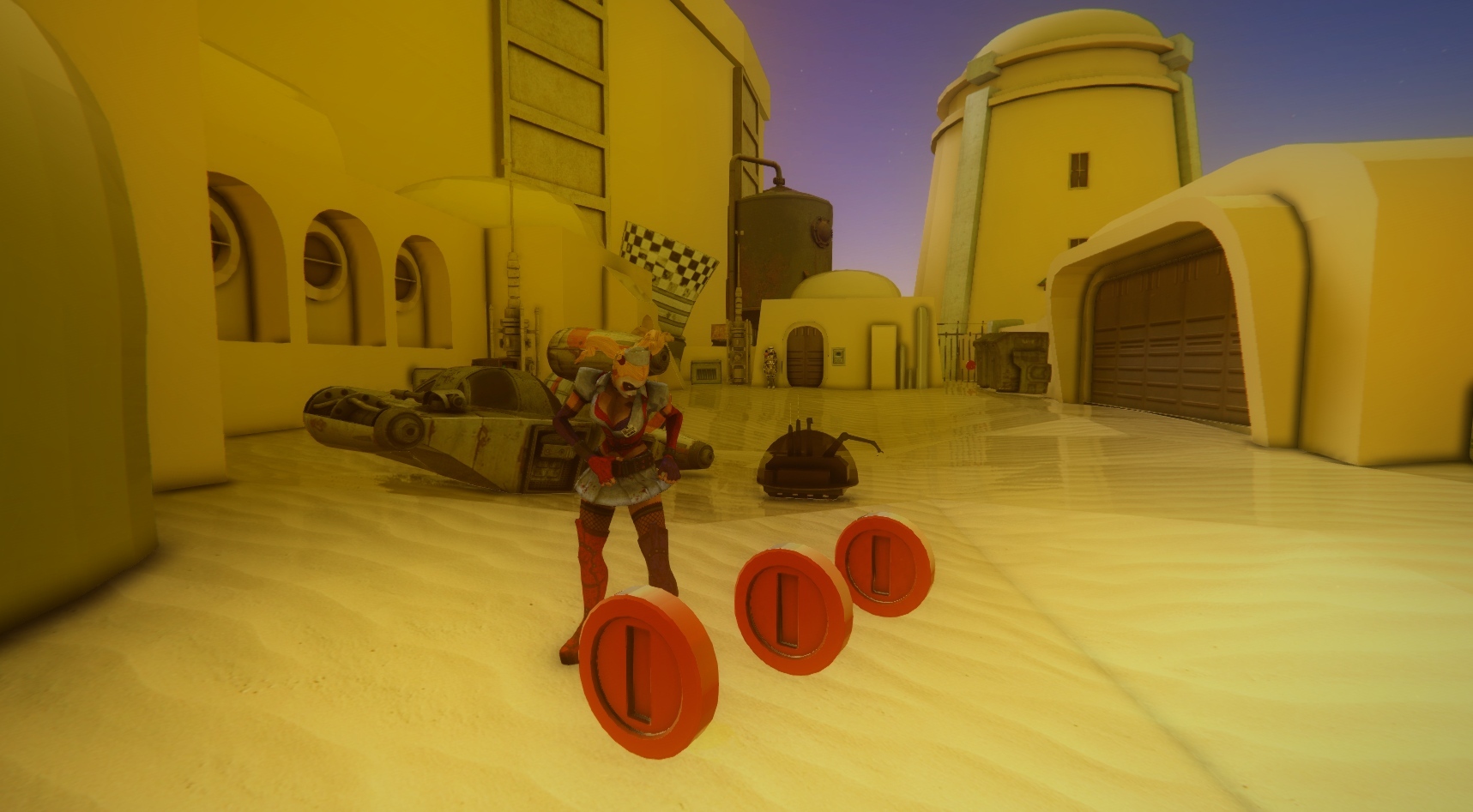 Collect Coins quests are exactly as you'd expect. Spawn a bunch of **any** model you want the player to collect. Then middle-click on any 1 of them, go to Advanced > Quest and choose the Collect Coins template.
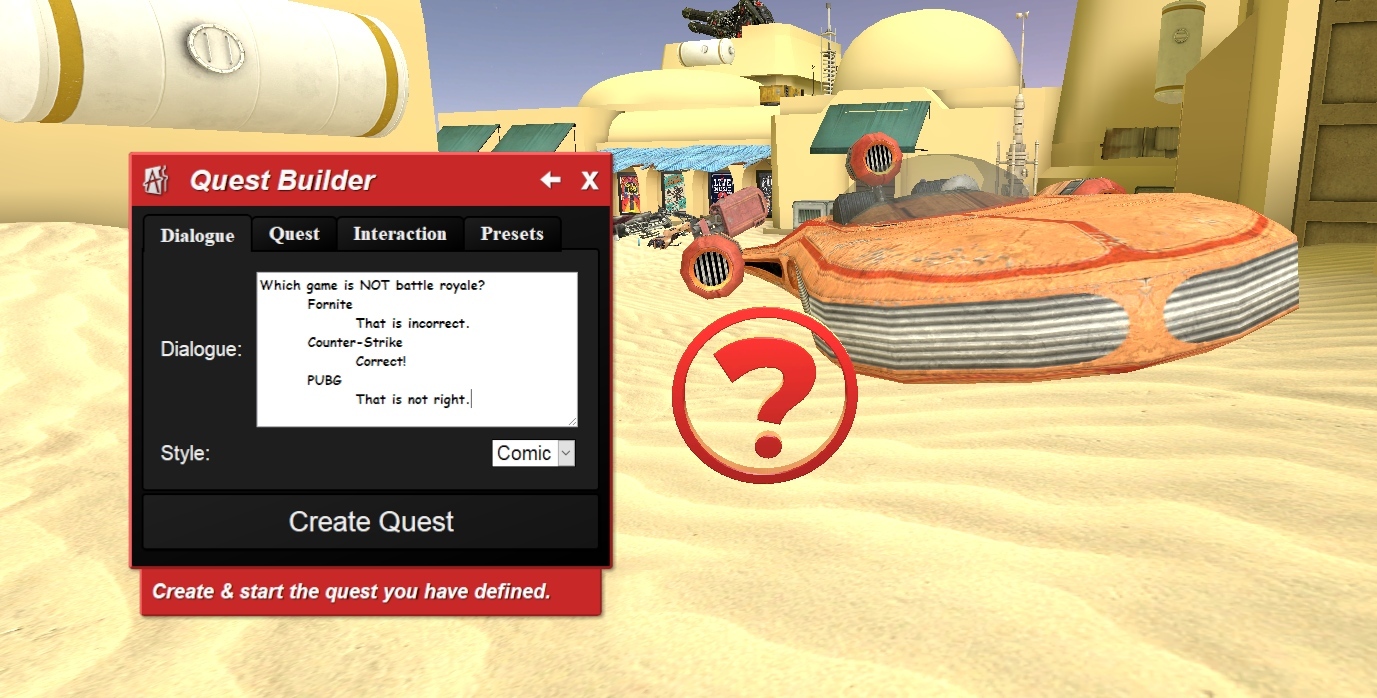 All quests support the new interactive dialogue system. These dialogues are easy to create. The top line is what starts off the dialogue. Lines that are tabbed in once are responses that the player can choose. Lines that are tabbed in twice are the next branch of dialogue that follows that choice. Nested dialogue branches, as well as jumping back up the dialogue tree, are also supported.
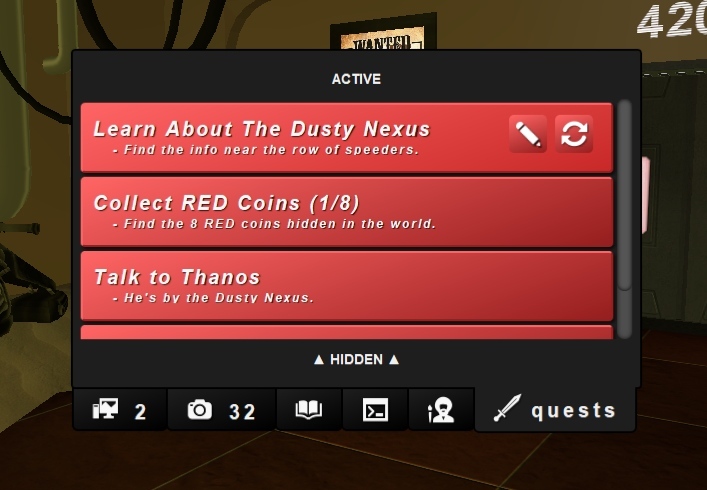 The Quest Tracker lets you see what quests are available in the world you are at, track your progress, and gives you hints on achieving the objectives. Hold down TAB and click on the Quests tab to access it.